1. Introduction
The Zyxel XGS1935-52 is a high-performance 48-port Gigabit Ethernet Smart Managed Switch designed for modern network environments. It features 4 10G SFP+ uplink slots, offering flexible high-bandwidth connectivity. This switch supports both standalone management via an intuitive web browser interface and cloud management through the Zyxel Nebula ecosystem, providing a unified network experience for wired, wireless, and security gateways. Its compact and quiet design makes it suitable for various work environments.
Key features include:
- Integrated 10G SFP+ uplinks for high-bandwidth applications.
- Nebula ecosystem for unified cloud network management.
- Standalone management with an intuitive web browser interface.
- User-friendly configuration wizard for VLAN, QoS, and link aggregation.
- Compact and quiet design for versatile deployment.
2. Setup
2.1 Unboxing and Included Components
Carefully unpack the switch and verify that all components are present. The package should contain:
- Zyxel XGS1935-52 Smart Managed Switch
- Power cable
- Rack mounting kit (if applicable, check packaging)
- Quick Start Guide (refer to this manual for detailed instructions)
2.2 Physical Installation
Choose a suitable location for the switch. Ensure adequate ventilation and maintain a stable operating temperature. The switch can be placed on a desktop or mounted in a standard 19-inch equipment rack using the provided mounting kit.
Desktop Placement: Place the switch on a flat, stable surface. Ensure there is enough space around the switch for proper airflow.
Rack Mounting: Attach the rack-mounting brackets to the sides of the switch using the screws provided. Secure the switch into the rack using appropriate rack screws.
2.3 Connecting the Switch
- Power Connection: Connect the power cable to the AC input port on the rear panel of the switch and then to a grounded power outlet.
- Network Connections: Connect your network devices (computers, servers, access points, etc.) to the Gigabit Ethernet ports (RJ45) on the front panel using standard Ethernet cables. For high-speed uplinks, insert compatible SFP+ transceivers into the 10G SFP+ slots and connect fiber optic cables as needed.

Figure 1: Rear panel of the Zyxel XGS1935-52 switch, illustrating the AC input port and grounding point for power connection.

Figure 2: Front view of multiple Zyxel switches, demonstrating the Gigabit Ethernet ports and 10GbE SFP+ uplink slots for flexible high-speed connections.
2.4 Initial Configuration Access
The switch can be managed in two primary modes: Standalone (local web GUI) or Hybrid Cloud (Zyxel Nebula).
- Standalone Mode: Connect a computer directly to any Ethernet port on the switch. Open a web browser and enter the default IP address (refer to the Quick Start Guide or Zyxel support website for the default IP). Log in with the default credentials to access the web management interface.
- Hybrid Cloud Mode (Nebula): Register your switch with the Zyxel Nebula cloud platform. This allows for centralized management of your network devices from anywhere. Refer to the Nebula documentation for detailed setup instructions.
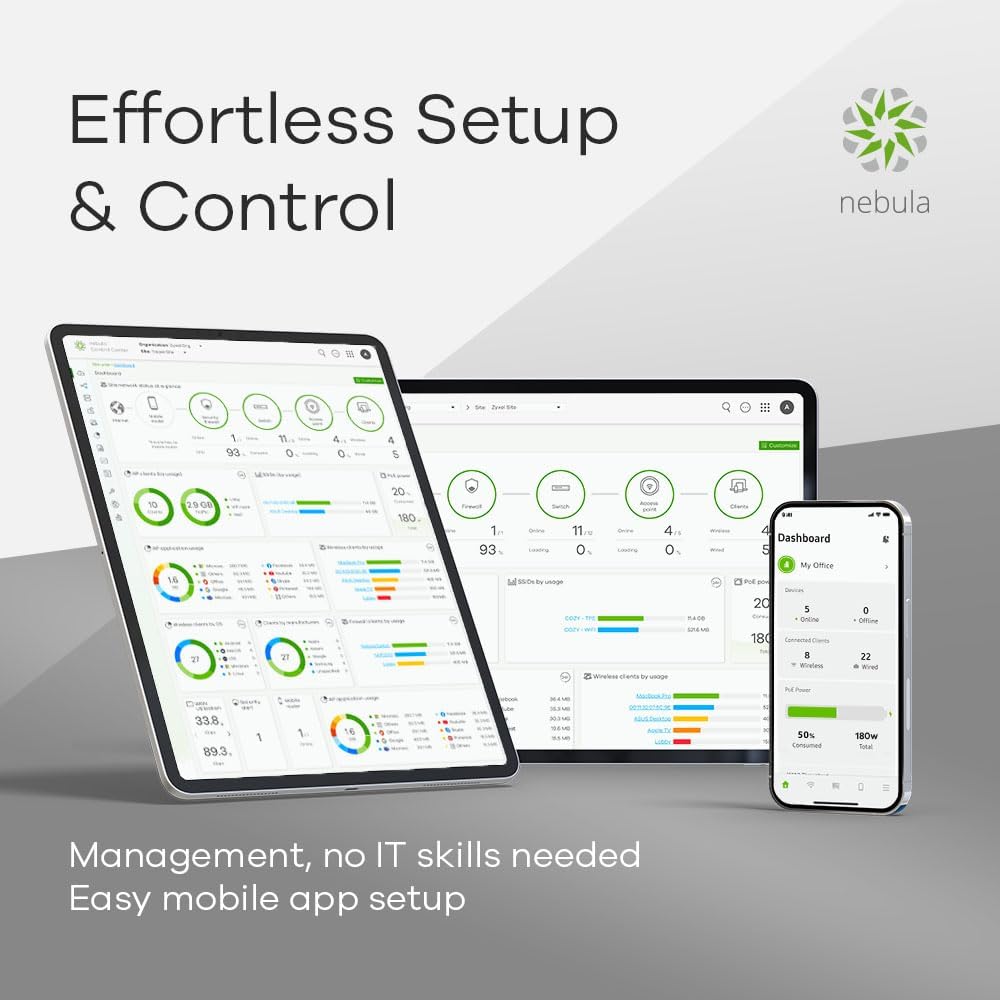
Figure 3: Nebula dashboard interface on a tablet and laptop, showcasing the cloud management capabilities for effortless setup and control.
3. Operating the Switch
3.1 Basic Operation
Once powered on, the switch will perform a self-test. The LED indicators on the front panel will show the status of the power, system, and individual ports. Refer to the LED status section in the full user guide for detailed explanations of each indicator.
3.2 Network Connectivity
The 48 Gigabit Ethernet ports provide high-speed connectivity for your wired devices. The 4 10G SFP+ slots are designed for high-bandwidth uplinks to core switches, servers, or other network segments requiring faster data transfer rates.
3.3 Smart Management Features
The Zyxel XGS1935-52 offers advanced management capabilities:
- Web Management Interface: Access the switch's web GUI for detailed configuration of network settings, port management, security features, and monitoring.
- Nebula Cloud Management: For centralized control and monitoring of multiple Zyxel devices, utilize the Nebula cloud platform. This allows for remote configuration, firmware updates, and network analytics.
- Configuration Wizard: An intuitive setup wizard simplifies complex configurations such as VLANs (Virtual Local Area Networks), QoS (Quality of Service), and Link Aggregation (LAG). This step-by-step process allows for quick and efficient network optimization.

Figure 4: The intuitive setup wizard on a laptop and tablet, demonstrating simplified configuration for VLAN and QoS settings.

Figure 5: The Zyxel switch in an office setting, highlighting its 375W power budget and 802.3at PoE+ support for powering compatible devices.
4. Maintenance
4.1 Firmware Updates
Regularly check the Zyxel support website for the latest firmware updates. Firmware updates can provide new features, performance improvements, and security patches. Follow the instructions provided with the firmware download for the update process. For Nebula-managed switches, firmware updates can often be managed directly through the Nebula cloud platform.
4.2 Cleaning
To maintain optimal performance, periodically clean the exterior of the switch with a soft, dry cloth. Do not use liquid or aerosol cleaners directly on the device. Ensure ventilation openings are free from dust and obstructions.
4.3 Environmental Considerations
Ensure the switch operates within its specified temperature and humidity ranges. Avoid exposing the device to direct sunlight, excessive heat, or moisture. The noiseless design contributes to stable operation in various environments.
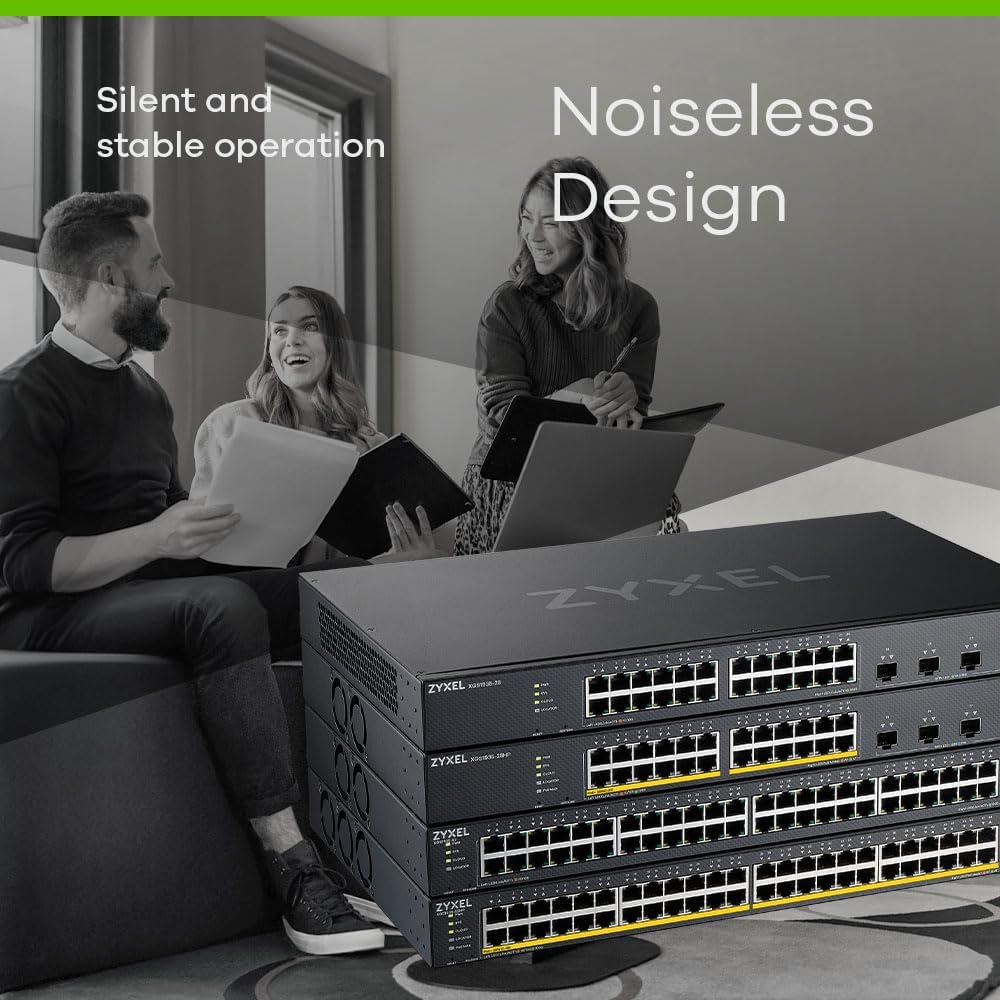
Figure 6: Zyxel switches in an office setting, illustrating their silent and stable operation, ideal for quiet work environments.
5. Troubleshooting
5.1 Common Issues and Solutions
- No Power: Ensure the power cable is securely connected to both the switch and the power outlet. Verify the power outlet is functional.
- No Network Connectivity: Check the Ethernet cables for secure connections. Verify the link/activity LEDs on the switch ports are illuminated. Ensure connected devices are powered on and configured correctly.
- Slow Performance: Check for network congestion. Verify duplex settings on connected devices. Ensure firmware is up to date. Consider using the 10G SFP+ uplinks for high-traffic segments.
5.2 LED Indicators
The front panel LEDs provide visual status of the switch. Consult the full product manual for a detailed description of each LED's behavior (e.g., solid green for link, blinking for activity, amber for specific status).
5.3 Resetting the Device
If the switch is unresponsive or you need to revert to factory default settings, a reset option is available. Refer to the full user manual for instructions on performing a factory reset, as this will erase all custom configurations.
6. Specifications
| Feature | Specification |
|---|---|
| Brand | ZYXEL |
| Model Number | XGS1935-52 |
| Number of Ports | 48 Gigabit Ethernet, 4 10G SFP+ |
| Included Components | Power cable |
| Color | Black |
| Compatible Devices | Desktop, Laptop, Printer |
| Interface | RJ45, SFP+ |
| Data Transfer Rate | 1000 Megabits Per Second (Gigabit Ethernet) |
| Switch Type | Managed |
| Platform | Zeta (Nebula Cloud) |
| Case Material Type | Plastic |
| Item Weight | 5038 Grams |
| Manufacturer | ZYXEL |
7. Warranty and Support
7.1 Product Warranty
Zyxel products typically come with a limited warranty. Please refer to the warranty card included with your product or visit the official Zyxel website for detailed warranty terms and conditions specific to your region and product model.
7.2 Technical Support
For technical assistance, troubleshooting, or further inquiries, please visit the official Zyxel support website. The website provides access to FAQs, knowledge bases, driver downloads, and contact information for technical support representatives.
Zyxel Support Website: www.zyxel.com/support


