
1. Introduction
This manual provides essential instructions for setting up, operating, and maintaining your Panasonic TV-50W80AEZ 50-inch 4K QLED Smart TV. Please read this manual thoroughly before using your television and retain it for future reference.
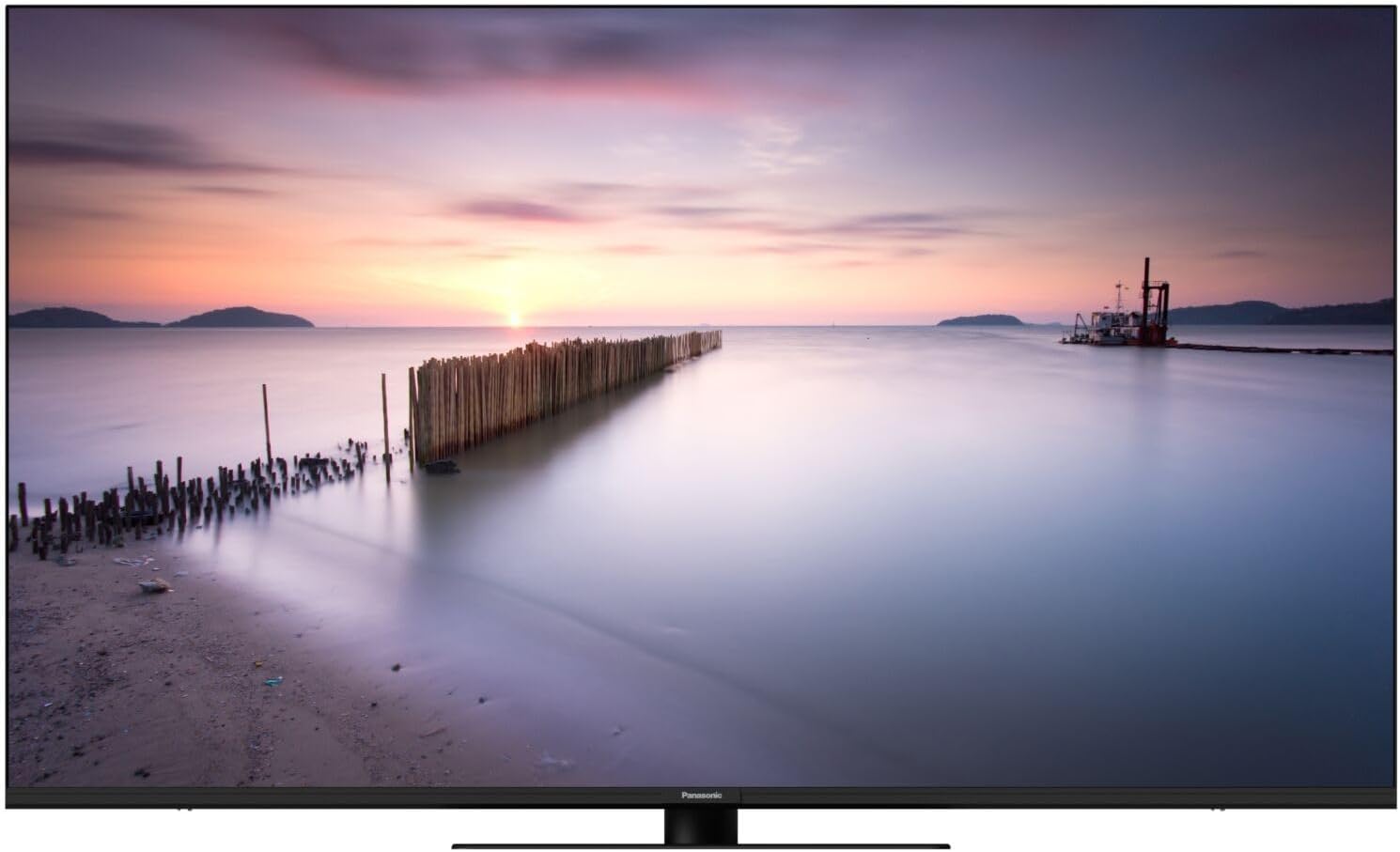
Image 1.1: The Panasonic TV-50W80AEZ showcasing a high-quality display of a sunset over water.
The Panasonic TV-50W80AEZ is a 4K QLED television featuring integrated Fire TV and a Quantum Dot Filter panel, designed to deliver high-quality image and sound. It includes advanced features such as the HCX Processor for realistic visuals, multi-HDR compatibility (Dolby Vision, HLG, HDR10, HDR10+), Surround Sound Pro with Dolby Atmos, Game Mode Plus for enhanced gaming, Alexa voice control, and AirPlay for seamless content sharing.
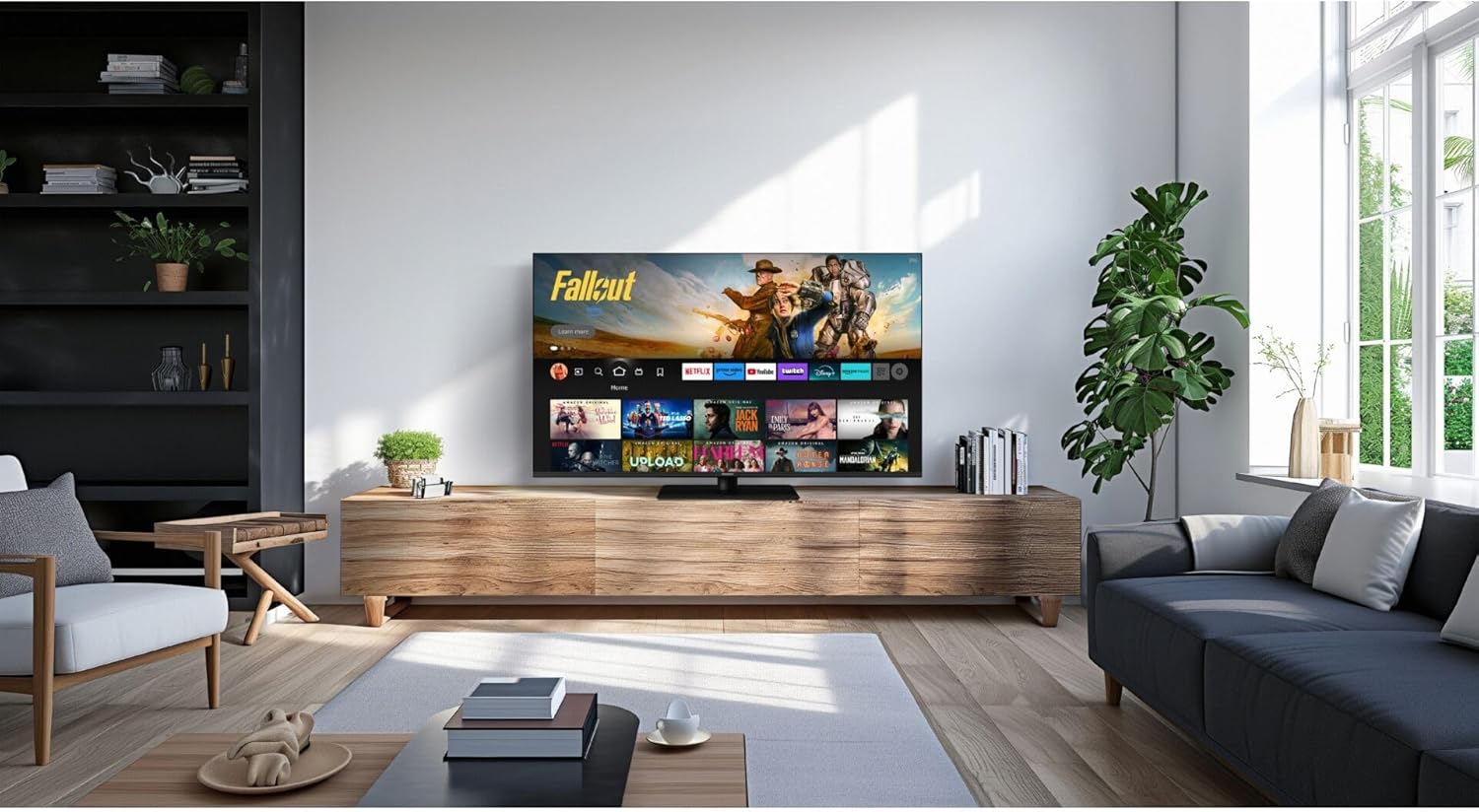
Image 1.2: The Panasonic TV-50W80AEZ integrated into a modern living room environment, demonstrating its aesthetic appeal.
2. Safety Information
Please observe the following safety precautions to prevent damage to the television and ensure your safety:
- Do not expose the television to rain or moisture.
- Ensure proper ventilation around the television to prevent overheating.
- Do not block ventilation openings with items such as newspapers, tablecloths, or curtains.
- Avoid placing the television on unstable surfaces.
- Disconnect the power cord from the wall outlet during lightning storms or when unused for long periods.
- Do not open the television casing; refer all servicing to qualified personnel.
- Keep batteries away from children and dispose of them properly.
3. Package Contents
Verify that all items are present in the packaging:
- Panasonic TV-50W80AEZ 50-inch 4K QLED Smart TV
- Remote Control
- AAA Batteries (2 included for remote control)
- Power Cord
- Table-Top Stand (if applicable)
- Quick Start Guide
- Safety Information Leaflet
4. Setup
4.1 Physical Installation
You can install your TV using the included table-top stand or a compatible VESA wall mount (sold separately).
4.1.1 Attaching the Table-Top Stand
- Place the TV face down on a soft, clean surface to prevent screen damage.
- Align the stand with the mounting holes on the bottom of the TV.
- Secure the stand using the screws provided. Ensure all screws are tightened firmly.
4.1.2 Wall Mounting
If wall mounting, refer to the instructions provided with your wall mount bracket. Ensure the bracket is compatible with the TV's VESA mounting pattern and weight.
4.2 Connecting Devices
Connect your external devices to the TV's ports:
- HDMI: Connect Blu-ray players, game consoles, or set-top boxes to the HDMI ports. This TV supports HDMI 2.1 features like ALLM and VRR for gaming.
- USB: Use the two USB ports for connecting USB storage devices for media playback or software updates.
- Power: Connect the power cord to the TV's power input and then to a wall outlet.
- Network: Connect to your home network via Wi-Fi or an Ethernet cable (not included) for internet services.
4.3 Initial Power On and Configuration
- Plug the TV into a power outlet.
- Press the power button on the remote control or the TV.
- Follow the on-screen instructions to select your language, country, and connect to your Wi-Fi network.
- Log in to your Amazon account to activate Fire TV and access streaming services.
- Perform a channel scan if you are connecting an antenna or cable.
5. Operating the Television
5.1 Remote Control Overview
The included remote control allows you to navigate the Fire TV interface, adjust settings, and control playback. Insert the two AAA batteries into the remote control, ensuring correct polarity.
5.2 Navigating Fire TV
The integrated Fire TV provides an intuitive home screen with personalized recommendations and access to various streaming applications.

Image 5.1: The Fire TV interface on the Panasonic TV-50W80AEZ, showing various streaming service icons and content recommendations.
- Use the directional pad on the remote to navigate menus and select items.
- Press the Home button to return to the Fire TV home screen.
- Access popular streaming services like Netflix, Hulu, and Amazon Prime Video directly from the home screen.
- Create up to 6 user profiles for personalized content recommendations.
5.3 Smart Features
5.3.1 Alexa Voice Control
Use the built-in Alexa voice control by pressing the microphone button on your remote. You can ask Alexa to:
- Launch apps (e.g., "Alexa, open Netflix").
- Search for content (e.g., "Alexa, find action movies").
- Control playback (e.g., "Alexa, pause").
- Adjust TV settings (e.g., "Alexa, turn up the volume").
5.3.2 AirPlay
AirPlay allows you to share content from your Apple devices (iPhone, iPad, Mac) directly to your TV. Ensure both your Apple device and the TV are connected to the same Wi-Fi network.
5.4 Picture and Sound Settings
Access the TV's settings menu to customize picture and sound to your preference.
- HCX Processor: This processor optimizes contrast, clarity, and color for a realistic viewing experience.
- HDR Compatibility: The TV supports Dolby Vision, HLG, HDR10, and HDR10+ for enhanced brightness and contrast with compatible content.
- Surround Sound Pro & Dolby Atmos: Experience immersive audio with these technologies, bringing a cinematic sound experience to your home.
5.5 Gaming Features
The TV-50W80AEZ includes Game Mode Plus for an optimized gaming experience:
- ALLM (Auto Low Latency Mode) HDMI 2.1: Automatically switches to a low-latency mode when a game console is detected.
- VRR (Variable Refresh Rate): Reduces screen tearing and stuttering for smoother gameplay.
- Dolby Vision HDR Gaming: Provides enhanced visual detail and color for compatible HDR games.
6. Maintenance
6.1 Cleaning the TV
- Always unplug the TV before cleaning.
- Use a soft, dry cloth to wipe the screen and cabinet.
- For stubborn marks, lightly dampen the cloth with water or a mild, non-abrasive screen cleaner. Do not spray cleaner directly onto the screen.
- Avoid using alcohol, benzene, thinners, or other volatile substances.
6.2 Software Updates
Ensure your TV is connected to the internet to receive automatic software updates. Updates provide new features, performance improvements, and security enhancements. You can also manually check for updates in the TV's settings menu.
7. Troubleshooting
If you encounter issues with your TV, refer to the following common solutions:
| Problem | Possible Solution |
|---|---|
| No power | Check if the power cord is securely plugged into the TV and the wall outlet. Try a different outlet. |
| No picture, but sound is present | Ensure the correct input source is selected. Check cable connections to external devices. |
| No sound, but picture is present | Check the volume level and mute status. Verify audio settings and external speaker connections. |
| Remote control not working | Replace the batteries. Ensure there are no obstructions between the remote and the TV. |
| Cannot connect to Wi-Fi | Restart your router and modem. Check Wi-Fi password. Ensure the TV is within range of the router. |
| Fire TV interface is slow or unresponsive | Restart the TV by unplugging it for 30 seconds and plugging it back in. Clear app caches in Fire TV settings. |
If the problem persists after trying these solutions, please contact customer support.
8. Specifications
| Feature | Detail |
|---|---|
| Brand | Panasonic |
| Model Number | TV-50W80AEZ |
| Screen Size | 50 Inches |
| Display Technology | QLED (LED with Quantum Dot Filter) |
| Resolution | 4K Ultra HD (3840 x 2160) |
| Refresh Rate | 60 Hz |
| HDR Support | Dolby Vision, HLG, HDR10, HDR10+ |
| Processor | HCX Processor |
| Audio Technology | Surround Sound Pro, Dolby Atmos |
| Smart TV Platform | Fire TV Built-in |
| Voice Assistant | Alexa Voice Control |
| Wireless Connectivity | Wi-Fi, Bluetooth, AirPlay |
| Ports | HDMI (multiple), USB (2 ports) |
| Included Components | Remote Control (with 2 AAA batteries) |
| Product Dimensions (W x H x D) | 111.1 x 64.4 x 23 cm (with stand) |
| Color | Black |
9. Warranty and Support
For warranty information, please refer to the warranty card included with your product or visit the official Panasonic website for your region. For technical support, troubleshooting assistance beyond this manual, or service inquiries, please contact Panasonic customer support.
You can typically find contact details for customer support on the Panasonic website or in the documentation provided with your television.