
Power Probe PPDRAWCBINT
Power Probe PPDRAW Automotive Battery Voltage and Parasitic Draw Monitor
Model: PPDRAWCBINT
Brand: Power Probe
Introduction
The Power Probe PPDRAW is an advanced automotive tool designed to monitor car battery voltage and parasitic current draw. It connects directly to your vehicle's 16-pin OBDII connector, providing a stable 12V power supply to prevent data loss during battery replacement. This device features a graphing mode for in-depth electrical system analysis, displaying voltage and amperage as a waveform. Equipped with a rechargeable high-capacity lithium-ion battery and USB-C charging, it also includes a multi-color TFT display for clear readings. Adjustable current output alarms and auto power-off settings are integrated to safeguard your vehicle's electrical system. Real-time data can be viewed and recorded via Bluetooth using the Power Probe Link app, enhancing performance tracking and diagnostic capabilities.

Image: The Power Probe PPDRAW device, a red and black handheld unit with a display and control buttons, connected to an OBDII cable.
Key Features

Image: An annotated diagram highlighting the key features of the PPDRAW, including the 16-pin OBDII connector, Smart Output, Real-Time Data with Bluetooth Integration, Graphing Mode, Rechargeable Lithium-ion Battery (USB-C charging), and Settings/Adjustable Current Output Alarm.
- Battery Voltage and Parasitic Draw Monitoring: Accurately monitors car battery voltage and parasitic current draw for comprehensive diagnostics.
- OBDII Connection: Connects via a 16-pin OBDII connector to supply 12V power, preventing data loss during battery replacements.
- Graphing Mode: Displays voltage and amperage as a waveform for in-depth electrical system analysis.
- Rechargeable Battery: Features a high-capacity lithium-ion battery with convenient USB-C charging.
- Multi-color TFT Display: Provides clear and easy-to-read information.
- Adjustable Alarms: Includes adjustable current output alarm and auto power-off settings to protect the vehicle’s electrical system.
- Bluetooth Connectivity: Allows viewing and recording of real-time data via the Power Probe Link app for enhanced performance tracking.
What's Included
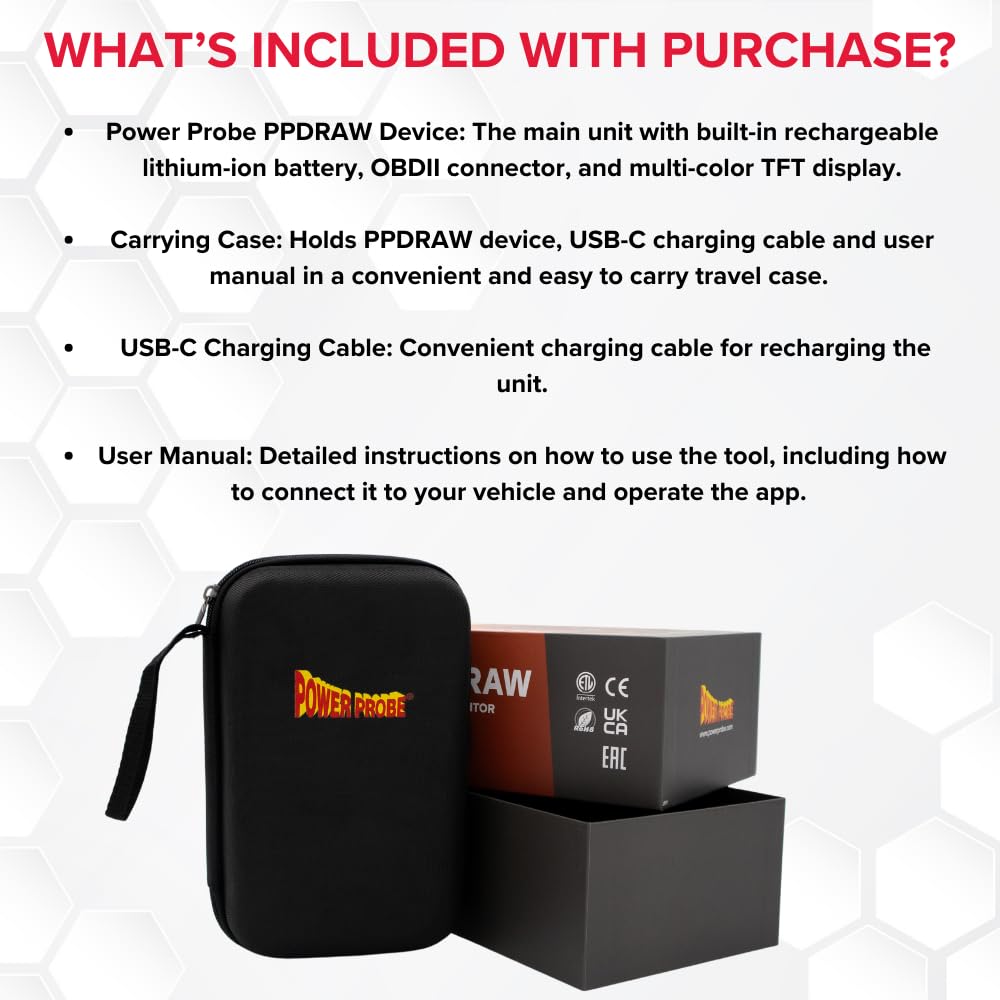
Image: The Power Probe PPDRAW device, its carrying case, and USB-C charging cable, displayed alongside its packaging.
- Power Probe PPDRAW Device: The main unit with built-in rechargeable lithium-ion battery, OBDII connector, and multi-color TFT display.
- Carrying Case: A convenient travel case designed to hold the PPDRAW device, USB-C charging cable, and user manual.
- USB-C Charging Cable: For recharging the unit.
- User Manual: Detailed instructions on how to use the tool, including connection to your vehicle and app operation.
Safety and Hazard Information

Image: A red box containing important safety and hazard information for the PPDRAW device.
- Ensure the device is used only with vehicles that comply with standard 12V electrical systems to prevent damage to the tool or the vehicle.
- Avoid dropping the device or exposing it to extreme temperatures, moisture, or chemicals.
- This tool is designed for use with vehicles equipped with an OBDII connector and a 12V electrical system. Misuse may lead to inaccurate readings or potential damage.
- As the tool interacts directly with the vehicle's electrical system, ensure that the OBDII port and connections are free of corrosion or debris to avoid electrical shorts or poor connectivity.
- Always recharge using the included USB-C cable. Avoid charging in extreme conditions (e.g., high heat, wet environments) to prolong the life of the rechargeable lithium-ion battery.
Setup and Operation

Image: A hand holding the PPDRAW device, showing its display and buttons, with text overlaying step-by-step usage instructions.
- Power On: Press and hold the power button to turn on the PPDRAW device.
- Connect to OBDII: Plug the PPDRAW OBDII cable into your vehicle's OBDII port. Verify that the battery voltage displays on the PPDRAW. If no voltage appears, check the OBD fuse or the connection.
- Activate Smart Output: Press the "Smart Output" button on the PPDRAW. An arrow on the display will confirm power transfer from the PPDRAW to the vehicle.
- Disconnect Vehicle Battery (for Parasitic Draw): For accurate parasitic draw readings, disconnect the vehicle's battery. Ensure all vehicle doors are closed and lights are off to allow modules to enter sleep mode.
- Reconnect Battery: After completing your testing, reconnect the vehicle's battery before disabling Smart Output or disconnecting the PPDRAW.
Note: Follow these steps carefully to avoid power interruptions. The PPDRAW can also serve as a memory saver during battery replacements by maintaining power to the vehicle's systems.
Bluetooth App Integration
The Power Probe Link app allows you to view and record real-time data from the PPDRAW device via Bluetooth. Refer to the app's instructions for detailed pairing and data logging procedures.
Maintenance
- Charging: Regularly charge the PPDRAW device using the provided USB-C cable to ensure it is ready for use. Avoid overcharging or completely draining the battery for optimal lifespan.
- Cleaning: Keep the device clean and free of dust, dirt, and moisture. Use a soft, dry cloth for cleaning. Do not use abrasive cleaners or solvents.
- Storage: Store the PPDRAW in its carrying case in a cool, dry place away from direct sunlight and extreme temperatures when not in use.
- Cable Inspection: Periodically inspect the OBDII cable and USB-C charging cable for any signs of wear, damage, or fraying. Replace damaged cables immediately.
Troubleshooting
| Problem | Possible Cause | Solution |
|---|---|---|
| Device does not power on. | Low battery or power button not held long enough. | Charge the device using the USB-C cable. Ensure the power button is pressed and held until the display activates. |
| No voltage displayed after connecting to OBDII. | Vehicle's OBD fuse is blown or poor connection. | Check the vehicle's OBDII fuse. Ensure the PPDRAW cable is securely connected to the OBDII port. Inspect the port for debris or corrosion. |
| Inaccurate parasitic draw readings. | Vehicle modules not in sleep mode or incorrect battery disconnection. | Ensure all vehicle doors are closed, lights are off, and sufficient time has passed for modules to enter sleep mode before disconnecting the battery. Follow the parasitic draw procedure carefully. |
| Bluetooth connection issues. | Device not in pairing mode, app issues, or interference. | Ensure Bluetooth is enabled on both the PPDRAW and your mobile device. Restart the PPDRAW and the Power Probe Link app. Check for app updates. |
Specifications
| Attribute | Detail |
|---|---|
| Product Dimensions | 9.95 x 7.5 x 3 inches |
| Item Model Number | PPDRAWCBINT |
| Batteries | 1 Lithium Ion battery (included) |
| Manufacturer | Power Probe |
| Brand | Power Probe |
| Power Source | Battery Powered |
| Style | Battery Tester |
| Color | Red |
| Item Weight | 2.6 Pounds |
Warranty and Support
For warranty information, technical support, or service inquiries regarding your Power Probe PPDRAW device, please refer to the official Power Probe website or contact their customer service directly. Contact details are typically provided in the packaging or on the manufacturer's website.
You can visit the Power Probe Store on Amazon for more information and product resources.
Related documentsPPDRAWCBINT


Ask a question about this manual
Ask about setup, troubleshooting, compatibility, parts, safety, or missing instructions. Manuals+ will review the question and use this page’s manual context to help answer it.