
Introduction
Welcome to the user manual for your new POZZI Turbo smartphone. This guide provides essential information on setting up, operating, maintaining, and troubleshooting your device. The POZZI Turbo is a 4G LTE unlocked smartphone featuring a 6.79-inch HD+ display, 128GB internal storage, 6GB RAM, a 50MP AI camera, and a 5,000 mAh battery, running on Android 14.
Package Contents
Please verify that all items are present in your product box:
- POZZI Turbo Mobile Phone
- Power Adapter
- Earpiece (Headset)
- Lithium Polymer Battery (pre-installed)
- Type-C Cable
- SIM Tray Ejector Pin
- Safety Information Guide
- Quick Start Guide
- Protective Case
- Screen Protector

Image: POZZI Turbo smartphone with its power adapter, USB-C cable, and protective case.
Setup
1. Inserting SIM Cards and MicroSD Card
- Locate the SIM tray on the side of your phone.
- Insert the SIM tray ejector pin into the small hole next to the tray and press gently until the tray pops out.
- Place your Nano SIM card(s) into the designated slots. The POZZI Turbo supports dual Nano SIM cards.
- If you wish to expand storage, insert a MicroSD card (sold separately, up to 512GB) into its dedicated slot on the tray.
- Carefully reinsert the tray into the phone.

Image: Illustration of dual Nano SIM card slots and 4G network compatibility.
2. Charging the Device
- Connect the Type-C cable to the charging port at the bottom of the phone.
- Connect the other end of the cable to the power adapter, then plug the adapter into a wall outlet.
- Allow the phone to charge fully before initial use. The battery indicator on the screen will show charging status.
3. Powering On and Initial Setup
- Press and hold the Power button (usually on the right side) until the POZZI logo appears.
- Follow the on-screen prompts to select your language, connect to a Wi-Fi network, and set up your Google account.
Operating Instructions
Display and Navigation
The POZZI Turbo features a 6.79-inch HD+ display. Navigate through the interface using touch gestures: tap to select, swipe to scroll, pinch to zoom. The Android 14 operating system provides an intuitive user experience.

Image: Front view of the POZZI Turbo smartphone showcasing its HD+ display and user interface.
Camera Usage
Your device is equipped with a 50MP AI camera system.
- Open the Camera application from your home screen or app drawer.
- Select your desired mode (Photo, Video, Portrait, etc.).
- Tap the screen to focus on a subject.
- Press the shutter button to capture photos or start/stop video recording.
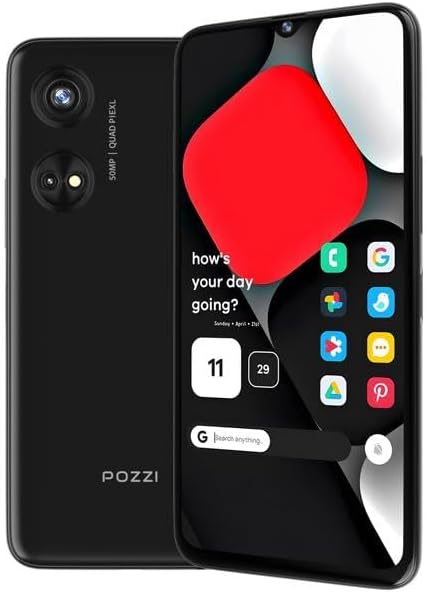
Image: Rear view of the POZZI Turbo smartphone highlighting the 50MP camera system.
Connectivity
- Mobile Data: Ensure your SIM card is active and mobile data is enabled in Settings > Network & internet > Mobile network.
- Wi-Fi: Connect to Wi-Fi networks via Settings > Network & internet > Wi-Fi.
- Bluetooth: Pair with Bluetooth devices in Settings > Connected devices > Bluetooth.
- Hotspot: Share your phone's internet connection by enabling Mobile Hotspot in Settings > Network & internet > Hotspot & tethering.
Battery Management
The 5,000 mAh battery provides extended usage. To optimize battery life, adjust screen brightness, disable unused features like Bluetooth or GPS when not needed, and close background applications.
Maintenance
Software Updates
Regularly check for and install software updates to ensure optimal performance and security. Go to Settings > System > System update.
Cleaning Your Device
Use a soft, lint-free cloth to clean the screen and body of your phone. Avoid harsh chemicals or abrasive materials.
Storage Management
To manage your 128GB internal storage and any installed MicroSD card, go to Settings > Storage. You can free up space by deleting unnecessary files, uninstalling apps, or moving media to cloud storage.
Troubleshooting
| Issue | Possible Solution |
|---|---|
| Phone does not power on | Ensure the battery is charged. Connect the phone to the charger for at least 30 minutes, then try powering on again. |
| Poor network signal | Check if your SIM card is properly inserted. Move to an area with better network coverage. Verify your carrier's compatibility (T-Mobile LTE and Wi-Fi Calling networks are supported). |
| Battery drains quickly | Reduce screen brightness, disable Wi-Fi/Bluetooth/GPS when not in use, close background apps, and check for power-intensive apps in Battery settings. |
| Apps are slow or unresponsive | Close unused applications. Restart the phone. Clear app cache (Settings > Apps > [App Name] > Storage & cache > Clear cache). |
| Cannot connect to Wi-Fi | Ensure Wi-Fi is enabled. Restart your phone and Wi-Fi router. Re-enter the Wi-Fi password. |
For further assistance, please refer to the Warranty and Support section.
Specifications
| Model Name | Turbo |
| Operating System | Android 14 |
| Display Size | 6.79 Inches HD+ |
| Resolution | 720 x 1440 |
| Processor | Octa-Core |
| RAM | 6 GB |
| Internal Storage | 128 GB |
| Expandable Storage | Up to 512GB via MicroSD (sold separately) |
| Rear Camera | 50MP AI |
| Battery Capacity | 5000 mAh |
| Connectivity | 4G LTE/VoLTE (Bands 2/3/4/5/7/12/17/28AB/66/71), Wi-Fi |
| SIM Type | Dual Nano SIM |
| Audio Jack | 3.5 mm |
| Item Weight | 15.8 ounces |
Warranty and Support
The POZZI Turbo smartphone comes with a 12-month warranty from the date of purchase. This warranty covers manufacturing defects and ensures your device meets quality standards.
For technical support, troubleshooting assistance, or warranty claims, please contact POZZI customer service. Round-the-clock customer service is available to assist you.
- Online Support: Visit the official POZZI website for FAQs and support resources.
- Contact Information: Refer to the Quick Start Guide or Safety Information included in your package for specific contact details.
- POZZI Store: You can also find more information and support on the POZZI Store on Amazon.