
WCFHS XDWIFI
WCFHS Smallest Wireless WiFi Battery Camera User Manual
Model: XDWIFI
Introduction
This user manual provides comprehensive instructions for the setup, operation, maintenance, and troubleshooting of your WCFHS Smallest Wireless WiFi Battery Camera, Model XDWIFI. Please read this manual thoroughly before using the device to ensure proper functionality and safety.

Figure 1: WCFHS Smallest Wireless WiFi Battery Camera and its application.
Package Contents
Verify that all items listed below are included in your package. If any items are missing or damaged, please contact customer support.
- 1 x WCFHS Mini Camera (Model: XDWIFI)
- 1 x User Manual
- 1 x Micro SD Card Reader
- 1 x Magnetic Base
- 1 x 64GB Micro SD Card
- 1 x USB Power Cable

Figure 2: Included components of the WCFHS camera package.
Specifications
| Feature | Detail |
|---|---|
| Model Name | XDWIFI |
| Dimensions | 1.4 x 1.4 x 0.3 inches (approx. 3.56 x 3.56 x 0.76 cm) |
| Weight | 0.48 ounces (approx. 13.6 grams) |
| Video Resolution | HD4K (2160 effective resolution) |
| Viewing Angle | 160 Degrees |
| Night Vision Range | Up to 26 feet (approx. 8 meters) |
| Battery Life | Approx. 1.5 hours (continuous recording) |
| Power Source | Built-in Lithium Ion Battery, USB (Power Bank, Wall Charger, Power Sockets) |
| Connectivity | Wi-Fi |
| Control Method | App (V380 Pro) |
| Motion Detection | Yes (Motion Only Alert Type) |
| Loop Recording | Yes |
| Storage | Micro SD Card (up to 64GB included), Cloud Storage (optional) |
| Compatible Devices | iOS/Android Phone/Windows/Mac PC |
Setup Guide
1. Charging the Camera
Before initial use, fully charge the camera. Connect the provided USB cable to the camera's USB port and to a power source (e.g., USB wall adapter, power bank, computer USB port). The camera is equipped with a built-in lithium battery, providing approximately 1.5 hours of continuous power. For unlimited power supply, keep it connected via USB.

Figure 3: Dual power supply options for the camera.
2. Inserting the Micro SD Card
Locate the Micro SD card slot on the camera. Gently insert the 64GB Micro SD card (included) into the slot until it clicks into place. Ensure the card is inserted in the correct orientation. The camera supports loop recording, overwriting the oldest files when the card is full.
3. App Installation and Account Registration
Download the "V380 Pro" app from your device's app store (iOS App Store or Google Play Store). Install the app and follow the on-screen instructions to register a new account or log in if you already have one.
4. Connecting the Camera to Wi-Fi
- Power on the camera.
- Open the V380 Pro app and tap "Add Device" or the "+" icon.
- Select the option to add a new Wi-Fi camera.
- Follow the app's prompts to connect the camera to your home Wi-Fi network. This typically involves selecting your Wi-Fi network (2.4GHz only) and entering the password.
- Once connected, the camera will appear in your device list within the app.
5. Mounting the Camera
The camera is designed for versatile placement. It features a built-in strong magnet, allowing it to be absorbed on any iron surfaces. Use the included magnetic base for flexible positioning on desks, bookshelves, or walls.
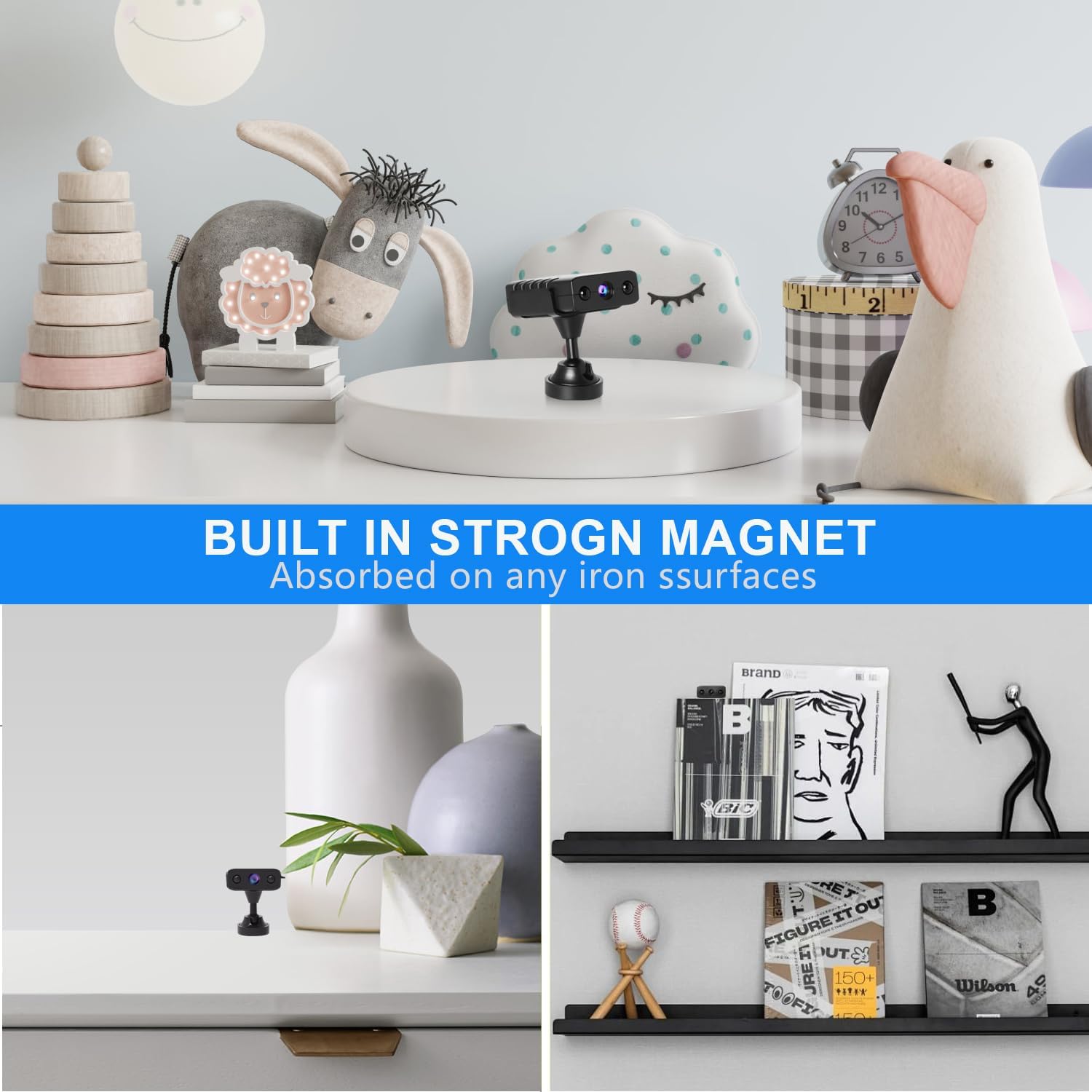
Figure 4: Camera mounted on a desk using its magnetic base.

Figure 5: Versatile mounting options for the camera.
Operating Instructions
1. Live View
Open the V380 Pro app and select your camera from the device list to access the live video feed. You can view the live feed from anywhere in the world with an internet connection.

Figure 6: Real-time remote viewing via the phone application.
2. Video Recording
The camera automatically records video to the inserted Micro SD card. It supports HD4K resolution. With loop recording enabled, the camera will continuously record, overwriting the oldest files when the storage is full.
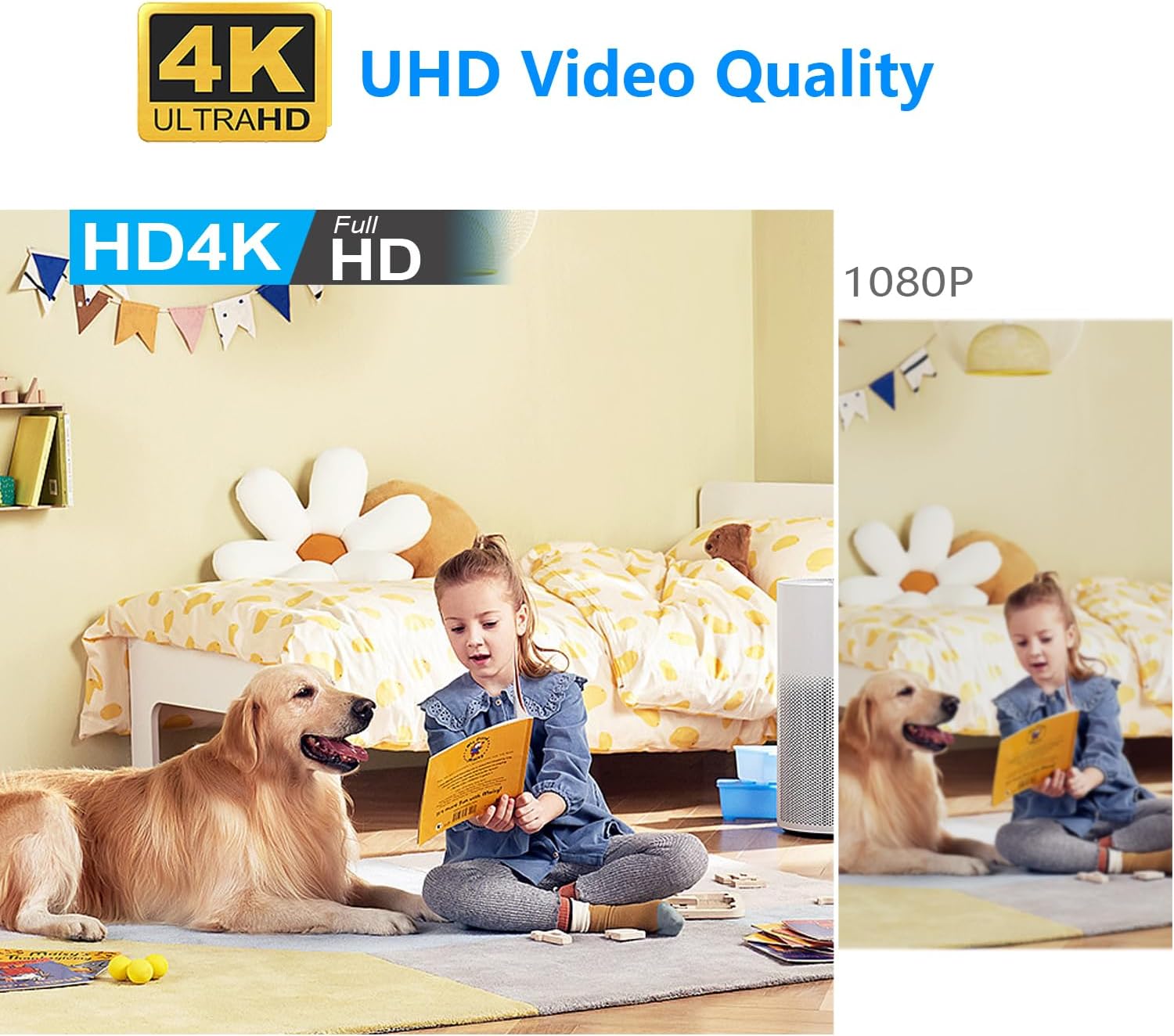
Figure 7: HD4K UHD Video Quality demonstration.
3. Motion Detection and Alerts
The camera features intelligent motion detection. You can set specific monitoring areas and times within the app. When motion is detected, the camera will send an alarm notification with images to your phone. Only valid video is recorded, conserving storage space.

Figure 8: Motion detection in action, sending alerts to your phone.
4. Night Vision
The camera is equipped with two 940nm infrared lights for enhanced night vision, providing clear visibility up to 26 feet (8 meters) in low light or total darkness. The infrared lights are non-glowing, ensuring discreet operation.

Figure 9: Day and Night Vision comparison.
Maintenance
- Cleaning: Use a soft, dry cloth to clean the camera lens and body. Avoid using liquid cleaners or abrasive materials.
- Battery Care: To prolong battery life, avoid extreme temperatures and store the camera with a partial charge if not used for extended periods.
- Firmware Updates: Regularly check the V380 Pro app for any available firmware updates for your camera to ensure optimal performance and security.
- Storage Management: While loop recording manages storage, periodically review recorded footage and back up important clips to an external device or cloud storage.
Troubleshooting
| Problem | Possible Cause | Solution |
|---|---|---|
| Camera not powering on. | Low battery; power button not pressed correctly. | Charge the camera for at least 2 hours. Press and hold the power button firmly. |
| Cannot connect to Wi-Fi. | Incorrect Wi-Fi password; camera too far from router; 5GHz Wi-Fi network. | Ensure correct password. Move camera closer to router. Ensure you are connecting to a 2.4GHz Wi-Fi network. |
| No video recording. | SD card not inserted or faulty; SD card full (if loop recording is off). | Reinsert or replace SD card. Ensure loop recording is enabled or clear space. |
| Motion detection not working. | Settings incorrect in app; insufficient light for detection. | Check motion detection settings in V380 Pro app. Ensure adequate lighting or rely on night vision. |
| Poor video quality. | Dirty lens; low light conditions; network bandwidth issues. | Clean the lens. Ensure sufficient lighting. Check your internet connection speed. |
Warranty Information
WCFHS products typically come with a standard manufacturer's warranty. Please refer to the warranty card included in your product packaging or visit the official WCFHS website for detailed warranty terms and conditions. Keep your purchase receipt as proof of purchase for warranty claims.
Protection plans are also available for extended coverage:
- 2-Year Protection Plan
- 3-Year Protection Plan
- Complete Protect (monthly subscription)
Note: These protection plans are offered by third-party providers and are subject to their terms and conditions.
Customer Support
For technical assistance, product inquiries, or warranty claims, please contact WCFHS customer support through the following channels:
- Email: Refer to your product packaging or the official WCFHS website for support email address.
- Online Support: Visit the WCFHS official website for FAQs and online support resources.
When contacting support, please have your product model (XDWIFI) and purchase information ready.
Ask a question about this manual
Ask about setup, troubleshooting, compatibility, parts, safety, or missing instructions. Manuals+ will review the question and use this page’s manual context to help answer it.