
1. Product Overview
The LOKOOY B2 Smart Lock is an advanced electronic door lock offering multiple access methods for enhanced security and convenience. This smart lock is designed for various applications, including residential homes, apartments, offices, and hotels.
Key Features:
- 4-in-1 Unlocking Methods: Fingerprint, TTLOCK App (Bluetooth), Password, and Physical Key.
- High-Sensitivity Fingerprint Sensor: Provides rapid and accurate recognition in approximately 0.3 seconds.
- Privacy Password Protection: Allows entry of random digits before and after the correct password to prevent onlookers from guessing your code.
- Low Battery Warning: Alerts you when batteries are low, ensuring timely replacement.
- USB Emergency Power: Provides a backup power option in case of complete battery depletion.
- Easy Installation: Designed to be compatible with most standard spherical door locks without requiring additional drilling or wiring.
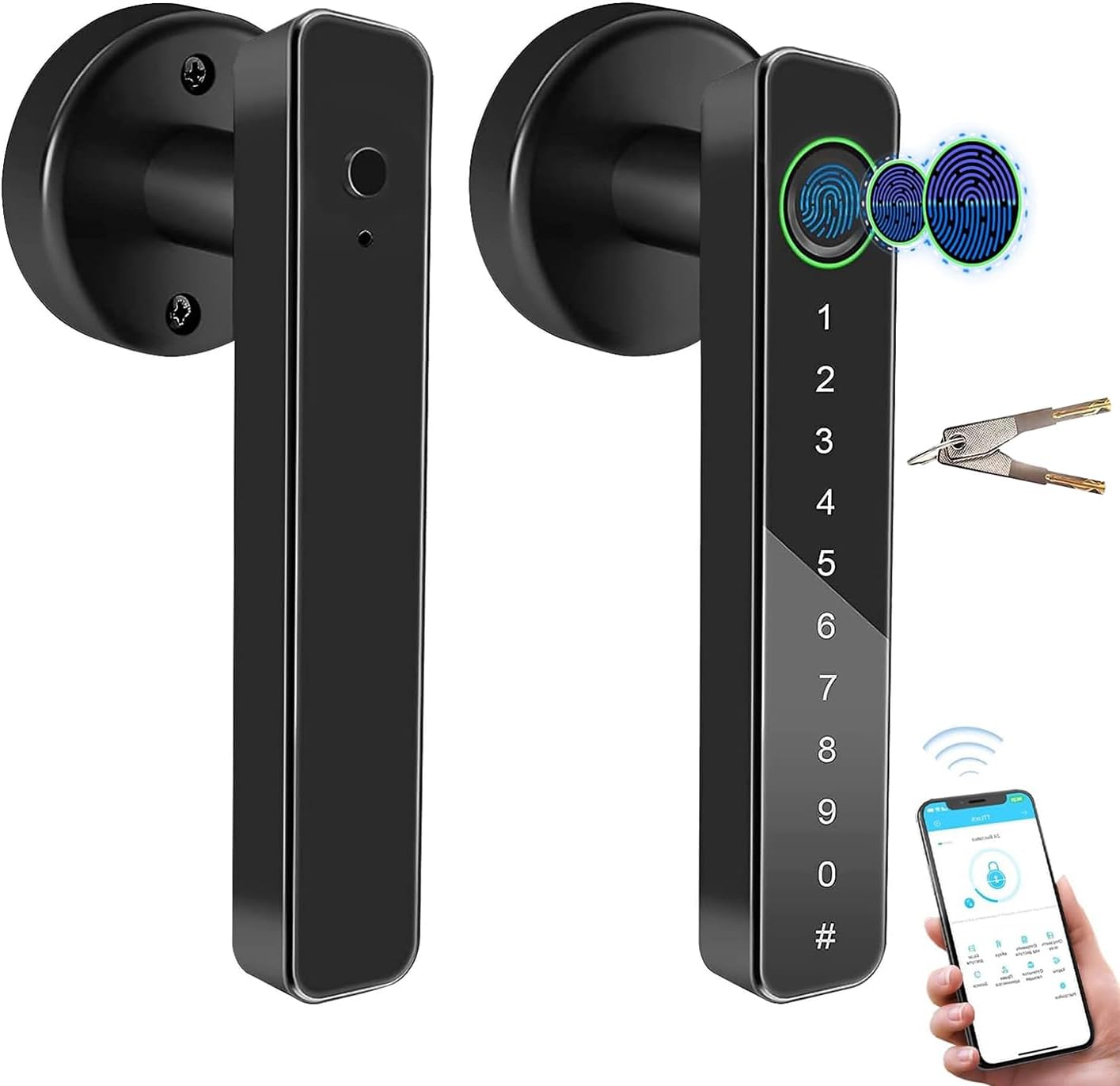
Image 1.1: The LOKOOY B2 Smart Lock, showcasing its sleek black design and integrated keypad and fingerprint sensor.
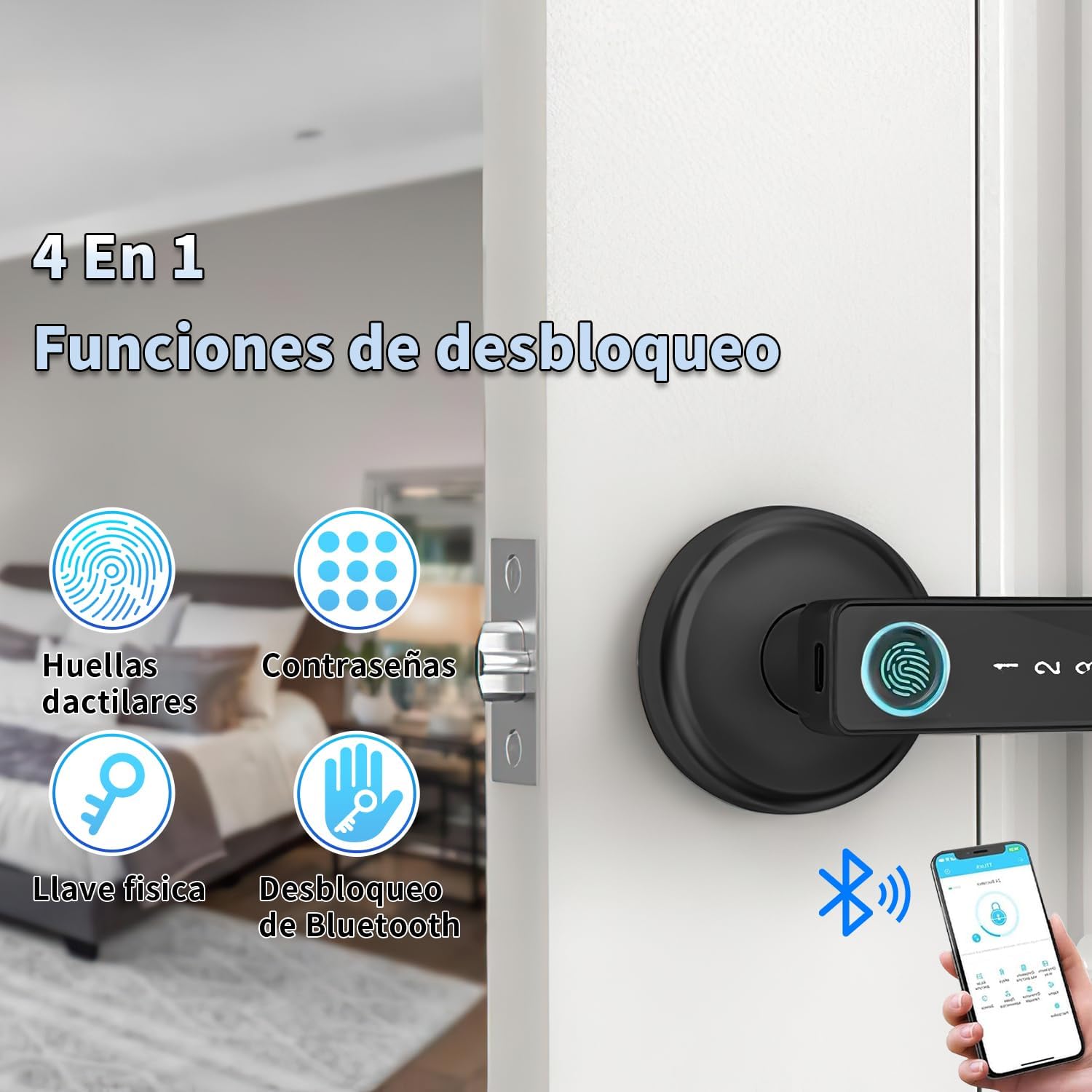
Image 1.2: Visual representation of the four unlocking methods: fingerprint, password, physical key, and Bluetooth app control.
2. Installation Guide
The LOKOOY B2 Smart Lock is designed for straightforward installation, often fitting directly onto existing spherical door lock holes without the need for complex modifications.
2.1 Package Contents:
Before beginning installation, ensure all components are present:
- Front Handle Assembly (with keypad and fingerprint sensor)
- Rear Handle Assembly
- Latch Bolt
- Strike Plate
- Mounting Screws and Hardware
- Physical Keys
- Small Screwdriver (may be included)
2.2 Door Compatibility:
- Suitable for door thicknesses ranging from 35mm to 55mm.
- Compatible with most spherical door lock installations.
2.3 Installation Steps:
- Prepare the Door: Remove any existing door hardware. Ensure the door frame and boreholes are clean and clear.
- Install the Latch Bolt: Insert the latch bolt into the door edge. Ensure the latch is oriented correctly for your door's swing. Secure with screws.
- Install the Exterior Assembly: Place the exterior handle assembly onto the door, aligning it with the latch bolt and mounting holes.
- Install the Interior Assembly: Connect the interior handle assembly, ensuring the cable from the exterior unit is properly routed and connected. Secure both assemblies with the provided mounting screws.
- Adjust Handle Direction (if necessary): The handle direction can be reversed to accommodate left-hand or right-hand opening doors. Refer to the diagram below for adjustment.
- Install Batteries: Insert 4 AAA batteries into the battery compartment of the interior assembly.
- Test Operation: After installation, test all unlocking methods (physical key, fingerprint, password, app) to ensure proper function before closing the door.

Image 2.1: Components required for installation, including the lock units, latch, strike plate, and mounting hardware.

Image 2.2: Illustration demonstrating how to rotate the lock body to change the handle direction for left or right-hand door opening.

Image 2.3: The smart lock can be installed directly over existing spherical lock holes, typically up to 65mm in diameter.
3. Operating Instructions
3.1 Fingerprint Unlocking:
The integrated semiconductor fingerprint sensor provides quick access.
- Enroll Fingerprints: Use the TTLOCK app to add new fingerprints. Follow the in-app instructions for multiple scans to ensure accuracy.
- Unlock: Place your registered finger on the fingerprint sensor. A green light indicates successful authentication, and the lock will unlock. A red light indicates authentication failure.

Image 3.1: Close-up of the high-sensitivity semiconductor fingerprint sensor, capable of rapid recognition.

Image 3.2: The fingerprint sensor indicates successful authentication with a green light and failure with a red light.
3.2 Password Unlocking:
The lock supports standard passwords and a privacy password feature.
- Set Passwords: Use the TTLOCK app to create and manage user passwords.
- Privacy Password: To use this feature, enter any random digits before and after your actual password (e.g., [random digits] + [correct password] + [random digits]). This obscures your actual password from potential onlookers.
- Temporary/Normally Open Mode: The app allows setting temporary passwords for guests or a normally open mode for specific periods.
- Auto-Lock Feature: If an incorrect password is entered multiple times, the lock will automatically engage a temporary lockout period for security.

Image 3.3: Example of using the privacy password feature by entering random numbers before and after the correct code.
3.3 TTLOCK App Control (Bluetooth):
The TTLOCK app provides comprehensive control over your smart lock.
- Download App: Search for "TTLOCK" in your smartphone's app store and install it.
- Pair Device: Follow the in-app instructions to pair your smart lock via Bluetooth.
- Unlocking: Tap the unlock icon in the app when within Bluetooth range to open the door.
- User Management: Add, modify, or delete fingerprints and passwords for various users.
- eKeys: Grant temporary access to visitors or service personnel by sending eKeys.
- Access Logs: View a history of lock and unlock events.

Image 3.4: The TTLOCK app interface, showing options for Bluetooth unlock, eKeys, passwords, and fingerprint management.
3.4 Physical Key Unlocking:
A traditional physical key is provided as a backup access method.
- Insert the key into the keyhole located on the bottom of the exterior handle.
- Turn the key to unlock the door.
- It is recommended to keep a physical key in a secure, accessible location outside the property for emergencies.

Image 3.5: Close-up view of the physical keyhole located at the bottom of the smart lock's exterior handle.
3.5 Battery Management:
The lock requires 4 AAA batteries (not included).
- Battery Life: Batteries typically last 6-9 months depending on usage.
- Low Battery Warning: The keypad will flash to indicate low battery power. Replace batteries promptly when this warning appears.
- Emergency Power: In case of complete battery depletion, connect a power bank via the USB interface on the exterior handle for emergency power to unlock the door.

Image 3.6: The battery compartment for 4 AAA batteries and the USB emergency power interface.
3.6 Configuration Button:
The interior handle features a configuration button and a permanent open button.
- Configuration Button: Used for initial setup and pairing with the TTLOCK app. Refer to the app's instructions for specific configuration steps.
- Permanent Open Button: Allows the lock to remain unlocked for continuous access when needed.
4. Maintenance
Proper maintenance ensures the longevity and optimal performance of your LOKOOY B2 Smart Lock.
- Battery Replacement: Replace all 4 AAA batteries regularly, especially when the low battery warning is displayed. Use high-quality alkaline batteries for best performance.
- Cleaning: Wipe the lock's exterior surfaces with a soft, dry cloth. Avoid using abrasive cleaners or solvents that could damage the finish or electronic components.
- Fingerprint Sensor: Keep the fingerprint sensor clean and free of dirt or moisture to ensure accurate recognition.
- Keyhole: Ensure the keyhole remains clear of debris. Do not lubricate with oil-based products; use graphite powder if lubrication is necessary.
5. Troubleshooting
This section addresses common issues you might encounter with your LOKOOY B2 Smart Lock.
- Lock does not respond: Check battery levels. If batteries are depleted, use the USB emergency power interface or the physical key.
- Fingerprint not recognized: Ensure your finger is clean and dry. Try re-enrolling your fingerprint through the TTLOCK app.
- Password not accepted: Verify the correct password is being entered. If using the privacy password feature, ensure the correct sequence is followed. The lock may be temporarily locked out after multiple incorrect attempts; wait for the lockout period to expire or use another unlocking method.
- TTLOCK App connection issues: Ensure Bluetooth is enabled on your smartphone and you are within range of the lock. Restart the app or your phone if necessary.
- Handle feels loose: Check all mounting screws and tighten them if necessary. Avoid over-tightening.
6. Specifications
| Feature | Detail |
|---|---|
| Model Number | HT494 |
| Brand | LOKOOY |
| Color | Black |
| Material | Metal |
| Unlocking Methods | Fingerprint, TTLOCK App (Bluetooth), Password, Physical Key |
| Power Supply | 4 x AAA Batteries (not included) |
| Battery Life | Approx. 6-9 months |
| Emergency Power | USB Interface |
| Door Thickness Compatibility | 35mm - 55mm |
| Product Dimensions | 7.62 x 19.81 x 19.81 cm (3 x 7.8 x 7.8 inches) |
| Product Weight | 840 g |

Image 6.1: Diagram illustrating the product dimensions and key feature locations such as the USB emergency power port, fingerprint recognition area, and key access.
7. Warranty and Support
LOKOOY is committed to providing high-quality products and customer satisfaction.
- Return Policy: Enjoy a 1-year free return period from the date of purchase.
- Warranty: A 2-year free repair warranty is provided for manufacturing defects.
- Technical Support: Lifetime professional technical support is available.
Contact Support:
If you have any questions or require assistance with your LOKOOY B2 Smart Lock, please contact our professional after-sales team. We aim to respond to all inquiries within 24 hours.
Please refer to your purchase documentation or the LOKOOY official website for specific contact details.