
MIUCDA A-WCB16-WM
MIUCDA Smart Life WiFi 1P DIN Rail Switch User Manual
Model: A-WCB16-WM
Brand: MIUCDA
1. Introduction
The MIUCDA Smart Life WiFi 1P DIN Rail Switch is an advanced device designed for seamless integration into your smart home system. It enables wireless remote control of connected appliances via the Tuya or Smart Life mobile applications, offering unparalleled convenience and energy management capabilities. This switch is ideal for controlling various electrical loads, including heaters, incandescent lamps, and ovens, and provides real-time energy consumption monitoring.
2. Safety Information
WARNING: Electrical shock hazard. Installation and servicing should only be performed by qualified personnel.
- Ensure the main power supply is disconnected before installation or maintenance.
- Do not exceed the maximum load ratings specified in the product specifications.
- Install the device in a dry environment, away from moisture and extreme temperatures.
- Verify all wiring connections are secure and correct before restoring power.
- This device is designed for indoor use only.
3. Product Overview
The MIUCDA Smart Life WiFi 1P DIN Rail Switch is a compact and efficient relay actuator designed for DIN rail mounting. It features a single pole (1P) configuration and integrates a MOSFET for reliable switching. The device includes a signal light and a metering function for energy consumption tracking.

Figure 3.1: MIUCDA Smart Life WiFi 1P DIN Rail Switch and its accompanying mobile application interface, showing real-time data.
Key features include:
- App Remote Control: Control your appliances from anywhere using the "Smart Life" or "Tuya" app.
- Energy Consumption Monitoring: Analyze real-time and historical power consumption data, including current, voltage, and power.
- Voice Control: Compatible with Amazon Alexa and Google Assistant for hands-free operation.
- Timer and Schedule Functions: Automate device operation with customizable timers and schedules.
- Intelligent Protection: Features alarm notifications for over-current, over-voltage, under-voltage, and overload conditions.
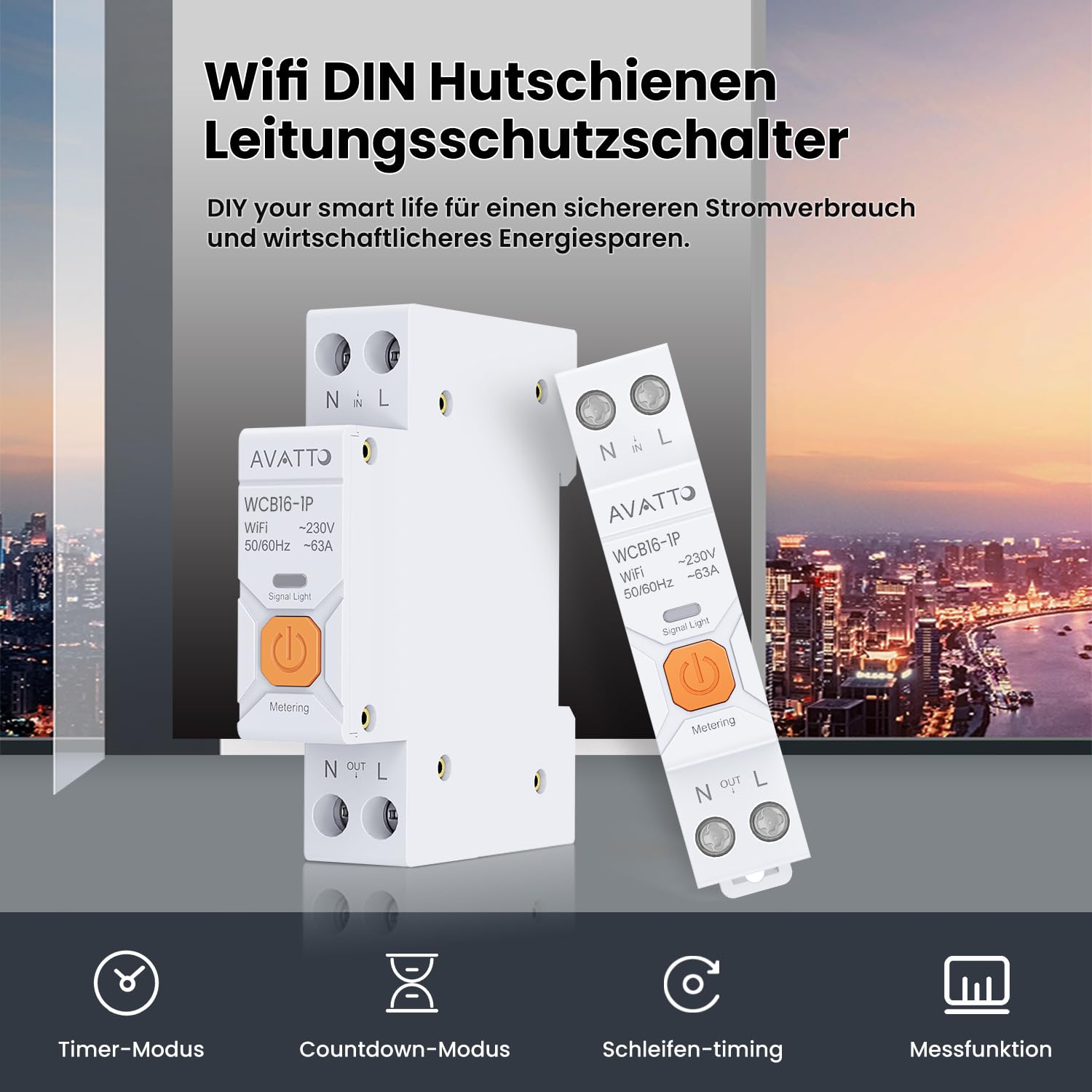
Figure 3.2: Overview of the switch highlighting its WiFi connectivity and various smart functions.
4. Setup and Installation
Follow these steps to install and set up your MIUCDA Smart Life WiFi 1P DIN Rail Switch.
4.1. Physical Installation
- Disconnect Power: Before starting, ensure the main power supply to the circuit where the switch will be installed is completely turned off at the circuit breaker.
- Mount on DIN Rail: Snap the switch onto a standard 35mm DIN rail within your electrical panel.
- Wiring: Connect the live (L) and neutral (N) wires from your power source to the "N" and "L" input terminals on the top of the switch. Connect the load (appliance) to the "N OUT" and "L OUT" terminals on the bottom of the switch. Ensure all connections are secure.
- Restore Power: Once wiring is complete and verified, restore power to the circuit. The signal light on the switch should illuminate.
4.2. App Pairing
- Download App: Download the "Smart Life" or "Tuya Smart" app from the App Store (iOS) or Google Play Store (Android).
- Register/Login: Open the app and register for a new account or log in if you already have one.
- Add Device: Tap the "+" icon in the top right corner of the app to add a new device.
- Select Device Type: Choose "Electrical" or "Switch" from the device list, then select "Circuit Breaker (Wi-Fi)" or similar.
- Confirm Indicator: Follow the in-app instructions. Ensure the signal light on the switch is blinking rapidly. If not, press and hold the power button on the switch for 5-10 seconds until it blinks rapidly to enter pairing mode.
- Connect to Wi-Fi: Enter your 2.4GHz Wi-Fi network password. The app will then attempt to connect to the device.
- Device Added: Once successfully added, you can rename the device and assign it to a room.
5. Operating Instructions
5.1. App Control
After successful pairing, you can control the switch and monitor its status via the app.
- On/Off Control: Tap the switch icon in the app to turn the connected appliance on or off.
- Energy Monitoring: Navigate to the "Electricity" or "Statistics" tab within the device interface to view real-time voltage, current, power, and historical energy consumption data (kWh).

Figure 5.1: App interface demonstrating 24-hour monitoring and remote control capabilities.
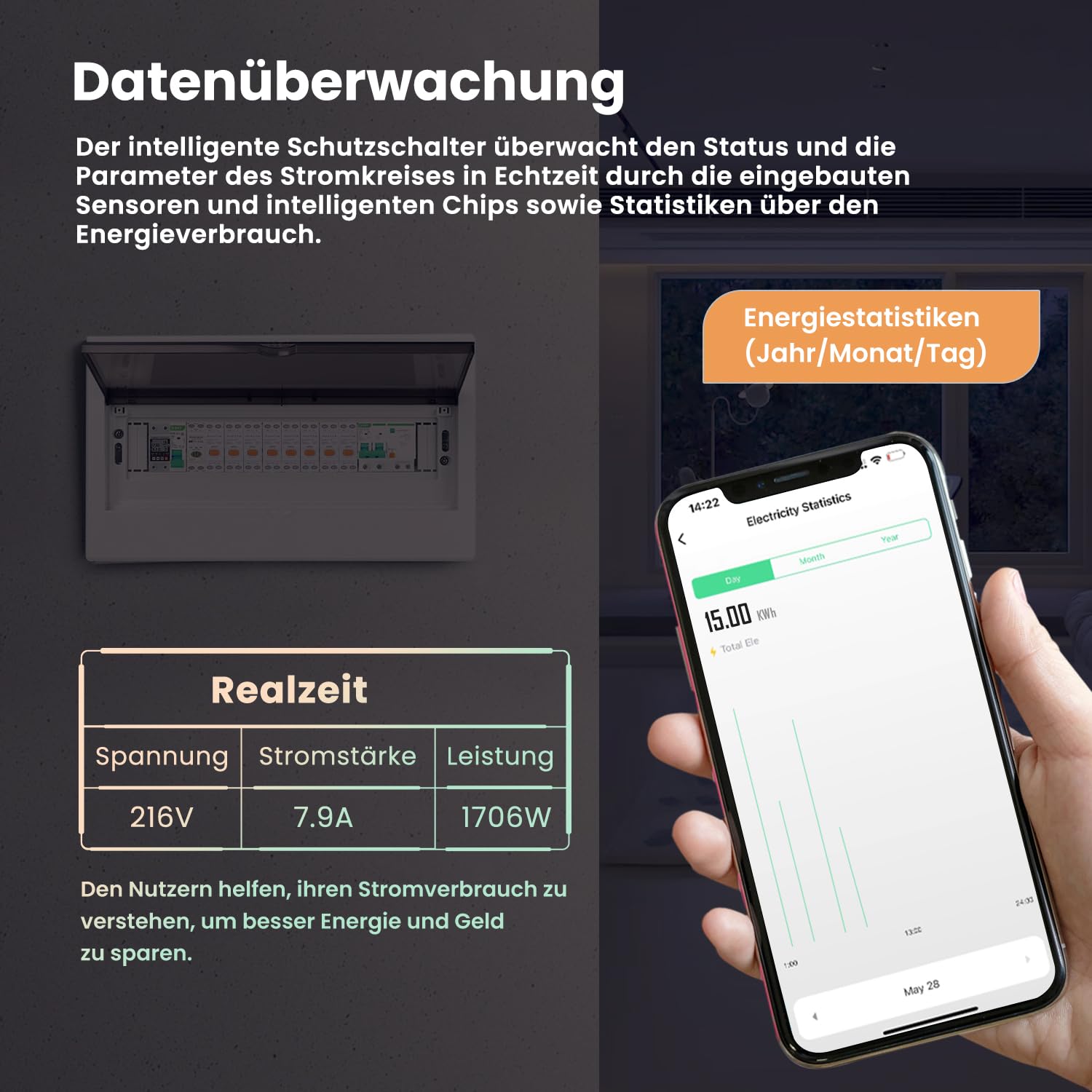
Figure 5.2: Real-time data monitoring and energy statistics within the app.
5.2. Voice Control
Integrate your switch with Amazon Alexa or Google Assistant for convenient voice commands.
- Link Accounts: In your Alexa or Google Home app, search for the "Smart Life" or "Tuya Smart" skill/service and link your account.
- Discover Devices: Once linked, ask your voice assistant to "Discover devices."
- Voice Commands: You can now use commands like "Alexa, turn on [Device Name]" or "Hey Google, turn off [Device Name]."

Figure 5.3: Example of voice control integration with Amazon Alexa.
5.3. Scheduling and Timers
Automate your appliances with the scheduling features in the app.
- Timer Mode: Set a countdown timer for the switch to turn on or off after a specified duration.
- Schedule Mode: Create daily or weekly schedules for the switch to operate automatically at specific times.
- Loop Timing: Set repetitive on/off cycles.

Figure 5.4: App interface for setting up time control and schedules.
5.4. Alarm Notifications
The switch can send real-time alerts for abnormal power consumption data.
- Threshold Setting: Configure thresholds for over-current, over-voltage, under-voltage, and overload within the app settings.
- Automatic Shutdown: If abnormal data is detected, the system will send an alarm notification to your smartphone and automatically cut off the power to protect connected devices.

Figure 5.5: Alarm notification settings within the app for various electrical parameters.
6. Maintenance
The MIUCDA Smart Life WiFi 1P DIN Rail Switch requires minimal maintenance.
- Keep the device clean and free from dust. Use a soft, dry cloth for cleaning.
- Do not use liquid cleaners or aerosols.
- Periodically check wiring connections to ensure they remain secure.
7. Troubleshooting
| Problem | Possible Cause | Solution |
|---|---|---|
| Device offline in app | No Wi-Fi connection; Router too far; Incorrect Wi-Fi password. | Check Wi-Fi signal strength; Move router closer; Re-enter Wi-Fi password in app; Power cycle the switch. |
| Switch not responding to app commands | Device offline; App glitch; Incorrect wiring. | Verify device is online; Restart app; Check wiring (ensure power is off first). |
| Signal light not blinking for pairing | Not in pairing mode. | Press and hold the power button on the switch for 5-10 seconds until the signal light blinks rapidly. |
| Energy monitoring data is inaccurate | Incorrect wiring; Device malfunction. | Verify wiring connections; Contact customer support if issue persists. |
8. Specifications
| Attribute | Value |
|---|---|
| Manufacturer | MIUCDA |
| Model Number | A-WCB16-WM |
| Item Weight | 110 g |
| Package Dimensions | 9 x 7.2 x 2.4 cm |
| Colour | Schwarz |
| Wattage | 3680 W |
| Switch Type | 1-way |
| Plug Profile | DIN Rail Mount |
| Operating Voltage | 240 Volts (AC) |
| Contact Type | Normally Open |
| Connector Type | Screw In |
| Circuit Type | 1-way |
| Mounting Type | DIN Rail Mount |
| Actuator Type | Electronic |
| Number of Positions | 1 |
9. Warranty and Support
For warranty information and technical support, please refer to the documentation provided with your purchase or contact MIUCDA customer service directly. You can typically find contact details on the manufacturer's official website or through your point of purchase.