
GOWENIC GOWENICmf1sauig85
GOWENIC 2.7K Camcorder User Manual
Model: GOWENICmf1sauig85
Introduction
This manual provides comprehensive instructions for the operation, maintenance, and troubleshooting of your GOWENIC 2.7K Camcorder. Please read this manual thoroughly before using the device to ensure proper functionality and to maximize your user experience.

Figure 1: Front view of the GOWENIC 2.7K Camcorder with the screen closed, showcasing its compact design and lens.
What's in the Box
Upon unboxing your GOWENIC 2.7K Camcorder, please verify that all the following components are present:
- 1 x DV Camera (Main Unit)
- 1 x Storage Bag
- 1 x USB Cable
- 1 x User Manual (this document)

Figure 2: The GOWENIC 2.7K Camcorder displayed alongside its included accessories: a storage bag and a USB cable.
Setup Guide
1. Battery Installation and Charging
The camcorder comes with a built-in NP-40 3.7V 1500mAh lithium battery. Before first use, ensure the battery is fully charged.
- Locate the battery compartment on the bottom of the camcorder.
- Open the battery compartment cover.
- Insert the NP-40 battery, ensuring the contacts align correctly.
- Close the battery compartment cover securely.
- Connect the camcorder to a power source using the provided USB cable. The charging indicator light will illuminate.
- Charging is complete when the indicator light turns off or changes color (refer to the camcorder's screen for battery status).
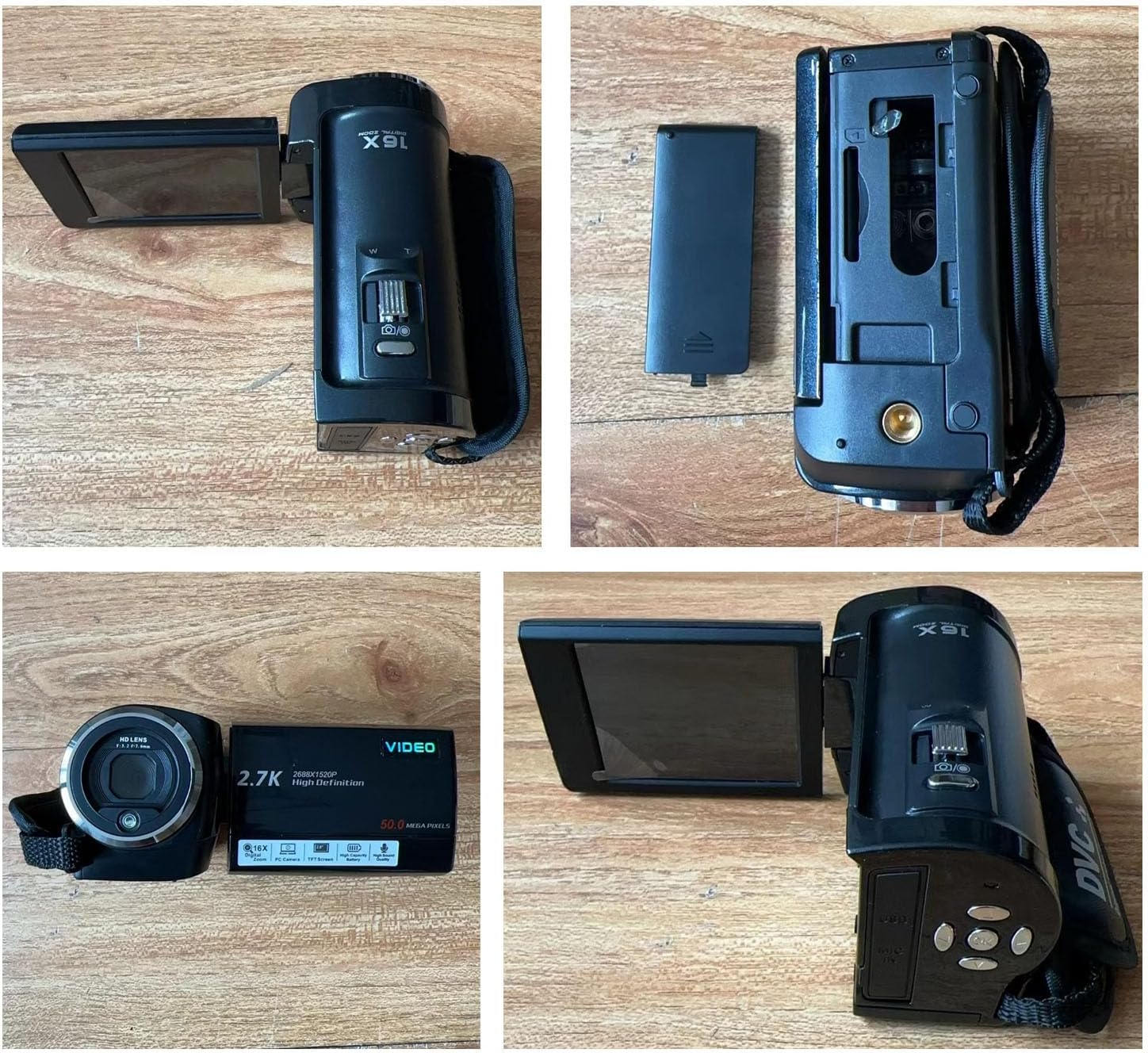
Figure 3: Various angles of the camcorder, illustrating the battery compartment and its components.
2. Memory Card Installation (Not Included)
The camcorder supports a storage card up to 128GB. A memory card is required for recording videos and capturing photos.
- Locate the memory card slot, typically near the battery compartment or on the side.
- Insert the memory card into the slot with the contacts facing the correct direction (refer to the diagram near the slot).
- Gently push until it clicks into place.
3. Attaching to a Tripod (Optional)
For more stable photo and video shooting, the camcorder features a standard 1/4 inch threaded connector on its bottom, allowing attachment to a tripod.

Figure 4: The camcorder's base with the 1/4 inch threaded connector visible, suitable for tripod mounting.
Operating Instructions
1. Powering On/Off
- To power on, open the LCD screen. The camcorder will automatically turn on.
- To power off, close the LCD screen. The camcorder will automatically turn off.
- Alternatively, press and hold the power button (usually located near the LCD screen hinge) for a few seconds.
2. Basic Recording and Photo Capture
The camcorder supports 2.7K video resolution and 50MP image resolution.
- Video Recording: Press the "Record" button (often marked with a red dot) to start recording. Press it again to stop.
- Photo Capture: Switch to photo mode (if applicable, usually a dedicated button or menu option), then press the "Shutter" button to take a picture.
- Digital Zoom: Use the zoom lever (often labeled "W" for Wide and "T" for Telephoto) to adjust the 16x digital zoom.
- LCD Screen: The 2.8 inch TFT LCD screen can rotate 270 degrees for flexible viewing angles.

Figure 5: The camcorder's 2.8-inch TFT LCD screen, rotated for optimal viewing, displaying a clear image.

Figure 6: Rear view of the camcorder with the LCD screen open, highlighting the control buttons and ports.
3. Advanced Functions
- Webcam Function: Connect the camcorder to your computer via the USB cable. It can be used as a webcam for video calls or live streaming.
- Built-in LED Fill Light: Activates automatically in low light conditions or can be manually turned on via menu settings to enhance brightness and clarity.
- Face Recognition: Automatically detects and optimizes focus for faces in the frame.
- Timer Shooting & Self-Timer: Set a delay before capturing a photo or starting a video.
- Continuous Shooting: Capture a rapid sequence of photos.
- Silent Shooting: Disables shutter sounds for discreet recording.
- Pause Function: Pause and resume video recording without creating multiple files.
- Delay Recording: Start recording after a set delay.
- Recording While Charging: The camcorder supports recording while connected to a power source, ensuring uninterrupted operation.

Figure 7: The camcorder connected to a computer, illustrating its use as a webcam for video calls.

Figure 8: Close-up of the camcorder's side, highlighting the USB port for data transfer and webcam functionality, and the microphone input.
Maintenance and Care
- Cleaning: Use a soft, dry cloth to clean the camcorder body. For the lens and screen, use a specialized lens cleaning cloth and solution. Avoid abrasive materials or harsh chemicals.
- Storage: When not in use, store the camcorder in the provided storage bag in a cool, dry place, away from direct sunlight and extreme temperatures.
- Battery Care: To prolong battery life, avoid fully discharging the battery frequently. If storing for extended periods, charge the battery to about 50% and remove it from the device.
- Avoid Impact: Protect the camcorder from drops and impacts, which can damage internal components.
Troubleshooting
| Problem | Possible Cause | Solution |
|---|---|---|
| Camcorder does not power on. | Battery is depleted or not installed correctly. | Charge the battery fully. Ensure the battery is inserted with correct polarity. |
| Cannot record video or take photos. | Memory card is full, not inserted, or corrupted. | Insert a memory card. Delete unnecessary files or format the card (this will erase all data). Try a different memory card. |
| Poor image/video quality. | Lens is dirty. Insufficient lighting. Incorrect settings. | Clean the lens. Use the built-in fill light or record in better lit environments. Check resolution settings. |
| Camcorder freezes or becomes unresponsive. | Temporary software glitch. | Remove the battery for a few seconds, then reinsert and restart the camcorder. |
Specifications
| Feature | Detail |
|---|---|
| Image Resolution | Up to 50MP (Maximum) |
| Video Resolution | 2.7K, 1080P, 720P |
| Screen Size | 2.8 Inches TFT LCD (270 degree rotation) |
| Digital Zoom | 16x |
| Shutter | Electronic |
| Storage Support | Maximum 128GB Storage Card (Not Included) |
| Battery | 1x NP-40 3.7V 1500mAh Lithium Battery (Built-in) |
| Recording Time (Full HD) | Up to 80 minutes |
| Webcam Function | Supported via USB connection |
| Threaded Connector | Standard 1/4 inch (for tripod mounting) |
| Dimensions | Approx. 5.51 x 3.94 x 3.15 inches (Package Dimensions) |
| Weight | Approx. 13.5 ounces |
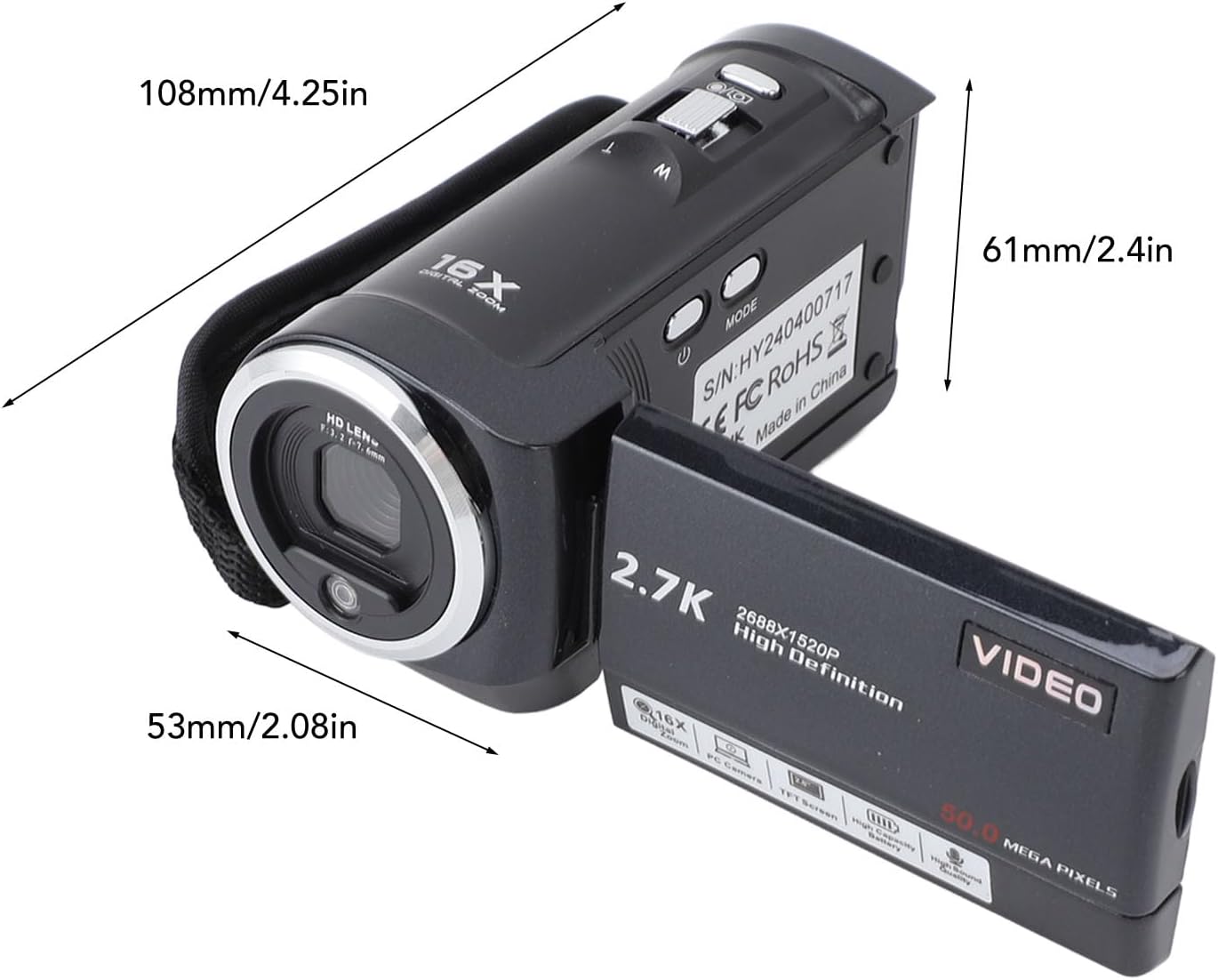
Figure 9: Diagram illustrating the approximate dimensions of the GOWENIC 2.7K Camcorder.
Warranty and Support
For warranty information and technical support, please refer to the contact details provided with your purchase documentation or visit the official GOWENIC website. Keep your proof of purchase for warranty claims.
Online Resources:
Ask a question about this manual
Ask about setup, troubleshooting, compatibility, parts, safety, or missing instructions. Manuals+ will review the question and use this page’s manual context to help answer it.