
1. Introduction
This manual provides comprehensive instructions for the setup, operation, and maintenance of your HP Poly Edge E550 IP Phone. Designed for modern work environments, this VoIP phone offers advanced features including Wi-Fi, Bluetooth, and NFC connectivity, alongside a large color display and multiple line keys for efficient communication.
2. Package Contents
Verify that your package contains the following items:
- Poly Edge E550 IP Phone Unit
- Handset
- Handset Cord
- Ethernet Cable
- Desk Stand
- Quick Start Guide (if applicable)
Note: A power adapter may not be included if the phone is designed for Power over Ethernet (PoE) operation.
3. Physical Features
3.1 Front View
The front of the Poly Edge E550 features a large color display, programmable line keys, and a standard dial pad for intuitive operation.
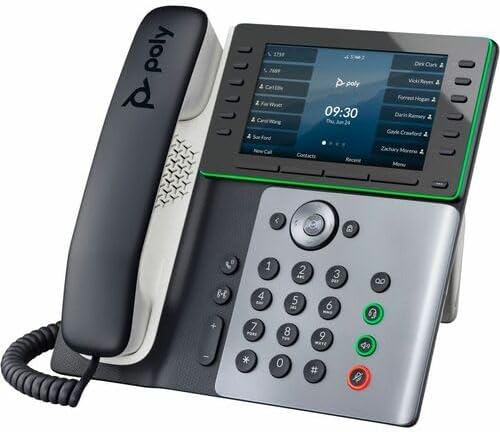
Figure 3.1: Front view of the Poly Edge E550 IP Phone. This image shows the phone with its handset resting on the cradle, a large color display showing call information and contacts, and a full numeric keypad with function buttons below the display.
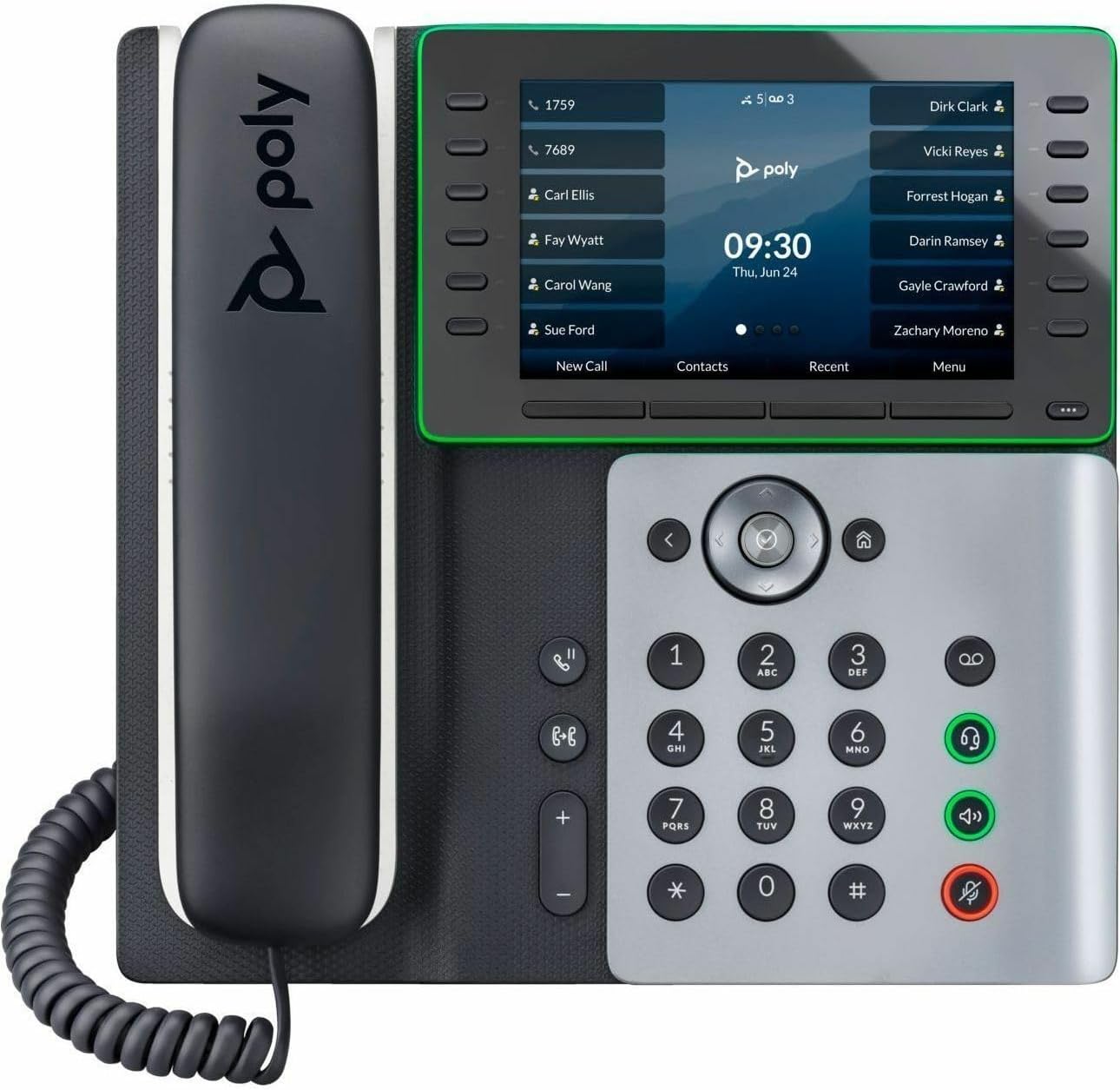
Figure 3.2: Detailed front view of the Poly Edge E550 IP Phone. This image highlights the phone's large color screen, which displays call status, time, and contact lists. To the left of the screen are programmable line keys, and below the screen is the navigation cluster and numeric keypad, along with dedicated function buttons for speakerphone, headset, mute, and volume control.
3.2 Side View and Stand
The phone is designed with an integrated stand for optimal viewing and access to controls.
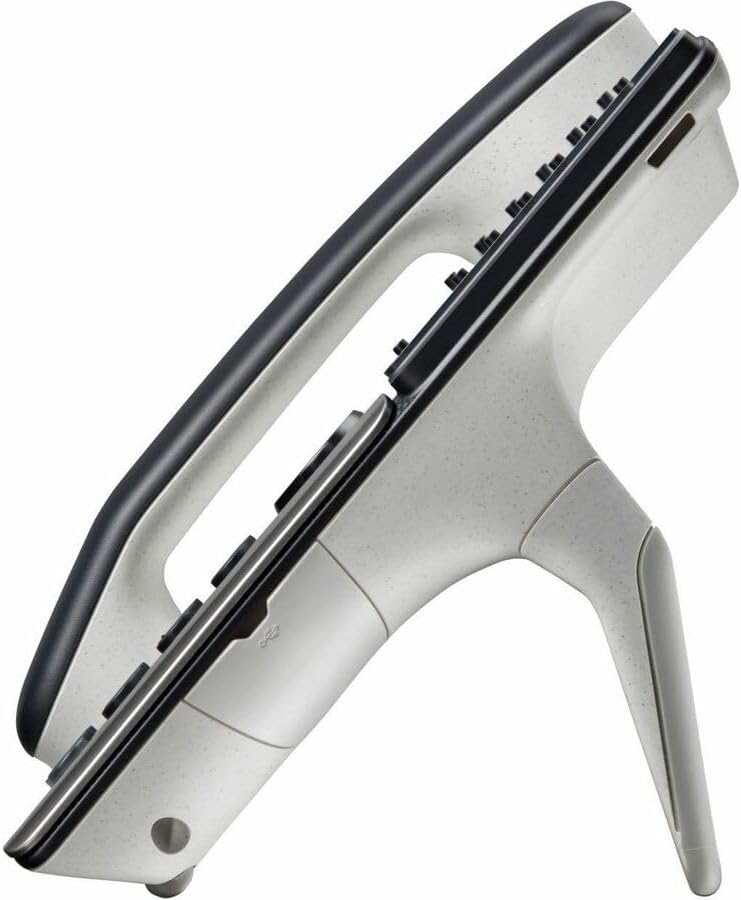
Figure 3.3: Side view of the Poly Edge E550 IP Phone. This image illustrates the phone's ergonomic design, featuring a sturdy integrated desk stand that positions the display and keypad at an accessible angle. The side also shows the profile of the handset and the main unit.
3.3 Rear View and Ports
The rear of the phone houses various ports for power, network connectivity, and accessories.

Figure 3.4: Rear view of the Poly Edge E550 IP Phone. This image displays the back panel of the phone, highlighting the various connectivity ports. These include two RJ-45 network ports (one for LAN/PoE, one for PC passthrough), a USB port, and a power input jack (if not using PoE). The design also shows mounting points for the desk stand.
4. Setup
4.1 Attaching the Desk Stand
- Align the tabs on the desk stand with the slots on the back of the phone.
- Gently push the stand into place until it clicks securely.
4.2 Connecting the Handset
- Plug one end of the coiled handset cord into the handset.
- Plug the other end of the coiled handset cord into the handset port on the back of the phone (typically marked with a handset icon).
4.3 Network and Power Connection
The Poly Edge E550 supports Power over Ethernet (PoE) or an optional external power adapter.
- For PoE Connection: Connect one end of the Ethernet cable to the LAN port on the back of the phone (often labeled "LAN" or with a network icon). Connect the other end to a PoE-enabled network switch or injector. The phone will power on automatically.
- For Non-PoE Connection: If PoE is not available, connect an Ethernet cable from the LAN port on the phone to your network router or switch. Then, connect an optional external power adapter (sold separately) to the power input jack on the back of the phone and plug it into a power outlet.
- Optional: To connect a computer through the phone, plug an Ethernet cable from your computer into the PC port on the back of the phone.
4.4 Initial Boot-up and Configuration
Upon initial power-up, the phone will boot and attempt to connect to your network and VoIP service. This process may take a few minutes. Follow any on-screen prompts for network settings, time zone, and service provider configuration. Your IT administrator typically provides specific account details.
5. Operating the Phone
5.1 Making and Receiving Calls
- To Make a Call:
- Pick up the handset, press the speakerphone button, or press a line key.
- Dial the number using the keypad.
- Press the Call or Dial soft key on the display, or wait for automatic dialing.
- To Answer a Call:
- Pick up the handset, press the speakerphone button, or press the flashing line key.
- To End a Call:
- Hang up the handset, press the speakerphone button again, or press the End Call soft key.
5.2 Call Management Features
- Hold: During an active call, press the Hold soft key. To resume, press the flashing line key or the Resume soft key.
- Transfer: During an active call, press the Transfer soft key. Dial the transfer destination and follow the on-screen prompts for a blind or supervised transfer.
- Conference: During an active call, press the Conference soft key. Dial the number of the third party and then press Conference again to join all parties.
- Mute: Press the Mute button to mute your microphone during a call. Press again to unmute.
- Volume: Use the Volume buttons to adjust handset, headset, or speakerphone volume during a call, or ringer volume when idle.
5.3 Using Wi-Fi, Bluetooth, and NFC
- Wi-Fi: Access the phone's settings menu to configure Wi-Fi. Select your desired network and enter the password if prompted. This allows the phone to connect to the network wirelessly.
- Bluetooth: Enable Bluetooth in the settings menu. Pair with compatible Bluetooth headsets or other devices for hands-free communication.
- NFC: The phone supports Near Field Communication. Refer to your service provider's documentation for specific NFC features and usage.
5.4 Display and Navigation
The 5-inch color display provides access to call information, contacts, and various phone features. Use the navigation cluster (up, down, left, right arrows, and select button) to move through menus and options. Soft keys located directly below the display change functionality based on the current context.
6. Maintenance
- Cleaning: Use a soft, damp cloth to clean the phone's surfaces. Avoid abrasive cleaners or solvents. Do not spray liquids directly onto the phone.
- Environment: Keep the phone in a dry environment, away from direct sunlight, excessive heat, or moisture.
- Firmware Updates: Your service provider or IT administrator typically manages firmware updates. Do not attempt to update firmware without proper guidance.
7. Troubleshooting
| Issue | Possible Cause | Solution |
|---|---|---|
| Phone does not power on. | No power from PoE switch or power adapter. | Verify Ethernet cable connection to a PoE port or ensure power adapter is securely connected and plugged into a working outlet. |
| No dial tone. | Network connectivity issue or VoIP service not registered. | Check Ethernet cable connection. Ensure the phone has an IP address (check network settings). Contact your IT administrator or service provider. |
| Cannot hear caller / Caller cannot hear me. | Volume too low, mute activated, or faulty handset/headset. | Adjust volume. Check if the mute button is active. Test with speakerphone or another handset/headset if available. |
| Wi-Fi connection issues. | Incorrect password, out of range, or network interference. | Re-enter Wi-Fi password. Move phone closer to the access point. Check for other devices causing interference. |
For more complex issues, please contact your IT support or refer to the official HP Poly support resources.
8. Specifications
| Feature | Detail |
|---|---|
| Model | Poly Edge E550 |
| Brand | HP (Poly) |
| Product Type | IP Phone |
| Handset Connectivity | Corded |
| Base Unit Connectivity | Corded |
| IP Phone Technology | VoIP |
| Wireless Technology | NFC, Wi-Fi, Bluetooth |
| Wireless LAN Standard | IEEE 802.11a/b/g/n |
| Speakerphone | Yes |
| Network Ports | 2 x RJ-45 (PoE enabled) |
| USB Port | Yes |
| Form Factor | Desktop |
| Display | 5-inch color display |
| Power Source | Power over Ethernet (PoE) |
| Item Weight | 2.59 pounds |
| Package Dimensions | 12.05 x 10.24 x 3.43 inches |
| Environmental Compliance | Energy Star, China RoHS 2 |
| Country of Origin | China |
9. Warranty and Support
The HP Poly Edge E550 IP Phone comes with a 1-Year Limited Warranty from the manufacturer, HP Inc.
For technical support, warranty claims, or additional product information, please contact your service provider or visit the official HP Poly support website. Keep your purchase receipt and product serial number handy when contacting support.
Manufacturer: Hewlett Packard