
1. Introduction
Thank you for choosing the Shiptree Wireless Pro Controller. This manual provides detailed instructions on how to set up, operate, and maintain your controller, ensuring an optimal gaming experience. This controller is designed for compatibility with PS-4, PS-4 Slim, PS-4 Pro, and PC Windows systems.
2. Product Overview and Features
The Shiptree Wireless Pro Controller is engineered to enhance your gaming with advanced features and ergonomic design.

Figure 2.1: Front view of the Shiptree Wireless Pro Controller, showcasing its ergonomic design and button layout.

Figure 2.2: Overview of controller compatibility with PS-4, PS-4 Slim, and PS-4 Pro, highlighting key features such as wireless connection, 6-axis gyro sensor, dual vibration, 3.5mm headphone jack, 360° joysticks, and Share button.
Key Features:
- Wide Compatibility: Fully compatible with PS-4, PS-4 Slim, PS-4 Pro, and PC Windows systems.
- Advanced Motion Sensing: Equipped with a 6-axis gyro sensor for enhanced immersion and realistic in-game movement.
- Immersive Dual Vibration: Built-in dual vibration motors provide varied intensity feedback for a more realistic gaming experience.
- Audio Connectivity: Features a 3.5mm audio jack for connecting headphones, allowing for private gaming audio.
- Responsive Controls: Includes a precise touchpad, responsive panel buttons, and 360° joysticks for accurate control.
- Ergonomic Design: Crafted from durable materials with an ergonomic shape and textured grip to ensure comfort during extended gaming sessions and prevent slipping.
3. Setup
3.1 Initial Connection (PS-4 Consoles)
- Ensure your PS-4 console is powered on.
- Connect the Shiptree Wireless Pro Controller to your PS-4 console using the supplied USB charging cable.
- Press the Home button (PS button) on the controller. The controller will activate and pair with the console.
- Once paired, you can disconnect the USB cable for wireless play. The controller will automatically connect via Bluetooth for future use.
3.2 Connecting to PC Windows
The controller supports PC games via X-input (PC360). Connection can be wired or wireless via Bluetooth.
- Wired Connection: Connect the controller to your PC using a USB cable. The system should automatically detect and install necessary drivers.
- Bluetooth Connection:
- Ensure your PC has Bluetooth enabled.
- On the controller, press and hold the Share button and the Home button simultaneously until the light bar starts flashing rapidly. This indicates pairing mode.
- On your PC, go to Bluetooth settings and search for new devices. Select the "Wireless Controller" or similar device name to pair.
- Once paired, the light bar will stop flashing and remain solid.
4. Operating Instructions
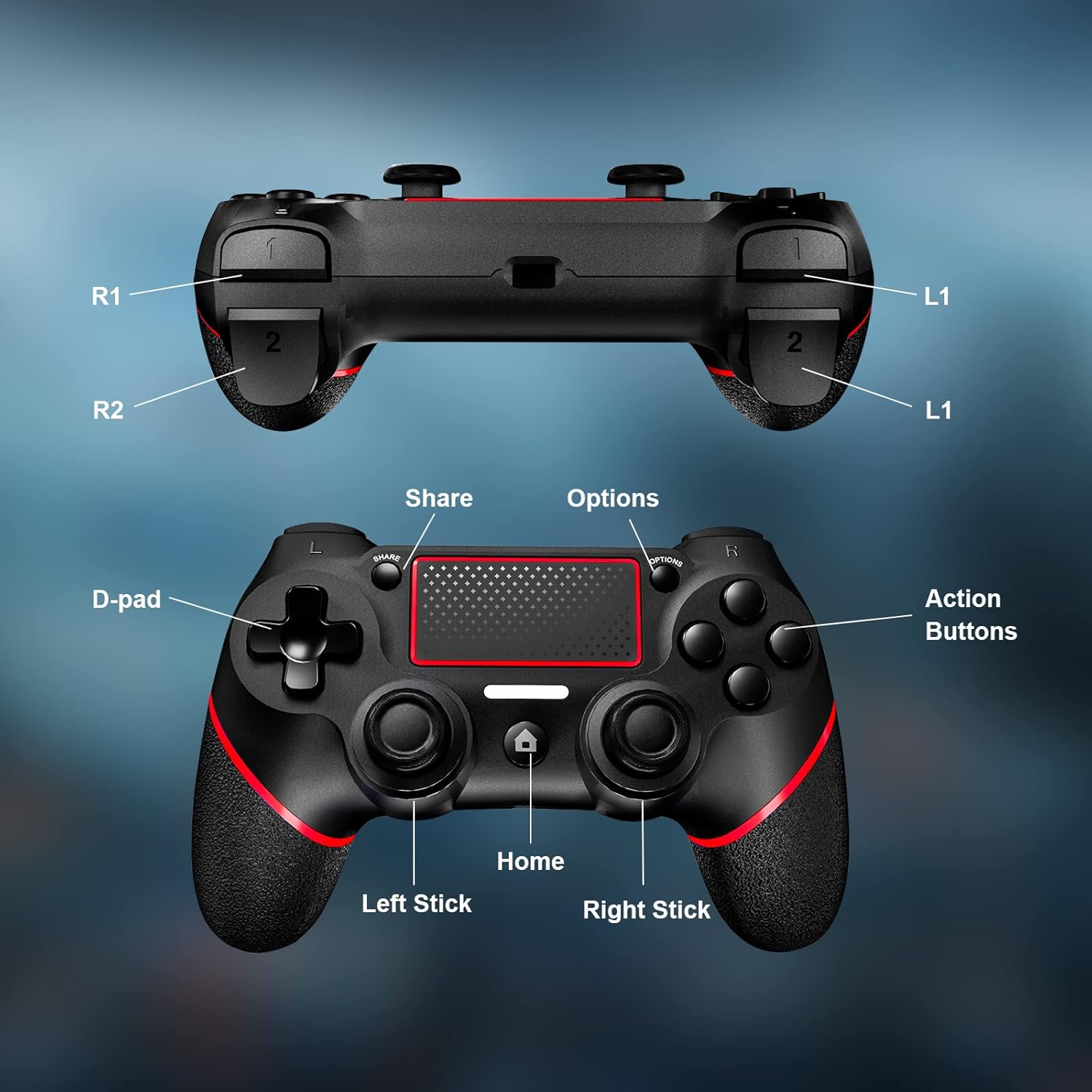
Figure 4.1: Detailed diagram of the controller's buttons and their labels, including L1, L2, R1, R2, Share, Options, D-pad, Action Buttons, Left Stick, Right Stick, and Home button.
4.1 Basic Controls
- D-pad: Directional input for menu navigation and specific game actions.
- Action Buttons (Triangle, Circle, Cross, Square): Perform in-game actions as defined by the game.
- Left Stick / Right Stick: Analog input for character movement, camera control, and other precise actions. Pressing them down acts as L3/R3 buttons.
- L1 / R1 Buttons: Shoulder buttons for various in-game functions.
- L2 / R2 Triggers: Analog triggers for actions like accelerating, braking, or shooting, with pressure sensitivity.
- Share Button: Used to share gameplay screenshots and video clips.
- Options Button: Accesses in-game menus or pause screens.
- Home Button (PS Button): Returns to the PS-4 home screen, turns the console on/off, or accesses quick menus.
- Touchpad: Functions as a clickable surface for specific game interactions and navigation.
- 3.5mm Headphone Jack: Connect compatible headphones for in-game audio and voice chat.
4.2 Advanced Features
- Dual Vibration Function: The intensity of vibration feedback varies based on in-game events, providing a more immersive experience. This feature is automatically active when supported by the game.

Illustration of the dual vibration function providing intensity feedback.
- 6-Axis Gyro Sensor: The built-in sensor detects the controller's tilt and rotation, allowing for motion-controlled gameplay in supported titles.
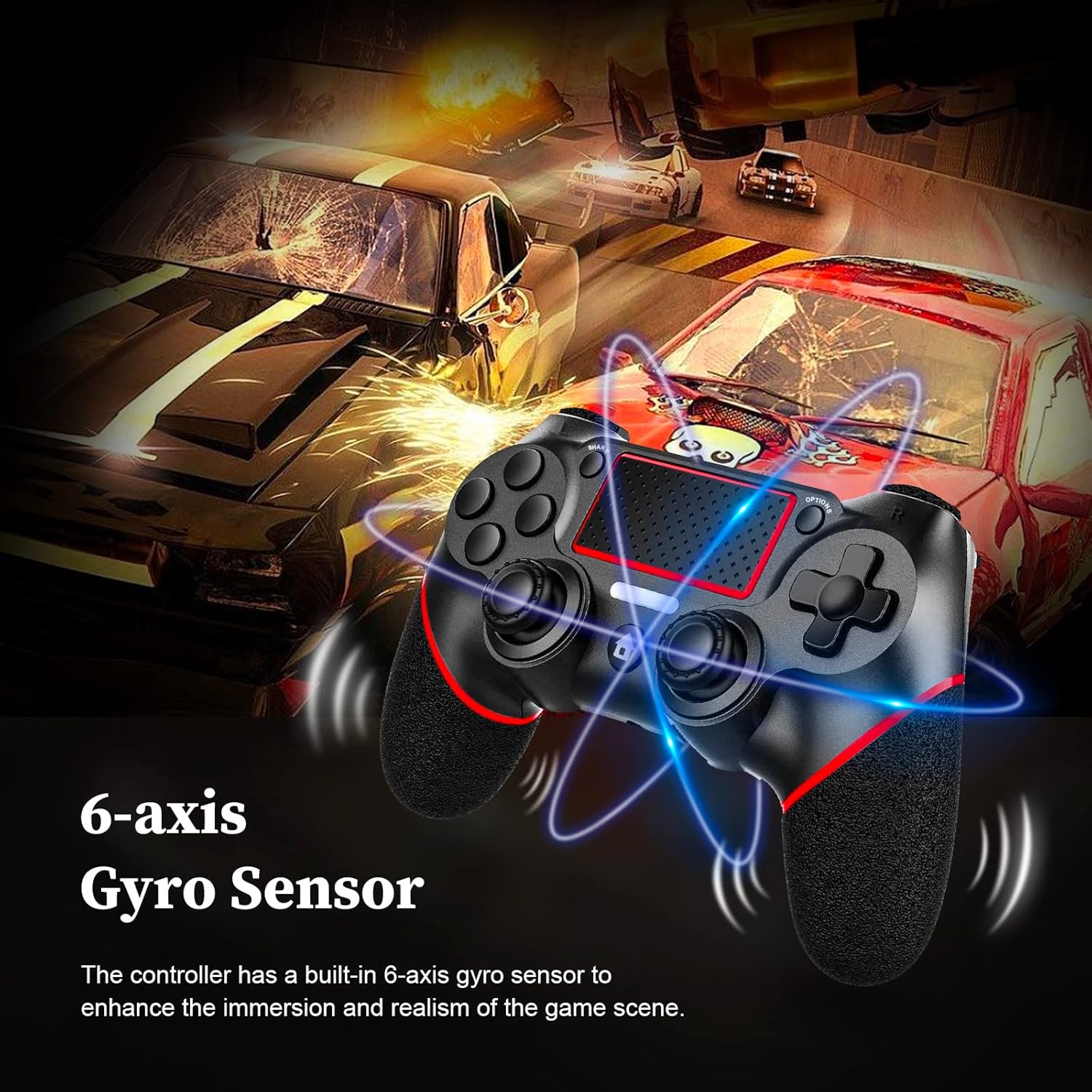
Illustration of the 6-axis gyro sensor enhancing immersion and realism.
5. Battery and Charging
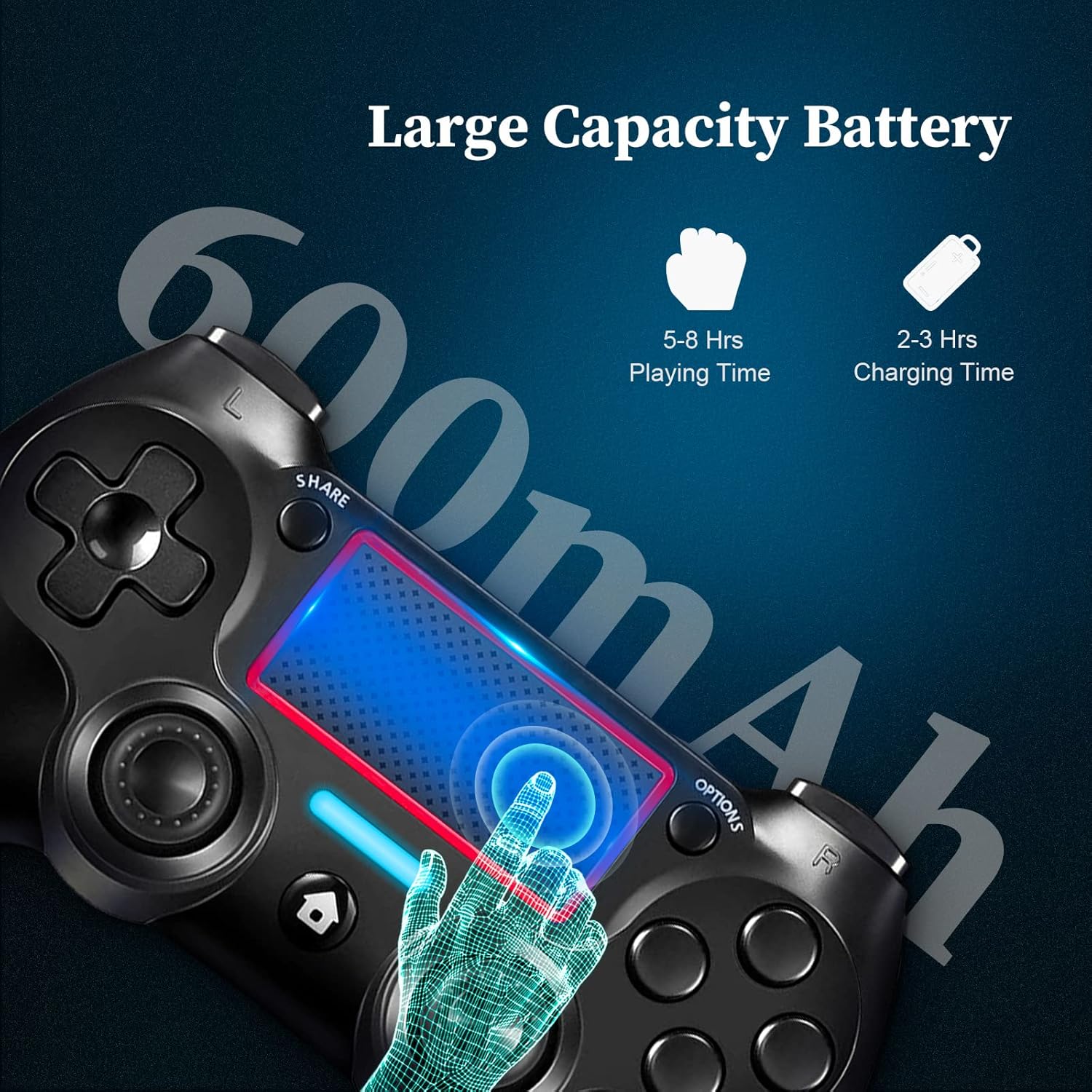
Figure 5.1: Information on the 600mAh large capacity battery, providing 5-8 hours of playing time and requiring 2-3 hours for a full charge.
- The controller is equipped with a 600mAh rechargeable battery.
- A full charge provides approximately 6 to 8 hours of continuous gameplay.
- Charging time is typically 2 to 3 hours.
- To charge, connect the controller to your PS-4 console or a USB power adapter using the provided USB cable. The light bar will indicate charging status.
- The controller can be used while charging.
6. Maintenance
- Keep the controller clean by wiping it with a soft, dry cloth. Do not use harsh chemicals or abrasive materials.
- Avoid exposing the controller to extreme temperatures, direct sunlight, or high humidity.
- Do not disassemble the controller. This will void the warranty and may cause damage.
- Store the controller in a safe place when not in use to prevent accidental damage.
7. Troubleshooting
| Problem | Possible Cause | Solution |
|---|---|---|
| Controller does not turn on. | Battery is depleted. | Connect the controller to a power source using the USB cable and allow it to charge for at least 10 minutes before attempting to turn it on. |
| Controller does not connect to PS-4. | Not initially paired or pairing failed. | Connect the controller to the PS-4 with the USB cable and press the Home button to activate and pair. Ensure the console is on. |
| Input lag or unstable connection. | Interference or too far from console/PC. | Ensure no strong wireless interference sources are nearby. Move closer to the console/PC (within 8 meters). Re-pair the controller if necessary. |
| Buttons or sticks are unresponsive. | Software glitch or physical obstruction. | Try resetting the controller (locate the small reset hole on the back, use a paperclip to press the button inside). Ensure no debris is lodged around buttons/sticks. |
| Vibration not working. | Game does not support vibration or feature is disabled. | Check game settings to ensure vibration is enabled. Verify the game supports vibration feedback. |
8. Specifications
- Model: Wireless Pro Controller for PS-4
- Compatibility: PS-4, PS-4 Slim, PS-4 Pro, PC Windows
- Connectivity: Bluetooth Wireless (up to 8 meters), USB Wired
- Battery: 600mAh Rechargeable Lithium-ion
- Playing Time: 6-8 hours (approx.)
- Charging Time: 2-3 hours (approx.)
- Features: Dual Vibration, 6-Axis Gyro Sensor, Touchpad, 3.5mm Headphone Jack
- Dimensions (Package): 16.8 x 13.8 x 7.6 cm
- Weight (Controller): Approximately 320 grams
- Origin: China
9. Warranty and Support
9.1 Warranty Information
Specific warranty details are typically provided with your purchase documentation or on the product packaging. Please refer to those materials for comprehensive warranty terms and conditions.
9.2 Customer Support
If you encounter any issues or have questions regarding your Shiptree Wireless Pro Controller, please do not hesitate to contact our customer support team. We are committed to providing assistance and ensuring your satisfaction.
For support, please refer to the contact information provided on your product packaging or the retailer's website where you purchased the controller.