
Loshall Tag
Air Tracker Tags User Manual
Model: Loshall Tag
Brand: Generic
1. Introduction
Thank you for choosing the Air Tracker Tags. These compact and efficient item finders are designed to help you easily locate your valuable belongings. Compatible exclusively with Apple's Find My app, they offer a seamless tracking experience without the need for additional applications.
Each tag is thin and lightweight, making it ideal for attaching to keys, wallets, luggage, backpacks, and more. With a replaceable battery and an audible alert, you can quickly find misplaced items within Bluetooth range or track them globally using the Find My network.
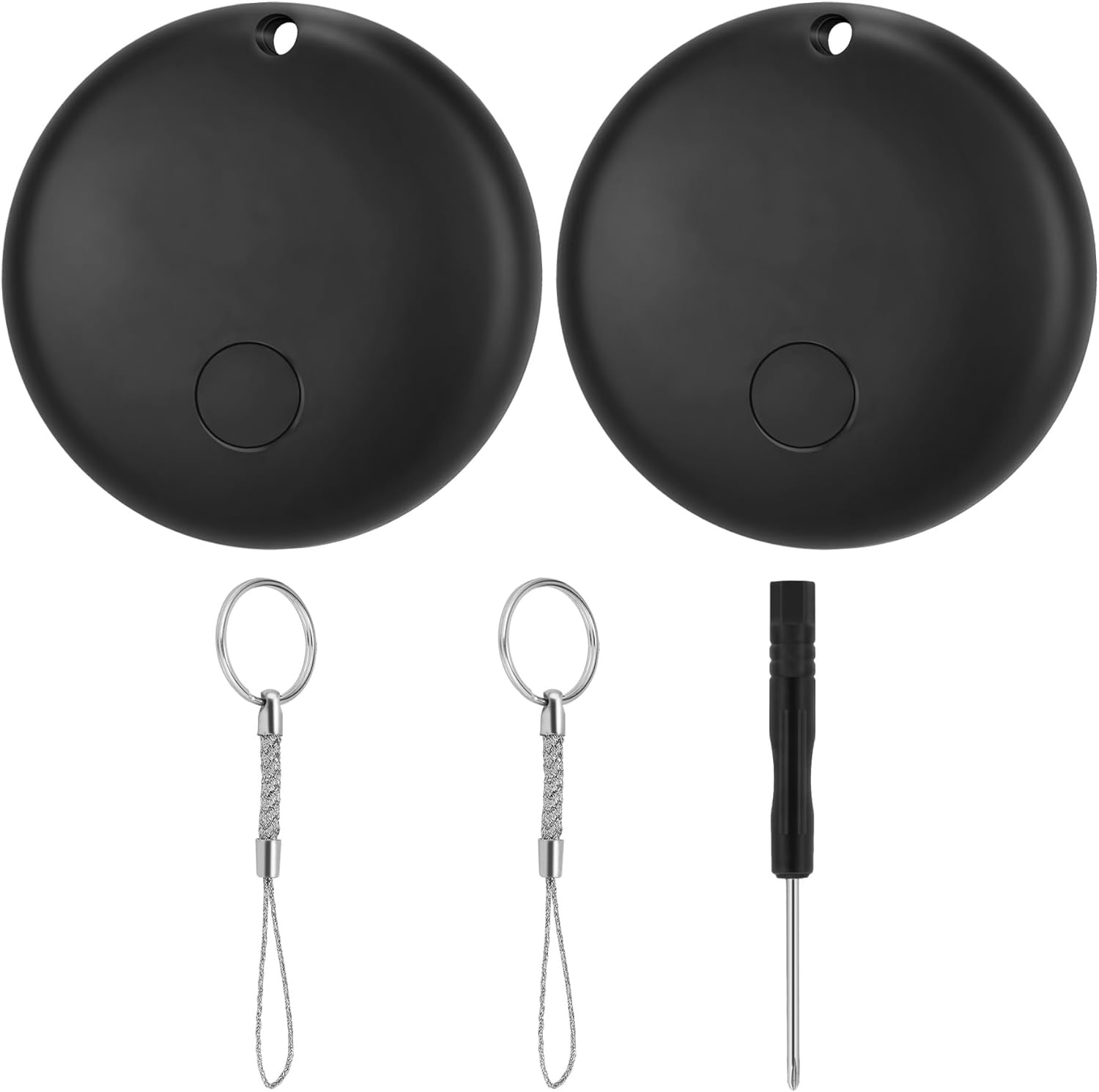
Image: Two black Air Tracker Tags, each with a small hole for attachment. Included are two metal keyrings with braided wire loops and a miniature screwdriver for battery replacement.

Image: A collage of four images demonstrating the versatile applications of the Air Tracker Tag, including attachment to a backpack, luggage, a pet's collar, and a set of keys.
2. Package Contents
- Air Tracker Tag (2 units)
- Keyrings (2 units)
- Mini Screwdriver (1 unit)
- CR2032 Battery (pre-installed in each tag)
3. Setup and Pairing
Follow these steps to set up your Air Tracker Tag and pair it with your Apple device:
- Activate the Device: Press the power button located on the center of the Air Tracker Tag to turn it on.
- Open Apple Find My App: On your iPhone (iOS 14.5 or later), open the "Find My" application.
- Add New Item: Navigate to the "Items" tab and tap the "+" icon. Select "Add Other Item".
- Connect: Your iPhone will begin searching for nearby compatible items. Once the Air Tracker Tag is detected, follow the on-screen prompts to connect it.
- Name Your Item: Assign a name to your Air Tracker Tag (e.g., "Keys", "Backpack", "Wallet") and choose an emoji to represent it.
- Confirm: Confirm the setup. Your Air Tracker Tag is now connected and ready to be tracked.
Important Note: During the initial setup, avoid answering calls or messages to ensure a smooth and uninterrupted pairing process. Please read these instructions carefully before use.

Image: A visual guide demonstrating the three-step setup process for the Air Tracker Tag. It shows pressing the tag's button, adding an item in the Find My app, and naming the item.
4. Operating Instructions
4.1 Locating Items Nearby
When your Air Tracker Tag is within Bluetooth range (up to 80 meters), you can use the Find My app to locate it:
- Open the Find My app on your iPhone.
- Select the "Items" tab and choose your Air Tracker Tag from the list.
- Tap "Play Sound" to make the tag emit an 80dB audible alert, helping you pinpoint its exact location.

Image: An iPhone displaying the Apple Find My app, showing the location of a tracker on a map and options to play a sound or get directions to the item.
4.2 Locating Items Far Away (Find My Network)
If your Air Tracker Tag is out of Bluetooth range, the Apple Find My network can help you locate it. The network consists of millions of Apple devices that securely and anonymously detect nearby Find My compatible items and report their location to iCloud. You can then see your item's location on a map in the Find My app.
Privacy Protection: Only you can see the location data associated with your tag. Location data and history are never stored on the tag itself.
4.3 Left Behind Reminder
The Air Tracker Tag can notify you if you leave an item behind. This feature helps prevent loss by alerting you when the tag disconnects from your device's Bluetooth range.

Image: A simulated iPhone notification indicating that an item, labeled "Key," has been left behind. The background shows a tracker next to a set of keys on a wooden table, with people in a classroom setting.
5. Maintenance
5.1 Battery Replacement
The Air Tracker Tag uses a replaceable CR2032 coin cell battery, which typically lasts up to 12 months. When the battery is low, you will receive a notification on your iPhone.
To replace the battery:
- Locate the small groove on the side of the Air Tracker Tag.
- Use the provided mini screwdriver or a similar small tool to gently pry open the tag.
- Carefully remove the old CR2032 battery.
- Insert a new CR2032 battery with the positive (+) side facing up.
- Align the two halves of the tag and press firmly until it clicks securely into place.
Caution: Dispose of used batteries properly. Keep new and used batteries away from children.
6. Troubleshooting
- Tag not connecting to iPhone:
- Ensure your iPhone is running iOS 14.5 or later.
- Make sure Bluetooth is enabled on your iPhone.
- Check if the tag's battery is not depleted.
- Try resetting the tag by removing and reinserting the battery.
- Ensure you are following the setup steps correctly, especially avoiding interruptions during initial pairing.
- Sound not loud enough:
- The tag's speaker emits an 80dB sound. Ensure there are no obstructions covering the speaker.
- In noisy environments, the sound may be harder to hear.
- Location not updating:
- Ensure your iPhone has an active internet connection (Wi-Fi or cellular data).
- If the tag is out of your personal Bluetooth range, its location relies on the Find My network. Updates may depend on other Apple devices passing by the tag's location.
7. Specifications
| Feature | Detail |
|---|---|
| Product Dimensions | 1.14 x 1.14 x 0.31 inches (29 x 29 x 7.8 mm) |
| Item Weight | 0.212 ounces (6 grams) |
| Connectivity | Bluetooth |
| Bluetooth Range | Up to 80 meters |
| Audible Alert | 80dB |
| Battery Type | CR2032 (replaceable) |
| Battery Life | Up to 12 months |
| Compatibility | iOS 14.5 or later (Apple Find My app) |
| Material | Acrylonitrile Butadiene Styrene (ABS) |
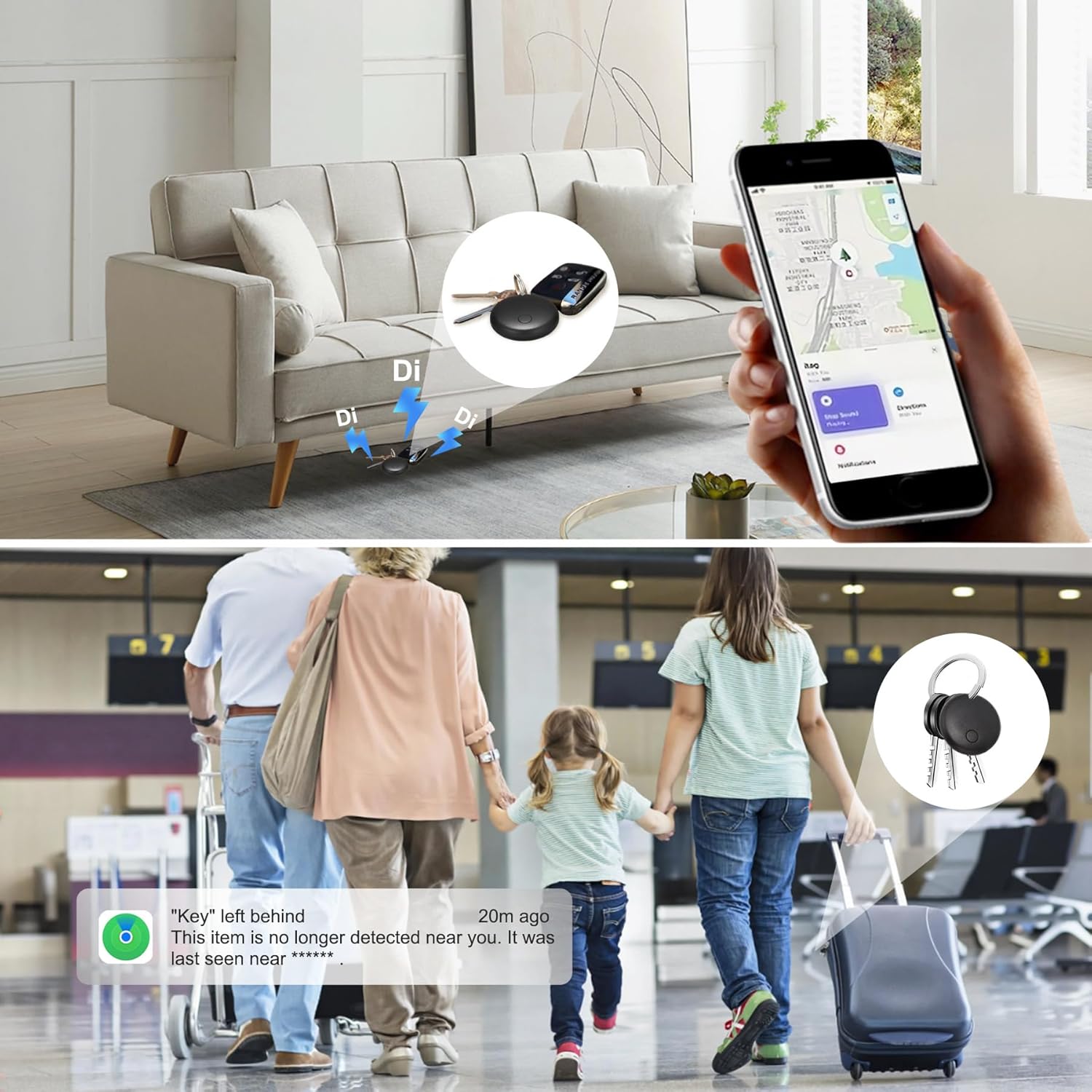
Image: A detailed diagram illustrating the physical dimensions of the Air Tracker Tag, including its diameter (1.14 inches / 29mm) and thickness (0.31 inches / 7.8mm). It also shows the weight (6g) and includes a dollar coin for size comparison.
8. Warranty and Support
For warranty information and technical support, please refer to the contact details provided with your purchase or visit the manufacturer's official website. Keep your proof of purchase for any warranty claims.