
1. Product Overview
The Ophy Robot Kids Toy Spider is an interactive and engaging toy designed for children aged 3 to 12 years. It features unique projection technology, LED eyes, music and dance modes, gesture control, and a remote control for versatile play. Constructed from durable ABS plastic, this robot is designed for safe and long-lasting entertainment.
Key Features:
- Innovative Projection Function: Projects beautiful lights and patterns from its head.
- Multifunctional Design: Features LED eyes with changeable colors, music, dance modes, and flexible movement (forward, backward, left, right).
- Gesture Detection: Control the robot with hand gestures.
- 2.4GHz Remote Control: Provides interference-free control.
- Rechargeable Battery: Includes a USB Type-C charging cable for convenient recharging.
- Durable Construction: Made from high-quality, shock-resistant ABS plastic.
2. Safety Information
Warning: No swallowing of small parts. This product contains small components that may pose a choking hazard. Adult supervision is recommended.
3. Setup
3.1. Unpacking and Components
Carefully remove all components from the packaging. Ensure all items listed below are present.

Image: The Ophy Robot Toy and its 2.4 GHz remote control.
Included Components:
- Robot toy
- 2.4 GHz remote control
- USB Type-C charging cable
- Mini screwdriver
- Instructions (English language)
3.2. Battery Installation and Charging
The Ophy Robot requires a rechargeable battery (included) and the remote control requires 1 x 9V battery (not included).
Robot Charging:
- Locate the charging port on the robot.
- Connect the USB Type-C charging cable to the robot and to a compatible USB power source (e.g., computer, USB wall adapter).
- Allow the robot to charge fully before first use. Charging time may vary. A full charge provides approximately 2 hours of play.
Remote Control Battery Installation:
- Using the provided mini screwdriver, open the battery compartment on the back of the remote control.
- Insert one 9V battery, ensuring correct polarity (+/-).
- Close the battery compartment and secure it with the screw.
4. Operating Instructions
Ensure both the robot and the remote control have sufficient power before operation.
4.1. Power On/Off
- To power on the robot, slide the power switch to the "ON" position.
- To power on the remote control, slide its power switch to the "ON" position.
- To power off, slide both switches to the "OFF" position.
4.2. Basic Movement (Remote Control)
Use the joystick or directional buttons on the 2.4 GHz remote control to guide the robot.
- Forward: Push the joystick forward or press the forward button.
- Backward: Pull the joystick backward or press the backward button.
- Turn Left: Push the joystick left or press the left turn button.
- Turn Right: Push the joystick right or press the right turn button.

Image: The Ophy Robot responding to hand gestures for directional movement.
4.3. Gesture Control
The robot features a gesture sensor for interactive control. Activate gesture mode (refer to remote control buttons if available) and use hand movements to direct the robot.
- Specific gestures for forward, backward, left, and right movement are typically outlined in the quick start guide included with the product.
4.4. LED Eyes and Projection Function
The robot's LED eyes can change colors, and its head features a unique projection function.
- LED Eyes: Use the designated button on the remote control to cycle through different LED eye colors.
- Projection: Activate the projection mode via the remote control. The robot will project lights and patterns from its head onto a surface. Some models allow switching between different projection colors (e.g., yellow, green).

Image: The Ophy Robot demonstrating its projection feature, casting patterns onto a surface.
4.5. Music and Dance Modes
The Ophy Robot can play music and perform dance movements.
- Music: Press the music button on the remote control to play various songs.
- Dance Mode: Activate the dance mode for the robot to perform automatic movements, including 360-degree rotations and arm/head movements, synchronized with music.
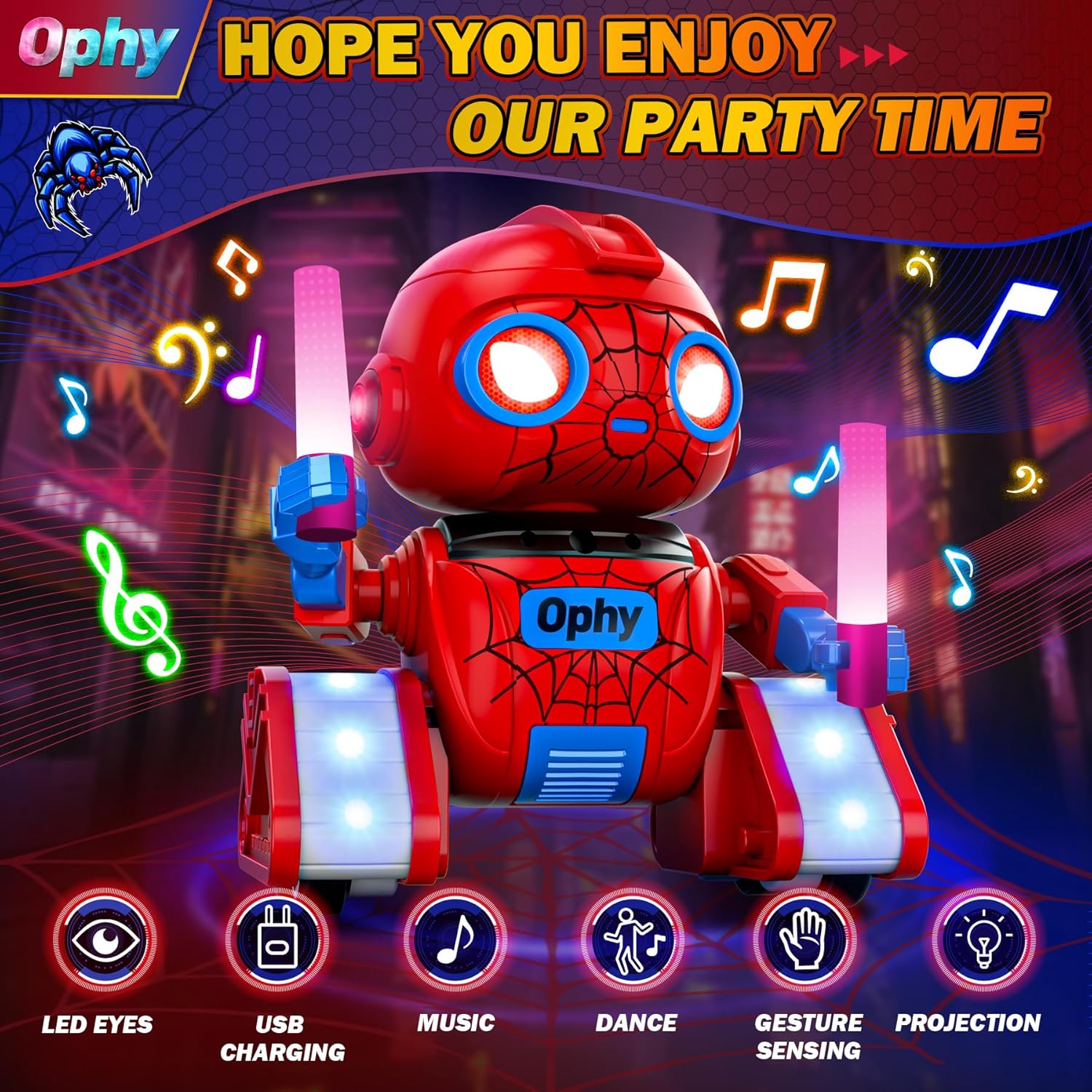
Image: The Ophy Robot highlighting its music, dance, and other interactive features.
5. Maintenance
To ensure the longevity and proper functioning of your Ophy Robot, follow these maintenance guidelines:
- Cleaning: Wipe the robot and remote control with a soft, dry cloth. Do not use harsh chemicals or abrasive cleaners. Avoid exposing the robot to water or excessive moisture.
- Storage: When not in use, store the robot and remote control in a cool, dry place, away from direct sunlight and extreme temperatures.
- Battery Care: If the robot will not be used for an extended period, ensure it is fully charged before storage. Remove the 9V battery from the remote control if it will not be used for a long time to prevent leakage.
- Durability: The robot is made of durable ABS plastic, designed to be shock and wear-resistant. However, avoid dropping it from significant heights or subjecting it to excessive force.
6. Troubleshooting
If you encounter issues with your Ophy Robot, please refer to the following common solutions:
| Problem | Possible Cause | Solution |
|---|---|---|
| Robot does not turn on. | Low battery or power switch is off. | Ensure the robot is fully charged. Check that the power switch is in the "ON" position. |
| Remote control does not work. | Low or incorrectly installed 9V battery, or remote power switch is off. | Replace the 9V battery, ensuring correct polarity. Check that the remote control's power switch is in the "ON" position. Ensure the robot is also powered on. |
| Robot is unresponsive or moves erratically. | Interference, low battery, or out of range. | Move closer to the robot. Ensure both robot and remote are fully charged. Avoid operating near other 2.4GHz devices if interference is suspected. |
| Projection function is dim or not working. | Low battery or obstruction. | Charge the robot fully. Ensure the projection lens on the robot's head is clean and unobstructed. |
7. Specifications
| Model Number: | G-526 |
| Product Dimensions: | 12 x 12 x 16 cm |
| Item Weight: | 480 g |
| Material Type: | Acrylonitrile Butadiene Styrene (ABS) |
| Color: | Red |
| Robot Battery: | Rechargeable (USB Type-C charging cable included) |
| Remote Control Battery: | 1 x 9V battery (not included) |
| Recommended Age: | 36 months - 12 years |
| Manufacturer: | Ophy |