
1. Introduction
Thank you for choosing the Gawfolk 34-inch Ultrawide Curved Gaming Monitor. This manual provides essential information for setting up, operating, and maintaining your monitor to ensure optimal performance and longevity. Please read this manual thoroughly before using the product and retain it for future reference.

Image: The Gawfolk 34-inch Ultrawide Curved Gaming Monitor, showcasing its sleek design and curved screen.
2. Safety Information
- Do not expose the monitor to rain or moisture to prevent fire or shock hazards.
- Do not open the monitor casing. There are no user-serviceable parts inside. Refer all servicing to qualified personnel.
- Place the monitor on a stable, flat surface to prevent it from falling.
- Ensure proper ventilation around the monitor. Do not block ventilation openings.
- Use only the power adapter supplied with the monitor.
- Avoid placing heavy objects on the power cord.
- Unplug the monitor from the power outlet during lightning storms or when unused for long periods.
3. Package Contents
Please check the package contents upon unboxing. If any items are missing or damaged, contact your retailer.
- Gawfolk 34-inch Ultrawide Curved Gaming Monitor
- Monitor Stand (Base and Neck)
- Power Adapter and Power Cable
- DisplayPort (DP) Cable
- HDMI Cable
- User Manual (this document)
4. Setup
4.1 Assembling the Stand
- Carefully remove the monitor from its packaging, keeping it protected.
- Attach the stand neck to the back of the monitor. Ensure it clicks securely into place or is fastened with screws if provided.
- Attach the stand base to the stand neck, securing it with the thumb screw or other fasteners.
- Place the assembled monitor on a stable, flat surface.

Image: Rear view of the monitor showing the stand attachment point.
4.2 Connecting the Monitor
The monitor features multiple input ports for versatile connectivity.
- Power Connection: Connect the power adapter to the monitor's DC input port, then plug the power cable into a wall outlet.
- Video Connection:
- For optimal performance (up to 120Hz refresh rate), use the supplied DisplayPort (DP) cable to connect your computer's graphics card to the monitor's DP input.
- Alternatively, use an HDMI cable to connect your computer or other devices to the monitor's HDMI input. HDMI supports up to 100Hz refresh rate.
- Audio Output: Connect external speakers or headphones to the 3.5mm audio output jack for sound.
- Wall Mounting: The monitor is compatible with VESA 75x75mm wall mounts. Ensure the mount can support the monitor's weight (approximately 16.27 pounds).

Image: Diagram illustrating the monitor's dimensions and available input/output ports (DC, DP 1.4, HDMI 2.0, Audio Out).
5. Operating the Monitor
5.1 Power On/Off
Press the power button, usually located on the back or bottom of the monitor, to turn it on or off. The power indicator light will illuminate when the monitor is on.
5.2 On-Screen Display (OSD) Menu
The OSD menu allows you to adjust various monitor settings. Typically, a joystick or a set of buttons on the back or bottom of the monitor controls navigation.
- Press the OSD button/joystick to open the menu.
- Use the navigation controls to select options and adjust values.
- Press the OSD button/joystick again or select 'Exit' to close the menu.
5.3 Display Settings
- Refresh Rate: The default refresh rate is 60Hz. To achieve 120Hz, connect via DisplayPort and adjust the refresh rate in your computer's display settings (e.g., Windows Display Settings or NVIDIA/AMD Control Panel). HDMI supports up to 100Hz.
- Color Settings: Adjust brightness, contrast, color temperature, and gamma to suit your preferences. The monitor supports 128% sRGB and 16.7 million colors for vivid visuals.
- Low Blue Light Mode: Activate this mode through the OSD to reduce eye strain during prolonged use. This feature uses DC global dimming technology to achieve flicker-free operation.
5.4 FreeSync and G-Sync
This monitor supports both FreeSync and G-Sync technologies to prevent screen tearing and stuttering by synchronizing the monitor's refresh rate with your graphics card's frame rate. Ensure these features are enabled in your graphics card's control panel (e.g., AMD Radeon Software or NVIDIA Control Panel).

Image: Visual representation of FreeSync and G-Sync technology eliminating screen tearing and stuttering.
5.5 PS5/Xbox Compatibility Notice
Important Note for Console Users:
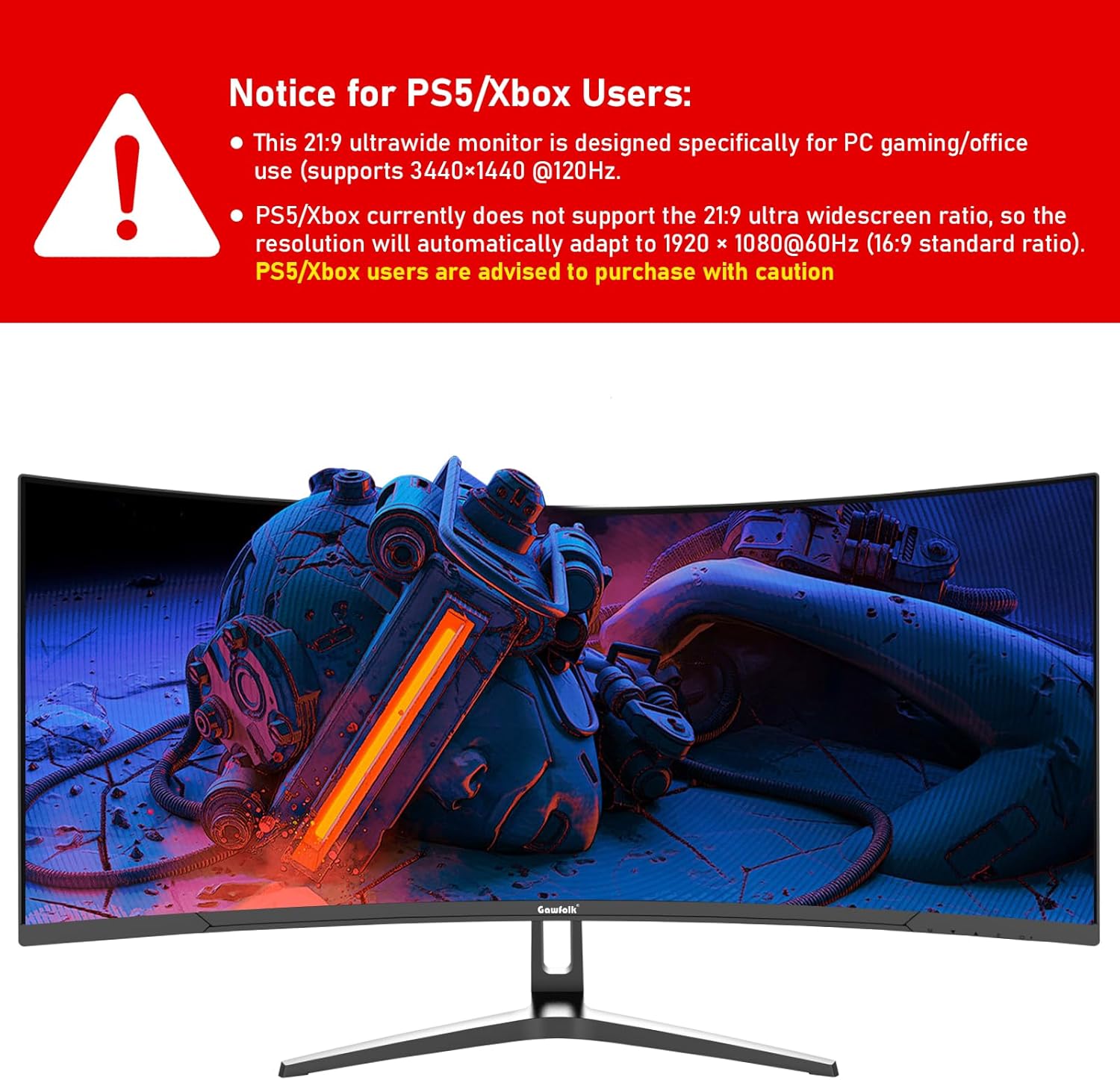
Image: A warning notice specifically for PS5/Xbox users regarding resolution compatibility.
- This 21:9 ultrawide monitor is primarily designed for PC gaming and office use, supporting 3440x1440 resolution at 120Hz.
- PS5 and Xbox consoles currently do not natively support the 21:9 ultrawide aspect ratio. When connected, the resolution will automatically adapt to 1920x1080 at 60Hz (16:9 standard ratio).
- PS5/Xbox users are advised to consider this limitation before purchase.
6. Key Features
6.1 34-inch 21:9 Ultrawide Curved Display
Experience an immersive viewing experience with the 34-inch ultrawide screen and 1500R curvature. This design provides a wider field of view compared to traditional 16:9 monitors, enhancing gaming and multimedia content. The UWQHD (3440x1440) resolution ensures sharp and detailed images.

Image: Comparison showing the expanded field of view with a 21:9 UWQHD display versus a standard 16:9 QHD display.

Image: Visual emphasizing the 1500R curvature for an immersive viewing experience.
6.2 120Hz Refresh Rate & 1ms GTG Response Time
Enjoy smooth and responsive gameplay with a 120Hz refresh rate, displaying up to 120 frames per second. The ultra-fast 1ms Gray-to-Gray (GTG) response time minimizes motion blur and ghosting, providing a clear advantage in fast-paced games.

Image: Visual demonstrating the difference between 120Hz 1ms and 60Hz 5ms response times in gaming.
6.3 Rich Colors and High Contrast
The monitor boasts 128% sRGB color coverage and supports 16.7 million colors, ensuring vibrant and accurate color reproduction. With a dynamic contrast ratio of 4000:1 and 360 nits peak brightness, images are displayed with deep blacks, bright whites, and excellent detail.

Image: Visual highlighting the monitor's rich color capabilities with 128% sRGB, 4000:1 contrast, and 360cd/m² brightness.

Image: Side-by-side comparison illustrating the superior depth and detail provided by a 4000:1 contrast ratio compared to 1000:1.
6.4 Low Blue Light & Flicker-Free
The monitor incorporates DC dimming technology to eliminate screen flickering, reducing eye strain. Additionally, the low blue light mode filters out harmful short-wave blue light, making long viewing sessions more comfortable for your eyes.

Image: Visual demonstrating the effect of low blue light mode and flicker-free technology on eye comfort.
7. Troubleshooting
If you encounter issues with your monitor, please refer to the following common problems and solutions:
- No Power:
- Ensure the power cable is securely connected to the monitor and the power outlet.
- Verify the power adapter is functioning correctly.
- Try a different power outlet.
- "Cable Not Connected" Message / No Signal:
- Check that the video cable (DisplayPort or HDMI) is firmly connected to both the monitor and your computer's graphics card.
- Ensure the correct input source is selected on the monitor's OSD menu.
- Try a different video cable.
- Test the monitor with another computer or device to rule out a source issue.
- Image Distortion / Incorrect Resolution:
- Adjust the resolution and refresh rate in your computer's display settings to 3440x1440 and 120Hz (via DP) or 100Hz (via HDMI).
- Perform an auto-adjustment or reset display settings via the OSD menu.
- Dead Pixels:
- A small number of dead or stuck pixels is common in LCD/LED technology and typically not considered a defect unless it exceeds manufacturer specifications.
- If you suspect an excessive number of dead pixels, contact customer support.
- Stand Tilt Adjustment Issue:
- The monitor stand offers limited tilt adjustment (-5° to 15°). It does not feature height or swivel adjustment.
- If the monitor does not hold its position, ensure the stand is correctly assembled and tightened.
8. Specifications
| Feature | Specification |
|---|---|
| Brand | Gawfolk |
| Model Number | GF340E |
| Screen Size | 34 Inches |
| Screen Resolution | 3440x1440 (UWQHD) |
| Max Screen Resolution | 3440 x 1440 Pixels |
| Curvature | 1500R |
| Refresh Rate | 120Hz (DP), 100Hz (HDMI) |
| Response Time | 1ms GTG |
| Color Gamut | 128% sRGB |
| Color Depth | 16.7 Million Colors (8-bit) |
| Image Contrast Ratio | 4000:1 |
| Brightness | 360 nits |
| Viewing Angle | 178° |
| Connectivity | 2x HDMI 2.0, 2x DisplayPort 1.4, Audio Out, DC In |
| VESA Compatibility | 75x75mm |
| Item Weight | 16.27 pounds |
| Product Dimensions (LxWxH) | 7.72 x 31.93 x 18.58 inches |
| Color | Black |
9. Maintenance
- Cleaning the Screen: Gently wipe the screen with a soft, lint-free cloth. For stubborn marks, dampen the cloth slightly with water or a non-abrasive screen cleaner. Never spray cleaner directly onto the screen.
- Cleaning the Casing: Use a soft, dry cloth to clean the monitor casing. Avoid using strong detergents or solvents.
- Storage: If storing the monitor for an extended period, unplug it and store it in a cool, dry place, preferably in its original packaging to protect it from dust and physical damage.
10. Warranty and Support
Gawfolk provides 12 months of after-sales service for this monitor. If you encounter any problems or have questions regarding the use, setup, or performance of your monitor, please do not hesitate to communicate with us. Refer to your purchase documentation for specific contact details or visit the official Gawfolk support website.


