
1. Introduction
Thank you for choosing the LOSHALL Smart Tag F08. This device is designed to help you locate your valuable items quickly and efficiently using the Apple Find My network. This manual provides detailed instructions on how to set up, operate, and maintain your Smart Tag.
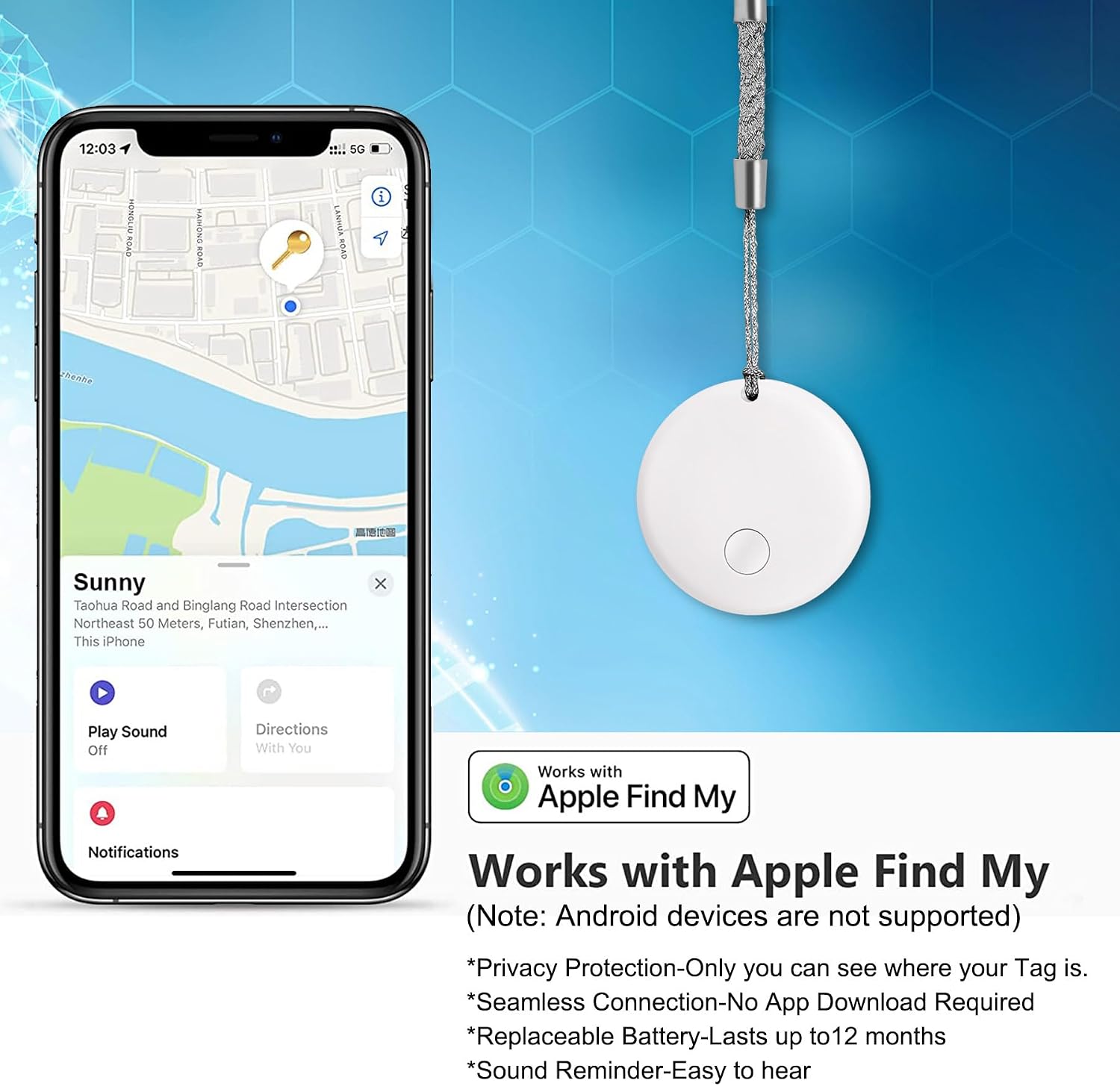
Image 1.1: The LOSHALL Smart Tag F08 connected to an iPhone, showing its location on the Apple Find My map.
2. Safety Information
- Keep the device and its accessories out of reach of children and pets. Small parts may pose a choking hazard.
- Do not expose the device to extreme temperatures, direct sunlight, or moisture.
- Do not attempt to disassemble, repair, or modify the device. This will void the warranty and may cause damage.
- Dispose of batteries according to local regulations. Do not incinerate batteries.
3. Package Contents
The LOSHALL Smart Tag F08 package typically includes:
- LOSHALL Smart Tag F08 (with 1 CR2032 battery installed)
- Keyring (may vary by package)
- Mini screwdriver (for battery replacement)
4. Product Overview
The LOSHALL Smart Tag F08 is a compact and lightweight item tracker designed for seamless integration with the Apple Find My network.
Key Features:
- Compact Design: Measures 29mm in diameter and 7.8mm in thickness, weighing only 6 grams.
- Apple Find My Compatibility: Works exclusively with iOS devices (iOS 14.5 or later) and integrates directly with the Apple Find My app. No additional apps required.
- Privacy Protection: Location data is visible only to the user and is not stored on the tag itself.
- Bluetooth Tracking: Offers a Bluetooth range of up to 80 meters for local tracking.
- Audible Alert: Features an 80dB built-in speaker to help locate items nearby.
- Replaceable Battery: Powered by a standard CR2032 coin cell battery, providing up to 12 months of use.

Image 4.1: Physical dimensions and weight of the LOSHALL Smart Tag F08.
5. Setup Instructions
Follow these steps to connect your LOSHALL Smart Tag F08 to your iPhone:
- Prepare your iPhone: Ensure your iPhone is running iOS 14.5 or later and that Bluetooth is enabled.
- Activate the Smart Tag: Press and hold the button on the Smart Tag for approximately 10 seconds until you hear a beep. This indicates the tag is in pairing mode.
- Open Find My App: On your iPhone, open the Find My application.
- Add New Item: In the Find My app, tap on the "Items" tab, then tap the "+" icon, and select "Add Other Item".
- Connect to Tag: Your iPhone will search for nearby compatible items. Select "LOSHALL Tag" from the list of discovered devices.
- Name Your Item: Follow the on-screen prompts to name your Smart Tag (e.g., "Keys," "Wallet," "Luggage") and assign an emoji if desired.
- Confirm Setup: Confirm the setup. Your Smart Tag is now connected and ready to use.
Important Note: During the initial setup process, avoid answering calls or messages to prevent interruptions that could affect the connection.

Image 5.1: Visual guide for the easy setup process of the Smart Tag.
6. Operating Instructions
6.1 Locating Your Item
To find an item attached to your LOSHALL Smart Tag:
- Open the Find My app on your iPhone.
- Go to the "Items" tab.
- Select the LOSHALL Smart Tag you wish to locate.
- The app will display the tag's last known location on a map.
- If the tag is nearby, you can tap "Play Sound" to make the tag emit an 80dB alert, helping you pinpoint its exact location.
6.2 Left Behind Reminder
The Smart Tag can notify you if you leave an item behind. This feature is configured within the Find My app:
- In the Find My app, select your Smart Tag.
- Scroll down to the "Notifications" section.
- Enable "Notify When Left Behind" and customize the locations where you don't want to be notified (e.g., your home).

Image 6.1: Example of a 'Left Behind Reminder' notification.
6.3 Privacy
The Apple Find My network is designed with privacy in mind. Only you can see where your Smart Tag is. Location data and history are encrypted and never stored on the tag itself. The network uses anonymous, encrypted Bluetooth signals from millions of Apple devices to help locate your item.
7. Battery Replacement
The LOSHALL Smart Tag F08 uses a replaceable CR2032 coin cell battery, which typically lasts up to 12 months. When the battery is low, you will receive a notification on your iPhone via the Find My app.
Steps for Battery Replacement:
- Locate the small groove or opening on the side of the Smart Tag.
- Use the provided mini screwdriver or a similar small tool to gently pry open the casing.
- Carefully remove the old CR2032 battery.
- Insert a new CR2032 battery with the positive (+) side facing up.
- Align the two halves of the casing and press firmly until it clicks securely into place.
Caution: Ensure proper battery orientation. Incorrect installation may damage the device.
8. Troubleshooting
8.1 Tag Not Connecting or Disconnecting Frequently
- Check iOS Version: Ensure your iPhone is running iOS 14.5 or later.
- Bluetooth: Verify that Bluetooth is enabled on your iPhone.
- Battery Level: Check the battery status of your Smart Tag in the Find My app. Replace the battery if it is low.
- Re-pair Device: If issues persist, try removing the tag from the Find My app and re-pairing it following the setup instructions.
- Interference: Move away from other electronic devices that might cause Bluetooth interference.
8.2 Cannot Hear the Sound Alert
- Volume: Ensure your iPhone's volume is turned up.
- Obstructions: Check if the tag's speaker is obstructed by the item it's attached to or by its environment.
- Range: The sound alert is most effective when the tag is within Bluetooth range (up to 80 meters). If it's further away, rely on the map location.
- Battery: A low battery can affect the speaker's performance. Replace the battery if needed.
8.3 Inaccurate Location Information
- The accuracy of the location depends on the Apple Find My network. In areas with fewer Apple devices, location updates might be less frequent or precise.
- Ensure your iPhone has a stable internet connection (Wi-Fi or cellular data) for the Find My app to function correctly.
9. Specifications
| Model Number | F08 |
| Dimensions | 29mm (diameter) x 7.8mm (thickness) |
| Weight | 6 Grams |
| Battery Type | 1 x CR2032 (included) |
| Battery Life | Up to 12 months |
| Bluetooth Range | Up to 80 meters (open field) |
| Speaker Output | 80dB |
| Compatibility | iOS 14.5 or later (Apple Find My network) |
| Manufacturer | Zhitong Technology |
10. Warranty and Support
LOSHALL products are designed for reliability and performance. For warranty information, technical support, or any questions regarding your Smart Tag F08, please refer to the contact information provided with your purchase or visit the official LOSHALL website.

Image 10.1: Versatile uses of the LOSHALL Smart Tag F08 for tracking various items.


