
DODOXCX GD88
DODOXCX Portable Thermal Printer User Manual
Model: GD88
Brand: DODOXCX
1. Product Overview
The DODOXCX Portable Thermal Printer is a compact and lightweight printing solution designed for on-the-go use. This inkless printer utilizes advanced thermal technology, eliminating the need for ink cartridges, toner, or ribbons. It supports various paper sizes, including US Letter, Legal, A4, and A5 thermal paper, making it versatile for different printing needs.
Its wireless capabilities, including Bluetooth connectivity, allow for seamless printing from smartphones, tablets, and computers. With a long-lasting battery and quick setup, it is an ideal tool for business professionals, students, and anyone requiring portable printing.

Image: The DODOXCX Portable Thermal Printer shown with three rolls of thermal paper and a USB flash drive, illustrating its compact design and included accessories.

Image: A person demonstrating the portability of the DODOXCX printer by easily placing it into a handbag, highlighting its small size and convenience for travel.
2. What's in the Box
Upon unboxing your DODOXCX Portable Thermal Printer, please ensure all the following components are present:
- DODOXCX Portable Thermal Printer (GD88)
- USB flash drive (containing drivers and software)
- USB Cable (for charging and wired connection)
- 3 rolls of thermal paper
Image: A clear view of the DODOXCX printer, three rolls of thermal paper, and the USB flash drive, representing the complete package contents.
3. Setup Guide
3.1 Initial Charging
Before first use, fully charge the printer using the provided USB cable and a compatible power adapter (not included). The charging indicator light will provide status updates.
3.2 Loading Thermal Paper
- Open the paper compartment cover on the printer.
- Insert the thermal paper roll, ensuring the printing side faces the print head.
- Pull a small amount of paper out of the slot and close the cover firmly.
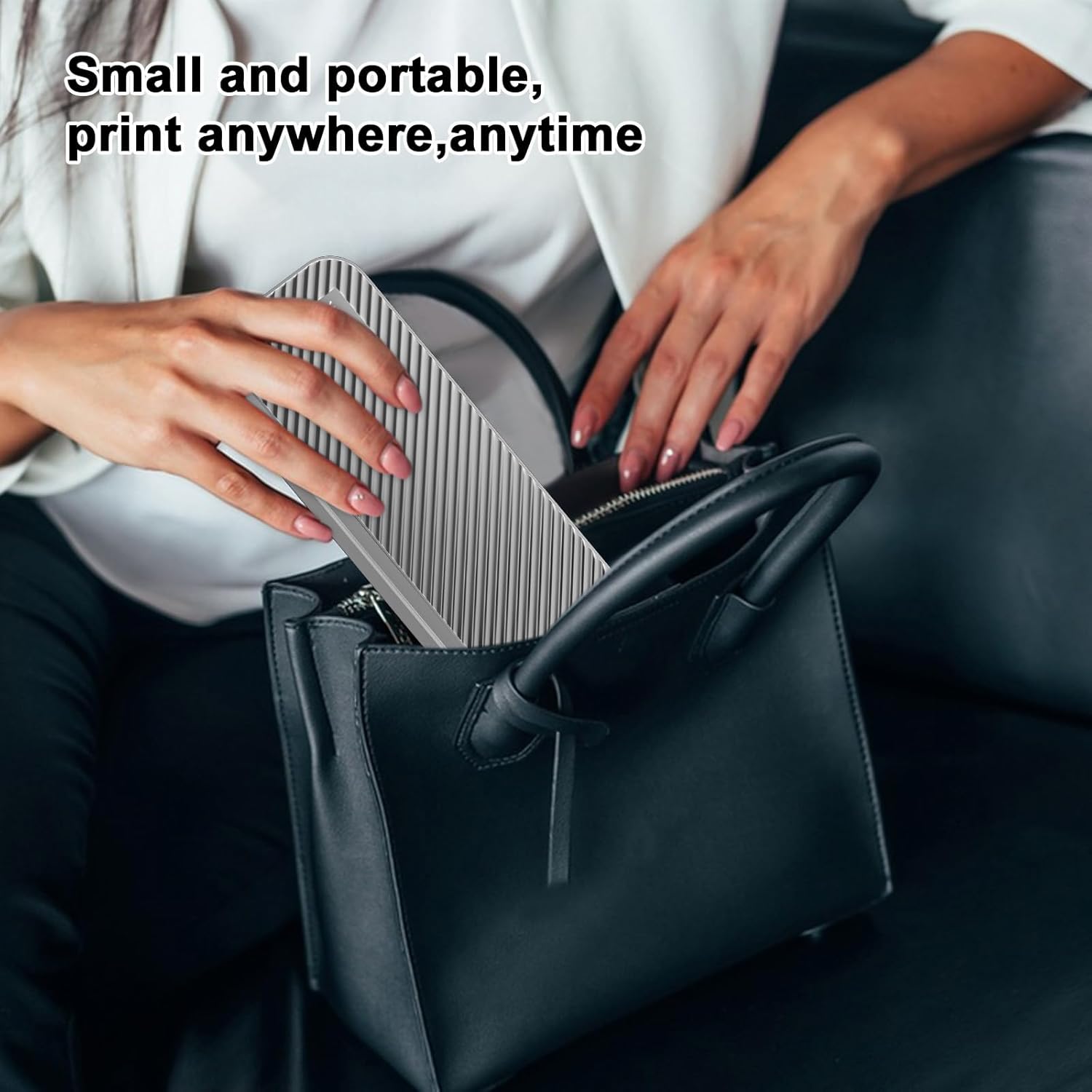
Image: Visual guide demonstrating how to load both folding paper and various sizes of roll paper (2, 3, 4, 8.5 inches) into the printer, ensuring correct orientation.
3.3 Connecting to Devices
3.3.1 Bluetooth Connection (for Smartphones/Tablets)
- Download the official DODOXCX printing application (e.g., 'Easyprint' or similar, check product packaging for QR code) from your device's app store (iOS App Store or Google Play Store).
- Ensure your printer is powered on and Bluetooth is enabled on your mobile device.
- Open the printing application and follow the in-app instructions to search for and connect to your printer via Bluetooth. The printer's name will typically appear as 'GD88' or similar.

Image: A smartphone displaying the printer application interface, connected wirelessly to the DODOXCX printer, illustrating the Bluetooth connection process.
3.3.2 USB Connection (for Laptops/Computers)
- Connect the printer to your computer using the provided USB cable.
- Insert the included USB flash drive into your computer.
- Install the printer drivers from the USB flash drive. Follow the on-screen instructions for your operating system (Windows or macOS). If the USB drive is not available, drivers can often be found on the manufacturer's support website.
- Once drivers are installed, the printer should be recognized by your computer and ready for use.
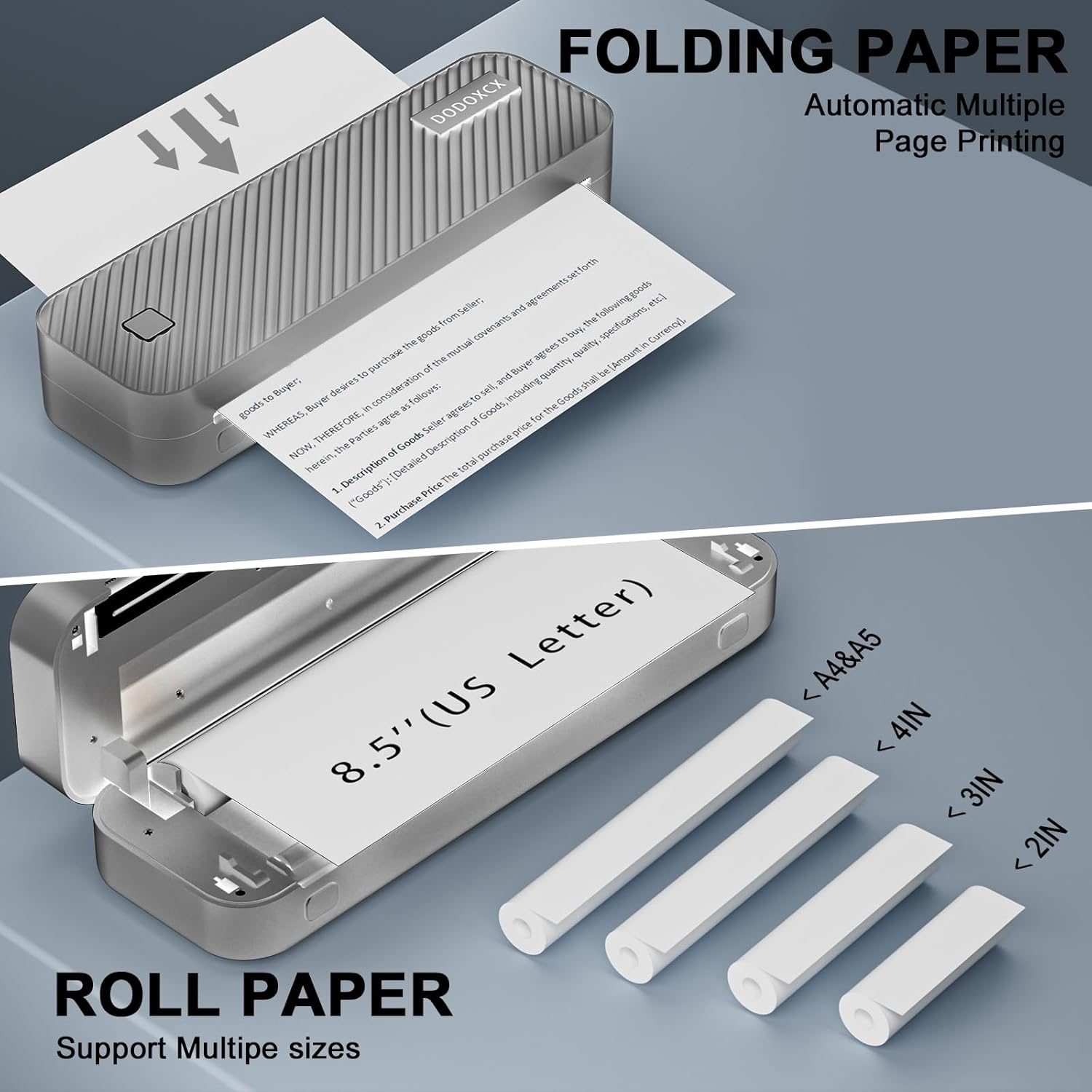
Image: A laptop connected to the DODOXCX printer via a USB cable, with a 'Driver' icon visible, indicating the process for wired printing setup.
4. Operating Instructions
4.1 Printing from Mobile Devices
- Ensure your printer is connected via Bluetooth to your smartphone or tablet.
- Open the DODOXCX printing application.
- Select the document or image you wish to print from within the app.
- Adjust print settings (e.g., paper size, orientation) as needed.
- Tap the 'Print' button to initiate printing.
4.2 Printing from Computers
- Ensure your printer is connected via USB to your computer and drivers are installed.
- Open the document or image you wish to print using your preferred application (e.g., Microsoft Word, Adobe Reader).
- Go to 'File' > 'Print' (or press Ctrl+P / Cmd+P).
- Select the DODOXCX printer from the list of available printers.
- Adjust print settings as needed (e.g., paper size, print quality).
- Click 'Print'.
4.3 Print Quality
The DODOXCX printer offers high-definition thermal printing. For optimal results, ensure you are using high-quality thermal paper.

Image: A visual comparison demonstrating the enhanced clarity and detail of 300 DPI printing compared to 203 DPI, highlighting the printer's high-resolution output.
5. Maintenance
5.1 Ink-Free Operation
This printer operates using thermal technology, meaning it does not require ink, toner, or ribbons. This significantly reduces maintenance and running costs.
5.2 Thermal Paper Requirement
Only use thermal paper with this printer. Regular copy paper is not compatible and will not produce prints. Ensure thermal paper is stored in a cool, dry place away from direct sunlight to preserve its quality and longevity.
5.3 Cleaning
To clean the exterior of the printer, use a soft, dry cloth. Do not use abrasive cleaners or solvents. For the print head, gently wipe with a cotton swab lightly dampened with isopropyl alcohol, ensuring the printer is off and cooled down before cleaning.
6. Troubleshooting
6.1 No Print Output
- Ensure the printer is powered on and fully charged.
- Verify that thermal paper is loaded correctly and not jammed.
- Check the connection (Bluetooth or USB) to your device. For Bluetooth, ensure it's paired. For USB, confirm drivers are installed.
- Restart both the printer and your connected device.
6.2 Poor Print Quality
- Ensure you are using high-quality thermal paper.
- Check if the thermal paper is loaded with the correct side facing the print head.
- Clean the print head as described in the Maintenance section.
- Ensure the paper roll is not too old or exposed to heat/light, which can degrade thermal paper quality.
6.3 Connectivity Issues
- Bluetooth: Ensure Bluetooth is enabled on both devices. Try unpairing and re-pairing the printer. Make sure the printer is within range.
- USB: Try a different USB port or cable. Reinstall the printer drivers.
If you encounter persistent issues not covered here, please refer to the Warranty and Support section for assistance.
7. Specifications
| Feature | Detail |
|---|---|
| Model Name | A40 (Item model number: GD88) |
| Printing Technology | Thermal |
| Connectivity Technology | Bluetooth, USB |
| Printer Output | Black Color |
| Maximum Media Size | 8.5 x 11 inch (US Letter) |
| Supported Sheet Sizes | US Letter/Legal, A4/A5, 2/3/4 inch |
| Product Dimensions | 3 x 10 x 1.9 inches (7.62 x 25.4 x 4.83 cm) |
| Item Weight | 1.4 pounds (0.64 kg) |
| Batteries | 2 Lithium Ion batteries (included) |
| Max Print Speed Monochrome | 10 pages per minute (PPM) |
| Special Features | Portable, Inkless, A4/US Letter compatible |
8. Warranty and Support
DODOXCX is committed to providing exceptional customer service. For any inquiries before or after using your portable wireless printer, lifetime technical support is available via phone and email.
For specific warranty details, including coverage period and terms, please refer to the documentation included with your product or contact DODOXCX customer support directly.
Contact Information: Refer to the official DODOXCX website or product packaging for the most current support contact details (phone number, email address).
Ask a question about this manual
Ask about setup, troubleshooting, compatibility, parts, safety, or missing instructions. Manuals+ will review the question and use this page’s manual context to help answer it.