
1. Introduction
The ASUS Triple 4K Thunderbolt 4 Dock DC500 is a compact, all-in-one docking station designed to expand the connectivity of your laptop, particularly for creative professionals. It enables a single Thunderbolt 4 cable connection to your laptop to facilitate connections to multiple 4K displays, various peripherals, and memory card readers, establishing a comprehensive and efficient workstation.
This dock supports a 12-in-1 connectivity solution, offering high-speed data transfers via 2.5 Gigabit Ethernet and Thunderbolt 4. It is capable of driving a single 8K monitor or up to three 4K displays simultaneously. The adjustable aluminum stand provides stable placement and includes a locking knob for secure attachment to a desk or monitor.
2. Package Contents
Verify that all items listed below are present in your product package:
- ASUS Triple 4K Thunderbolt 4 Dock DC500
- Power Adapter (150W)
- Power Cord
- Thunderbolt 4 Cable
- Adjustable Stand
- Locking Knob for Stand

Image: Package contents of the ASUS DC500 Dock, including the dock, power adapter, cables, and stand.
3. Product Overview
The ASUS DC500 dock features a comprehensive array of ports for versatile connectivity. Familiarize yourself with the port layout before connecting devices.
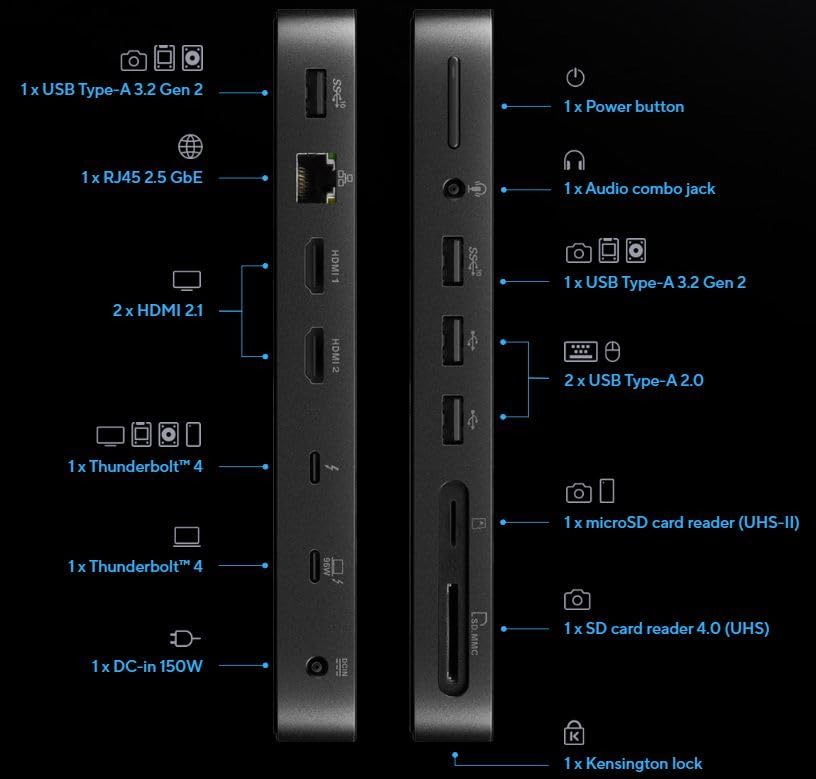
Image: Port diagram of the ASUS DC500 Thunderbolt 4 Dock, showing all input and output connections.
Front/Side Ports:
- 1x Audio Combo Jack: For headphones or headsets.
- 1x USB Type-A 3.2 Gen 2: High-speed USB connection for peripherals.
- 2x USB Type-A 2.0: For standard USB devices like keyboards and mice.
- 1x microSD Card Reader (UHS-II): For high-speed microSD card access.
- 1x SD Card Reader 4.0 (UHS): For high-speed SD card access.
Rear Ports:
- 1x DC-in (150W): Power input for the docking station.
- 1x Thunderbolt™ 4 (96W Power Delivery): Connects to your laptop for data, video, and power.
- 1x Thunderbolt™ 4: Additional Thunderbolt port for peripherals or displays.
- 2x HDMI 2.1: For connecting external displays.
- 1x RJ45 2.5 Gigabit Ethernet: For high-speed wired network connection.
- 1x USB Type-A 3.2 Gen 2: High-speed USB connection for peripherals.
- 1x Kensington Lock Slot: For physical security.
- 1x Power Button: To turn the dock on/off.

Image: Angled view of the ASUS DC500 Dock, highlighting its compact form factor and port accessibility.
4. Setup
Follow these steps to set up your ASUS Triple 4K Thunderbolt 4 Dock DC500:
- Connect Power: Connect the provided 150W power adapter to the DC-in port on the dock, then plug the power cord into an electrical outlet.
- Connect to Laptop: Use the included Thunderbolt 4 cable to connect the dock's Thunderbolt 4 port (with 96W Power Delivery) to a Thunderbolt 4 or Thunderbolt 3 port on your laptop. This single cable provides data, video, and power to your laptop.
- Connect Displays: Connect your external monitors to the HDMI 2.1 ports or the additional Thunderbolt 4 port on the dock. Refer to the 'Display Configuration' section for optimal setup.
- Connect Peripherals: Plug in your USB devices (keyboard, mouse, external drives), Ethernet cable, and audio devices to the corresponding ports on the dock.
- Secure the Dock (Optional): Attach the adjustable stand to the dock and use the locking knob to secure it to the edge of your desk or the rear of a monitor for stability and space-saving.
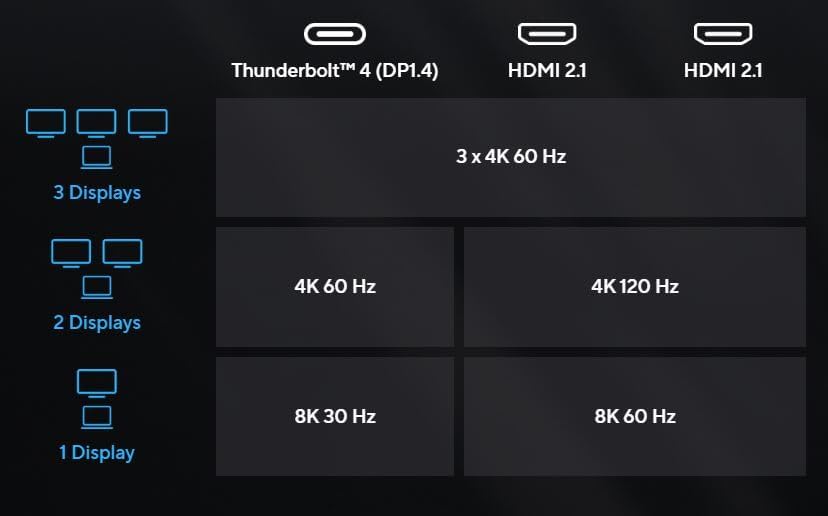
Image: The ASUS DC500 Dock connected to a laptop, illustrating the primary Thunderbolt connection.
5. Operating Instructions
Once the dock is set up, your connected devices should be recognized automatically by your laptop. The ASUS DC500 is designed for plug-and-play functionality, typically requiring no additional drivers.
Using External Displays:
Your operating system (e.g., Windows, macOS) should detect the connected displays. You can configure display settings (resolution, orientation, extended/mirrored mode) through your system's display settings panel.
Data Transfer:
Utilize the USB 3.2 Gen 2 ports and Thunderbolt 4 ports for high-speed data transfers. The 2.5 Gigabit Ethernet port provides a fast and stable network connection, ideal for large file transfers and online activities.
Card Readers:
Insert SD or microSD cards into the respective slots for quick access to media files from cameras, drones, or other devices.

Image: A multi-monitor workstation powered by the ASUS DC500 Dock, demonstrating its capability to support multiple displays and peripherals.
6. Display Configuration
The ASUS DC500 Thunderbolt 4 Dock supports various display configurations, leveraging Display Stream Compression (DSC) and Multi-Stream Transport (MST) technologies for optimal performance. The ability to support multiple external monitors depends on the graphics processing unit (GPU) capabilities of your connected laptop.

Image: Display configuration chart for the ASUS DC500 Dock, showing supported resolutions and refresh rates for various monitor setups.
Supported Configurations:
- Single Display: Up to 8K resolution at 30 Hz (via Thunderbolt 4) or 8K at 60 Hz (via HDMI 2.1).
- Dual Displays: Up to 4K resolution at 60 Hz (via Thunderbolt 4) and 4K at 120 Hz (via HDMI 2.1).
- Triple Displays: Up to 3x 4K resolution at 60 Hz.
For optimal performance, ensure your laptop's GPU supports the desired number and resolution of external displays. Adjust display settings within your operating system to extend or duplicate your desktop across the connected monitors.
7. Troubleshooting
If you encounter issues with your ASUS DC500 Thunderbolt 4 Dock, consider the following troubleshooting steps:
- No Power: Ensure the power adapter is securely connected to the dock and the wall outlet. Check if the power button on the dock is pressed.
- No Display Output:
- Verify that the Thunderbolt 4 cable is firmly connected between the dock and your laptop.
- Check all display cables (HDMI) are securely connected to both the dock and the monitors.
- Ensure your monitors are powered on and set to the correct input source.
- Restart your laptop and the dock.
- Confirm your laptop's graphics drivers are up to date.
- Peripherals Not Working:
- Try connecting the peripheral directly to your laptop to rule out a device issue.
- Ensure the peripheral is connected to the correct port type (e.g., USB 3.2 Gen 2 for high-speed devices).
- Restart the dock and your laptop.
- Network Connectivity Issues:
- Check the Ethernet cable connection between the dock and your router/modem.
- Verify network settings on your laptop.
- Intermittent Connections: Ensure all cables are of good quality and securely connected. Avoid excessive cable length if possible.
8. Specifications
| Feature | Detail |
|---|---|
| Model Number | DC500 (90XB08DN-BDS000) |
| Dimensions (L x W x H) | 3.89 x 4.02 x 0.98 inches (9.88 x 10.21 x 2.49 cm) |
| Item Weight | 11.2 ounces (0.32 kg) |
| Input Power | DC-in 150W |
| Thunderbolt™ 4 Ports | 2 (1x with 96W Power Delivery to host) |
| HDMI Ports | 2x HDMI 2.1 |
| USB Type-A Ports | 2x USB 3.2 Gen 2, 2x USB 2.0 |
| Ethernet Port | 1x RJ45 2.5 Gigabit Ethernet |
| Audio Port | 1x Audio Combo Jack |
| Card Readers | 1x SD Card Reader 4.0 (UHS), 1x microSD Card Reader (UHS-II) |
| Security | Kensington Lock Slot |
| Compatible Devices | Laptops with Thunderbolt 4/3 (e.g., Expertbook) |
9. Maintenance
To ensure the longevity and optimal performance of your ASUS DC500 Thunderbolt 4 Dock, follow these maintenance guidelines:
- Cleaning: Use a soft, dry, lint-free cloth to clean the exterior of the dock. Avoid using liquid cleaners, aerosols, or solvents, as they may damage the finish or internal components.
- Ventilation: Ensure the dock is placed in a well-ventilated area to prevent overheating. Do not block any ventilation openings.
- Storage: When not in use for extended periods, store the dock in a cool, dry place away from direct sunlight and extreme temperatures.
- Cable Management: Avoid bending or crimping cables excessively, especially the Thunderbolt 4 cable, to prevent damage.
10. Warranty and Support
For warranty information and technical support, please refer to the warranty card included with your product or visit the official ASUS support website. The warranty period and terms may vary by region and product. Keep your proof of purchase for warranty claims.
For further assistance, you may contact ASUS customer service through their official channels.