
1. Introduction
Thank you for choosing the DUDUPET Automatic Pet Feeder and Water Dispenser. This device is designed to provide your pet with consistent access to food and water, ensuring their well-being even when you are away. Please read this manual thoroughly before use to ensure proper operation and maintenance.
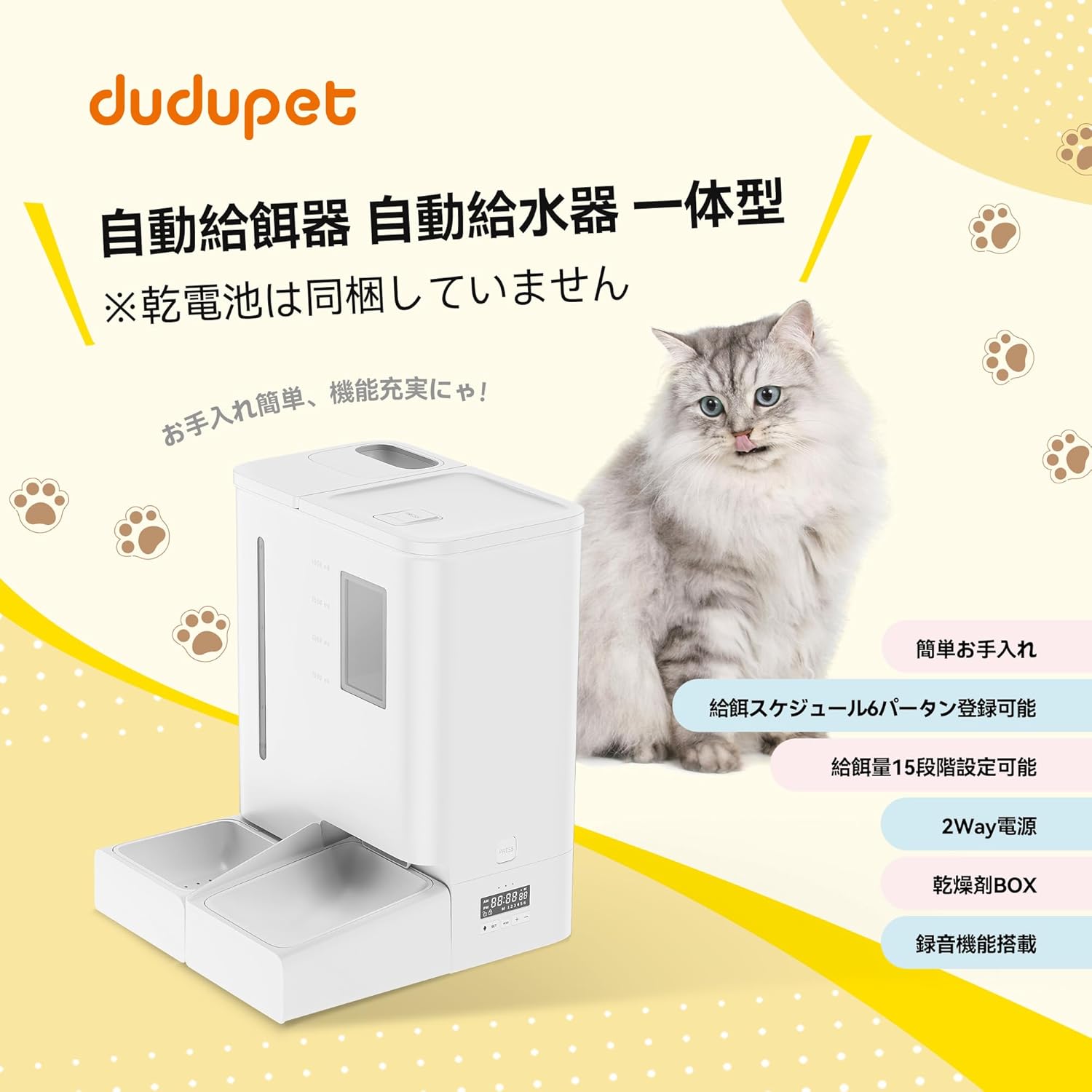
Image 1.1: DUDUPET Automatic Pet Feeder and Water Dispenser. This image displays the complete unit alongside a cat, highlighting its integrated design for both food and water.
2. Important Safety Information
To prevent injury or damage to the device, please observe the following safety precautions:
- Do not immerse the main unit in water.
- Use only dry pet food with a diameter between 5-15mm.
- Keep the device out of reach of children and pets to prevent tampering.
- Ensure the power adapter is securely connected and the cable is not damaged.
- Do not use abrasive cleaners or solvents on the device.
- Always unplug the device before cleaning or maintenance.
3. Package Contents
Verify that all components are present and in good condition:
- Main Feeder Unit
- Water Tank
- Food Bowl
- Water Bowl
- USB Type-C Power Cable (approx. 1.5m)
- AC Adapter
- Desiccant Box (desiccant not included)
- User Manual
4. Parts Identification
Familiarize yourself with the different parts of your DUDUPET Automatic Pet Feeder and Water Dispenser:

Image 4.1: Exploded view diagram of the feeder components. This image labels the Food Tank Lid, Lid Buckle, Water Tank, Water Level Indicator, Food Remaining Indicator, Main Unit, Water Outlet, Food Outlet, Water Receiving Tray, Water Bowl, Food Bowl, and Food Tray.
- Food Tank Lid: Covers the food storage tank.
- Lid Buckle: Secures the food tank lid.
- Water Tank: Holds water for the dispenser.
- Water Level Indicator: Shows the current water level.
- Food Remaining Indicator: Shows the approximate food level.
- Main Unit: Houses the control panel and dispensing mechanism.
- Water Outlet: Dispenses water into the water bowl.
- Food Outlet: Dispenses food into the food bowl.
- Water Receiving Tray: Collects water from the outlet.
- Water Bowl: Pet drinking bowl.
- Food Bowl: Pet eating bowl.
- Food Tray: Supports the food bowl.
5. Setup
5.1 Assembly
Assemble the components as shown in the parts identification diagram. Ensure the food bowl, water bowl, and water tank are correctly seated in their respective positions.

Image 5.1: Disassembled components for easy cleaning. This image shows the food tank, water tank, and bowls separated from the main unit, illustrating the ease of disassembly for maintenance.
5.2 Power Supply
The feeder supports two power options:
- AC Adapter: Connect the provided USB Type-C cable to the feeder and the AC adapter, then plug it into a wall outlet.
- Battery Backup: For power outages, insert three (3) D-cell alkaline batteries (not included) into the battery compartment at the bottom of the unit. The device will automatically switch to battery power if AC power is lost.

Image 5.2: Two-way power options. This image illustrates the battery compartment for D-cell batteries and the USB Type-C power input, emphasizing reliable operation during power interruptions.
5.3 Filling Food and Water
- Food: Open the food tank lid and pour dry pet food into the tank. The maximum capacity is 5 liters. Close the lid securely.
- Water: Fill the water tank with clean water. The maximum capacity is 4 liters. Place the filled water tank onto the main unit.

Image 5.3: Large capacity for food and water. This image highlights the 5L food storage and 4L water bottle capacity, ensuring extended feeding and hydration without frequent refills.
5.4 Desiccant Installation
To maintain food freshness, install a desiccant packet (not included) into the desiccant box located on the underside of the food tank lid. Replace the desiccant approximately every 30 days.

Image 5.4: Desiccant box for freshness. This image shows the desiccant box integrated into the food tank lid, designed to keep pet food fresh and dry.
6. Operation
6.1 Control Panel
The control panel typically includes buttons for setting time, programming meals, manual feeding, and voice recording. Refer to the specific button labels on your device for exact functions.
6.2 Setting Feeding Schedule
You can program up to 6 meals per day. For each meal, you can set the feeding time and the portion size. Portion sizes can be adjusted in 15 levels, from approximately 5g to 75g per portion (based on 13.4mm dry food measurements).
- Press the 'SET' button to enter programming mode.
- Use the 'UP'/'DOWN' buttons to adjust the meal time and portion size.
- Press 'SET' again to confirm each setting and move to the next.
- Save your settings before exiting programming mode.

Image 6.1: Example of feeding schedule settings. This image illustrates how to program up to 6 meals per day with adjustable portion sizes (15 levels, 5g-75g), promoting healthy eating habits for pets.
6.3 Voice Recording Function
Record a short message (e.g., your voice calling your pet for food) that will play during each scheduled meal. This can help comfort your pet and encourage them to eat.
- Press and hold the 'REC' button to start recording.
- Release the 'REC' button to stop recording.
- Press the 'PLAY' button to listen to your recorded message.

Image 6.2: Voice recording function. This image shows a cat eating from the feeder, with a speech bubble indicating a recorded message, highlighting the feature that allows owners to call their pets for meals.
6.4 Manual Feeding
To dispense food manually, press the 'MANUAL' button. One portion of food will be dispensed each time the button is pressed.
7. Maintenance
7.1 Cleaning
Regular cleaning is essential for your pet's health and the device's longevity.
- Unplug the feeder from the power source.
- Disassemble the food tank, water tank, food bowl, and water bowl.
- Wash these removable parts with mild soap and water. Rinse thoroughly and dry completely before reassembling.
- Wipe the main unit with a damp cloth. Do not immerse the main unit in water.
7.2 Desiccant Replacement
Replace the desiccant packet in the desiccant box every 30 days to ensure optimal food freshness.
8. Troubleshooting
If you encounter issues with your feeder, refer to the following common problems and solutions:
| Problem | Possible Cause | Solution |
|---|---|---|
| Feeder not powering on | No power, loose connection, dead batteries | Check AC adapter connection. Ensure batteries are correctly inserted and not depleted. |
| Food not dispensing | Food jam, empty tank, incorrect settings | Check food level. Clear any food blockages in the outlet. Verify feeding schedule settings. |
| Water not dispensing | Empty water tank, blockage | Refill water tank. Check for any obstructions in the water outlet. |
| Voice recording not playing | No recording, low volume | Ensure a message has been recorded. Check volume settings if available. |
9. Specifications
| Feature | Detail |
|---|---|
| Brand | DUDUPET |
| Model | DUF03K-JP |
| Color | White |
| Product Dimensions (L x W x H) | 20 x 26 x 42 cm |
| Food Capacity | 5 Liters |
| Water Capacity | 4 Liters |
| Feeding Schedule | Up to 6 meals/day |
| Portion Sizes | 15 levels (approx. 5g to 75g per portion) |
| Power Supply | AC Adapter (USB Type-C) / 3 x D-cell Alkaline Batteries (not included) |
| Special Features | Voice Recording, Desiccant Box, Stainless Steel Bowls |
10. Warranty and Support
10.1 Warranty Information
This product is covered by a product exchange warranty. Please retain your proof of purchase for any warranty claims. For specific terms and conditions, refer to the warranty card included with your product or contact DUDUPET customer service.
10.2 Customer Support
If you have any questions, require technical assistance, or need to make a warranty claim, please contact DUDUPET customer support through the retailer where you purchased the product or visit the official DUDUPET store page: DUDUPET Store.