starcat 8 MP Security Camera User Manual
Model: MEDU046-A30Q-White
Introduction
Thank you for choosing the starcat 8 MP Security Camera. This manual provides detailed instructions for the installation, operation, and maintenance of your new security camera. Designed for both indoor and outdoor use, this camera offers advanced features such as 4K 8MP resolution, AI human detection, automatic tracking, two-way audio, and IP66 water resistance, ensuring comprehensive surveillance for your home or business.

Image: starcat 8 MP Security Camera, showcasing its sleek design and 8MP capability.
Safety Information
- This camera supports 2.4GHz Wi-Fi only. It does not support 5GHz Wi-Fi networks.
- Always insert or remove the memory card when the camera is powered off. Inserting the memory card while the camera is on may prevent it from being detected. If this occurs, power off the camera for one minute and then power it back on.
- The power cable is not waterproof. Ensure the power cable connection is properly insulated to prevent damage from weather exposure.
- While the camera is IP66 water-resistant, for prolonged lifespan, it is recommended to install it under a protective cover (e.g., eaves) to shield it from direct heavy rain, sleet, snow, and prolonged sunlight.
- Do not attempt to disassemble or modify the camera. Refer all servicing to qualified personnel.
Package Contents
Verify that all items are present in your package:
- 1 x starcat 8 MP Security Camera (Dual Lens)
- 1 x Power Adapter with Cable
- 1 x Mounting Base
- 1 x Bag of Mounting Screws and Wall Plugs
- 1 x Waterproof Cap for Cable Connection
- 1 x User Manual

Image: Diagram showing the camera's dimensions and the included accessories in the package.
Product Overview
The starcat security camera is equipped with advanced features for comprehensive surveillance. Familiarize yourself with its main components:
- Dual Lenses: For enhanced field of view and detail.
- Wi-Fi Antennas: For stable wireless connectivity.
- IR LEDs: For infrared night vision.
- White LEDs: For color night vision and spotlight activation.
- Speaker: For two-way audio communication and alarm sounds.
- Microphone: For audio input during two-way communication.
- Micro SD Card Slot: For local video storage (supports up to 128GB, card not included).
- Reset Button: To restore factory settings.
- Power Port: For connecting the power adapter.
- LAN Port: For wired network connection.
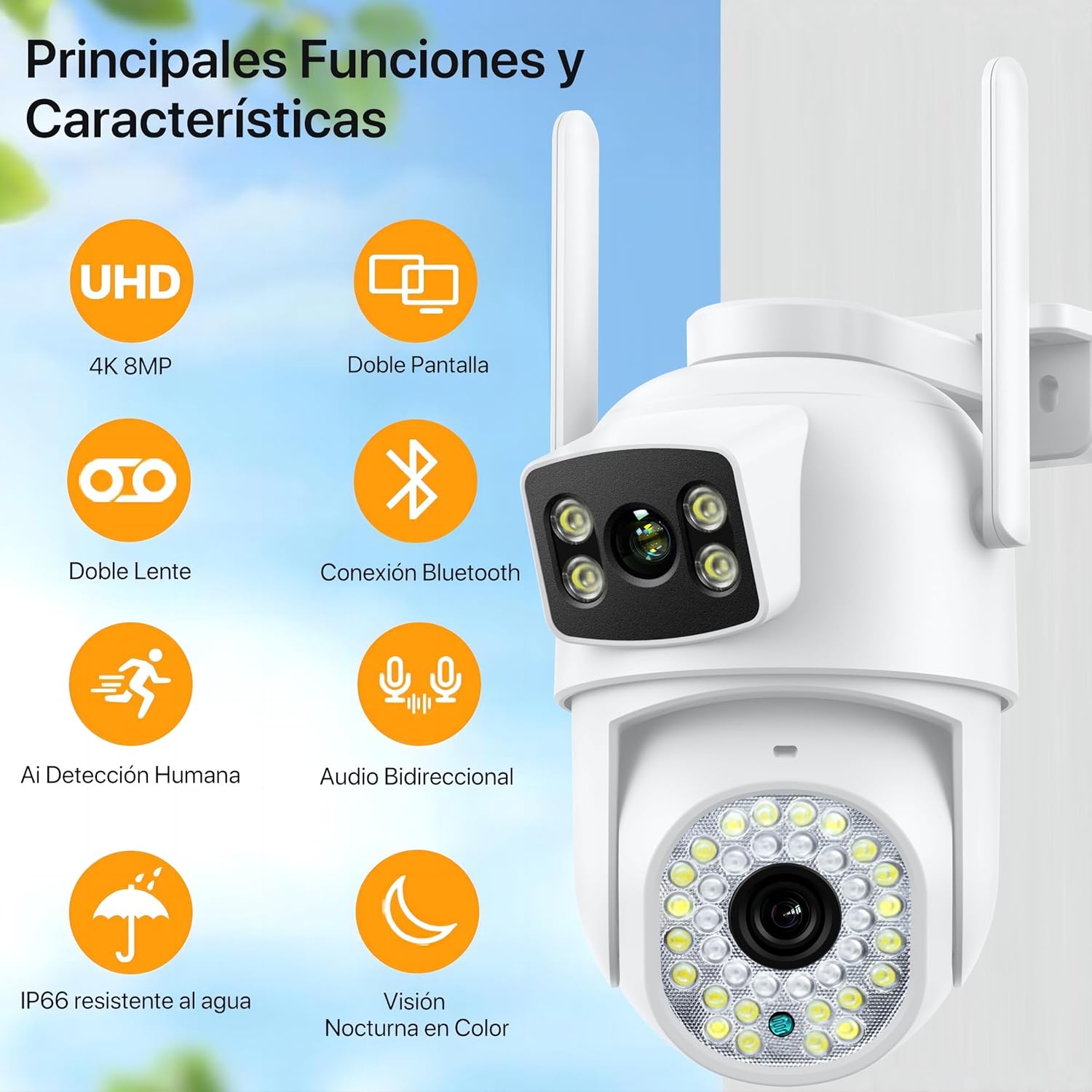
Image: Visual representation of the camera's key features including UHD 4K 8MP, Dual Screen, Dual Lens, Bluetooth Connection, AI Human Detection, Two-Way Audio, IP66 Water Resistance, and Color Night Vision.
Setup Instructions
1. Powering On and Memory Card Installation
- Insert Micro SD Card (Optional): Ensure the camera is powered off. Locate the Micro SD card slot (refer to Product Overview diagram). Gently insert the Micro SD card until it clicks into place.
- Connect Power: Connect the provided power adapter to the camera's power port and then plug it into a power outlet. The camera will power on and initiate its self-test.
2. App Download and Device Pairing
To control and monitor your camera, download the recommended mobile application (e.g., iCSee or similar, as indicated in the manual or product packaging) from your device's app store (iOS App Store or Google Play Store).
- Create Account: Open the app and follow the on-screen instructions to create a new user account or log in if you already have one.
- Add Device: Tap the "+" icon or "Add Device" option within the app. The camera supports three connection methods:
- Bluetooth Connection: The easiest method for initial setup. Ensure Bluetooth is enabled on your phone. The app will scan for nearby cameras. Select your camera from the list to pair.
- Wi-Fi Connection: Select this option if Bluetooth pairing is not preferred or available. Follow the app's instructions to connect the camera to your 2.4GHz Wi-Fi network. Enter your Wi-Fi password when prompted.
- LAN Cable Connection: For a stable wired connection, connect an Ethernet cable from your router to the camera's LAN port. The app should automatically detect the camera on the local network.
- Complete Setup: Follow any remaining prompts in the app to name your camera, set up recording preferences, and configure other settings.
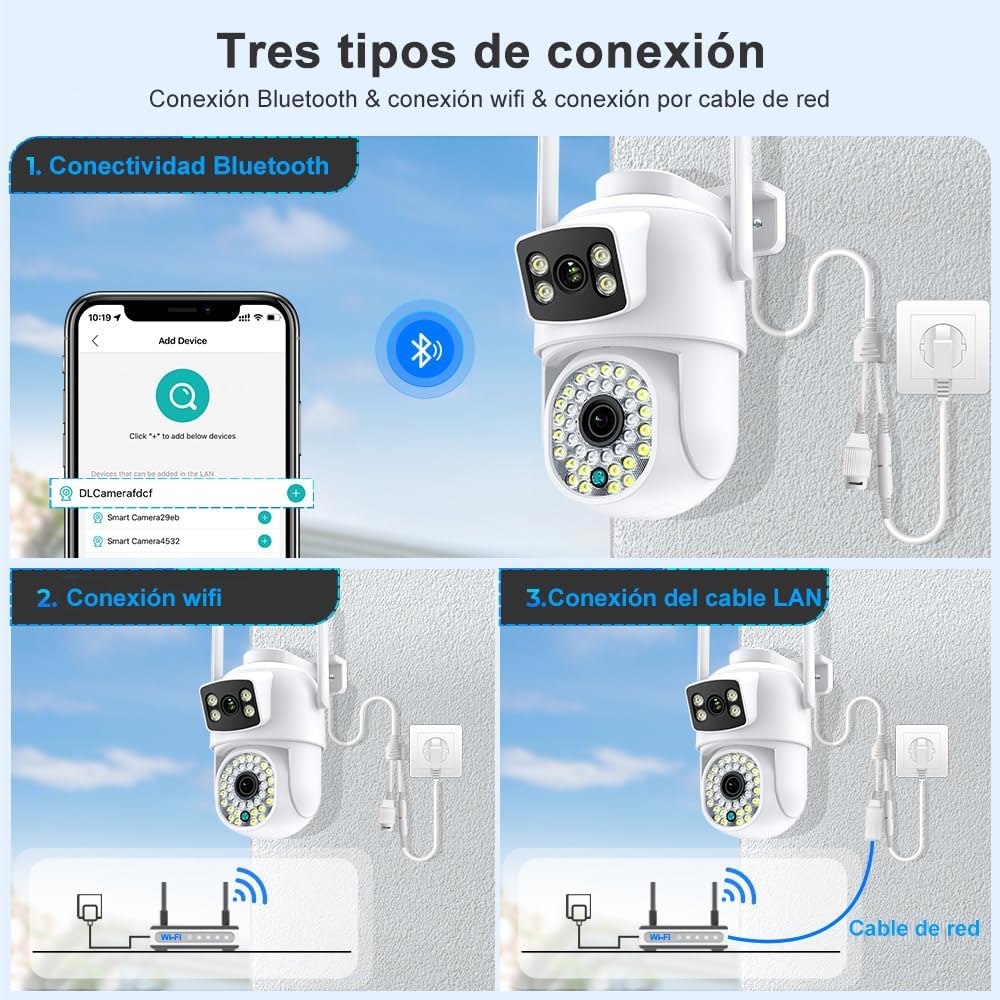
Image: Illustration showing the three connection types: Bluetooth, Wi-Fi, and LAN cable connection, with a smartphone displaying the app interface.
Operating Instructions
Pan & Tilt Control
The camera features a PTZ (Pan-Tilt-Zoom) function, allowing you to remotely adjust its viewing angle. It can rotate 270 degrees horizontally (Pan) and 90 degrees vertically (Tilt).
- Open the live view in the mobile app.
- Use the directional controls (usually a joystick or arrow buttons) on the app interface to move the camera lens horizontally and vertically.
- The digital zoom function allows you to pinch and zoom on the live feed to magnify the image up to 8 times.

Image: Diagram illustrating the camera's 270-degree pan and 90-degree tilt capabilities, controlled via a smartphone app.
Night Vision Modes
The camera offers three night vision modes for optimal visibility in low-light conditions:
- IR Night Vision: Uses infrared LEDs for clear black and white images in complete darkness.
- Full-Color Night Vision: Activates the built-in white LEDs to provide full-color video even at night.
- Smart Mode (PIR Color Mode): The camera operates in IR night vision normally. When motion is detected, the white LEDs will illuminate, switching to full-color night vision and potentially triggering an alarm sound.
AI Motion Detection & Automatic Tracking
The camera can intelligently detect motion and track moving objects.
- When the camera detects an object's movement, it will automatically track and record the activity.
- Alarm notifications will be sent to your mobile phone.
- You can configure alarm schedules within the app to avoid receiving notifications during specific times.

Image: Visual demonstration of the camera's automatic tracking feature, showing a person being followed across a yard.
Two-Way Audio
Communicate with visitors or deter intruders using the built-in microphone and speaker.
- From the live view in the app, tap the microphone icon to speak through the camera's speaker.
- The camera's microphone will pick up audio from its surroundings, allowing you to hear what's happening.

Image: Depiction of two-way audio, showing a person at the door communicating with someone viewing through the app.
Preset Point Cruise
Set specific points for the camera to monitor automatically.
- In the app, define multiple "preset points" (e.g., Preset 1, Preset 2, Preset 3) that you want the camera to regularly check.
- Activate the "cruise" function, and the camera will automatically cycle through these preset points, providing continuous surveillance of key areas.

Image: Illustration of the preset point cruise function, showing the camera focusing on a specific area and then cycling through multiple predefined points.
Works with Alexa
Integrate your starcat camera with Amazon Alexa for voice control.
- Enable the starcat skill in your Alexa app.
- Link your starcat account with Alexa.
- Use voice commands like "Alexa, show me the front door camera" to view the live feed on compatible Alexa-enabled display devices.
Maintenance
Cleaning
- Gently wipe the camera lens and body with a soft, dry cloth.
- For stubborn dirt, slightly dampen the cloth with water. Do not use harsh chemicals or abrasive cleaners.
- Ensure no moisture enters the camera's ports or openings.
Environmental Considerations (IP66)
The camera is rated IP66, meaning it is protected against dust ingress and powerful water jets. It can withstand various weather conditions including rain, sleet, and snow.

Image: Visual representation of the camera's IP66 water resistance, showing it functioning in rain and indicating its resistance to snow and extreme temperatures.
However, to maximize the product's lifespan, especially the power cable connection which is not waterproof, it is advisable to install the camera in a location with some overhead protection, such as under eaves or an overhang.
Troubleshooting
| Problem | Possible Cause | Solution |
|---|---|---|
| Camera not powering on. | Power adapter not connected or faulty; power outlet issue. | Ensure power adapter is securely connected to camera and a working power outlet. Try a different outlet. |
| Cannot connect to Wi-Fi. | Incorrect Wi-Fi password; 5GHz Wi-Fi network; camera too far from router. | Verify Wi-Fi password. Ensure you are connecting to a 2.4GHz network. Move camera closer to router or use a Wi-Fi extender. |
| Micro SD card not detected. | Card inserted while camera was on; faulty card; incorrect format. | Power off camera, reinsert card, then power on. Try a different card. Format the card to FAT32 on a computer if needed. |
| No motion detection alerts. | Motion detection disabled in app; sensitivity too low; alarm schedule active. | Check app settings to ensure motion detection is enabled and sensitivity is appropriate. Adjust alarm schedule. |
| Two-way audio not working. | Microphone/speaker disabled in app; network issues. | Ensure microphone and speaker are enabled in the app. Check network connection stability. |
Specifications
| Feature | Detail |
|---|---|
| Model Number | MEDU046-A30Q-White |
| Brand | starcat |
| Video Capture Resolution | 4K (8 MP) |
| Connectivity Technology | Wireless (Wi-Fi 2.4GHz), Bluetooth, Wired (LAN) |
| Mounting Type | Wall Mount, Ceiling Mount |
| Color | White |
| Wireless Communication Technology | Wi-Fi |
| Form Factor | Dome |
| Viewing Angle | 355 Degrees (Pan), 90 Degrees (Tilt) |
| Night Vision Range | 30 Meters |
| Power Source | Corded Electric |
| Compatible Devices | Mobile Phones, Tablets |
| Controller Type | Android, Apple HomeKit (via app), Cloud Edge |
| Product Dimensions (L x W x H) | 14 x 10.2 x 15.2 cm (5.5 x 4 x 6 inches) |
| Item Weight | 930 g |
Warranty and Support
starcat products are designed for reliability and performance. For warranty information and technical support, please refer to the contact details provided in your product packaging or visit the official starcat website. Keep your purchase receipt as proof of purchase for warranty claims.
For common issues, please refer to the Troubleshooting section of this manual or the FAQ section on the starcat support page.