
1. Introduction
This manual provides essential information for the setup, operation, and maintenance of your Gawfolk 34-inch Ultrawide Curved Gaming Monitor. Designed for immersive gaming and efficient multitasking, this monitor features a 1500R curvature, UWQHD (3440x1440) resolution, and a 165Hz refresh rate with FreeSync support.

Figure 1: Gawfolk 34-inch Ultrawide Curved Gaming Monitor.
2. Safety Information
- Always place the monitor on a stable, flat surface to prevent tipping.
- Ensure proper ventilation around the monitor. Do not block ventilation openings.
- Use only the power adapter supplied with the monitor.
- Keep the monitor away from water, moisture, and excessive heat.
- Do not attempt to repair the monitor yourself. Refer all servicing to qualified personnel.
- Unplug the monitor from the power outlet before cleaning.
3. Package Contents
Verify that all items are present in the package:
- Gawfolk 34-inch Ultrawide Curved Gaming Monitor
- Monitor Stand (Base and Bracket)
- Power Adapter
- HDMI Data Cable
- DisplayPort (DP) Data Cable
- User Manual
- Mounting Screws
Video 1: Overview of the Gawfolk 34-inch Curved Monitor and its contents.
4. Setup
4.1 Physical Assembly
- Carefully remove the monitor and all components from the packaging.
- Attach the stand bracket to the monitor by aligning it with the VESA mounting pattern on the back of the monitor and pressing it down until it clicks into place.
- Secure the stand base to the bracket using the provided screws. You may use a flat-head screwdriver to tighten the knob on the stand base.
- Place the assembled monitor on a stable, flat surface.
Video 2: Detailed instructions on how to install the monitor stand.
4.2 Connecting to Devices
The monitor supports multiple input options:
- HDMI: Connect your device using an HDMI cable. The monitor has dual HDMI 1.4 ports (up to 100Hz) and HDMI 2.1 (for higher resolutions/refresh rates).
- DisplayPort (DP): Connect your device using a DisplayPort cable. The monitor has dual DP 1.4 ports (up to 165Hz).
- Audio Out: Connect external speakers or headphones to the audio output port.
- Power: Connect the supplied power adapter to the DC IN 12V port and then to a power outlet.

Figure 2: Overview of monitor ports and multi-device connectivity options.
Note: For optimal performance, especially at 4K (3840x2160) resolution or higher refresh rates (120Hz/144Hz/165Hz/180Hz), ensure your PC is equipped with a dedicated GPU. HDMI 2.0 or later and DP 1.4 or later ports are recommended. Older versions like HDMI 1.4 may limit performance (e.g., 4K@30Hz).
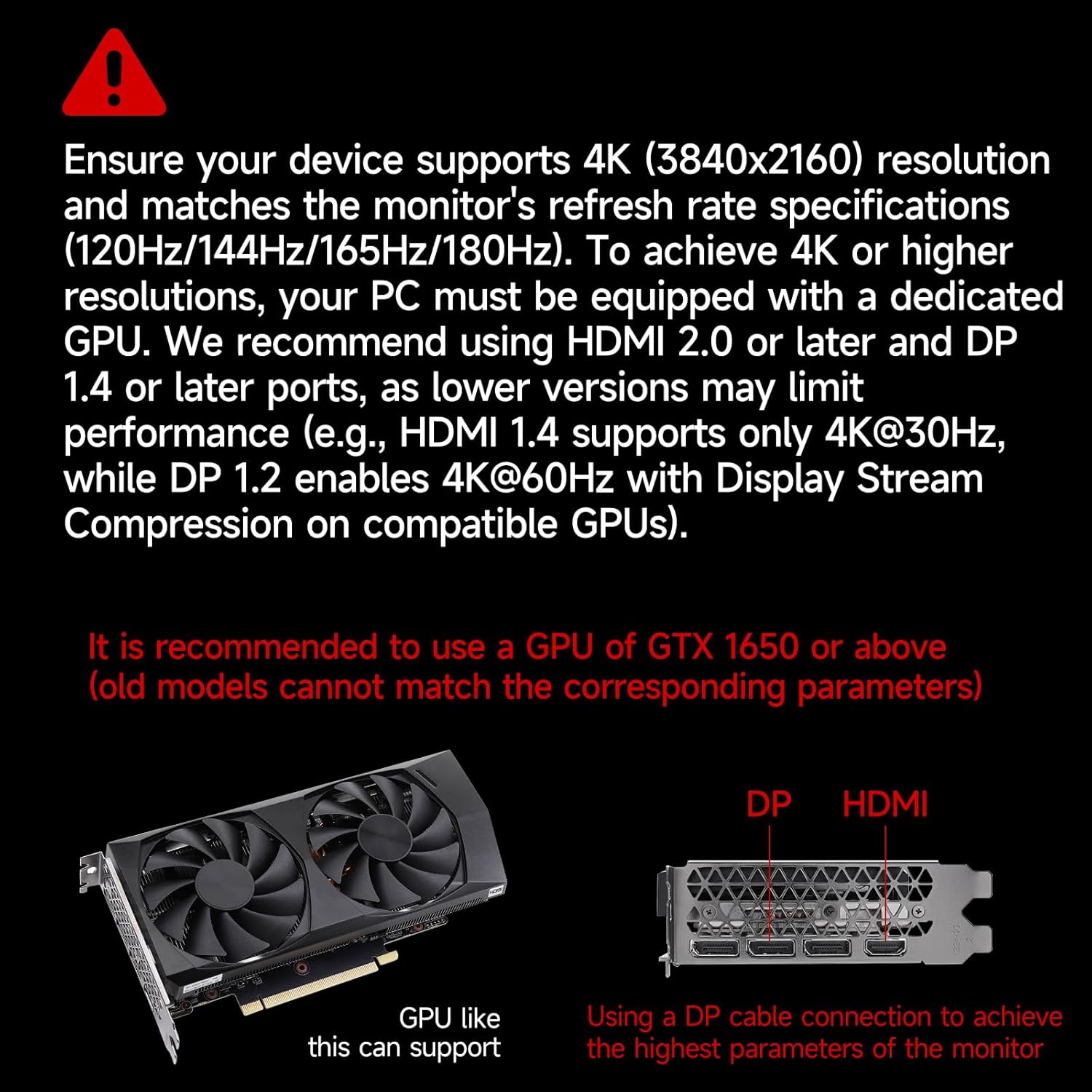
Figure 3: Recommendation for GPU compatibility to achieve maximum monitor performance.
5. Operating Instructions
5.1 Basic Controls
The monitor features control buttons typically located on the bottom right side of the bezel. These buttons allow you to navigate the On-Screen Display (OSD) menu, adjust settings, and power the monitor on/off.
5.2 Display Settings
- Resolution: The native resolution is UWQHD (3440x1440). Adjust your device's display settings to match for the sharpest image.
- Refresh Rate: Supports up to 165Hz for smooth motion. Ensure your graphics card and cable support this refresh rate.
- Response Time: Features a 1ms (GtG) response time for minimal ghosting in fast-paced content.
- Adaptive Sync: Enable FreeSync (Adaptive Sync) in the OSD menu and your graphics card settings to eliminate screen tearing and stuttering.
- Brightness & Contrast: Adjust brightness (300 cd/m²) and contrast (4000:1) to your preference for optimal viewing.
- Low Blue Light & Flicker-Free: Utilize the Eye Saver Mode to reduce blue light emission and flicker, minimizing eye fatigue during prolonged use.

Figure 4: Visual representation of 165Hz refresh rate and 1ms GtG response time.

Figure 5: Eye Saver Mode for reduced eye strain.
5.3 Multi-Tasking and Immersion
The 21:9 ultrawide aspect ratio provides 34% more screen width compared to traditional 16:9 displays, enhancing productivity and immersion.
- Picture-in-Picture (PIP) / Picture-by-Picture (PBP) Mode: Use these modes to display content from multiple sources simultaneously on the screen, ideal for work or streaming while gaming.
- 1500R Curvature: The aggressive 1500R curve wraps the display around your field of vision, providing a more immersive experience, especially in gaming.

Figure 6: Comparison of 21:9 ultrawide screen to traditional 16:9 displays.

Figure 7: Illustration of the 1500R curvature for immersive viewing.
6. Maintenance
- Cleaning the Screen: Gently wipe the screen with a soft, lint-free cloth. For stubborn marks, dampen the cloth with a small amount of screen cleaner. Do not spray cleaner directly onto the screen.
- Cleaning the Casing: Use a soft, dry cloth to wipe the monitor casing. Avoid abrasive cleaners.
- Storage: If storing the monitor for an extended period, unplug it and store it in a cool, dry place, preferably in its original packaging.
7. Troubleshooting
| Problem | Possible Cause | Solution |
|---|---|---|
| No image on screen | Power cable disconnected; Video cable disconnected; Incorrect input source selected. | Ensure power cable is securely connected. Check video cable connections (HDMI/DP). Select the correct input source via the OSD menu. |
| Image is blurry or distorted | Incorrect resolution; Graphics driver issue. | Set display resolution to 3440x1440. Update your graphics card drivers. |
| Screen flickering | Refresh rate mismatch; Cable quality; Adaptive Sync issues. | Ensure refresh rate is set correctly (e.g., 165Hz). Try a different high-quality video cable. Disable/enable Adaptive Sync. |
| No audio | Audio cable disconnected; Volume too low; Incorrect audio output selected on PC. | Check audio cable connection to external speakers/headphones. Increase monitor and PC volume. Select the correct audio output device on your PC. |
8. Specifications
| Feature | Detail |
|---|---|
| Brand | Gawfolk |
| Model Number | GF340C |
| Screen Size | 34 Inches |
| Resolution | UWQHD (3440 x 1440) |
| Aspect Ratio | 21:9 |
| Curvature | 1500R |
| Refresh Rate | 165Hz |
| Response Time | 1ms (GtG) |
| Brightness | 300 cd/m² |
| Contrast Ratio | 4000:1 |
| Screen Surface | Matte |
| Connectivity | Dual HDMI 1.4, Dual DP 1.4, Audio Out, DC IN 12V |
| VESA Mount | 75x75mm |
| Product Dimensions | 4.33 x 13.78 x 7.87 inches |
| Item Weight | 15.62 pounds |
9. Warranty and Support
9.1 Warranty Information
Please refer to the warranty card included in your product packaging for detailed warranty terms and conditions. Keep your purchase receipt as proof of purchase for warranty claims.
9.2 Customer Support
For technical assistance, troubleshooting, or product inquiries, please contact Gawfolk customer support. Contact details can typically be found on the manufacturer's website or on the product packaging.