Introduction
This manual provides comprehensive instructions for the Ducky Zero 6108 Classic Black Hotswap Bluetooth RGB Mechanical Keyboard. It covers setup, operation, maintenance, and troubleshooting to ensure optimal performance and longevity of your device. The Ducky Zero 6108 features tri-mode connectivity (wired USB, 2.4GHz wireless, Bluetooth), Cherry MX2A Blue switches, vibrant RGB backlighting, and durable PBT keycaps.
Setup
Package Contents
- Ducky Zero 6108 Mechanical Keyboard
- USB-C to USB-A Cable
- Keycap Puller
- Switch Puller
- 2.4GHz Wireless Dongle (may be stored in a spare keycap)
Connectivity Options
The Ducky Zero 6108 supports three connection modes: wired USB, 2.4GHz wireless, and Bluetooth.
Wired Connection
Connect the provided USB-C cable to the keyboard's USB-C port and the USB-A end to your computer's USB port. The keyboard will be automatically detected and ready for use.
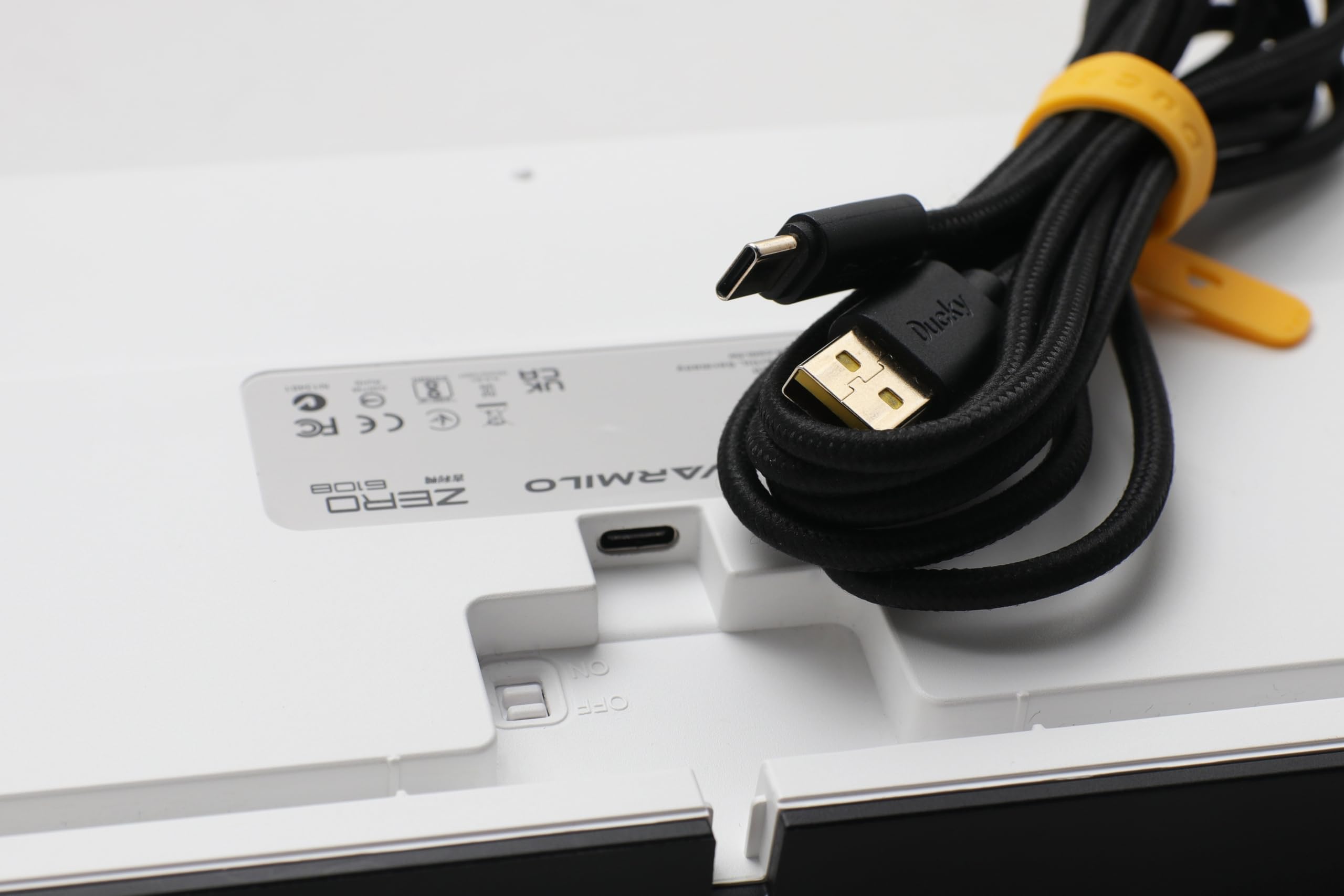
Image: The USB-C port located on the back of the keyboard, with the braided USB-C to USB-A cable connected. This port is used for wired connection and charging.
2.4GHz Wireless Connection
- Locate the 2.4GHz wireless dongle. It may be stored in a specially designed keycap or a slot on the keyboard.
- Plug the dongle into an available USB port on your computer.
- Switch the keyboard to 2.4GHz wireless mode using the switch on the back or a specific key combination (refer to keyboard markings or quick guide).
- The keyboard should automatically connect.
Bluetooth Connection
The keyboard supports multiple Bluetooth profiles (e.g., BT01, BT02, BT03, BT04). This allows connection to several devices.
- Switch the keyboard to Bluetooth mode using the switch on the back or a specific key combination.
- Select an available Bluetooth profile (e.g., Fn + Alt + 1 for BT01). The indicator light will flash.
- On your device (computer, tablet, phone), go to Bluetooth settings and search for new devices.
- Select "Ducky Zero 6108" or similar from the list to pair.
- Once paired, the indicator light will become solid.

Image: A full top-down view of the Ducky Zero 6108 keyboard, showcasing its full-size layout and black keycaps. This view helps in identifying key positions for setup and operation.
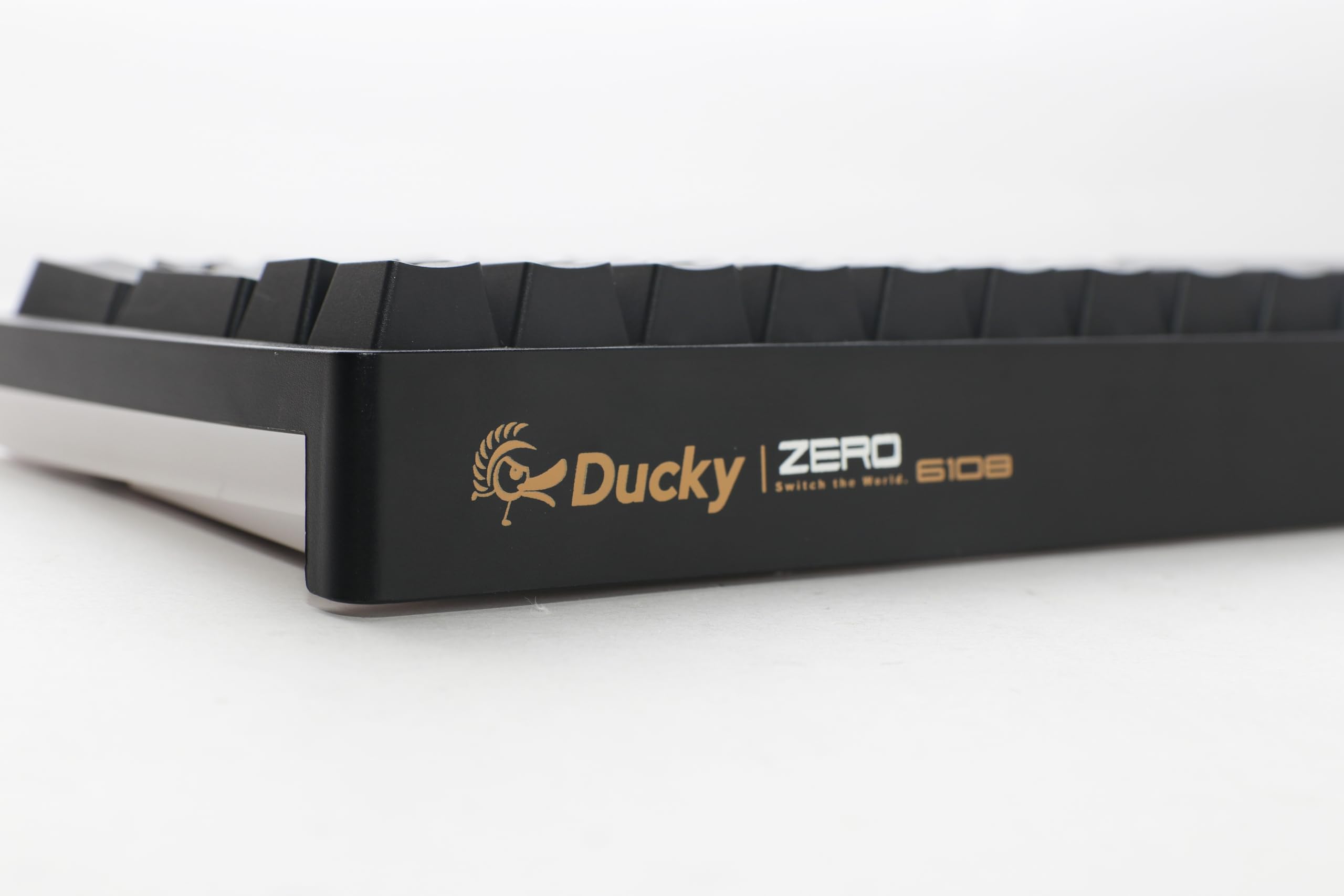
Image: A close-up of the adjustable feet on the underside of the Ducky Zero 6108 keyboard. These feet allow users to adjust the typing angle for ergonomic comfort.
Operating Instructions
Basic Keyboard Functions
The Ducky Zero 6108 features a standard 108-key layout with full N-Key Rollover, ensuring all key presses are registered accurately, even during rapid typing or complex gaming commands.
RGB LED Backlighting
The keyboard features customizable RGB backlighting. While specific instructions for advanced RGB control may require consulting the official Ducky website or community resources, basic effects can often be cycled using the Fn key combined with specific function keys (e.g., Fn + F10 for brightness, Fn + F11/F12 for effect changes). Some users report that Fn + Space can be used to set a wide range of colors.

Image: The Ducky Zero 6108 keyboard illuminated with multi-color RGB backlighting, showcasing the individual key illumination and overall aesthetic.
Hot-Swappable Switches
The Ducky Zero 6108 is equipped with hot-swappable switch sockets, allowing users to change mechanical switches without soldering. This feature enables customization of typing feel and sound.
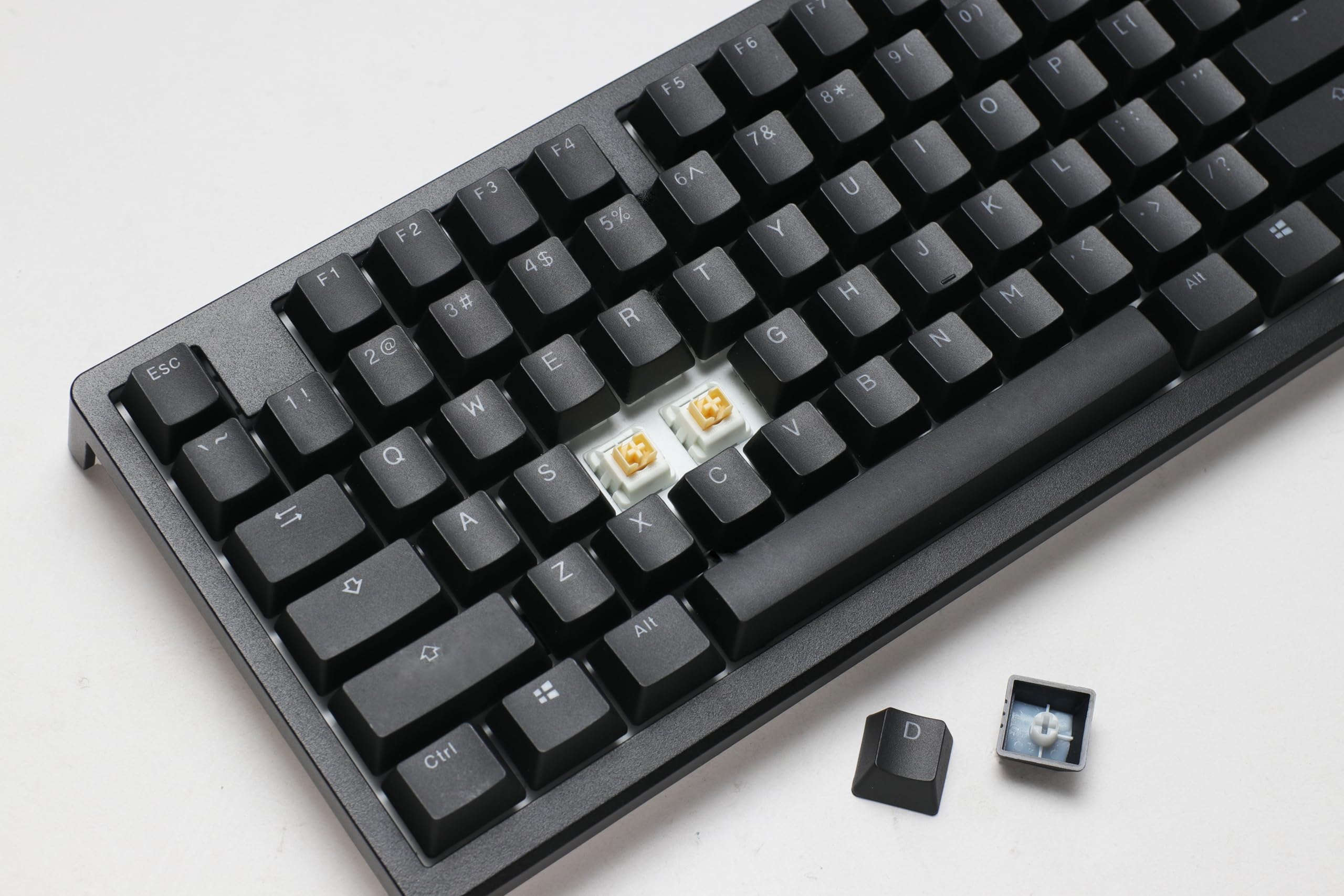
Image: A close-up view of the keyboard with two keycaps and their underlying Cherry MX2A Blue switches removed, revealing the hot-swappable sockets beneath. This demonstrates the ease of switch replacement.
Maintenance
Cleaning the Keyboard
- Disconnect the keyboard from your computer.
- Use a soft brush or compressed air to remove dust and debris from between the keycaps.
- For stubborn dirt, gently wipe the keycaps with a damp cloth and mild soap solution. Ensure no liquid enters the keyboard.
- Allow the keyboard to dry completely before reconnecting.
Replacing Keycaps and Switches
To replace keycaps or switches:
- Use the provided keycap puller to gently remove the desired keycap by pulling straight up.
- Once the keycap is removed, use the switch puller to grasp the switch firmly and pull it straight up from the socket.
- Align the pins of the new switch with the holes in the hot-swap socket and press down gently until it clicks into place. Ensure pins are not bent.
- Place the new keycap onto the switch stem and press down until secure.
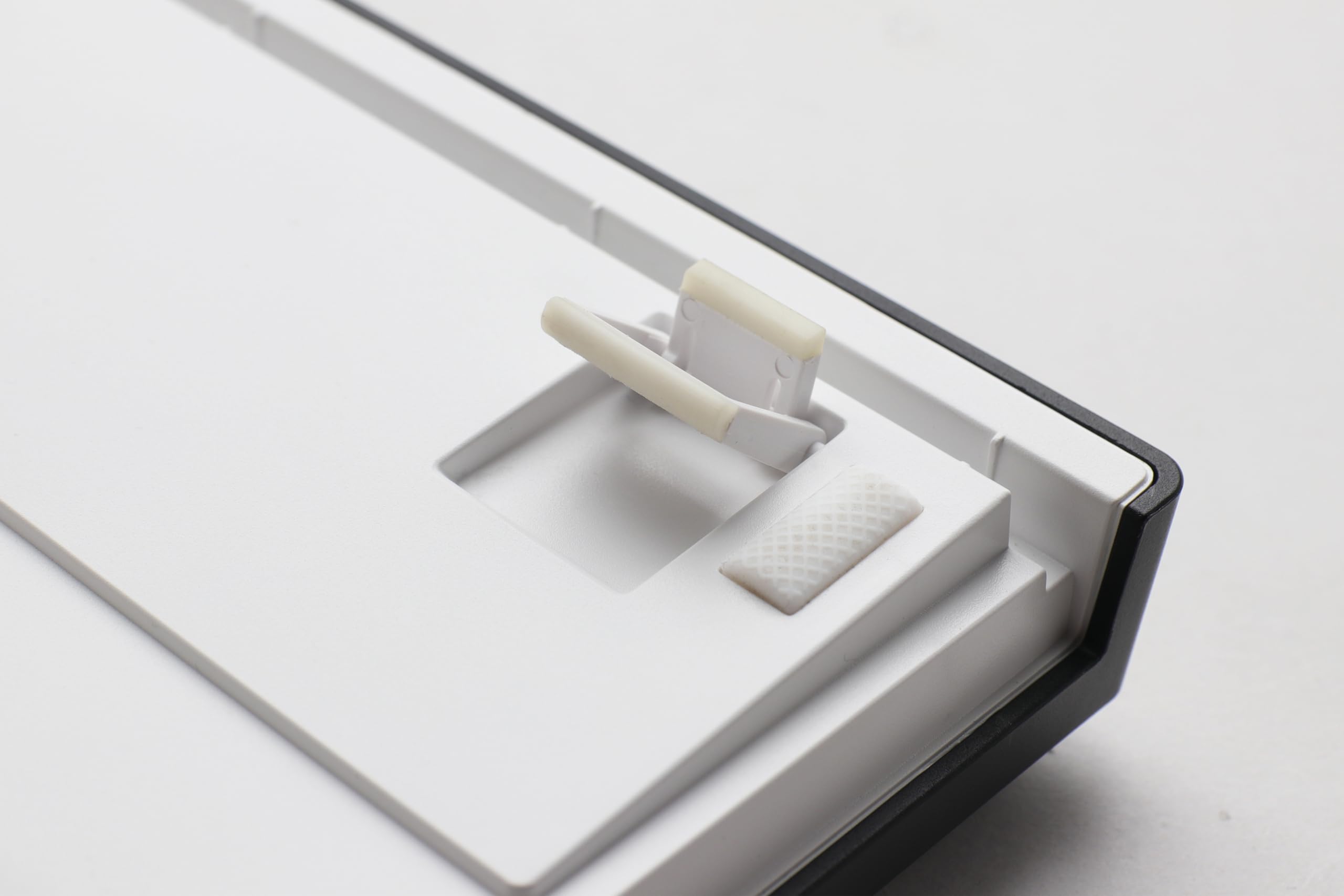
Image: A hand demonstrating the use of a switch puller tool to carefully remove a mechanical switch from the keyboard's PCB, highlighting the hot-swappable design.
Troubleshooting
Common Issues and Solutions
- Keyboard Not Responding (Wired):
- Ensure the USB cable is securely connected to both the keyboard and the computer.
- Try a different USB port on your computer.
- Test the keyboard on another computer if possible.
- Wireless Connection Issues (2.4GHz/Bluetooth):
- Ensure the keyboard is in the correct wireless mode (2.4GHz or Bluetooth).
- For 2.4GHz, ensure the dongle is properly inserted and close to the keyboard.
- For Bluetooth, ensure your device's Bluetooth is enabled and the keyboard is in pairing mode. Try unpairing and re-pairing the device.
- Check battery level; low battery can affect wireless performance.
- Keys Not Working / Double Typing:
- This can sometimes be due to a loose or faulty switch. Try removing and re-inserting the switch for the affected key.
- If the issue persists, consider replacing the switch.
- RGB Lighting Problems:
- Ensure the keyboard is powered on and connected.
- Cycle through RGB effects using the designated function key combinations.
- If specific keys are not lighting up correctly, it might indicate an issue with the LED or switch.
- Echoing Sound from Keys:
- Some users report a slight echo. This is often due to the keyboard's internal acoustics. Adding O-rings to keycaps or foam dampening inside the case can help reduce this.
Specifications
| Brand | Ducky |
| Model | Zero 6108 |
| Connectivity Technology | Wired (USB-C), 2.4GHz Wireless, Bluetooth |
| Keyboard Description | Mechanical |
| Switch Type | Cherry MX2A Blue (Hotswap compatible) |
| Keycaps | Double-Shot PBT |
| Number of Keys | 108 |
| Backlight | RGB LED |
| N-Key Rollover | Full N-Key Rollover (USB) |
| Compatible Devices | PC |
| Item Weight | 3.49 pounds |
| Package Dimensions | 18.88 x 7.5 x 1.94 inches |
| Batteries | 1 Lithium Polymer battery (included) |
Warranty and Support
Ducky products typically come with a limited warranty. Based on user feedback, the standard warranty period may be around 30 days from the date of purchase. For specific warranty terms and conditions, please refer to the documentation included with your product or visit the official Ducky website.
For technical support, troubleshooting assistance beyond this manual, or warranty claims, please contact Ducky customer support through their official website or authorized distributors. Providing your product model and purchase details will help expedite the support process.
Official Ducky Store: Ducky Store on Amazon