
N_EYE P18-5G-4K
N_EYE 4G LTE Solar Security Camera P18-5G-4K User Manual
Model: P18-5G-4K
1. Introduction
This manual provides detailed instructions for the installation, operation, and maintenance of your N_EYE 4G LTE Solar Security Camera P18-5G-4K. This advanced security camera is designed for outdoor surveillance, offering 4K resolution, dual lenses, color night vision, and a rotating head for comprehensive coverage. Its solar-powered design and 4G LTE connectivity ensure reliable operation in locations without traditional power or Wi-Fi access. Please read this manual thoroughly before using the product to ensure proper setup and functionality.

Image: The N_EYE 4G LTE Solar Security Camera P18-5G-4K shown in diverse outdoor environments, highlighting its versatility for remote monitoring.
2. Package Contents
Verify that all items listed below are included in your package. If any items are missing or damaged, please contact customer support.
- N_EYE 4G LTE Solar Security Camera Body
- Dual Solar Panels (Pre-attached or separate, depending on model variant)
- Mounting Bracket and Screws
- Built-in SIM Card (Pre-installed)
- 64GB Micro SD Card (Pre-installed)
- USB Charging Cable
- User Manual (This document)
3. Product Overview
3.1 Camera Components
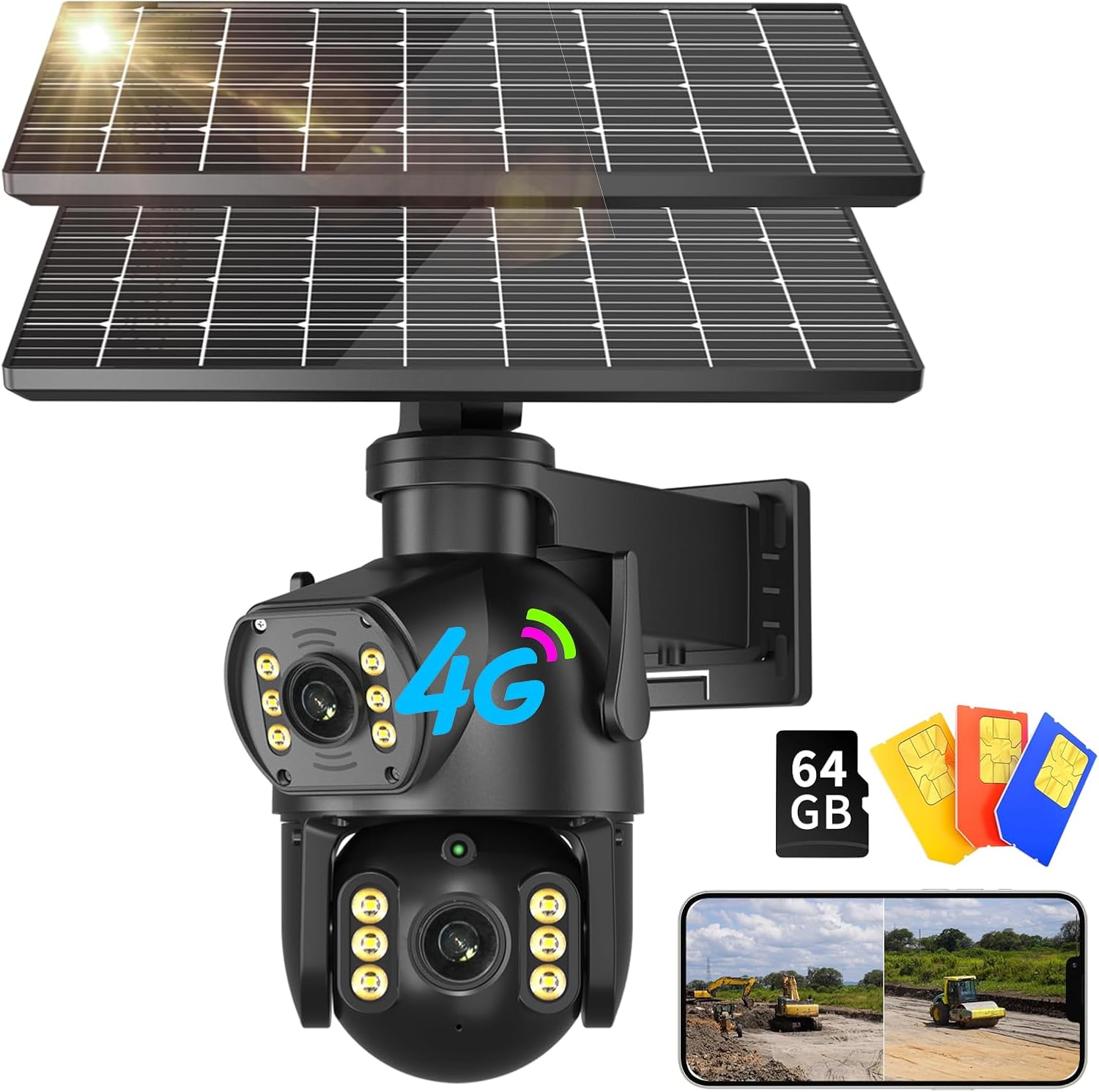
Image: Main product view showing the camera unit, dual solar panels, and indicators for 4G connectivity and included storage.
- Dual Lenses: Provides a wider field of view and enhanced detail.
- Rotating Head (Pan/Tilt): Allows for 355° horizontal and 100° vertical rotation for flexible monitoring.
- Dual Solar Panels: Efficiently charges the internal 12000mAh battery, providing continuous power.
- Infrared LEDs: Enables clear black-and-white night vision up to 32 feet.
- Spotlights: Activates for color night vision and serves as a deterrent.
- PIR Motion Sensor: Detects human and animal movement to trigger recordings and alerts.
- Microphone & Speaker: Facilitates two-way audio communication.
- SIM Card Slot: Houses the pre-installed 4G LTE SIM card for cellular connectivity.
- SD Card Slot: Contains the pre-installed 64GB Micro SD card for local storage.
- Reset Button: Used to restore factory settings.
3.2 Key Features
- 4G LTE Connectivity: Operates independently of Wi-Fi, ideal for remote locations.
- Solar Powered: Dual solar panels provide up to 20W charging speed, extending battery life.
- 12000mAh Battery: High-capacity battery for extended operation.
- 4K Video Resolution: Captures high-definition video footage.
- Color Night Vision: Utilizes spotlights to provide full-color video in low-light conditions.
- PIR Motion Detection: Reduces false alarms by detecting heat signatures.
- Two-Way Talk: Allows for real-time communication through the camera.
- IP65 Weatherproof: Designed to withstand various outdoor weather conditions.
- Local & Cloud Storage: Supports 64GB SD card (included) and optional cloud storage.

Image: Visual representation of the camera's solar charging capability and remote monitoring via a smartphone application.

Image: The camera operating in rainy conditions, illustrating its IP65 weatherproof construction.
4. Setup
4.1 Initial Charging
Before first use, fully charge the camera's internal battery using the provided USB cable and a 5V/2A power adapter (not included). This ensures the camera has sufficient power for initial setup and solar charging optimization.
4.2 SIM Card and SD Card Installation (Pre-installed)
Your camera comes with a pre-installed 4G LTE SIM card and a 64GB Micro SD card. Ensure they are securely seated in their respective slots. The SIM card supports AT&T, T-Mobile, and Verizon networks. A free traffic trial for one day is included; subsequent data top-ups can be managed via the Neye 3C app.

Image: Detailed view of the SIM card and SD card compartments, indicating their location and the included 64GB SD card.

Image: Information regarding the built-in SIM card, cellular data plans, and compatible network providers (Verizon, AT&T, T-Mobile).
4.3 App Download and Account Registration
- Download the "Neye 3C" app from your smartphone's app store (iOS App Store or Google Play Store).
- Open the app and register a new account using your email address or phone number.
- Follow the on-screen prompts to complete the registration process.
4.4 Adding the Camera to the App
- Power on the camera. Wait for the indicator light to flash, indicating it's ready for pairing.
- In the Neye 3C app, tap the "+" icon to add a new device.
- Select "4G Camera" or scan the QR code located on the camera body.
- Follow the app's instructions to connect the camera. This typically involves confirming the device is powered on and waiting for the connection to establish.
- Once connected, you can name your camera and set its location.
4.5 Mounting the Camera
Choose a mounting location that provides an unobstructed view of the area you wish to monitor and receives ample direct sunlight for the solar panels. The camera is designed for wall mounting.
- Mark the drilling points on the wall using the mounting bracket as a template.
- Drill holes and insert wall anchors if necessary.
- Secure the mounting bracket to the wall using the provided screws.
- Attach the camera unit to the mounting bracket. Ensure it is firmly secured.
- Adjust the angle of the solar panels to maximize sun exposure.
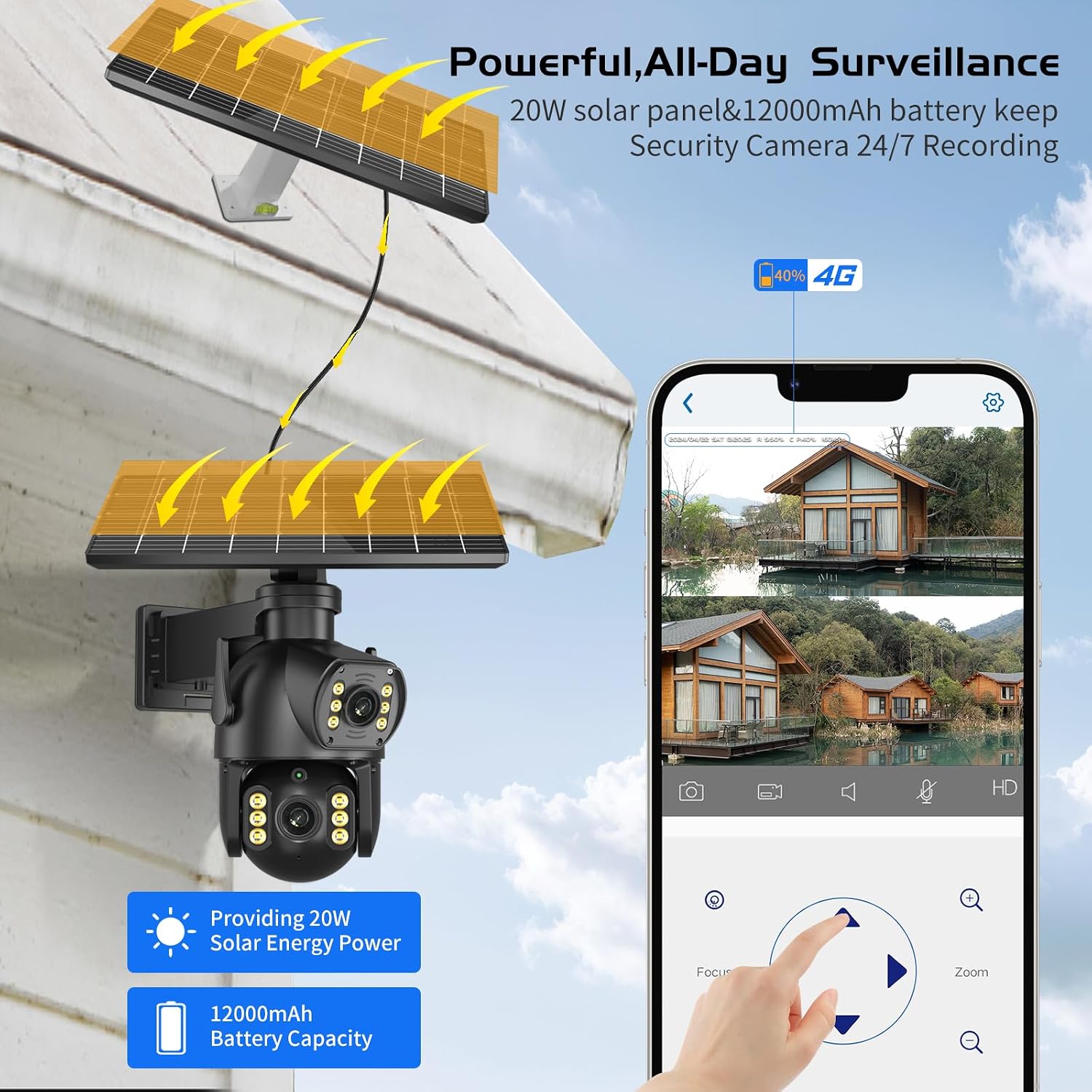
Image: The camera mounted on an exterior wall, demonstrating optimal positioning for solar panel charging.
5. Operating Instructions
5.1 Live View and Pan/Tilt Control
- Open the Neye 3C app and select your camera from the device list.
- The live video feed will appear.
- Use the directional controls within the app to pan (rotate horizontally 355°) and tilt (rotate vertically 100°) the camera lens to adjust the viewing angle.
- You can also zoom in/out on the live feed.

Image: Screenshot of the Neye 3C app demonstrating the pan and tilt functionality for remote camera control.
5.2 Motion Detection and Alerts
The camera uses a PIR motion sensor to detect movement and can trigger various alerts.
- In the Neye 3C app, navigate to the camera settings.
- Find the "Motion Detection" or "Alarm Settings" section.
- Configure sensitivity levels and detection zones as needed.
- Enable desired alert actions:
- Light: Camera spotlights illuminate upon detection.
- Siren: An audible alarm sounds from the camera.
- App Push: Receive instant notifications on your smartphone.

Image: The camera's PIR motion detection system in action, showing activated lights, siren, and mobile app alerts.

Image: A smartphone displaying a real-time motion detection alert from the Neye 3C application.
5.3 Night Vision Modes
The camera supports both infrared and color night vision.
- Infrared Night Vision: Automatically activates in low light, providing clear black-and-white footage.
- Color Night Vision: When spotlights are enabled (often triggered by motion), the camera can capture full-color video at night.

Image: A split view demonstrating the difference between 4K color night vision and standard infrared night vision capabilities of the camera.
5.4 Two-Way Talk
Use the two-way talk feature to communicate with individuals near the camera.
- While in live view on the Neye 3C app, tap the microphone icon.
- Speak into your phone's microphone. Your voice will be broadcast through the camera's speaker.
- Release the microphone icon to listen for a response.

Image: A scenario depicting a user communicating with a delivery person via the camera's two-way audio feature.
5.5 Viewing Recordings
Recordings are stored on the included 64GB Micro SD card and can also be backed up to optional cloud storage.
- In the Neye 3C app, navigate to the "Playback" or "History" section for your camera.
- Select the date and time to view recorded events.
- Cloud storage offers lifetime playback recordings with optional upgrades for extended history.

Image: Visual explanation of the camera's storage capabilities, including cloud storage and the included 64GB Micro SD card.
6. Maintenance
- Clean Solar Panels: Regularly wipe the solar panels with a soft, damp cloth to remove dust, dirt, or debris that may reduce charging efficiency.
- Check Battery Status: Monitor the battery level via the Neye 3C app to ensure continuous operation. If the battery consistently runs low, adjust solar panel angle or consider temporary USB charging.
- Firmware Updates: Periodically check the Neye 3C app for available firmware updates. Keeping the firmware updated ensures optimal performance and access to new features.
- Lens Cleaning: Gently clean the camera lenses with a microfiber cloth to ensure clear image quality.
- SD Card Management: If not using cloud storage, regularly back up important footage from the SD card and format it periodically to maintain performance.
7. Troubleshooting
Refer to the table below for common issues and their solutions.
| Problem | Possible Cause | Solution |
|---|---|---|
| Camera not connecting to app. | No 4G signal; SIM card not activated; low battery; incorrect pairing process. |
|
| Battery not charging via solar panels. | Insufficient sunlight; dirty solar panels; damaged solar panel cable. |
|
| Motion detection not working or too many false alarms. | Incorrect sensitivity settings; obstructions; environmental factors (e.g., swaying branches). |
|
| Poor video quality. | Dirty lens; poor 4G signal; low light conditions. |
|
8. Specifications
| Feature | Detail |
|---|---|
| Model Name | P18-5G-4K |
| Connectivity Technology | 4G LTE Cellular (SIM card included) |
| Power Source | Solar Powered (Dual Panels) & 12000mAh Lithium Ion Battery |
| Video Capture Resolution | 4K |
| Night Vision | Infrared Night Vision, Color Night Vision |
| Pan/Tilt Range | 355° Horizontal, 100° Vertical |
| Storage | 64GB Micro SD Card (included), Cloud Storage (optional) |
| Audio | Two-Way Talk |
| Motion Detection | PIR Motion Sensor |
| Weatherproof Rating | IP65 |
| Dimensions (L x W x H) | 11.4 x 11.8 x 12 inches |
| Item Weight | 5.49 pounds (2.5 Kilograms) |
| Included Components | Camera body, Dual Solar Panels, Mounting Hardware, SIM Card, SD Card |
9. Warranty and Support
For warranty information and technical support, please refer to the warranty card included with your product or visit the official N_EYE website. If you encounter any issues not covered in this manual, please contact N_EYE customer service for assistance.
N_EYE Official Store: Visit Store
Ask a question about this manual
Ask about setup, troubleshooting, compatibility, parts, safety, or missing instructions. Manuals+ will review the question and use this page’s manual context to help answer it.