
Introduction
Welcome to your new RETROSUN V12 Infrared Remote Control. This manual provides detailed instructions for the setup, operation, and maintenance of your remote control.
This remote is compatible with a range of Zidoo media players, including Z9S, Z9X, Z10, Z10pro, X20, X20pro, Z1000, Z1000pro, UHD2000, and UHD3000.

Setup
Battery Installation
The remote control requires three (3) AAA alkaline batteries (not included).
- Open the battery compartment cover on the back of the remote.
- Insert three AAA batteries, ensuring correct polarity (+/-).
- Close the battery compartment cover.

Initial Pairing
To pair the remote control with your device:
- Point the remote control at your Zidoo device within 30 cm (approximately 12 inches).
- Simultaneously press the "Menu" (☰) button and the "Page Down" (PG -) button.
- Hold both buttons until the indicator light on the remote control begins blinking. This indicates successful pairing.

Operating Instructions
Basic Functions
The V12 remote control provides standard navigation and playback controls for your compatible Zidoo media player. Refer to your Zidoo device's manual for specific function mappings.

Backlit Feature
The remote control features a backlit keypad for use in dimly lit environments.
- Press the "Light Bulb" (💡) key to turn the backlight ON.
- Press the "Light Bulb" (💡) key again to turn the backlight OFF.
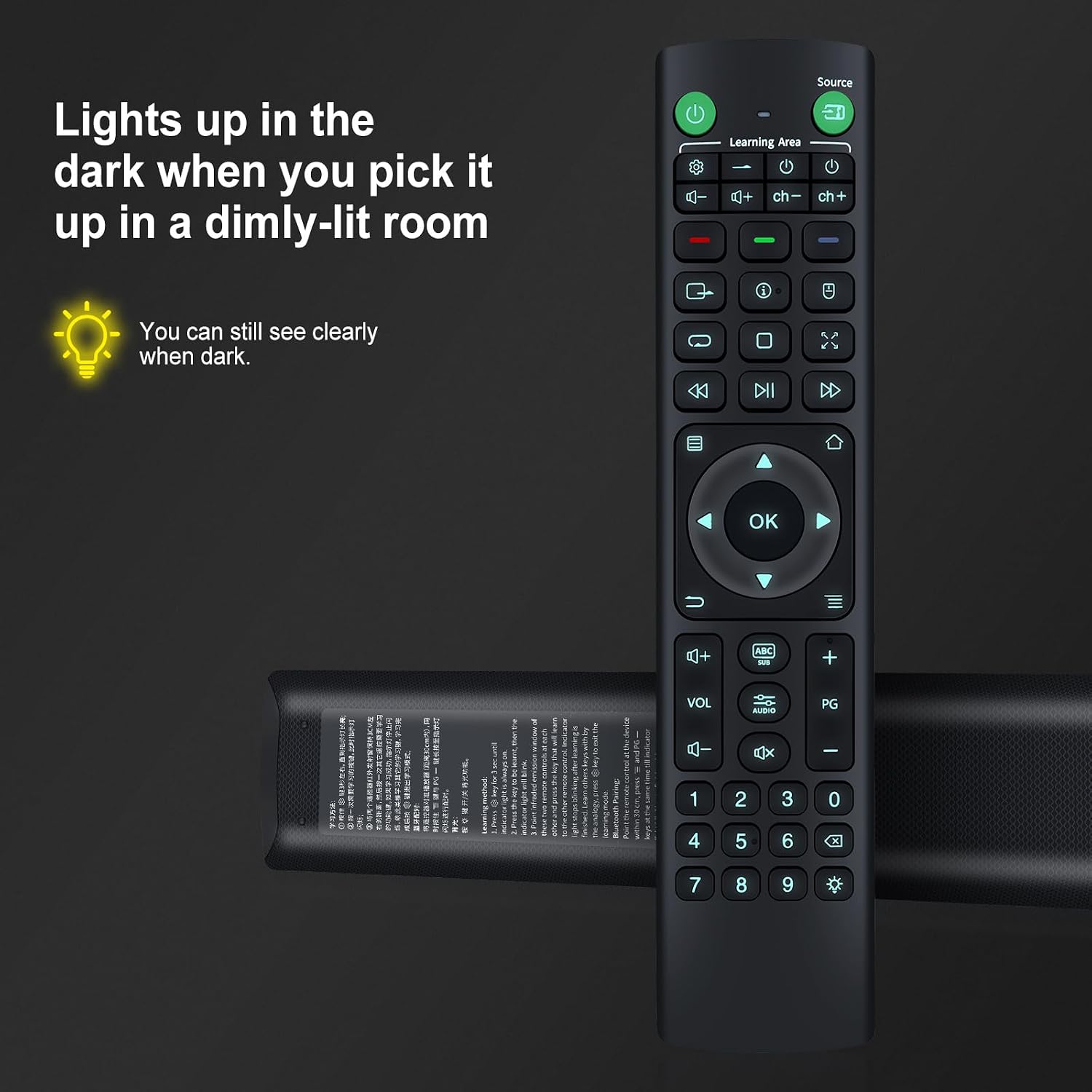
Infrared (IR) Learning Function
The V12 remote control supports IR learning, allowing it to learn functions from other infrared remote controls.
- Press and hold the "Set" key for 3 seconds until the indicator light on the V12 remote control remains steadily lit.
- Press the key on the V12 remote control that you wish to program (e.g., a power button). The indicator light will begin to blink.
- Point the infrared emission window of your original remote control directly at the infrared emission window of the V12 remote control (typically within 1 inch).
- Press the corresponding key on your original remote control that you want the V12 remote to learn.
- The indicator light on the V12 remote will stop blinking once the learning process is complete.
- Repeat steps 2-5 for any other keys you wish to program.
- Press the "Set" key again to exit the learning mode.

Maintenance
To ensure optimal performance and longevity of your remote control:
- Clean the remote control regularly with a soft, dry cloth. Avoid using liquid cleaners or abrasive materials.
- If the remote control will not be used for an extended period, remove the batteries to prevent leakage.
- Avoid exposing the remote control to extreme temperatures, direct sunlight, or high humidity.
- Do not drop or subject the remote control to strong impacts.
Troubleshooting
Remote Control Not Responding
- Check Batteries: Ensure batteries are correctly inserted and have sufficient charge. Replace with new AAA alkaline batteries if necessary.
- Line of Sight: Verify there is a clear line of sight between the remote control and the Zidoo device's IR receiver. Obstructions can block the signal.
- Distance: Ensure you are within the effective operating range (typically up to 10 meters or 33 feet).
- Re-pair: Attempt to re-pair the remote control with your device following the "Initial Pairing" instructions.
IR Learning Not Working
- Distance and Alignment: Ensure the infrared emission windows of both remotes are pointed directly at each other and are very close (within 1 inch).
- Battery Level: Low batteries in either remote can affect learning capability.
- Timing: Ensure you press the keys within the specified timeframes during the learning process.
Specifications
| Feature | Detail |
|---|---|
| Model | V12 |
| Compatibility | Zidoo Z9S, Z9X, Z10, Z10pro, X20, X20pro, Z1000, Z1000pro, UHD2000, UHD3000 |
| Connectivity Technology | Infrared (IR) |
| Power Supply | 3 x AAA Alkaline Batteries (not included) |
| Special Features | Backlit Keys, IR Learning Function |
| Dimensions (L x W x H) | 7.99 x 1.77 x 1.02 inches (approx. 20.3 x 4.5 x 2.6 cm) |
| Item Weight | 3.17 ounces (approx. 90 grams) |

Support
For further assistance or if your device model is not listed as compatible, please contact RETROSUN customer service through the Amazon messaging tool.
Please note that this remote control is designed as a replacement and may require learning functions for full operation if not directly compatible out-of-the-box.
Warranty Information
Specific warranty details are not provided in this manual. Please refer to the product packaging or contact RETROSUN customer support for warranty terms and conditions.