
BOROFONE BQ36 / 20000170
Borofone BQ36 Juniper Ultra-Thin Wireless Desktop Fast Charger User Manual
Model: BQ36 / 20000170
1. Introduction
Thank you for choosing the Borofone BQ36 Juniper Ultra-Thin Wireless Desktop Fast Charger. This manual provides essential information for the safe and efficient operation of your new wireless charger. Please read this manual thoroughly before use and retain it for future reference.

Image 1.1: The Borofone BQ36 Juniper Ultra-Thin Wireless Desktop Fast Charger, showcasing its sleek, black, circular design with a wireless charging symbol.
2. Product Features
- Ultra-thin Design: Its slim profile ensures it occupies minimal desktop space.
- Advanced Safety Protections: Equipped with built-in over-charging, over-heating, and short-circuit protection for safe charging.
- Hands-Free Functionality: Unique design allows for full hands-free use of your device while it charges.
- Optimized for Home/Office: Provides a convenient, fast, and innovative charging solution for various environments.
- Versatile Power Output: Supports 5W, 7.5W, 10W, and 15W charging outputs (15W specifically for some LG phones).
- Premium Materials: Constructed from durable Acrylic and Aluminum Alloy.
3. Specifications
| Feature | Detail |
|---|---|
| Model Number | BQ36 / 20000170 |
| Brand | BOROFONE |
| Input (Type-C) | 5V/3A, 9V/2A |
| Charging Output | 5W / 7.5W / 10W / 15W (15W for select LG phones) |
| Material | Acrylic + Aluminum Alloy |
| Color | Black |
| Product Dimensions | 8.5 x 8.5 x 6 cm |
| Item Weight | 45 Grams |
| Required Charger | PD/QC charger (not included) |
| Certification | CE |
4. Package Contents
Upon opening the package, please ensure all items are present and in good condition:
- 1 x Borofone BQ36 Juniper Ultra-Thin Wireless Desktop Fast Charger
- 1 x USB-C Charging Cable
- 1 x User Manual (this document)
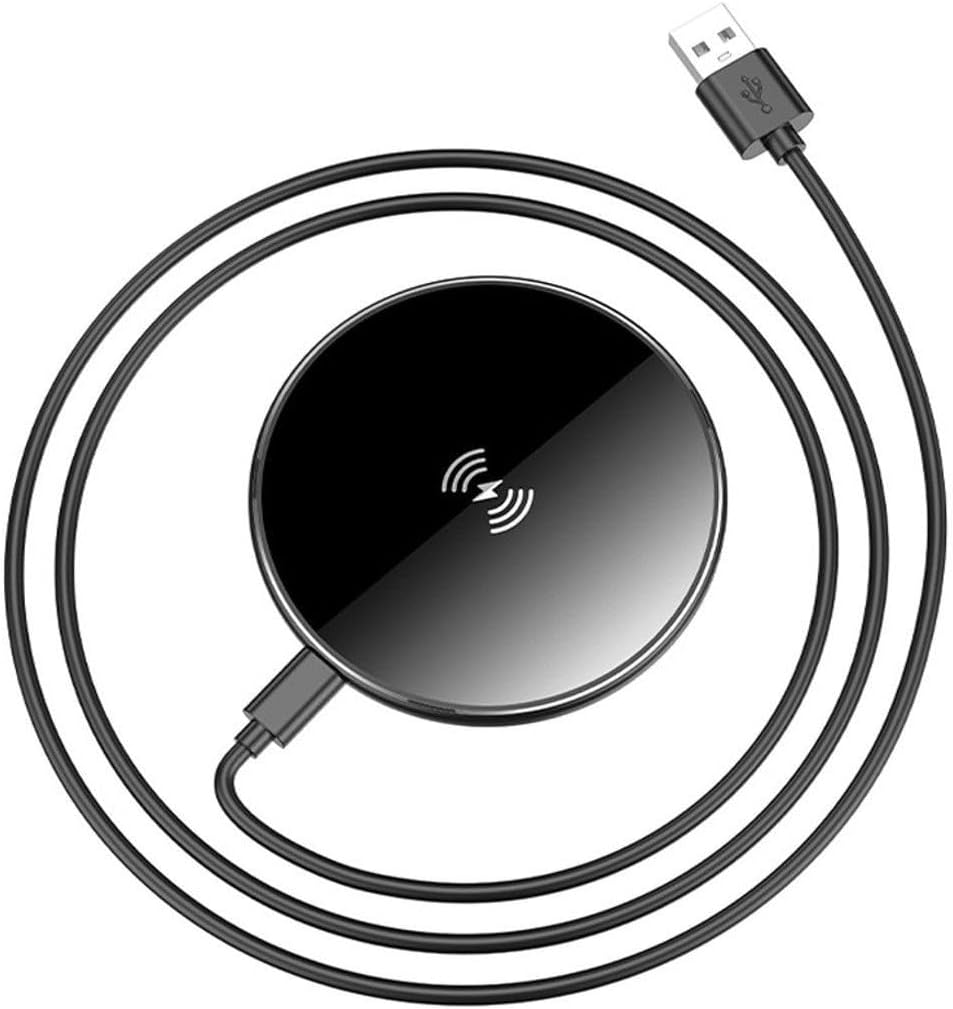
Image 4.1: The Borofone BQ36 wireless charger shown with its accompanying USB-C charging cable.
5. Setup Instructions
- Connect Power Adapter: Connect the USB-C end of the provided charging cable to the Type-C input port on the Borofone BQ36 wireless charger.
- Connect to Power Source: Connect the USB-A end of the charging cable to a compatible PD/QC power adapter (not included). Ensure the power adapter meets the input requirements of 5V/3A or 9V/2A for optimal performance.
- Place Charger: Place the wireless charger on a flat, stable surface, such as a desk or nightstand.
6. Operating Instructions
- Power On: Once connected to a power source, the charger is ready for use. There is no power button.
- Place Device: Carefully place your Qi-compatible smartphone or other wireless charging device onto the center of the Borofone BQ36 wireless charger. Ensure the device is centered over the charging coil for efficient charging.
- Charging Confirmation: Your device should indicate that it is charging (e.g., a charging icon on the screen, a notification sound).
- Optimal Charging: For best results, remove any thick phone cases or metallic objects from your device before placing it on the charger, as these can interfere with wireless charging.
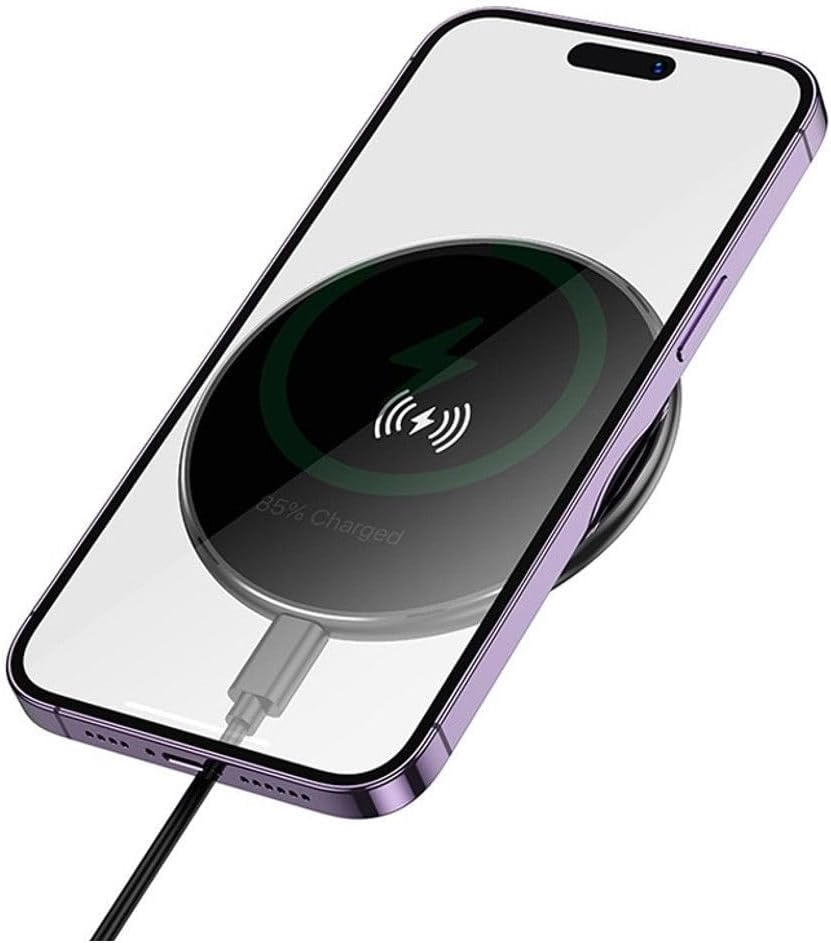
Image 6.1: A smartphone placed on the Borofone BQ36 wireless charger, indicating active charging with a battery percentage display.

Image 6.2: The Borofone BQ36 wireless charger in use, with a smartphone charging on its surface, positioned on a wooden desk.
7. Maintenance and Care
- Cleaning: Disconnect the charger from the power source before cleaning. Use a soft, dry, lint-free cloth to wipe the surface of the charger. Do not use abrasive cleaners, solvents, or chemical agents.
- Storage: When not in use, store the charger in a cool, dry place away from direct sunlight and extreme temperatures.
- Handling: Avoid dropping or subjecting the charger to strong impacts, as this may damage internal components.
- Liquid Exposure: Keep the charger away from water and other liquids. If it comes into contact with liquid, disconnect it immediately and allow it to dry completely before reuse.
8. Troubleshooting
| Problem | Possible Cause | Solution |
|---|---|---|
| Device not charging. |
|
|
| Slow charging. |
|
|
| Charger getting hot. |
|
|
9. Warranty and Support
The Borofone BQ36 Juniper Ultra-Thin Wireless Desktop Fast Charger comes with a 540-day warranty from the date of purchase. This warranty covers manufacturing defects and malfunctions under normal use.
For warranty claims, technical support, or any inquiries regarding your product, please contact your retailer or the official Borofone support channel. Please retain your proof of purchase for warranty validation.

Image 9.1: Product packaging highlighting the "540 DAYS WARRANTY" for the Borofone BQ36 charger.
Ask a question about this manual
Ask about setup, troubleshooting, compatibility, parts, safety, or missing instructions. Manuals+ will review the question and use this page’s manual context to help answer it.