
1. Introduction
This manual provides comprehensive instructions for the installation, operation, and maintenance of your QDVOPHZA Tuya WiFi Smart Door Lock. Please read this manual thoroughly before installation and use to ensure proper function and safety. This smart lock offers multiple unlocking methods including fingerprint, password, RFID card, and mechanical key, with integrated Tuya APP control for enhanced convenience and security.
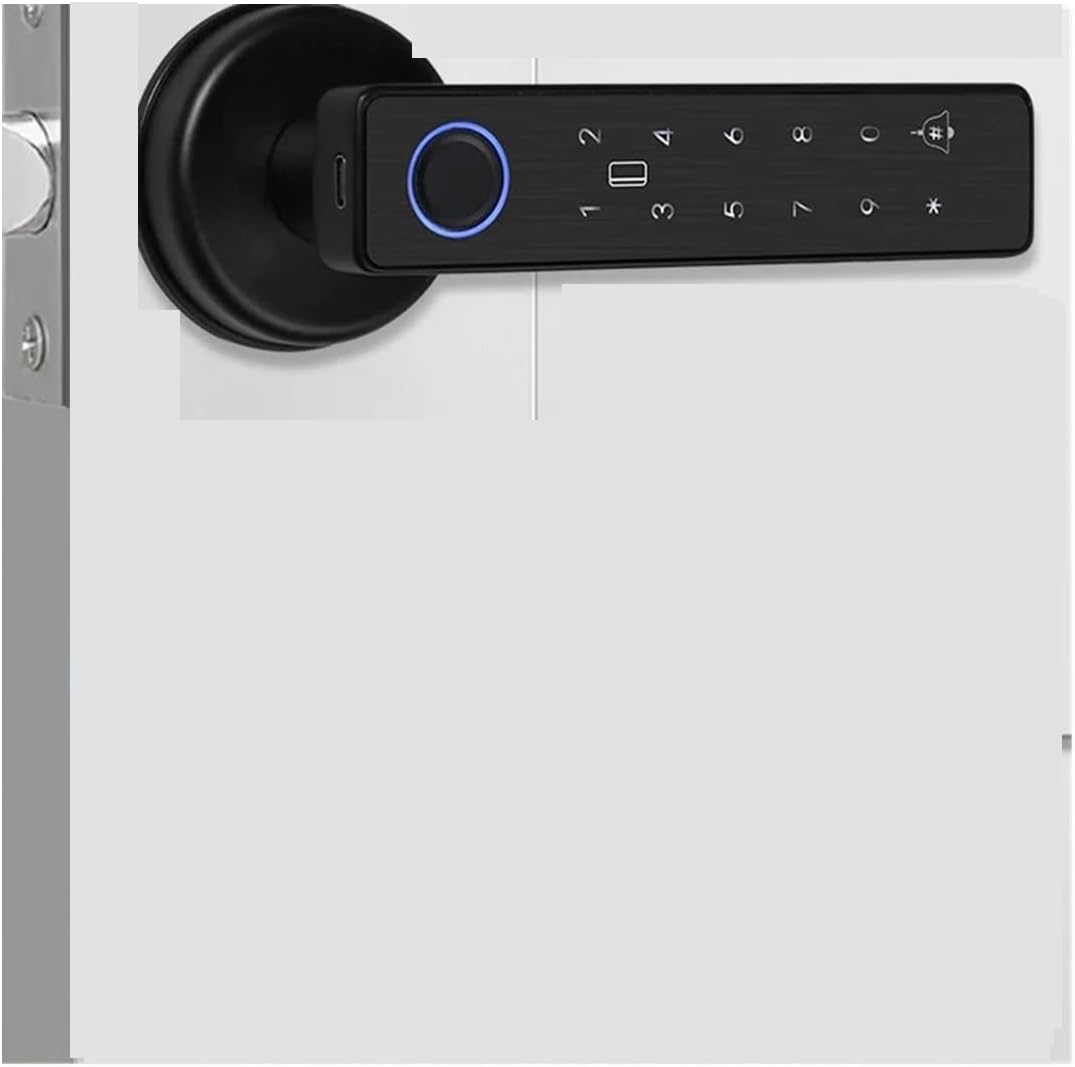
Image: The QDVOPHZA Tuya WiFi Smart Door Lock, model X7 60mm 70mm, shown installed on a door. The lock features a sleek black design with a numeric keypad and a circular fingerprint scanner.
2. Product Features
- Tuya Smart Ecosystem Integration: Seamlessly manage the door lock via the mobile APP, enabling remote control and intelligent linkage with other smart home devices.
- High-Precision Biometric Fingerprint Recognition: Advanced fingerprint technology ensures secure access, allowing only authorized users to unlock the door.
- Multiple Unlocking Methods: Supports fingerprint, password, 13.56MHz IC card, and mechanical key unlocking to accommodate various user preferences and scenarios.
- Integrated Door Handle Design: Combines smart lock functionality with an ergonomic door handle for aesthetic appeal and ease of operation.
- Wi-Fi Direct Connection: Built-in Wi-Fi module allows direct connection to your mobile phone without an additional gateway, providing real-time status updates and unlock notifications from anywhere.
3. Product Specifications
| Specification | Detail |
|---|---|
| Material | Aluminum alloy |
| Unlocking Methods | Wifi Tuya APP, Fingerprint, Password, RFID Cards, Mechanical keys |
| Fingerprint Capacity | 100 |
| Card Capacity | 100 |
| Password Capacity | 100 |
| Working Frequency | 13.56MHz (IC) |
| Fingerprint Reader | Semiconductor sensor |
| Read Time | 0.3 seconds |
| Working Power | 4x AAA battery (Not included) |
| Emergency Power Supply | USB Type-C charging port |
| Operating Temperature | -20 to 60°C (-4 to 140°F) |
| Door Thickness Suitability | 35-55mm (1.38-2.17 inches) |
| Application | Wooden Door / Metal Door |
| Handle Direction | Reversible (adjustable freely) |
4. Setup and Installation
Before beginning installation, ensure your door thickness is between 35-55mm. The handle direction is reversible and can be adjusted during installation.
4.1 Package Contents
Verify that all components are present in your package:
- Smart Door Lock Assembly (Front and Rear Panels)
- Mortise Lock Body (60mm or 70mm backset)
- Strike Plate and Box
- Mechanical Keys
- RFID Cards
- Mounting Screws and Hardware
- User Manual (this document)

Image: An exploded view of the QDVOPHZA Tuya WiFi Smart Door Lock components. It shows the front and rear handle assemblies, two mechanical keys, two RFID cards, and the mortise lock body with options for 60mm and 70mm backsets, along with a strike plate.
4.2 Installation Steps (General Overview)
- Prepare the Door: Ensure the door is clean and the existing boreholes are compatible. The lock supports 60mm and 70mm backsets.
- Install the Mortise Lock Body: Insert the mortise into the door edge and secure it with screws.
- Install the Front Panel: Route the cable through the door and align the front panel with the mortise.
- Install the Rear Panel: Connect the cable from the front panel to the rear panel. Secure the rear panel to the front panel using the provided screws.
- Install Batteries: Insert 4 AAA batteries (not included) into the battery compartment on the rear panel.
- Test Functionality: Test the mechanical keys and ensure the handle operates smoothly before proceeding with smart features setup.

Image: This image illustrates the smart lock's compatibility with multiple lock bodies and how it can replace existing door handles. It shows the smart lock assembly and examples of traditional door handles it can replace.
5. Operating Instructions
The QDVOPHZA Smart Door Lock offers multiple convenient ways to unlock your door.
5.1 Unlocking Methods
- Fingerprint Unlock: Place your registered finger on the fingerprint sensor. The lock will unlock upon successful recognition.
- Password Unlock: Enter your registered password on the keypad, followed by the '#' key. The lock supports virtual password unlocking, allowing you to enter random numbers before or after your actual password to prevent peeping.
- RFID Card Unlock: Present your registered RFID card to the card reader area on the lock. The lock will unlock upon successful recognition.
- Mechanical Key Unlock: In case of emergency or battery depletion, use the provided mechanical keys to manually unlock the door.
- Tuya APP Remote Unlock: Use the Tuya Smart APP on your smartphone to remotely unlock the door. Press the '#' key on the lock first to send an unlock request to your APP.

Image: A visual guide demonstrating the multiple ways to unlock the smart door lock. This includes unlocking via the Tuya APP, temporary passwords, outdoor fingerprint scan, RFID card swipe, keypad password entry, mechanical key, and pressing the handle from the inside.

Image: A user is shown unlocking the smart door lock using an RFID card. An inset image highlights that RFID cards and passwords can be used as alternative unlocking methods, especially useful if fingerprint recognition becomes difficult, such as for elderly users.
5.2 Tuya APP Features
The Tuya Smart APP provides advanced control and monitoring capabilities for your smart lock.
- Remote Unlock: Unlock the door from anywhere using the APP.
- Temporary Passwords: Generate time-limited or one-time passwords for guests or service providers.
- Unlock Records: View a log of all unlock events, including method and time.
- User Management: Add, modify, or delete fingerprints, passwords, and RFID cards.
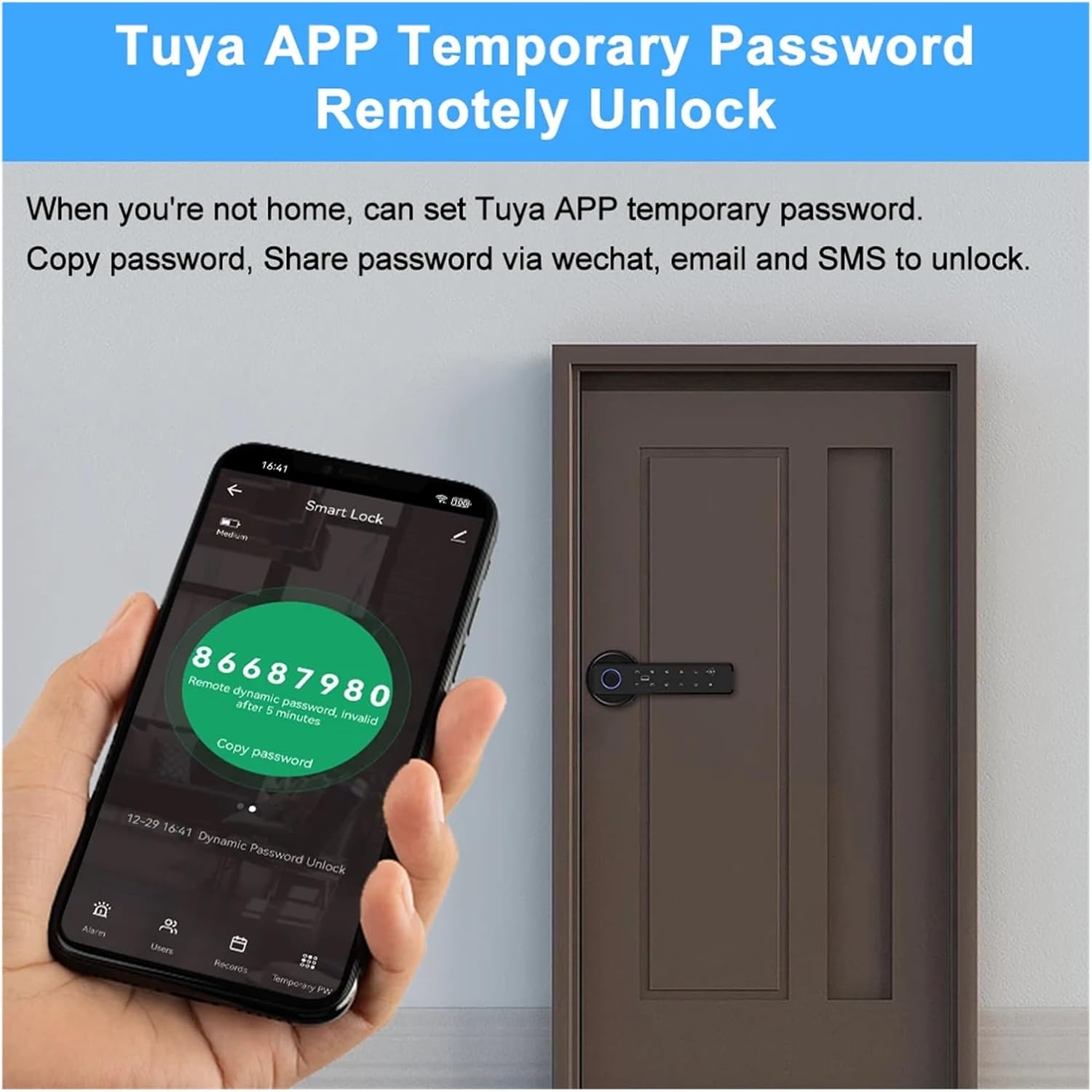
Image: A smartphone screen shows the Tuya APP interface displaying a temporary dynamic password. This feature allows users to generate and share temporary access codes remotely, useful when not at home.
5.3 Normally Open Mode
The lock can be set to a "Normally Open" mode, allowing the door to remain unlocked for frequent entry and exit without requiring authentication. This mode is suitable for periods of high traffic.
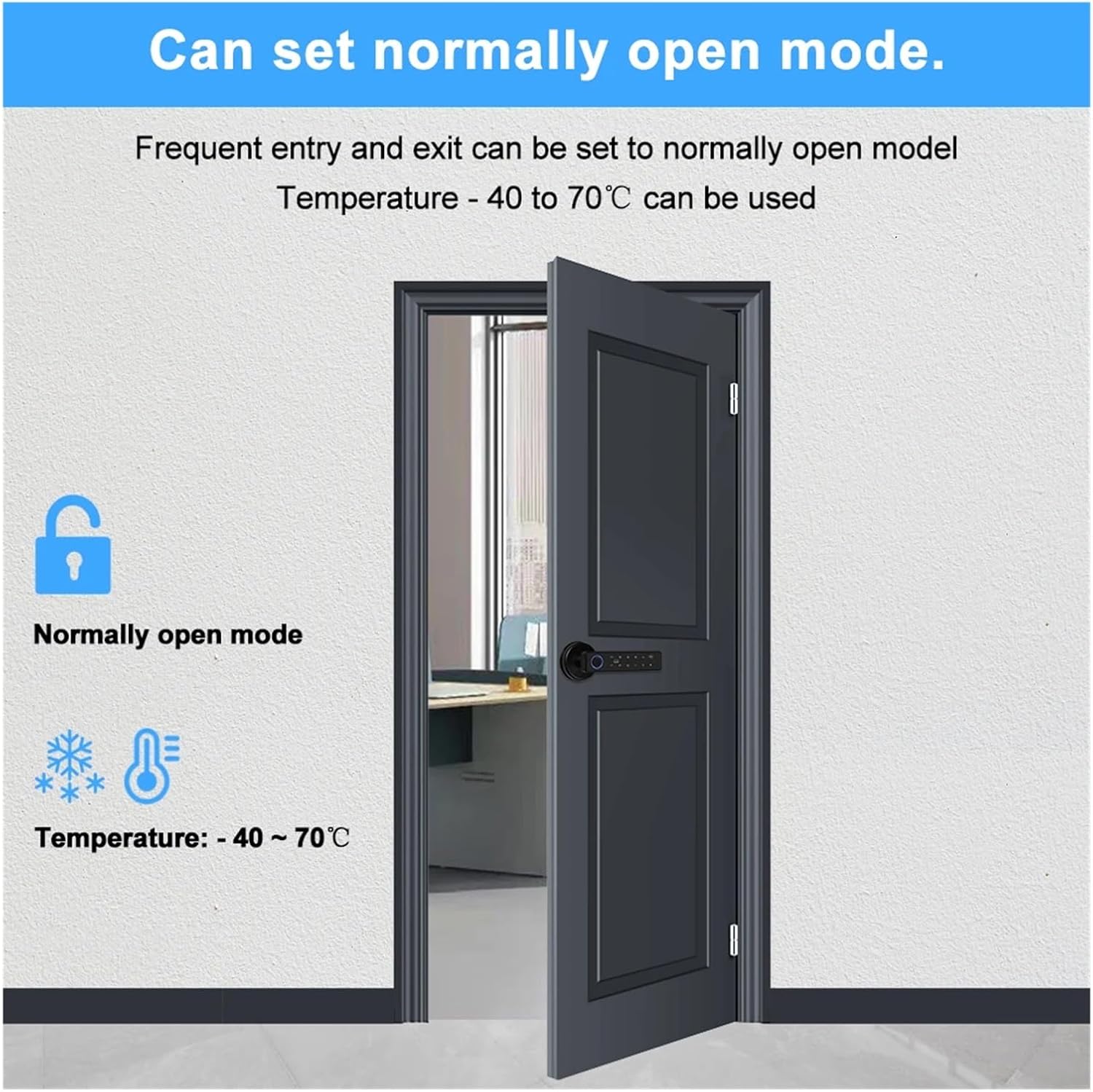
Image: A visual representation of the smart door lock in "Normally Open Mode." An unlocked padlock icon signifies this state, indicating that the door can be opened freely without authentication. The image also notes the operating temperature range for this mode.
6. Maintenance
Regular maintenance ensures the longevity and optimal performance of your smart door lock.
- Battery Replacement: Replace the 4 AAA batteries when the low battery indicator appears or when performance degrades. Always use new, high-quality alkaline batteries.
- Cleaning: Wipe the lock's surface with a soft, dry cloth. Avoid using abrasive cleaners, solvents, or harsh chemicals, as they can damage the finish and electronic components.
- Fingerprint Sensor: Keep the fingerprint sensor clean and free of dirt or moisture for accurate readings.
- Mechanical Parts: Periodically check the handle and mortise for smooth operation. Do not lubricate the internal electronic components.
7. Troubleshooting
If you encounter issues with your smart door lock, refer to the following common troubleshooting steps:
- Lock Not Responding:
- Check battery level. Replace batteries if low.
- Use the USB Type-C emergency charging port with a power bank if batteries are completely dead.
- Try using the mechanical key.
- Fingerprint Not Recognized:
- Ensure your finger is clean and dry.
- Try different angles or fingers if multiple are registered.
- Re-register your fingerprint if the issue persists.
- Password Not Working:
- Ensure you are entering the correct password followed by '#'.
- Verify that the lock is not in "Normally Open" mode if you expect it to be locked.
- RFID Card Not Working:
- Ensure the card is correctly presented to the reader.
- Verify the card is registered to the lock.
- Tuya APP Connectivity Issues:
- Ensure your home Wi-Fi network is active and the lock is within range.
- Check if the lock is properly paired with the Tuya APP.
- Restart your Wi-Fi router and the lock (by removing and reinserting batteries).
8. Warranty and Support
For warranty information or technical support, please contact the manufacturer or your point of purchase. Keep your purchase receipt as proof of purchase for warranty claims.
Manufacturer: QDVOPHZA
Model: X7 60mm 70mm