
Lqito V410
Lqito V410 Car OBD2 Scanner User Manual
Model: V410
Introduction
The Lqito V410 Car OBD2 Scanner is a professional diagnostic tool designed to help vehicle owners and technicians quickly identify and resolve issues related to the vehicle's engine and emissions system. This device supports all OBD II protocols and is compatible with most 1996 US-based, 2000 EU-based, and newer Asian vehicles. It provides essential functions such as reading and clearing Diagnostic Trouble Codes (DTCs), viewing live data streams, checking I/M readiness status, and retrieving vehicle information.
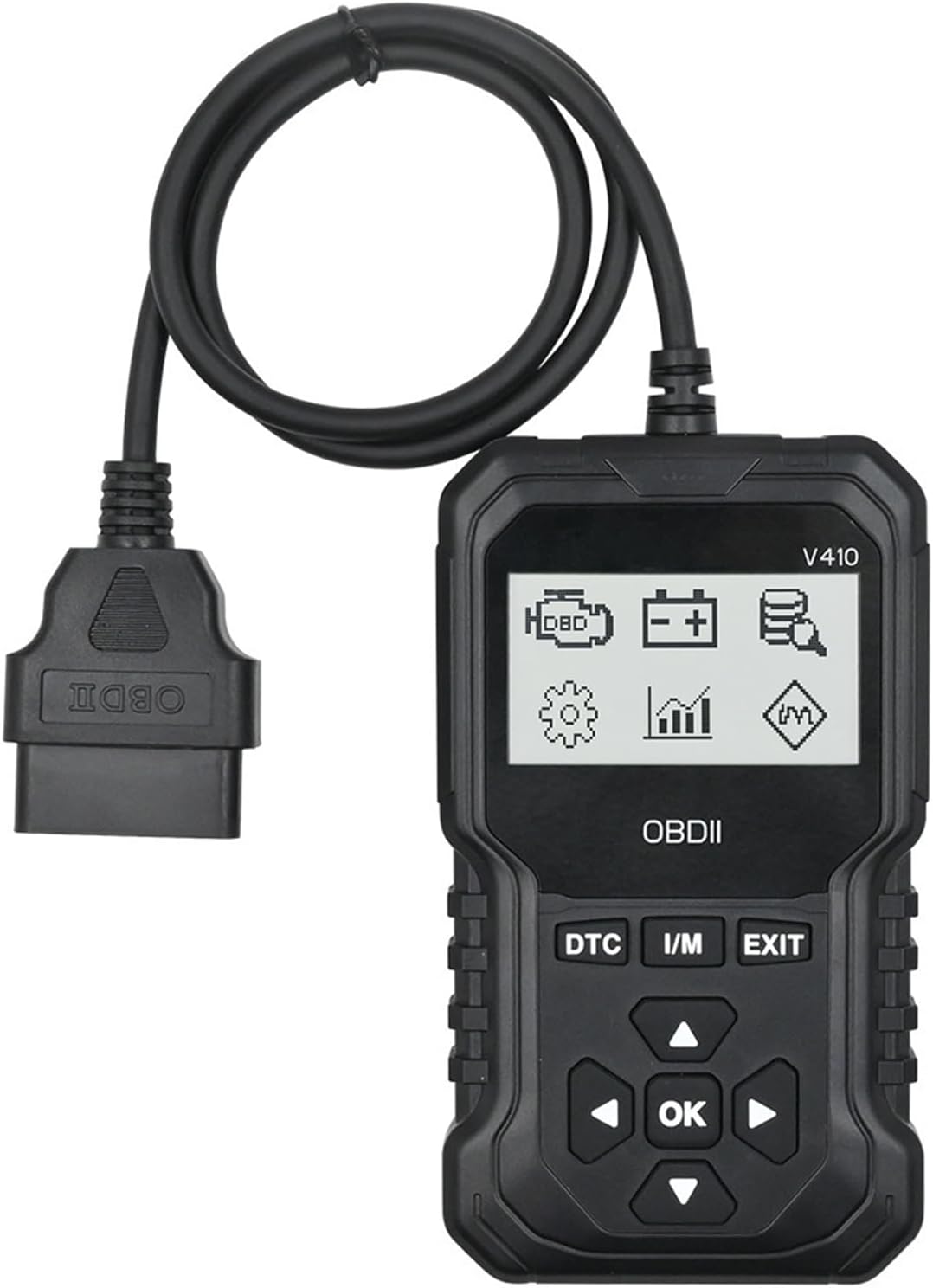
Figure 1: Lqito V410 OBD2 Scanner
The Lqito V410 OBD2 Scanner is a compact and robust device featuring a 2.8-inch display and an integrated OBDII cable for direct connection to your vehicle's diagnostic link connector (DLC).
Package Contents
- V410 OBD2 Scanner Host Unit
- User Manual
Product Overview

Figure 2: V410 Scanner Components and Buttons
This diagram illustrates the key components and controls of the V410 scanner:
- Product Connecting Line: Used to connect to the vehicle's OBDII interface.
- 12864 LCD Module: 2.8-inch display for viewing diagnostic information.
- DTC Button: Shortcut key to quickly read Diagnostic Trouble Codes.
- I/M Button: Shortcut key for I/M Readiness Monitor status.
- EXIT Button: Used to exit the current menu or go back.
- Navigation Buttons (Up, Down, Left, Right): Used to navigate through menus and select options.
- OK Button: Confirms selections or enters sub-menus.
Setup and Basic Operation
Follow these simple steps to connect and begin using your Lqito V410 OBD2 Scanner:

Figure 3: Quick Start Guide - 7 Steps
This visual guide outlines the process from connection to clearing fault codes.
- Find the Diagnostic Link Connector (DLC): Locate the 16-pin DLC port in your vehicle. It is usually found under the dashboard on the driver's side. Refer to your vehicle's owner's manual if you cannot find it.
- Plug in the OBDII Diagnostic Tool: Connect the V410 scanner's OBDII cable into the vehicle's DLC port. The scanner will power on automatically.
- Turn on Ignition: Turn your car's ignition to the "ON" position (engine off).
- Wait for Scan: The scanner will automatically establish communication with the vehicle and identify the vehicle model.
- Read Fault Codes: Once connected, navigate to the "Read Codes" option or press the DTC shortcut key to retrieve any stored Diagnostic Trouble Codes.
- Figure Out What the Codes Mean: The scanner will display the codes. You can use the built-in DTC lookup function to understand the meaning of each code.
- Clear the Fault Codes: After addressing the underlying issue, you can navigate to the "Erase Codes" option to clear the fault codes and turn off the Check Engine Light.
Advanced Functions
The Lqito V410 offers a range of diagnostic capabilities:
Full OBD II Functions

Figure 4: Multi-Function Automotive Diagnostic Tool Overview
The V410 provides comprehensive diagnostic functions, including:
- Read Codes: Displays Diagnostic Trouble Codes (DTCs) that caused the Check Engine Light to illuminate.
- Erase Codes: Clears DTCs from the vehicle's computer and turns off the Check Engine Light.
- Live Data Stream: Displays real-time data parameters from the vehicle's sensors.
- View Freeze Frame: Shows a snapshot of the vehicle's operating conditions at the moment a fault code was set.
- I/M Readiness Status: Checks the status of the emission-related monitors to determine if the vehicle is ready for an emissions test.
- Vehicle Information: Retrieves the Vehicle Identification Number (VIN), Calibration ID (CALID), and Calibration Verification Number (CVN).
- DTC Lookup: Provides definitions for generic and manufacturer-specific fault codes.
- Battery Voltage Reading: Monitors the vehicle's battery voltage.
Live Data Stream

Figure 5: Live Data Stream Display
The Live Data Stream function allows you to view real-time data from various sensors in your vehicle, such as engine RPM, vehicle speed, oxygen sensor readings, and more. This helps in diagnosing intermittent problems and monitoring vehicle performance.
I/M Readiness Test

Figure 6: I/M Readiness Status Screen
The I/M Readiness function checks if the various emission-related systems on the vehicle are operating correctly and are ready for inspection and maintenance testing. This is crucial for passing annual smog checks.
DTC Lookup

Figure 7: DTC Lookup Feature
The built-in DTC lookup feature allows you to quickly find the definition of a diagnostic trouble code by entering the code and pressing OK. This saves time by providing immediate explanations without needing external resources.
Maintenance
To ensure the longevity and optimal performance of your Lqito V410 OBD2 Scanner, follow these maintenance guidelines:
- Cleaning: Use a soft, dry cloth to clean the scanner's casing and screen. Avoid using abrasive cleaners or solvents that could damage the plastic or display.
- Storage: Store the scanner in a cool, dry place away from direct sunlight, extreme temperatures, and excessive humidity. Keep it in its original packaging or a protective case when not in use.
- Cable Care: Do not bend or crimp the OBDII cable excessively. Store the cable neatly to prevent damage to the wires or connectors.
- Software Updates: Check the manufacturer's website periodically for any available firmware updates to ensure your scanner has the latest features and vehicle compatibility.
Troubleshooting
If you encounter issues while using your V410 scanner, refer to the following common problems and solutions:
| Problem | Possible Cause / Solution |
|---|---|
| Scanner does not power on. |
|
| Communication error with vehicle. |
|
| Buttons are unresponsive or slow. |
|
| Cannot clear fault codes. |
|
Specifications
| Feature | Detail |
|---|---|
| Model | V410 |
| Display | 2.8-inch 12864 LCD Module |
| Supported Protocols | SAE J1850 PWM, SAE J1850 VPW, ISO9141-2, ISO14230-4 KWP (5 Baud Init), ISO14230-4 KWP (Fast Init), ISO14230-4 KWP (ISO15765-4 CAN (11bit ID, 500 Kbaud), ISO15765-4 CAN (29bit ID, 500 Kbaud), ISO15765-4 CAN (11bit ID, 250 Kbaud), ISO15765-4 CAN (29bit ID, 250 Kbaud) |
| Vehicle Compatibility | Compatible with 99% of 1996 US-Based, 2000 EU-Based, and Asian cars, and newer OBD II & CAN domestic or import vehicles. (Not compatible with large diesel models, Agreement No. SAE-J1939) |
| Supported Languages | English, Deutsch, Italiano, Dutch, Français, Español, Русский, Chinese |
| Item Weight | 9.6 ounces (approx. 272 grams) |
| Package Dimensions | 7.64 x 5.91 x 1.14 inches (approx. 19.4 x 15 x 2.9 cm) |
| Operating System | Linux |
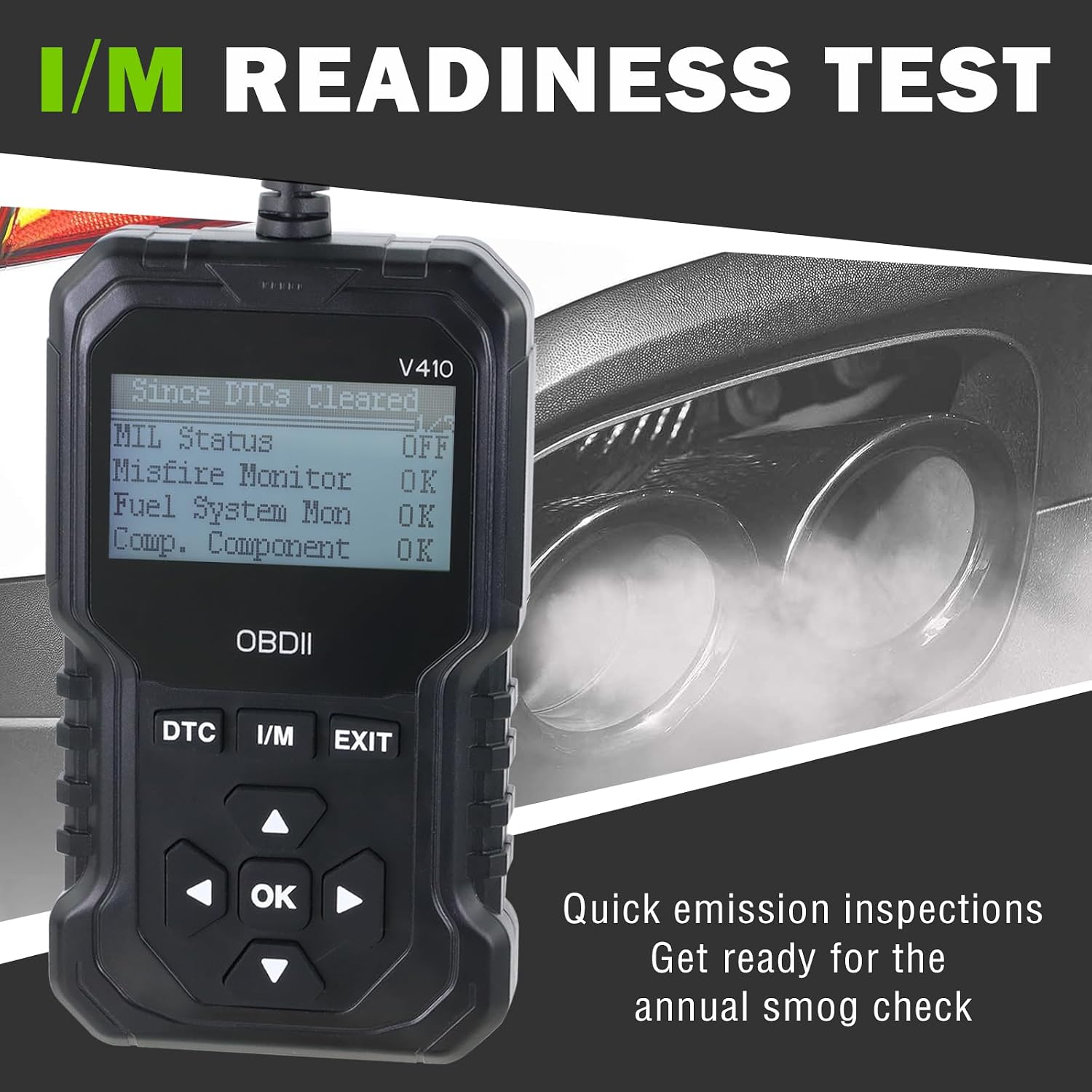
Figure 8: V410 Scanner Dimensions
The compact design of the V410 makes it easy to handle and store.
Warranty and Support
Lqito is committed to providing high-quality products and customer satisfaction. For any warranty claims, technical support, or inquiries regarding your V410 OBD2 Scanner, please contact Lqito customer service through the retailer where you purchased the product or visit the official Lqito store on Amazon.
Lqito Store Link: Visit the Lqito Store on Amazon
Ask a question about this manual
Ask about setup, troubleshooting, compatibility, parts, safety, or missing instructions. Manuals+ will review the question and use this page’s manual context to help answer it.