
LWOHSI LW105-4GUS-E
LWOHSI Home Security System User Manual
Model: LW105-4GUS-E
1. Introduction
The LWOHSI Home Security System (Model LW105-4GUS-E) is a comprehensive DIY alarm solution designed to provide robust security for your home or apartment. This system integrates WiFi and GSM connectivity, offering multiple alarm notification methods including app push alerts, SMS, and voice monitoring. It supports a wide range of wireless detectors and can be controlled via a mobile application, remote controls, or voice commands through compatible smart home assistants.
The system is designed for easy installation and expansion, allowing users to customize their security setup with additional sensors as needed. Its compatibility with popular smart home platforms like Tuya, Amazon Alexa, and Google Assistant enhances convenience and control.

Image: LWOHSI Security Made Simple - An overview of the main control panel and included accessories, emphasizing ease of use.
2. Package Contents
Verify that all components are present in your package:
- 1 x LWOHSI 105F Home Alarm System Control Panel
- Door/Window Sensors (multiple pieces)
- Motion Detectors (multiple pieces)
- Remote Controls (multiple pieces)
- RFID Cards (multiple pieces)
- Power Adapter
- Mounting Hardware (screws, brackets)
- User Manual (this document)

Image: A complete kit of the LWOHSI Home Security System, showing the central panel, door/window sensors, motion detectors, remote key fobs, and RFID tags.
3. System Setup
3.1 Initial Power-On and SIM Card Installation
- Ensure the system is powered off before inserting the SIM card.
- Locate the SIM card slot on the back of the control panel.
- Carefully insert a micro SIM card into the designated slot. Ensure the SIM card's PIN code is disabled prior to insertion.
- Connect the power adapter to the control panel and a power outlet.
- The system will power on and display the main interface.

Image: A visual guide demonstrating the process of inserting a SIM card into the control panel and configuring emergency contact numbers for alarm notifications.
3.2 App Download and Wi-Fi Connection
- Download the "Tuya Smart" or "Smart Life" app from your mobile device's app store (iOS App Store or Google Play Store).
- Register or log in to your account within the app.
- Follow the in-app instructions to add your LWOHSI Home Security System. Ensure your mobile device is connected to a 2.4GHz Wi-Fi network (5G networks are not supported).
- The app will guide you through connecting the control panel to your home Wi-Fi network.

Image: A detailed diagram of the LWOHSI control panel, highlighting its key components such as the speaker, SOS button, RFID reader, touch keyboard, and arm/disarm functions. Adjacent to it, a smartphone displays real-time alarm notifications from the connected app.
3.3 Pairing Sensors and Accessories
The system supports up to 100 controllers, RFID cards, and wireless detectors. Refer to the specific sensor's manual for pairing instructions, typically involving putting the control panel into pairing mode and triggering the sensor.
- Door/Window Sensors: Attach to doors and windows using the included adhesive or screws. Ensure the two parts are aligned and close to each other when the door/window is closed.
- Motion Detectors: Install in areas where motion detection is desired, such as hallways or living rooms. Position them to cover the intended area without false alarms from pets or drafts.
- Remote Controls: Used for quick arming, disarming, and SOS functions.
- RFID Cards: Tap on the control panel's RFID reader for quick arming/disarming.

Image: A door sensor installed on a door frame, illustrating how its two components separate when the door opens, triggering an alert.

Image: A diagram illustrating a motion sensor's detection capabilities, showing a red beam representing its coverage area and how it identifies an intruder.
4. Operating the System
4.1 Arming and Disarming
The system can be armed or disarmed using the control panel, remote controls, RFID cards, or the mobile app.
- Control Panel: Use the touch keyboard to enter your PIN and select the arm or disarm function.
- Remote Control: Press the arm (lock) or disarm (unlock) button.
- RFID Card: Tap the card on the RFID reader area of the control panel.
- Mobile App: Use the app interface to remotely arm or disarm the system.

Image: A hand operating the LWOHSI control panel, illustrating the process of arming or disarming the security system via the touch interface.
4.2 Alarm Notifications and Communication
When an alarm is triggered, the system will activate the siren and send notifications via multiple channels:
- App Push Alerts: Instant notifications sent to your smartphone via the Tuya Smart/Smart Life app.
- SMS Messages: Text messages sent to pre-set phone numbers.
- Voice Calls: The system will dial pre-set emergency contact numbers. If a line is busy, it will automatically dial the next reserved number.
- Remote Intercom Monitoring: Allows you to listen in or speak through the control panel when an alarm is triggered, enabling communication with the premises.

Image: A diagram illustrating the system's alarm call feature, where the control panel automatically dials up to five preset phone numbers sequentially when an alarm is activated, ensuring no notification is missed.

Image: A split image depicting remote intercom monitoring. On one side, a person is on the phone, and on the other, an intruder is detected by the security system, demonstrating how the alarm can be communicated and monitored remotely.
4.3 Sensor Management and Customization
You can manage and customize your sensors through the mobile app:
- Naming Sensors: Easily edit the name of each door/motion sensor within the app to facilitate management and identification of specific rooms or zones.
- Zone Settings: Configure different alarm settings for various zones (e.g., front door, entrance, emergency, bedroom, window).
- Exit/Entry Delay: Adjust the delay times for arming and disarming the system to prevent accidental triggers.

Image: Screenshots from the mobile application demonstrating how to check the real-time status of door sensors and how to easily edit the names of door/motion sensors for better organization and management of different rooms.
4.4 Smart Home Integration (Alexa, Google Assistant)
The LWOHSI system is compatible with Amazon Alexa and Google Assistant, allowing for voice control of arming and disarming functions.
- Enable the Tuya Smart/Smart Life skill in your Alexa or Google Home app.
- Link your LWOHSI account.
- Use voice commands such as "Alexa, arm my home" or "Hey Google, disarm the alarm."

Image: A person interacting with an Amazon Echo device to control the LWOHSI security system using voice commands, highlighting its compatibility with Alexa and Tuya Smart platforms.
4.5 Camera Linkage
If you have compatible high-definition cameras, you can link them to the system via the mobile app. This allows you to check the real-time situation through the app once an alarm notification is received.
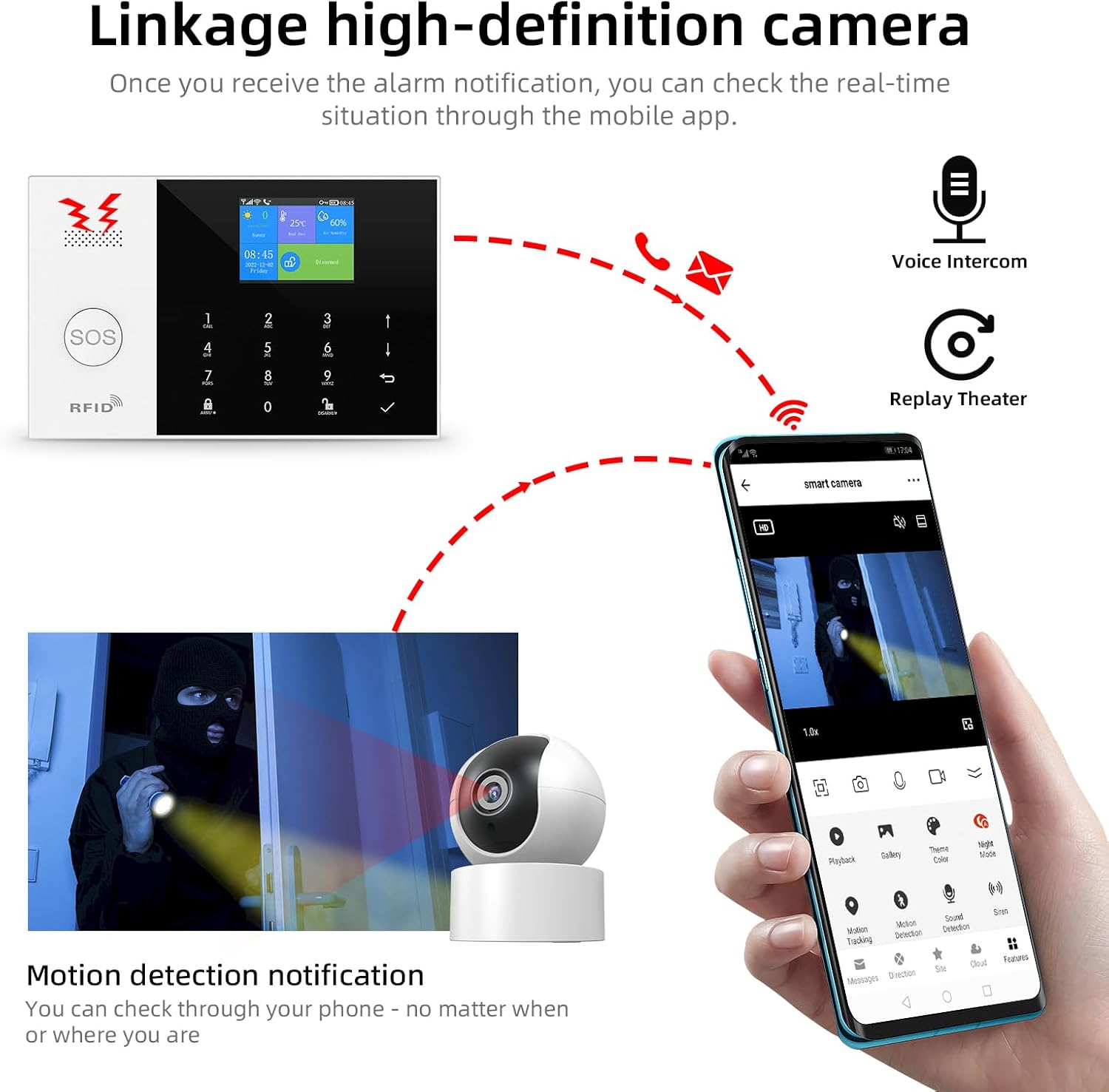
Image: A diagram illustrating the linkage between the LWOHSI control panel, a security camera, and a smartphone. Upon motion detection, the system sends a notification, allowing the user to view the real-time situation through the mobile app's camera feed.
5. Maintenance
5.1 Battery Life and Reminders
The control panel has a built-in backup battery (Lithium Polymer) providing approximately 8.5 hours of operation during a power outage. The system will provide low battery life reminders for both the main panel and connected sensors.
- Control Panel: The display will show a low battery indicator. Ensure the panel is connected to power for charging.
- Sensors: You will receive app notifications and/or SMS alerts when a sensor's battery is low. Replace sensor batteries promptly to ensure continuous protection.

Image: A graphic highlighting the low battery life reminder feature of the LWOHSI control panel, indicating its low power consumption and the presence of an 8.5-hour backup battery for power failures.

Image: A diagram illustrating the low battery notification system for sensors. It shows a door sensor and a motion sensor with low battery indicators, and a smartphone displaying a text message alert for a sensor's low battery.
5.2 Cleaning
To maintain optimal performance, regularly clean the control panel and sensors:
- Use a soft, dry cloth to wipe down the surfaces.
- Avoid using abrasive cleaners, solvents, or excessive moisture, as these can damage the components.
6. Troubleshooting
| Problem | Possible Cause | Solution |
|---|---|---|
| System does not power on. | No power, faulty adapter, or completely drained battery. | Ensure power adapter is securely connected to the panel and a working outlet. Check the power outlet. Allow time for the internal battery to charge if completely drained. |
| Cannot connect to Wi-Fi. | Incorrect Wi-Fi password, 5GHz network, weak signal, or network interference. | Verify Wi-Fi password. Ensure you are connecting to a 2.4GHz network. Move the panel closer to the router. Restart your router and the alarm panel. |
| Sensors not triggering alarm. | Sensor not paired, low battery, or incorrect installation. | Re-pair the sensor with the control panel. Replace sensor batteries. Ensure door/window sensors are properly aligned and motion detectors are placed correctly. |
| No app push notifications. | App permissions, network connectivity, or app settings. | Check app notification permissions on your phone. Ensure the alarm panel has stable internet connection. Verify notification settings within the Tuya Smart/Smart Life app. |
| Alarm calls/SMS not received. | SIM card issues, incorrect phone numbers, or insufficient SIM balance. | Ensure SIM card is correctly inserted and active. Verify the pre-set phone numbers in the system settings. Check SIM card balance and network signal. |
| System disarms unexpectedly or programming issues. | Incorrect programming, user error, or system glitch. | Review the programming steps in this manual carefully. Ensure correct PIN entry. If issues persist, consider a factory reset (refer to advanced settings in the app) and re-configure. Contact customer support if problem continues. |
7. Specifications
| Feature | Detail |
|---|---|
| Model | LW105-4GUS-E |
| Brand | LWOHSI |
| Connectivity Technology | Wireless (Wi-Fi, GSM) |
| Power Source | Corded Electric |
| Compatible Devices | Tablet, Smartphone (via Tuya Smart/Smart Life App) |
| Control Method | App, Remote, Voice (Alexa, Google Assistant) |
| Alert Type | Audio & Motion, App Push, SMS, Voice Call |
| Installation Type | Screw-In (for mounting brackets) |
| Battery Type (Control Panel) | Lithium Polymer (included) |
| Backup Battery Life | Approx. 8.5 hours |
| Item Dimensions (L x W x H) | 7.09 x 0.59 x 3.86 inches |
| Item Weight | 2.4 pounds |
| Supported Languages | 11 languages (multi-language menu display, voice prompts) |
8. Warranty and Support
LWOHSI products are designed for reliability and performance. For any technical assistance, troubleshooting beyond this manual, or warranty inquiries, please contact LWOHSI customer support. Refer to the product packaging or the official LWOHSI website for the most current contact information.
Please retain your proof of purchase for warranty claims.
Ask a question about this manual
Ask about setup, troubleshooting, compatibility, parts, safety, or missing instructions. Manuals+ will review the question and use this page’s manual context to help answer it.