
1. Product Overview
The EFLLVSD Universal Stylus Pen is designed for use with iOS and Android touch screen devices. It features a dual touch function, a fine tip for precision, and a rechargeable battery for extended use. This stylus is suitable for various activities such as note-taking, drawing, and general navigation.
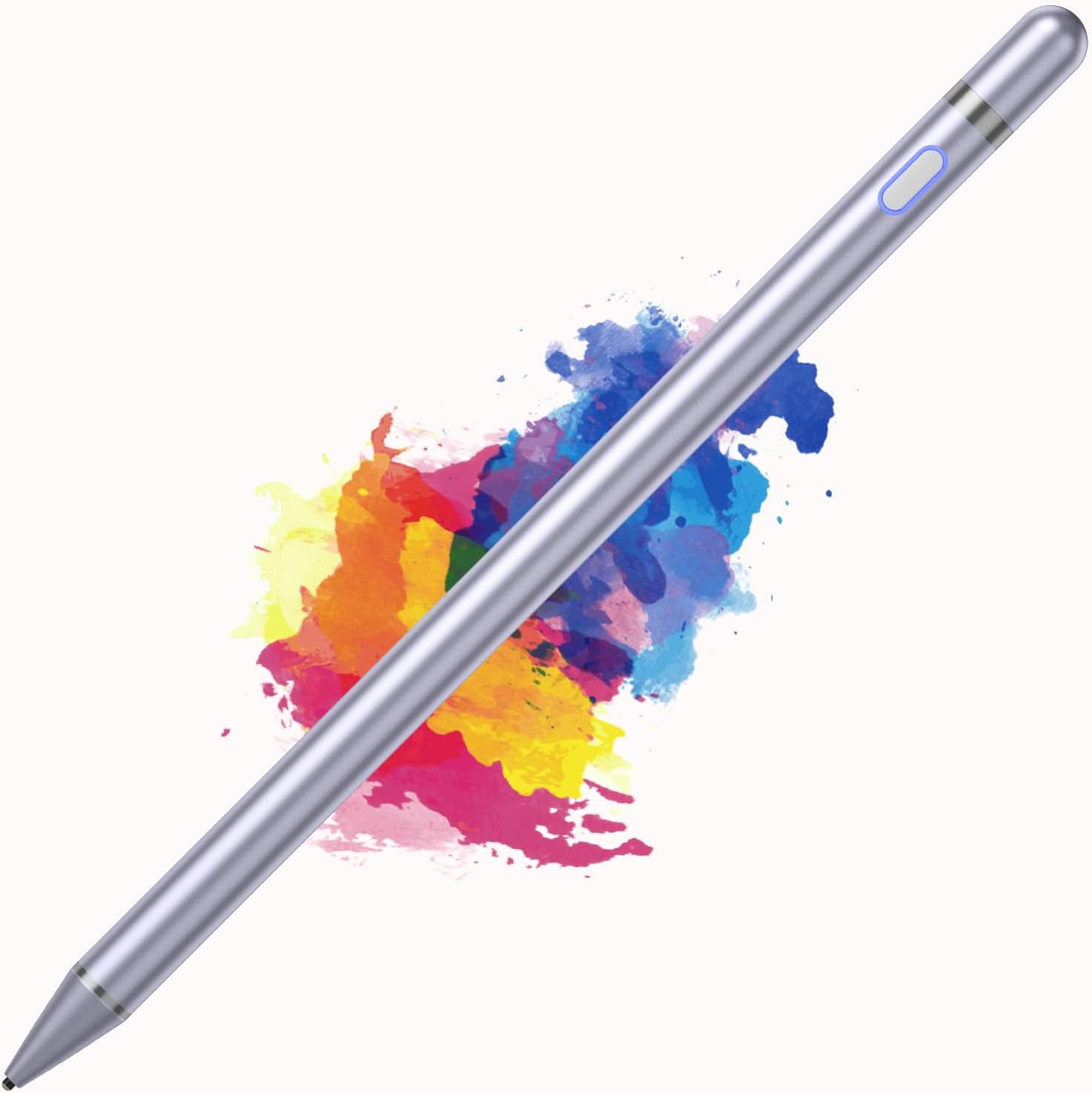
Image 1.1: The EFLLVSD Universal Stylus Pen in 118Purple color.
2. Package Contents
Please verify that all items are present in your package:
- 1 x EFLLVSD Universal Stylus Pen (118Purple)
- 1 x Micro USB Charging Cable
- User Manual (this document)

Image 2.1: Contents of the EFLLVSD Stylus Pen package, including the pen and charging cable.
3. Specifications
| Feature | Description |
|---|---|
| Model | 118Purple |
| Compatibility | Universal for iOS & Android Touch Screens (Smartphones, Tablets) |
| Tip Type | 1.45mm Ultra-fine Copper Tip |
| Battery Type | Lithium Polymer |
| Charging Port | Micro USB |
| Charging Time | Approximately 40 minutes |
| Battery Life | Up to 8 hours of continuous use |
| Item Weight | 20 Grams (0.705 ounces) |
| Dimensions | 8.31 x 2.4 x 0.75 inches (Package) |
4. Setup and Charging
4.1 Initial Charge
Before first use, fully charge the stylus pen. Connect the provided Micro USB cable to the charging port on the stylus and to a power source (e.g., computer USB port, power bank, or wall adapter).
4.2 Charging Indicators
The LED indicator on the stylus will show its charging status:
- Charging: The indicator light will be purple.
- Fully Charged: The indicator light will turn off or change color (refer to specific product behavior if different).
A full charge typically takes about 40 minutes and provides up to 8 hours of working time.

Image 4.1: Visual representation of charging status and various charging methods (power bank, computer, wall adapter).
5. Operating Instructions
5.1 Power On/Off
- To Power On: Press the power button located on the stylus. The LED indicator will light up (typically blue) to confirm it is active.
- To Power Off: Press the power button again. The LED indicator will turn off.
5.2 Usage
Once powered on, the stylus is ready for immediate use on your touch screen device. No Bluetooth pairing is required.
- Use the fine copper tip for precise input, drawing, and writing.
- The stylus can be used for various tasks including taking notes, drawing, working on documents, and playing games.

Image 5.1: Examples of stylus use for note-taking, drawing, work, and gaming on various devices.
6. Compatibility and Important Notes
6.1 Universal Compatibility
This stylus is universally compatible with most iOS and Android touch screen devices, including iPads, iPhones, Samsung tablets, and other smartphones and tablets.

Image 6.1: The stylus is compatible with a wide range of iOS and Android devices.
6.2 Important Considerations
- This stylus pen does not have Bluetooth functionality.
- It does not support "Palm Rejection." Avoid resting your palm on the screen while using the stylus to prevent unintended input.
- There is no pressure or tilt sensitivity. The stylus provides a consistent line thickness regardless of pressure or angle.
- If your phone or tablet was previously used with an original stylus (e.g., Apple Pencil) that connects via Bluetooth, please ensure you forget that device in your Bluetooth settings and turn off Bluetooth on your device before using this universal stylus. This prevents interference and ensures proper functionality.

Image 6.2: Key operational notes regarding Bluetooth, palm rejection, and pressure sensitivity.
7. Maintenance
To ensure the longevity and optimal performance of your stylus pen, follow these maintenance guidelines:
- Cleaning: Wipe the stylus body with a soft, dry cloth. Do not use harsh chemicals or abrasive materials.
- Tip Care: The fine copper tip is durable but can be damaged by excessive force or drops. Handle with care.
- Storage: Store the stylus in a cool, dry place away from direct sunlight and extreme temperatures.
- Charging: Use only the provided Micro USB cable or a compatible, certified cable for charging. Avoid overcharging the battery.
8. Troubleshooting
If you encounter issues with your EFLLVSD Universal Stylus Pen, please refer to the following common problems and solutions:
- Stylus not responding:
- Ensure the stylus is powered on. Press the power button.
- Check battery level and charge the stylus if necessary.
- Verify that your device's Bluetooth is turned off, especially if you previously used a Bluetooth-enabled stylus.
- Restart your device.
- Inaccurate input or intermittent connection:
- Ensure the stylus tip is clean and free of debris.
- Make sure your screen is clean.
- Confirm that no other styluses are actively connected via Bluetooth to your device.
- Avoid resting your palm on the screen, as this stylus does not support palm rejection.
- Stylus not charging:
- Ensure the Micro USB cable is securely connected to both the stylus and the power source.
- Try a different Micro USB cable or power adapter.
- Confirm the power source is active.
9. Warranty and Support
This product comes with a standard manufacturer's warranty. For specific warranty details, please refer to the documentation included with your purchase or contact EFLLVSD customer support.
If you require further assistance or have questions not covered in this manual, please contact EFLLVSD customer service through their official channels. Keep your purchase receipt or order number handy for faster service.