
Sniegauu HB02
Sniegauu HB02 Smart Item Finder Tracker Tags User Manual
Model: HB02 | Brand: Sniegauu
1. Introduction
The Sniegauu HB02 Smart Item Finder Tracker Tags are designed to help you locate your personal belongings quickly and efficiently. These compact and durable trackers integrate seamlessly with the Apple Find My network, allowing iOS users to track items such as keys, wallets, luggage, and backpacks. Please note that these devices are compatible with iOS devices only and do not work with Android systems.

Image 1.1: Sniegauu HB02 Smart Item Finder Tracker Tags (Black and White).
This image displays the two Sniegauu HB02 Smart Item Finder Tracker Tags, one in black and one in white, showcasing their compact, circular design with a central button and a small loop for attachment.
Key features include IP67 water resistance, a long-lasting CR2032 battery (approximately 1 year), and a loud sound notification (100dB) to assist in locating items. The "Left Behind Notice" feature provides alerts if you accidentally leave your tracked item behind.
2. Package Contents
Verify that all items listed below are present in your package:
- 2 x Sniegauu HB02 Smart Item Finder Tracker Tags (1 Black, 1 White)
- 2 x Keychains
- 1 x Pry Tool (for battery replacement)
- 1 x User Manual
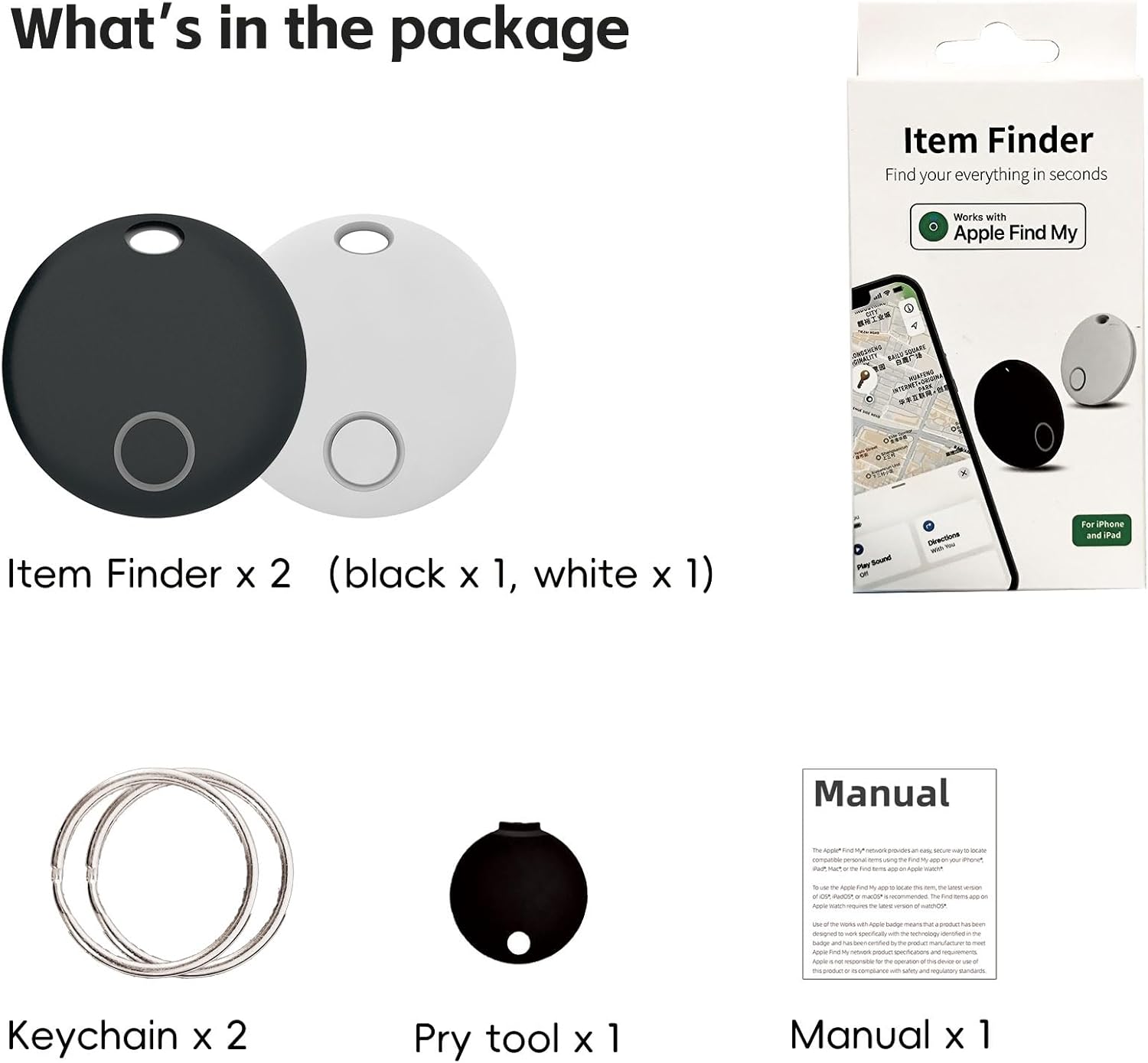
Image 2.1: What's in the package.
This image shows the complete package contents, including two item finders (black and white), two keychains, a pry tool, and the user manual, laid out next to the product packaging.
3. Setup Instructions
Follow these steps to set up your Sniegauu HB02 Smart Item Finder Tracker Tags with your Apple device:
- Enable Bluetooth: Ensure Bluetooth is turned on in your Apple device's settings.
- Open Find My App: Launch the "Find My" application on your iPhone or iPad.
- Activate Tracker: Press and hold the power button on the Sniegauu Smart Tag until you hear a confirmation sound or see an indicator light (if applicable).
- Add New Item: In the Find My app, navigate to the "Items" tab. Tap the "+" icon, then select "Add Other Supported Item."
- Connect: Your device will scan for nearby trackers. When "iTag" (or similar identifier) appears, tap "Connect." Follow any on-screen prompts to name your tag and assign an emoji.

Image 3.1: How to add your smart tag to the Find My app.
This image illustrates the three-step process of pairing the Sniegauu Smart Tag with an Apple device: turning on Bluetooth and the tag, opening the Find My app to add an item, and connecting to the detected "iTag."
Important: These trackers are designed to work exclusively with Apple's Find My network and are not compatible with Android devices.
4. Operating Instructions
4.1 Locating Your Items
Once your Sniegauu Smart Tag is paired, you can locate your items using the Apple Find My app:
- View on Map: Open the Find My app and select the "Items" tab. Your Sniegauu Smart Tag will appear on the map, showing its last known location or current location if it's within range of an Apple device.
- Play Sound: If your item is nearby, tap on the tag's name in the app and select "Play Sound." The tracker will emit a loud 100dB sound, helping you pinpoint its exact location.

Image 4.1: Use the Ring Function.
This image demonstrates how to use the "Play Sound" feature in the Find My app to make the Sniegauu Smart Tag emit a sound, helping users locate their keys or other items indoors.

Image 4.2: Find your missing item.
This image shows the Find My app interface displaying the location of a "Key" item on a map, with options to "Play Sound" or get "Directions," illustrating how to track a missing item outdoors.
4.2 Left Behind Notice
To prevent losing your items, enable the "Left Behind Notice" feature in the Find My app. If your Sniegauu Smart Tag disconnects from your phone (i.e., you leave it behind), you will receive an instant notification reminder to retrieve your item.
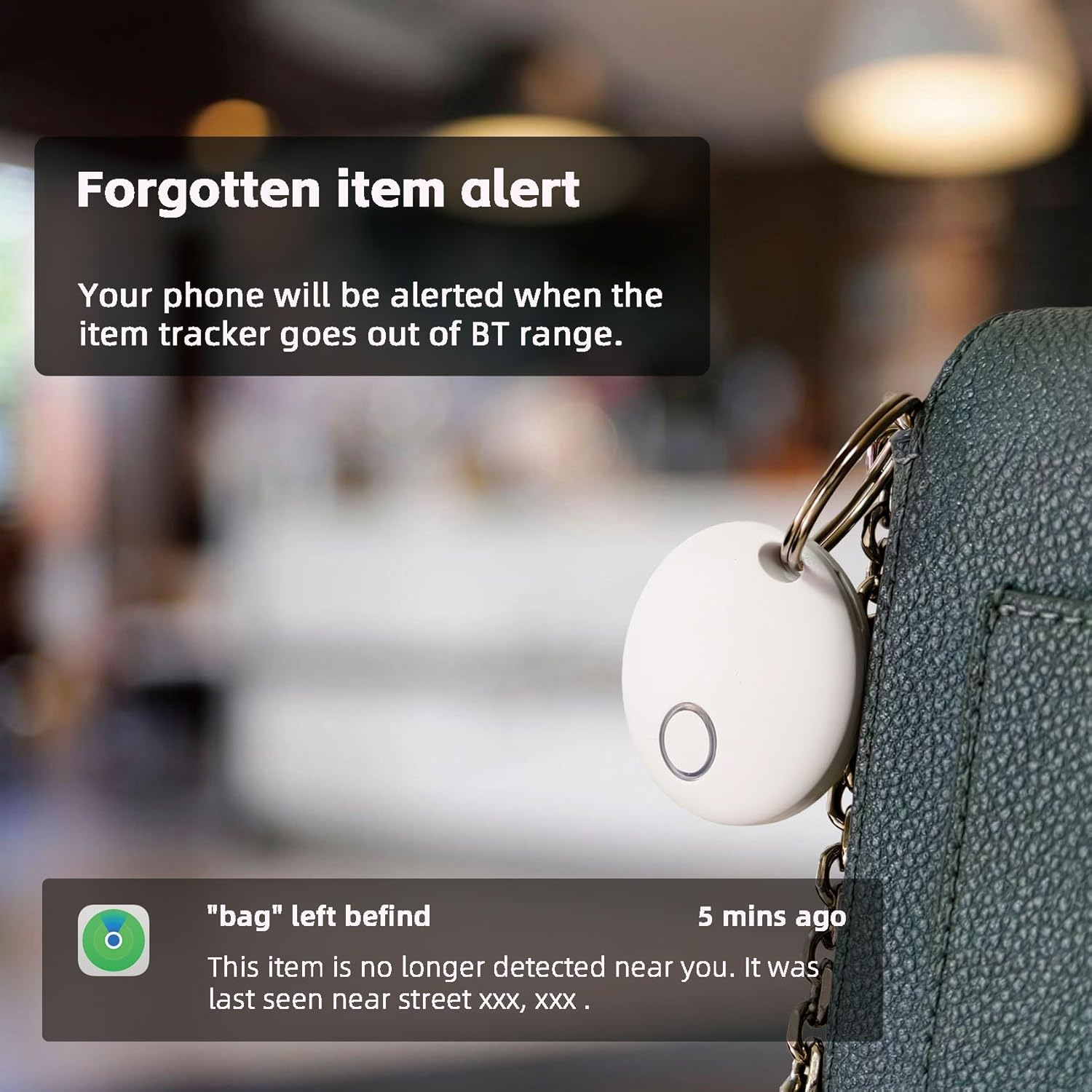
Image 4.3: Forgotten item alert.
This image displays a phone notification indicating that a "bag" has been left behind, showing the last detected location and time, demonstrating the "Left Behind Notice" feature.
5. Maintenance
5.1 Battery Replacement
The Sniegauu HB02 Smart Tag uses a CR2032 coin cell battery, which typically lasts about one year. When the battery is low, you may receive a notification from the Find My app. To replace the battery:
- Locate the small groove on the side of the tracker.
- Use the provided pry tool (or a similar thin, flat object) to carefully open the tracker casing.
- Remove the old CR2032 battery.
- Insert a new CR2032 battery with the positive (+) side facing up.
- Align the two halves of the casing and press firmly until it clicks securely into place, ensuring the waterproof seal is maintained.
5.2 Water Resistance
The Sniegauu HB02 Smart Tag features an IP67 water resistance rating. This means it is protected against dust ingress and can withstand immersion in water up to 1 meter for up to 30 minutes. While it is designed to resist splashes and brief submersion, it is not recommended for prolonged underwater use or exposure to high-pressure water jets.

Image 5.1: Durability features.
This image highlights the durability features of the Sniegauu Smart Tag, including IPX7 Waterproof, Drop-proof design, Light Weight, and Sound Notification capabilities, with both black and white trackers shown below.
6. Troubleshooting
This section addresses common issues you might encounter with your Sniegauu HB02 Smart Item Finder Tracker Tags.
- Tracker Not Connecting:
- Ensure Bluetooth is enabled on your Apple device.
- Check if the tracker's battery needs replacement.
- Make sure the tracker is within Bluetooth range of your Apple device or another device on the Find My network.
- Try restarting your Apple device and the tracker (by removing and reinserting the battery).
- Sound Not Playing or Too Quiet:
- Ensure the tracker's battery is not low.
- Check if the tracker is obstructed or covered by other items.
- Confirm your phone's volume is up and not on silent.
- "Left Behind Notice" Not Working:
- Verify that the "Left Behind Notice" feature is enabled for the specific tag in the Find My app settings.
- Ensure your Apple device has a stable internet connection to receive notifications.
- Tracker Location Not Updating:
- The tracker's location updates when it is within range of an Apple device on the Find My network. If it's in a remote area, updates may be less frequent.
- Ensure your Apple device has location services enabled for the Find My app.
7. Specifications
| Feature | Detail |
|---|---|
| Model Number | HB02 |
| Brand | Sniegauu |
| Compatibility | Apple Find My (iOS Only) |
| Battery Type | 1 x CR2032 (included) |
| Battery Life | Approximately 1 year |
| Water Resistance | IP67 |
| Sound Volume | 100dB |
| Item Weight | 1.58 ounces (approx. 45g) |
| Package Dimensions | 4.53 x 2.6 x 0.75 inches |
8. Safety Information
- Battery Safety: Keep CR2032 batteries out of reach of children. If swallowed, seek immediate medical attention. Dispose of used batteries responsibly according to local regulations.
- Operating Temperature: Do not expose the device to extreme temperatures (hot or cold) or direct sunlight for prolonged periods.
- Cleaning: Clean the device with a soft, dry cloth. Avoid using harsh chemicals or abrasive materials.
- Disassembly: Do not attempt to disassemble or modify the device beyond battery replacement. This may void the warranty and cause damage.
9. Warranty and Support
Specific warranty details for the Sniegauu HB02 Smart Item Finder Tracker Tags are not provided within this manual. For warranty claims, technical support, or further inquiries, please refer to the manufacturer's official website or contact their customer service directly through your point of purchase.
Ask a question about this manual
Ask about setup, troubleshooting, compatibility, parts, safety, or missing instructions. Manuals+ will review the question and use this page’s manual context to help answer it.