
Beelink EQR 5500U
Beelink EQR5 Mini PC User Manual (Model EQR 5500U)
Comprehensive instructions for setting up, operating, and maintaining your Beelink EQR5 Mini PC.
1. Introduction
This manual provides essential information for the proper setup, operation, and maintenance of your Beelink EQR5 Mini PC. Please read these instructions carefully before using the device to ensure optimal performance and longevity.

Figure 1: Front view of the Beelink EQR5 Mini PC, showcasing its compact design and front-facing ports.
2. Package Contents
Verify that all items are present in your package:
- Beelink EQR5 Mini PC
- Power Adapter
- HDMI Cable
- Mounting Bracket with Screws
- User Manual

Figure 2: Included accessories for the Beelink EQR5 Mini PC, including power adapter, HDMI cable, and mounting hardware.
3. Setup
3.1 Connecting Peripherals
The Beelink EQR5 Mini PC offers a variety of ports for connecting your essential peripherals:
- Front Ports: USB 3.2 Gen2 (x3), USB-C (x1), 3.5mm Audio Jack (x1), Power Button (x1), CLR CMOS (x1)
- Rear Ports: USB 2.0 (x1), HDMI (x2), LAN (x2), DC Power Input (x1)
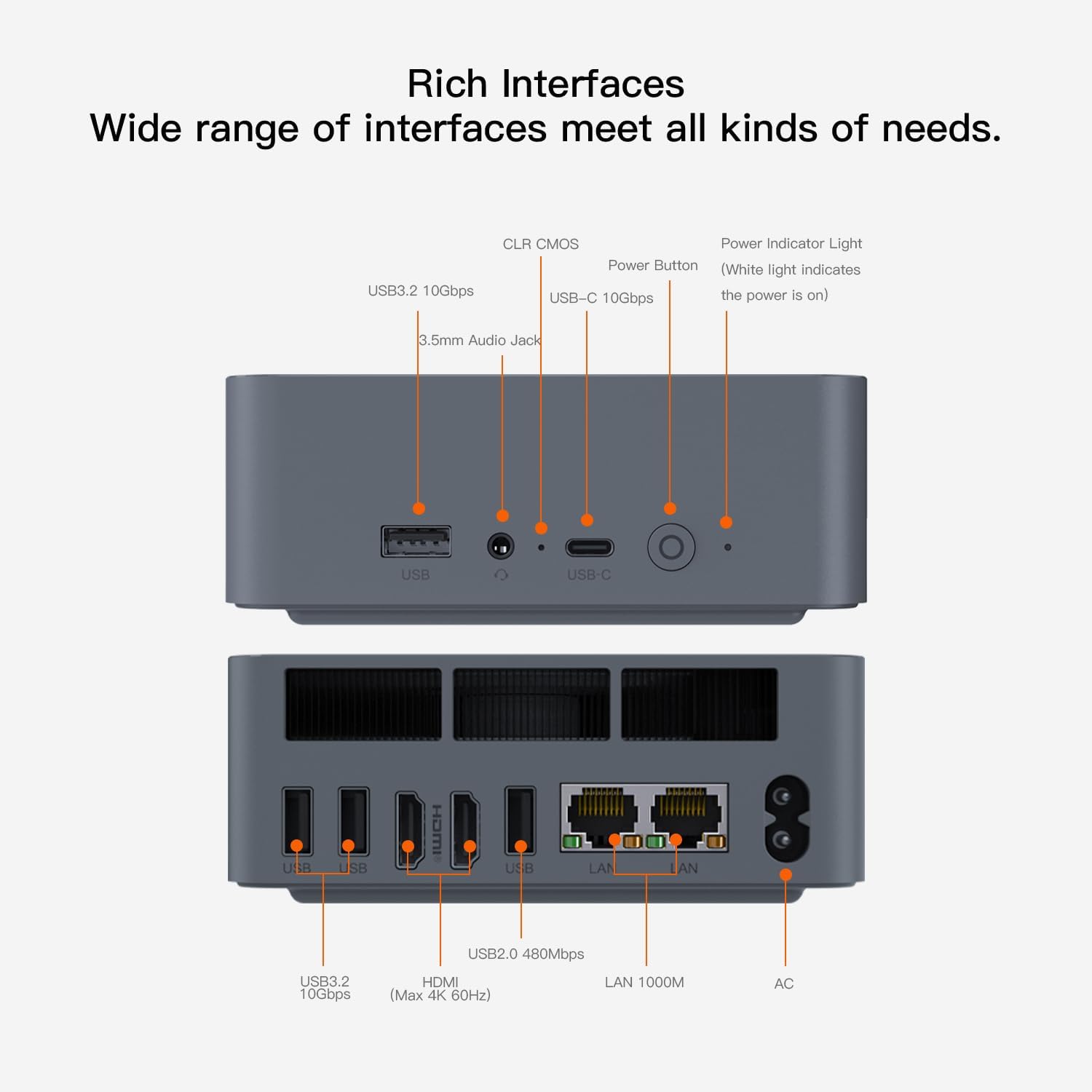
Figure 3: Detailed diagram of the front and rear interfaces on the Beelink EQR5 Mini PC.
3.2 Initial Power-On
- Connect your monitor(s) to the HDMI ports.
- Connect your keyboard and mouse to the USB ports.
- Connect the power adapter to the DC input port and then to a power outlet.
- Press the power button on the front of the Mini PC. The power indicator light will illuminate.
- Follow the on-screen instructions to complete the Windows 11 Pro setup.
4. Operating Instructions
4.1 System Overview
The Beelink EQR5 Mini PC comes pre-installed with Windows 11 Pro, powered by an AMD Ryzen 5 5500U processor (6 cores/12 threads, up to 4GHz) and AMD Radeon Graphics (7 cores, 1800MHz). It includes 16GB DDR4 RAM and a 500GB M.2 NVMe SSD.
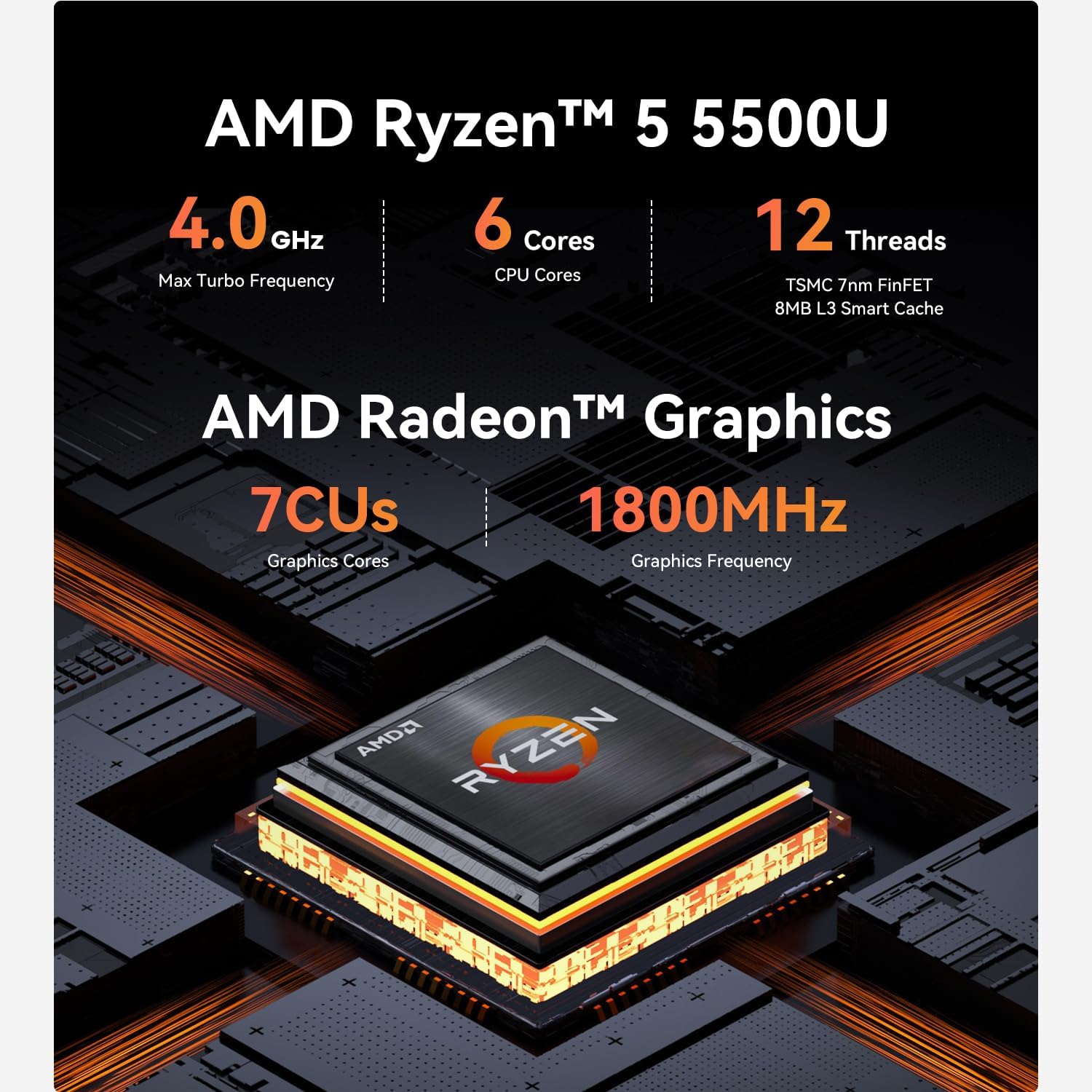
Figure 4: Visual representation of the AMD Ryzen 5 5500U processor and integrated Radeon Graphics.
4.2 Display Configuration
This Mini PC supports dual display output via its two HDMI ports, allowing for enhanced multitasking and productivity. Connect your monitors and configure display settings within Windows 11.
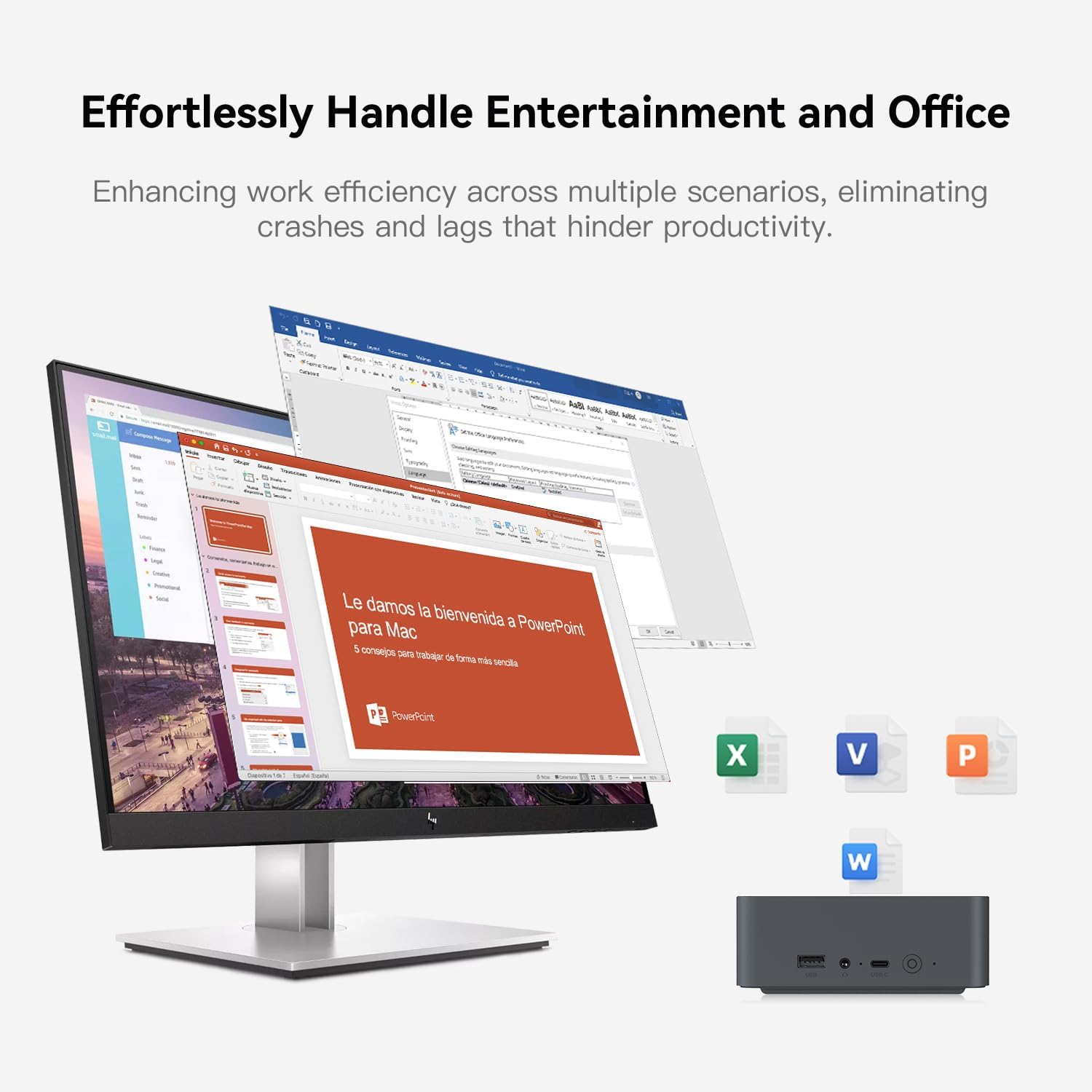
Figure 5: The Beelink EQR5 Mini PC integrated into an office environment, demonstrating its capability for dual monitor setups.
4.3 Network Connectivity
The device features Wi-Fi 6 (802.11ax) and Bluetooth 5.2 for wireless connections, along with two 1000Mbps Ethernet LAN ports for high-speed wired networking.

Figure 6: The rear of the Beelink EQR5 Mini PC showing two Gigabit Ethernet ports with active connections.
5. Maintenance and Upgrades
5.1 Memory and Storage Expansion
The Beelink EQR5 Mini PC is designed for easy upgrades:
- RAM: Equipped with two DDR4 memory slots, the 16GB RAM can be expanded up to 32GB per slot, for a total of 64GB.
- SSD: The device supports M.2 NVMe 2280 SSDs (2 slots) and can be upgraded to 4TB.

Figure 7: Overview of the memory (DDR4) and storage (M.2 NVMe SSD) components within the Mini PC, highlighting upgrade potential.
5.2 Cooling System
The Mini PC features a built-in 85W PSU and an efficient cooling system to maintain optimal operating temperatures and ensure stable performance.

Figure 8: Internal view of the Beelink EQR5 Mini PC, illustrating the integrated 85W Power Supply Unit and cooling components.
5.3 SSD Replacement Tutorial
For detailed instructions on replacing or upgrading the SSD, please refer to the official tutorial video:
Video 1: Official tutorial demonstrating the process of replacing or upgrading the SSD in a Beelink Mini PC. This video provides step-by-step visual guidance for users.
6. Troubleshooting
If you encounter any issues with your Beelink EQR5 Mini PC, please try the following basic troubleshooting steps:
- No Power: Ensure the power adapter is securely connected to both the Mini PC and a working power outlet.
- No Display: Verify that your HDMI cables are correctly connected to both the Mini PC and your monitor(s). Try different HDMI ports or cables if available.
- Slow Performance: Check for background applications consuming resources. Ensure Windows 11 is up to date. Consider upgrading RAM or SSD if performance issues persist.
- Network Issues: For Wi-Fi, ensure you are within range of your router and the correct password is entered. For wired connections, check LAN cable integrity and router status.
For more complex issues, please refer to the support section below.
7. Specifications
| Feature | Specification |
|---|---|
| Processor | AMD Ryzen 5 5500U (6C/12T up to 4GHz) |
| Graphics | AMD Radeon Graphics (7 core 1800MHz) |
| RAM | 16GB DDR4 (Expandable up to 64GB) |
| Storage | 500GB M.2 NVMe SSD (Expandable up to 4TB) |
| Operating System | Windows 11 Pro |
| Wireless Connectivity | Wi-Fi 6 (802.11ax), Bluetooth 5.2 |
| Wired Connectivity | 2x 1000Mbps Ethernet LAN |
| Video Output | 2x HDMI (Supports Dual Display) |
| USB Ports | 3x USB 3.2 Gen2, 1x USB 2.0, 1x USB-C |
| Audio | 1x 3.5mm Audio Jack |
| Power Supply | Built-in 85W PSU |
| Dimensions | 7.44 x 6.1 x 4.21 inches (Package) |
| Weight | 2.12 pounds |
8. Warranty and Support
All Beelink Mini PCs are FCC, CE, and RoHS certified and undergo strict inspection before shipping. We offer lifetime technical support, a 1-year worry-free warranty, and 24-hour customer service. If you have any questions or require assistance, please do not hesitate to contact us.
Ask a question about this manual
Ask about setup, troubleshooting, compatibility, parts, safety, or missing instructions. Manuals+ will review the question and use this page’s manual context to help answer it.