Introduction
This manual provides comprehensive instructions for the setup, operation, and maintenance of your SAMSUNG 55-Inch Class Crystal UHD 4K Smart TV, model UN55DU7200DXZA. Please read this manual thoroughly before using your TV to ensure safe and optimal performance. Keep this manual for future reference.

Image: Front view of the SAMSUNG 55-Inch Crystal UHD 4K Smart TV. The screen displays a colorful underwater scene with fish and coral, highlighting the vibrant display capabilities. The Samsung logo is visible on the top left of the bezel.
What's in the Box
Verify that all components listed below are included in your package. If any items are missing or damaged, contact customer support immediately.
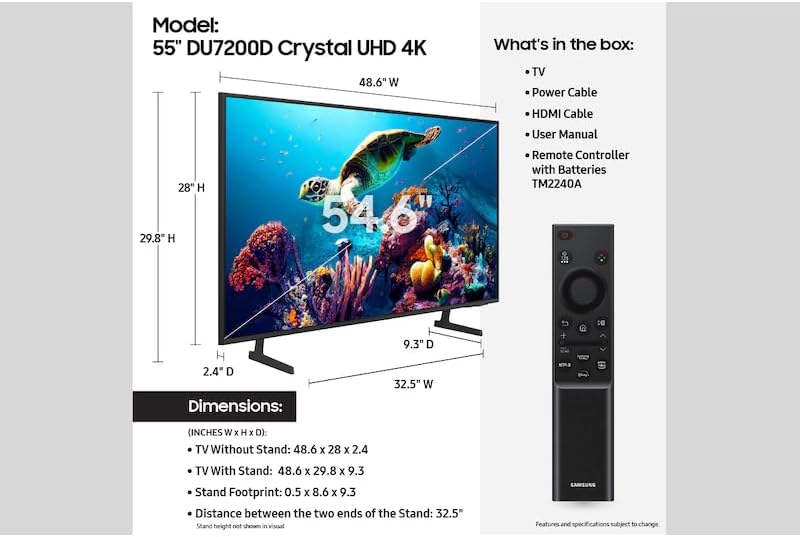
Image: A diagram illustrating the dimensions of the 55-inch DU7200D Crystal UHD 4K TV, both with and without its stand. The image also lists the contents of the box, which include the TV, Power Cable, HDMI Cable, User Manual, and Remote Controller with Batteries (TM2240A).
- SAMSUNG 55-Inch Class Crystal UHD 4K Smart TV (Model: UN55DU7200DXZA)
- Power Cable
- HDMI Cable
- User Manual (This document)
- Remote Controller (Model: TM2240A) with Batteries
- TV Stand Components (if applicable)
Setup
1. Attaching the Stand (Optional)
If you plan to place the TV on a surface, attach the included stand. Ensure the TV is placed on a soft, flat surface to prevent screen damage during stand installation.
- Carefully place the TV screen-down on a padded surface.
- Align the stand components with the designated slots on the TV's bottom panel.
- Secure the stand using the provided screws. Do not overtighten.
2. Wall Mounting (Optional)
If wall mounting, refer to the wall mount kit's instructions. Ensure proper ventilation and use VESA-compliant mounting hardware. Consult a professional for installation if unsure.
3. Connecting Peripherals
- Power: Connect the power cable to the TV's power input and then to a wall outlet.
- HDMI Devices: Use the provided HDMI cable to connect external devices (e.g., cable box, Blu-ray player, gaming console) to the HDMI ports on the TV.
- Antenna/Cable: Connect an antenna or cable TV source to the 'Antenna In' port.
- Soundbar/Audio System: For enhanced audio, connect a soundbar or audio system via HDMI ARC/eARC or Optical Digital Audio Out.
4. Initial Power On and Setup Wizard
After connecting power, press the power button on the remote or TV. The TV will guide you through the initial setup process, including:
- Language Selection
- Network Connection (Wi-Fi or Ethernet)
- Channel Scan (for antenna/cable)
- Smart Hub Setup and Account Login (Samsung Account recommended for full features)
Operating Instructions
Remote Control Functions
Familiarize yourself with the remote control buttons for navigation, volume, channel selection, and smart features.
Key Features
Your SAMSUNG Crystal UHD 4K Smart TV is equipped with advanced technologies to enhance your viewing experience:

Image: A visual representation of 4K Upscaling. The image shows a skateboarder in action, with three frames illustrating how lower resolution content is processed and enhanced to achieve a clear 4K picture, even if the original content was not filmed in 4K.
Crystal Processor 4K & 4K Upscaling
The Crystal Processor 4K automatically transforms color, sound, and more, optimizing content for the stunning 4K display. 4K Upscaling ensures that even lower resolution content is enhanced to near-4K quality, providing richer details and clearer resolution.

Image: A scenic view of a coastline with mountains and water, illustrating the High Dynamic Range (HDR) capability. The image highlights how HDR allows the TV to display an impressive spectrum of colors and fine details, even in dark scenes, providing a more lifelike picture.
PurColor
Experience a wide spectrum of colors beyond traditional RGB models. PurColor technology delivers true-to-life picture quality, making greens more vibrant and sunsets more breathtaking.

Image: A dynamic scene of a motocross rider on a dirt track, illustrating the Motion Xcelerator feature. The image shows how the technology improves motion between frames, resulting in a seamless picture with less lag and blur, providing clear motion and improved clarity.
Motion Xcelerator
Watch fast-paced content smoothly with reduced lag and blur. Motion Xcelerator improves motion between frames, ensuring a seamless and clear picture, ideal for sports and action movies.

Image: A night scene of city buildings and an elevated walkway, illustrating the Mega Contrast feature. The image shows how the TV automatically adjusts brightness and contrast levels to enhance the depth and detail of dark and bright areas, providing a more dynamic picture.
Mega Contrast
This feature automatically adjusts the brightness and contrast to deliver deeper blacks and brighter whites, enhancing the overall picture depth and detail.

Image: A concert scene with musicians on stage, overlaid with circular sound waves emanating from both the TV screen and a soundbar below it. This visual represents Q-Symphony technology, which synchronizes the TV's speakers with a compatible Samsung soundbar to create a richer, more immersive audio experience.
Q-Symphony
Synchronize your TV's speakers with a compatible Samsung soundbar for a richer, more immersive audio experience. This technology allows both the TV and soundbar to operate simultaneously, creating a harmonious soundstage.
Smart Features & Voice Assistant Compatibility
Your Smart TV provides access to a wide range of streaming services and apps via the Smart Hub. It is also compatible with Alexa and Google Assistant, allowing you to control your TV with voice commands for tasks such as turning on/off, changing channels, and adjusting volume.
Maintenance
Cleaning the Screen
- Always unplug the TV before cleaning.
- Use a soft, dry microfiber cloth to gently wipe the screen.
- For stubborn smudges, lightly dampen the cloth with distilled water or a specialized screen cleaner. Never spray liquid directly onto the screen.
- Avoid using abrasive cleaners, alcohol, or ammonia-based products.
Cleaning the TV Body
Wipe the TV's frame and stand with a soft, dry cloth. For deeper cleaning, a slightly damp cloth can be used, followed by a dry cloth.
Ventilation
Ensure the ventilation openings on the TV are not blocked. Proper airflow is crucial to prevent overheating and maintain optimal performance.
Troubleshooting
Before contacting customer support, try the following solutions for common issues:
| Problem | Possible Solution |
|---|---|
| No Power | Check if the power cable is securely connected to the TV and the wall outlet. Test the outlet with another device. |
| No Picture/Sound | Ensure the correct input source is selected. Check HDMI cable connections. For antenna/cable, perform a channel scan. |
| Remote Control Not Working | Replace the batteries. Ensure there are no obstructions between the remote and the TV's IR sensor. |
| Poor Picture Quality | Adjust picture settings (brightness, contrast, sharpness). Ensure the input source is providing a high-quality signal. |
| Wi-Fi Disconnection | Restart your router and modem. Reconnect the TV to the Wi-Fi network via the TV's settings menu. Ensure the TV is within range of the router. |
| Slow Performance | Close unused apps. Perform a soft reset by unplugging the TV for 30 seconds and plugging it back in. Ensure firmware is up to date. |
Specifications
| Feature | Detail |
|---|---|
| Brand | SAMSUNG |
| Model Number | UN55DU7200DXZA |
| Screen Size | 55 Inches (140 cm diagonal) |
| Display Technology | LED |
| Resolution | 4K (2160p) |
| Refresh Rate | 60 Hz |
| Aspect Ratio | 16:9 |
| Special Features | Motion Xcelerator, PurColor, Crystal Processor 4K, 4K Upscaling, Mega Contrast, Q-Symphony |
| Connectivity Technology | HDMI, Wi-Fi |
| Supported Internet Services | Netflix (and other Smart Hub apps) |
| Product Dimensions (without stand) | 48.5"D x 2.4"W x 28"H (approx.) |
| Product Dimensions (with stand) | 48.6"W x 9.3"D x 29.8"H (approx.) |
| Item Weight | 61.9 pounds |
Warranty and Support
Warranty Information
This product is covered by a manufacturer's warranty. Please refer to the warranty card included in your package or visit the official SAMSUNG website for detailed warranty terms and conditions. As a renewed product, it typically includes a 90-day easy returns policy.
Customer Support
For technical assistance, troubleshooting beyond this manual, or warranty claims, please contact SAMSUNG customer support. You can find contact information on the official SAMSUNG website or through the support section of your TV's Smart Hub.
Online Resources: Visit www.samsung.com/us/support/ for FAQs, software updates, and additional product information.