1. Introduction
This manual provides essential information for setting up, operating, and maintaining your new SAMSUNG 55-Inch Class Q72DD Series QLED 4K UHD Smart Tizen TV. Please read this manual thoroughly before using the product to ensure safe and optimal performance. This television offers a stunning 4K UHD picture with QLED technology, smart features powered by Tizen OS, and advanced audio capabilities.

Image 1.1: Front view of the SAMSUNG 55-Inch Q72DD Series QLED TV, showcasing its slim bezel and vibrant display.
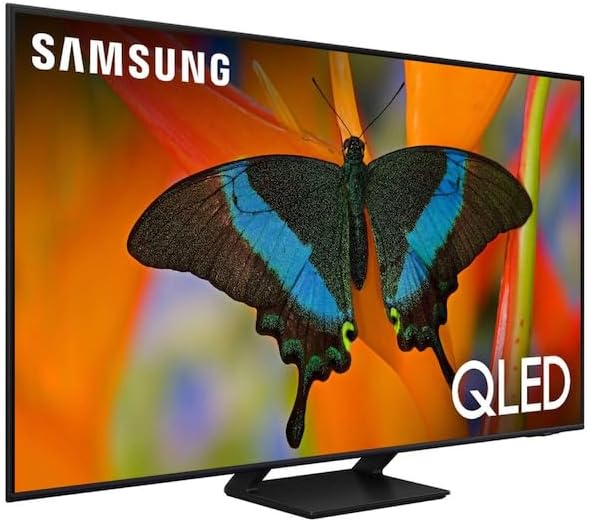
Image 1.2: Side view of the SAMSUNG 55-Inch Q72DD Series QLED TV, highlighting its thin profile.
2. What's in the Box
Upon unpacking your television, please verify that all components listed below are included. If any items are missing or damaged, contact SAMSUNG customer support immediately.

Image 2.1: Diagram illustrating the TV dimensions and the contents of the product packaging.
- SAMSUNG 55-Inch Q72DD Series QLED TV
- Power Cable
- User Manual (this document)
- SolarCell Remote™ TM2360E
3. Setup
3.1 Physical Installation
Before proceeding with installation, ensure you have adequate space and a stable surface for the television. The TV dimensions are approximately 48.5 inches (W) x 27.9 inches (H) x 1 inch (D) without the stand, and 48.5 inches (W) x 30.5 inches (H) x 10.1 inches (D) with the stand. The stand footprint is 12 inches (W) x 8.5 inches (D) x 10.1 inches (H).
Attaching the Stand
- Carefully place the TV screen-down on a soft, clean cloth or cushion to prevent scratches.
- Align the stand with the mounting holes on the bottom of the TV.
- Secure the stand using the provided screws. Do not overtighten.
Connecting Power
Plug the power cable firmly into the TV's power input port, then connect the other end to a wall outlet. Ensure the outlet is easily accessible.
3.2 Initial Setup and Connections
After connecting the power, press the Power button on the remote control to turn on the TV. The initial setup wizard will guide you through the following steps:
- Language Selection: Choose your preferred language.
- Network Connection: Connect the TV to your home Wi-Fi network. This is essential for smart features and software updates.
- Smart Hub Setup: Agree to the terms and conditions to enable access to apps and streaming services.
- Channel Scan: If using an antenna or cable connection, the TV will scan for available channels.
- Account Login: Log in to your Samsung account or create a new one for personalized services.
4. Operating
4.1 Remote Control Functions
The SolarCell Remote™ provides intuitive control over your TV. Key buttons include:
- Power: Turns the TV on or off.
- Volume (+/-): Adjusts the sound level.
- Channel (up/down): Changes TV channels.
- Smart Hub: Accesses the main smart TV interface.
- Navigation Pad: Used to move through menus and select items.
- Back/Exit: Returns to the previous screen or exits a menu.
4.2 Smart Features (Tizen OS)
Your SAMSUNG QLED TV runs on the Tizen operating system, offering a wide range of smart functionalities.
- Apps: Access popular streaming services like Netflix and many others through the Smart Hub.
- Multi View: Display content from two different sources simultaneously on the screen.
- Ambient Mode: Transform your TV into a decorative display when not watching content, blending it seamlessly with your decor or showing useful information.
- Gaming Hub: Widen your world of gaming instantly without a console. Gaming Hub brings together console games, streaming games, and more in one place, allowing faster access to your favorite games and accessories.
- Alexa Built-in: Use voice commands to control your TV, search for content, and manage smart home devices.
4.3 Picture Settings
Your QLED TV delivers exceptional picture quality. Adjust settings to optimize your viewing experience.
- Quantum Processor 4K: This processor enhances your TV's 4K HDR picture and sound for clear resolution and contrast.
- Dual LED: Experience strong brightness with innovative technology that adapts automatically to match your content. This technology uses a dual LED backlight system to optimize color and contrast.
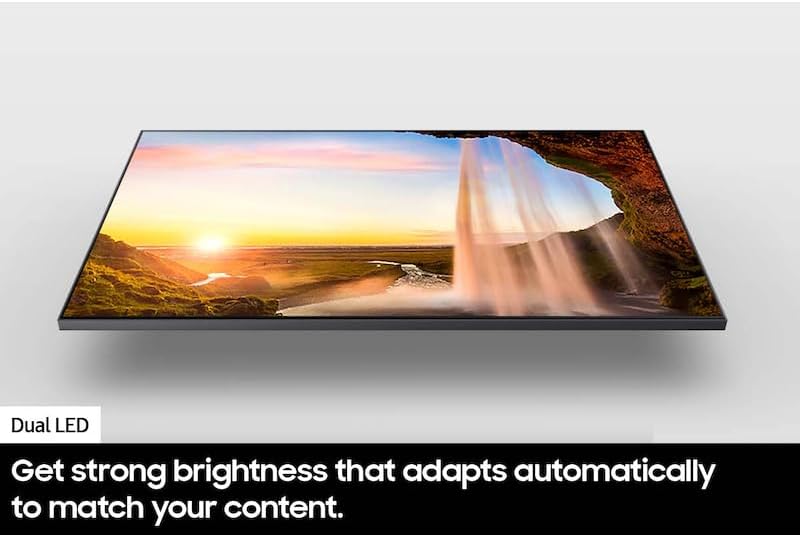
Image 4.1: Dual LED technology provides strong brightness that adapts automatically to match your content, enhancing visual depth.
- Motion Xcelerator 120Hz: Enjoy smooth action with exceptional motion enhancements, reducing blur in fast-paced scenes.
- 100% Color Volume with Quantum Dot: Take in breathtaking color that stays true at any level of brightness, providing a wide spectrum of accurate colors.

Image 4.2: The TV achieves 100% Color Volume with Quantum Dot technology, ensuring vibrant and accurate colors across all brightness levels.
- Ultimate UHD Dimming: This feature adjusts the brightness by scene for a detailed picture, optimizing contrast and black levels.

Image 4.3: Ultimate UHD Dimming enhances picture detail by adjusting brightness scene by scene, as demonstrated by the improved contrast on the Ferris wheel.
4.4 Sound Settings
The TV incorporates advanced audio technologies for clear and immersive sound.
- Adaptive Sound Pro: This feature analyzes the sound in every scene of your content in real time to automatically adjust and equalize your audio, ensuring you don't miss any dialogue or crucial sounds.

Image 4.4: Adaptive Sound Pro intelligently adjusts audio to enhance dialogue and other important sounds, making conversations clearer.
- Active Voice Amplifier (AVA): AVA compares the volume of the sound on screen with your environment and turns up the voices from the TV, helping to cut down outside noise and ensure dialogue is heard loud and clear.
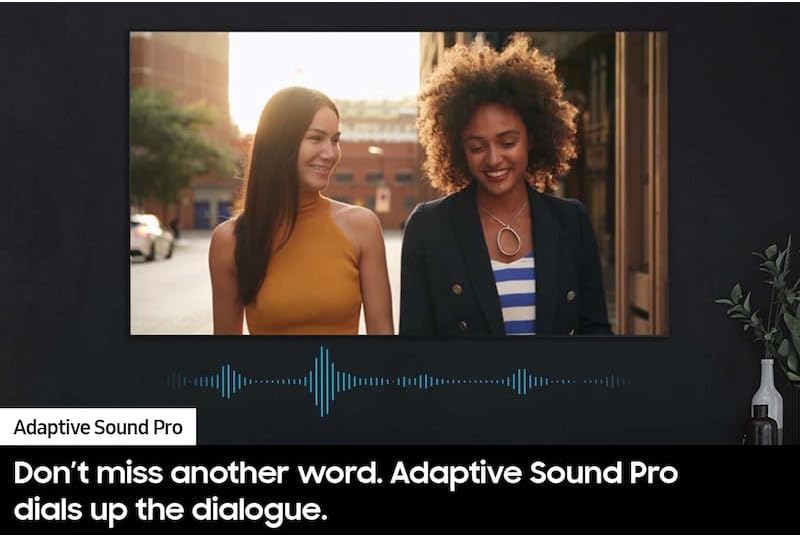
Image 4.5: Active Voice Amplifier amplifies dialogue from your TV and limits surrounding noises, ensuring clear communication even in noisy environments.
4.5 Connectivity
The TV features multiple HDMI ports for connecting external devices such as Blu-ray players, game consoles, and soundbars.
5. Maintenance
5.1 Cleaning the TV
- Screen: Gently wipe the screen with a soft, lint-free microfiber cloth. For stubborn smudges, slightly dampen the cloth with distilled water or a screen-cleaning solution specifically designed for electronics. Do not spray liquid directly onto the screen.
- Body: Use a soft, dry cloth to wipe the TV frame and stand. Avoid abrasive cleaners or solvents.
5.2 Software Updates
To ensure optimal performance and access to the latest features, regularly check for and install software updates. You can usually find this option in the TV's settings menu under 'Support' or 'Software Update'.
5.3 Power Saving Tips
- Enable the TV's Eco Solution settings to automatically adjust brightness based on ambient light.
- Set the TV to turn off automatically after a period of inactivity.
- Unplug the TV from the power outlet when not in use for extended periods.
6. Troubleshooting
If you encounter issues with your TV, refer to the following common troubleshooting steps. For more complex problems, consult the full e-Manual accessible via your TV's Smart Hub or contact customer support.
| Problem | Possible Solution |
|---|---|
| TV does not turn on. | Ensure the power cable is securely plugged into both the TV and the wall outlet. Try a different outlet. Check if the remote control batteries are depleted. |
| No picture, but sound is present. | Check the input source. Ensure external devices (cable box, game console) are powered on and connected correctly. |
| No sound, but picture is present. | Check the volume level and mute status. Ensure external audio devices (soundbar, home theater) are connected and configured correctly. |
| Remote control not working. | Check the battery level of the SolarCell Remote™. Ensure there are no obstructions between the remote and the TV. Re-pair the remote if necessary (refer to the e-Manual for pairing instructions). |
| Wi-Fi connection issues. | Restart your router and modem. Reconnect the TV to the Wi-Fi network in the TV's settings. Ensure the Wi-Fi password is correct. |
| Picture quality is poor. | Adjust picture settings (brightness, contrast, sharpness). Ensure the input source is providing a high-quality signal. Check for software updates. |
7. Specifications
Below are the key technical specifications for the SAMSUNG 55-Inch Class Q72DD Series QLED TV (Model: QN55Q72DDFXZA).
| Feature | Detail |
|---|---|
| Brand | SAMSUNG |
| Model Number | QN55Q72DDFXZA |
| Screen Size | 55 Inches (140 cm diagonal) |
| Display Technology | QLED |
| Resolution | 4K UHD (3840 x 2160) |
| Refresh Rate | 120 Hz |
| Product Dimensions (W x D x H) | 48.5 x 10.1 x 28.1 inches (with stand) |
| Item Weight | 61.7 pounds |
| Special Features | Adaptive Sound Pro, Motion Xcelerator 120Hz, Dual LED, Gaming Hub, Ambient Mode, Multi View |
| Operating System | Tizen |
| Connectivity Technology | HDMI, Wi-Fi |
| Supported Internet Services | Netflix (and others via Smart Hub) |
8. Warranty and Support
This product is listed as 'Renewed'. For specific warranty details and terms related to renewed products, please refer to the documentation provided at the time of purchase or contact the seller directly. SAMSUNG provides customer support for their products. For technical assistance, service, or warranty inquiries, please visit the official SAMSUNG support website or contact their customer service hotline. Have your model number (QN55Q72DDFXZA) and serial number ready when contacting support.
You can find additional support resources and FAQs on the SAMSUNG support website.


