
CAMECHO RM
CAMECHO 11.26" 4K Rear View Mirror Camera User Manual
Model: RM
1. Product Overview
The CAMECHO 11.26" 4K Rear View Mirror Camera is an advanced automotive recording and safety system designed to enhance driving awareness and provide reliable evidence. It integrates a 4K front camera, 1080P rear camera (optional), and features such as ADAS, BSD, LCA, GPS, Wi-Fi connectivity, and enhanced night vision.
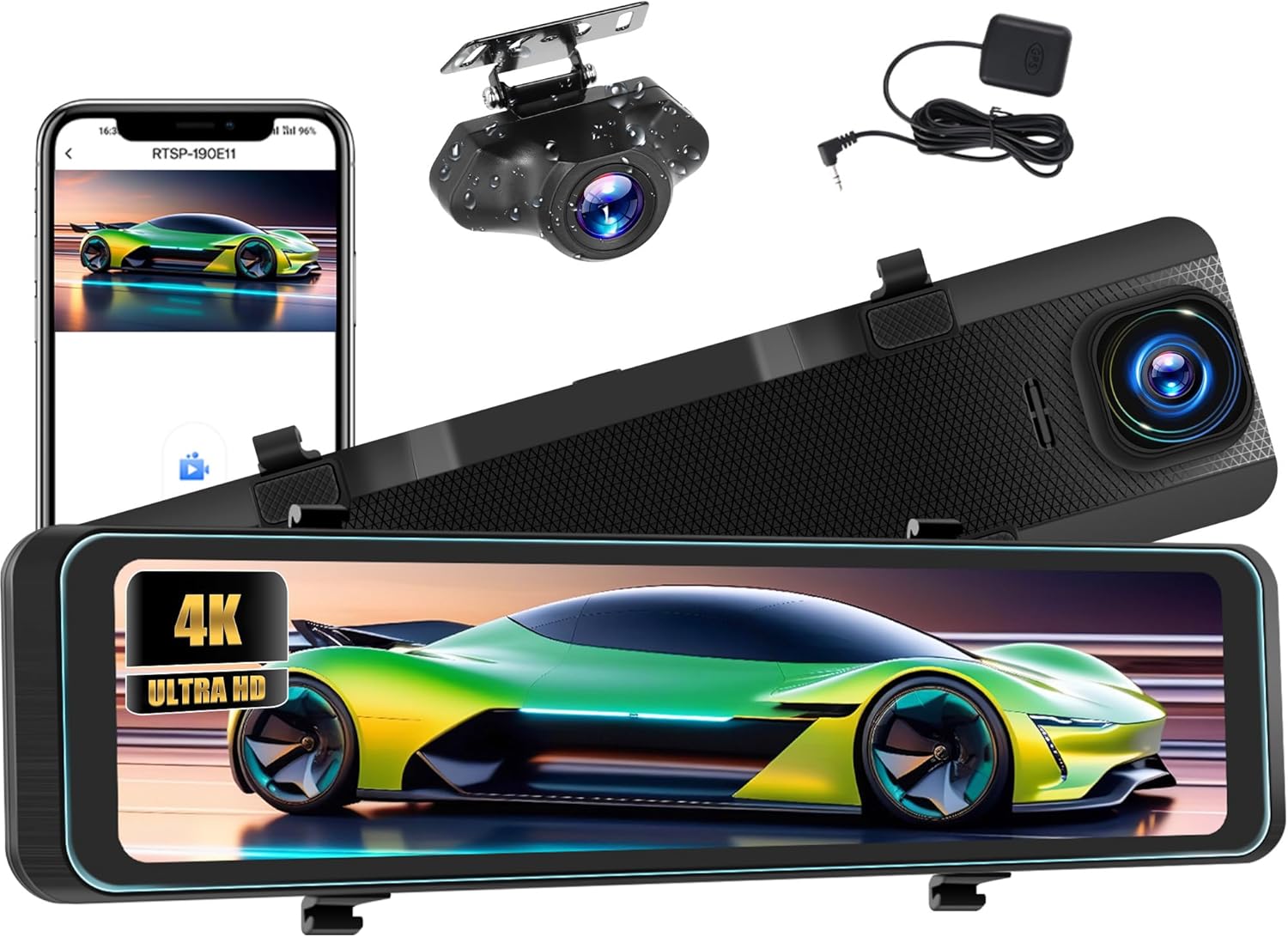
Figure 1.1: Overview of the CAMECHO 11.26" 4K Rear View Mirror Camera system, including the main mirror unit, rear camera, and GPS antenna.
2. Package Contents
Please verify that all items are present in the package:

Figure 2.1: Product dimensions and included accessories.
- CAMECHO 11.26" Mirror Dash Cam Unit
- Power Cord (Car Charger)
- Extended Line (for rear camera)
- Mounting Bandages (for mirror attachment)
- Rear View Camera (1080P, if purchased as a kit)
- User Manual (this document)
- GPS Antenna
3. Product Diagram
Familiarize yourself with the main components and ports of the mirror dash cam:
Figure 3.1: Front and top view of the mirror dash cam with labeled components.
- Front Lens: Main 4K recording camera.
- Speakers: Audio output.
- USB Port: For power input.
- AV IN Port: For connecting the rear view camera.
- TF Card Slot: For inserting a microSD card (not included) for recording.
- GPS Port: For connecting the external GPS antenna.
- Reset Button: To reset the device.
- Brackets: For attaching the mounting bandages.
- Power Switch: To turn the device on/off.
4. Setup and Installation
Follow these steps to install your CAMECHO Mirror Dash Cam:
4.1 Mounting the Mirror Dash Cam
- Secure the mirror dash cam over your existing rearview mirror using the provided mounting bandages. Ensure it is firmly attached and does not obstruct your view.
- Adjust the front lens angle to capture the desired road view.

Figure 4.1: The CAMECHO mirror dash cam is designed for easy, plug-and-play installation suitable for most vehicles, unlike traditional complex car systems.
4.2 Connecting Components
- Power Connection: Connect the car charger (power cord) to the USB port on the dash cam and plug the other end into your vehicle's cigarette lighter socket. Route the cable neatly along the windshield trim.
- Rear Camera Connection (Optional): If using the rear camera, connect its cable to the AV IN port on the main unit. Route the cable to the rear of your vehicle and mount the camera above the license plate or on the rear window. Ensure the camera is positioned for a clear view.
- GPS Antenna Connection: Connect the GPS antenna to the GPS port on the dash cam. Mount the antenna on your dashboard or windshield where it has a clear view of the sky for optimal signal reception.
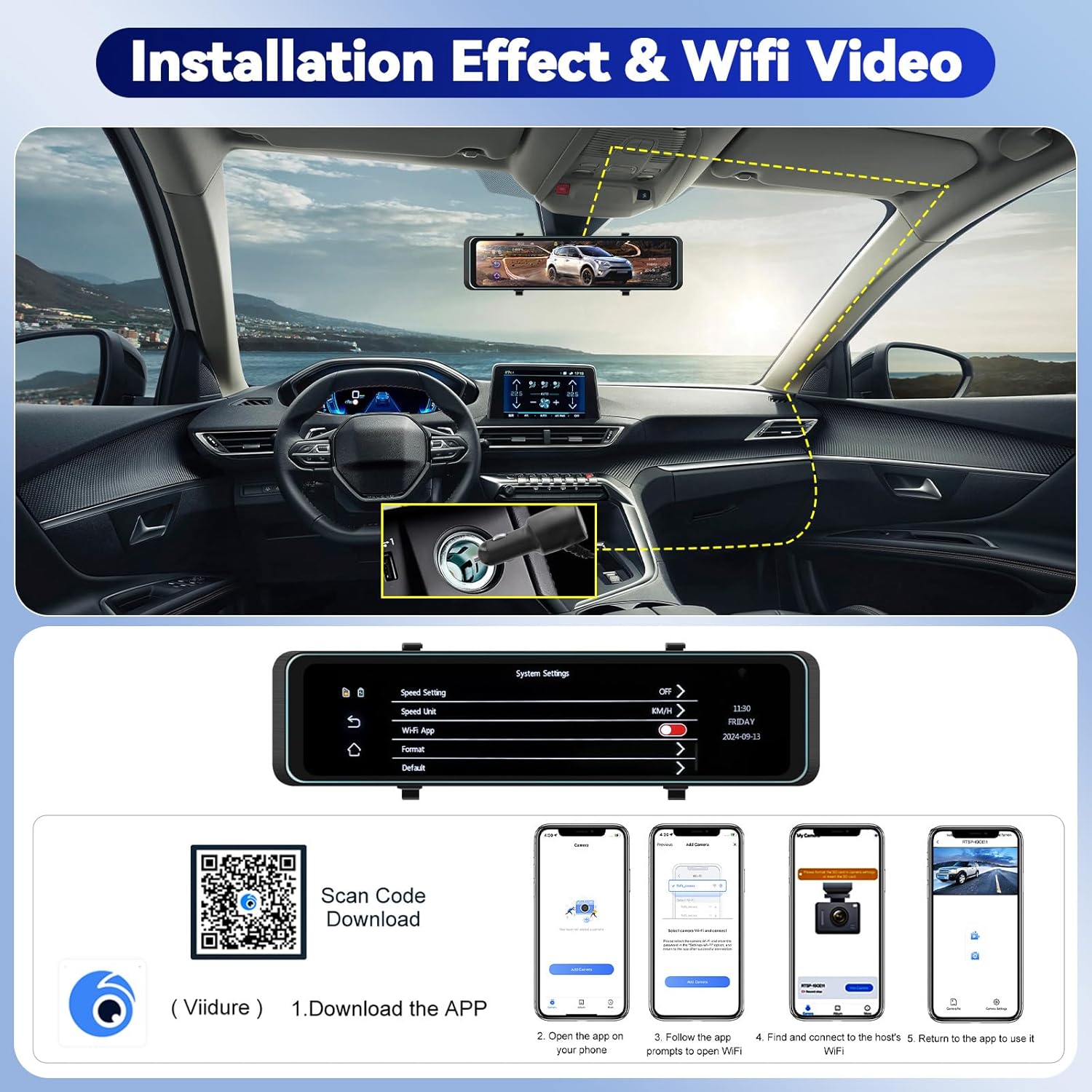
Figure 4.2: Installation effect and steps for Wi-Fi app connection.
4.3 Wi-Fi and App Setup
- Download the "Viidure" app from your smartphone's app store (available for Android and iOS) or by scanning the QR code provided in Figure 4.2.
- Open the app and follow the on-screen instructions to connect to the dash cam's Wi-Fi network. The Wi-Fi name and password can typically be found in the dash cam's system settings.
- Once connected, you can live preview, download videos, and manage settings via the app.
- App Download Link: https://www.6zhentan.com/app/d0001/index.html
5. Operating Instructions
5.1 Basic Operation
- Power On/Off: The device will typically power on automatically when the vehicle starts and power off when the engine is turned off. You can also use the power switch for manual control.
- Screen Display: The 11.26-inch LCD screen will display the front camera view by default. You can switch between front, rear, or split views via the touch screen interface.
5.2 Advanced Driver Assistance Systems (ADAS, BSD, LCA)
These features are designed to enhance driving safety by providing alerts:

Figure 5.1: Visual representation of ADAS, BSD, and LCA functions.
- ADAS (Advanced Driver Assistance Systems): Provides alerts for front collisions, maintains safe distances, detects pedestrians, and notifies when the front vehicle moves.
- BSD (Blind Spot Detection): Identifies vehicles in your blind spots.
- LCA (Lane Change Assist): Warns of lane departures and assists during lane changes by identifying overtaking vehicles.
- Enable or disable these features through the device settings menu.
5.3 GPS Tracking
The external GPS antenna allows the device to record your driving location and route information.

Figure 5.2: GPS positioning displaying real-time speed and route information.
- View your driving route and tracker on the dedicated GPS player software (usually available for download or accessible via the app).
- Provides detailed and reliable evidence in case of incidents.
5.4 Super Night Vision
The camera is equipped with upgraded night vision technology to capture clear videos in low-light conditions.

Figure 5.3: Demonstration of 4K front and 1080P rear recording quality, and the clarity provided by night vision.
- Ensures license plate numbers and road signs are clearly visible even at night.
- Automatic induction infrared lights are activated for reversing in low light.
5.5 Parking Assistance
When reversing, the mirror dash cam automatically displays the backup camera image in full screen.

Figure 5.4: Rear view display with parking assist lines and field of view adjustment.
- The screen image will display parking assist lines to guide you.
- You can manually adjust the display range (up or down) on the screen to achieve the best field of view for parking.
5.6 Loop Recording and G-Sensor

Figure 5.5: G-Sensor collision detection and Loop Recording functionality.
- Loop Recording: Ensures continuous recording by overwriting the oldest files when the memory card is full. This prevents recording from stopping due to a full card.
- G-Sensor: Detects sudden collisions or impacts. When triggered, it automatically locks the current video footage, preventing it from being overwritten by loop recording.
5.7 24-Hour Parking Monitor
Figure 5.6: 24-hour parking monitoring capability.
- This feature allows the dash cam to start recording a locked video if the G-sensor detects a collision while the vehicle is parked.
- Note: The 24-hour parking monitoring function typically requires a hardwire kit (not included) to be purchased separately and installed to provide continuous power.
6. Maintenance
- Cleaning: Use a soft, dry cloth to clean the camera lens and screen. Avoid using abrasive cleaners or solvents.
- Memory Card: Regularly format the microSD card (at least once a month) to ensure optimal performance and prevent data corruption. Use a high-speed (Class 10 or U3) microSD card from a reputable brand.
- Firmware Updates: Check the manufacturer's website or app periodically for firmware updates to ensure your device has the latest features and bug fixes.
- Temperature: Avoid exposing the device to extreme temperatures (very hot or very cold) for extended periods, as this can affect battery life and component longevity.
7. Troubleshooting
| Problem | Possible Cause | Solution |
|---|---|---|
| Device does not power on. | No power supply; faulty power cable; loose connection. | Check car charger connection and vehicle's cigarette lighter socket. Ensure power cable is securely plugged into the dash cam. |
| Recording stops or freezes. | Memory card full; slow memory card; corrupted memory card. | Format the memory card. Use a high-speed (Class 10 or U3) microSD card. Replace the memory card if issues persist. |
| Poor video quality. | Dirty lens; protective film still on lens; incorrect resolution settings. | Clean the camera lens. Remove any protective film. Check video resolution settings in the menu. |
| GPS signal not found. | GPS antenna not connected; antenna obstructed; poor satellite reception. | Ensure GPS antenna is securely connected. Mount antenna in a clear, unobstructed location (e.g., dashboard, windshield). Move to an open area. |
| Wi-Fi connection issues. | Incorrect Wi-Fi password; app issues; device Wi-Fi disabled. | Verify Wi-Fi password. Restart the app and the dash cam. Ensure Wi-Fi is enabled in the dash cam settings. |
8. Specifications
| Feature | Detail |
|---|---|
| Brand | CAMECHO |
| Model Name | RM |
| Screen Size | 11.26 Inches |
| Display Type | LCD |
| Front Camera Resolution | 4K UHD |
| Rear Camera Resolution | 1080P |
| Special Features | ADAS, App Control, Blind Spot Detection (BSD), Built-In GPS, Lane Change Assist (LCA), G-Sensor, Loop Recording, 24H Parking Monitor, Night Vision |
| Connectivity Technology | Wi-Fi |
| Mounting Type | Rearview Mirror Mount |
| Control Method | Touch |
| Product Dimensions | 2.54 x 2.54 x 2.54 cm; 791 g |
9. Warranty and Support
Specific warranty information for this product is not provided within this manual. Please refer to the product packaging, the seller's website, or contact CAMECHO customer support for details regarding warranty coverage and technical assistance.
For further support, visit the official CAMECHO store on Amazon: CAMECHO Store
Ask a question about this manual
Ask about setup, troubleshooting, compatibility, parts, safety, or missing instructions. Manuals+ will review the question and use this page’s manual context to help answer it.