
1. Introduction
Thank you for purchasing the PUSOKEI 4K Digital Camera. This compact camera is designed for ease of use, offering 44MP image resolution and 4K video capabilities. It features a 2.8-inch screen, 16X digital zoom, anti-shake functionality, and a built-in fill light, making it suitable for various photography needs. This manual provides detailed instructions for setup, operation, maintenance, and troubleshooting to ensure optimal performance of your device.
2. Product Overview
2.1 Camera Front View
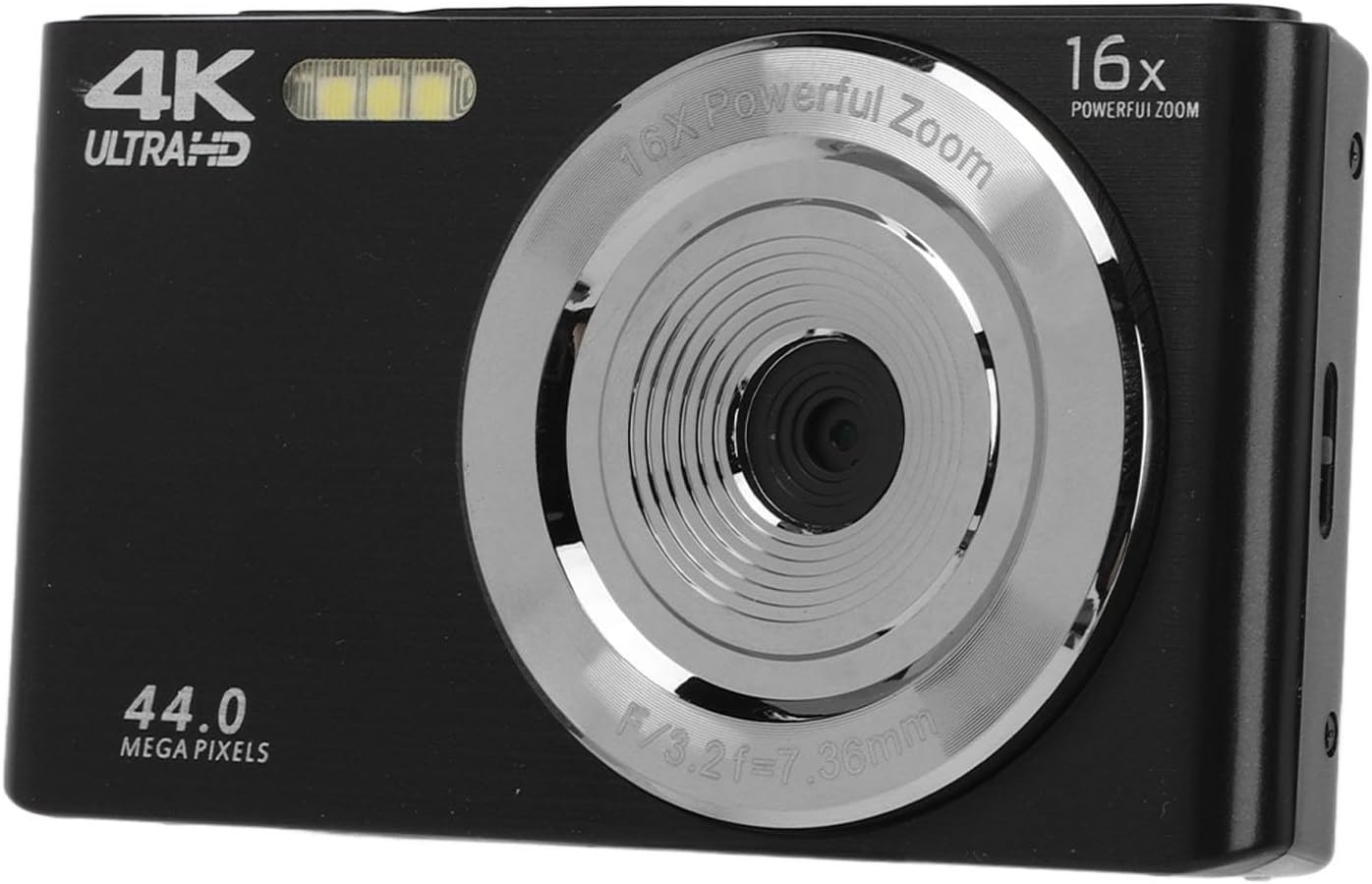
Figure 2.1: Front view of the camera, highlighting the lens and integrated fill light.
The front of the camera features the main lens, capable of 16X digital zoom, and an integrated fill light for improved illumination in low-light conditions. The camera's resolution capabilities (44.0 Megapixels and 4K Ultra HD) are also indicated on the front panel.
2.2 Camera Rear View and Controls

Figure 2.2: Rear view of the camera with the display screen and control buttons.
The rear of the camera is equipped with a 2.8-inch LCD screen for framing shots and reviewing content. Control buttons are located to the right of the screen, providing access to menu options, playback, zoom (W/T), and navigation (OK button with directional arrows).
2.3 Camera Side View and Ports

Figure 2.3: Side view of the camera, showing the USB port and tripod screw mount.
The side of the camera features a Micro USB port for charging and data transfer. A standard tripod screw mount is located on the bottom for stable shooting.
3. Setup
3.1 Unpacking and Package Contents
Carefully unpack your camera and check for all included items. The package should contain:
- 1 x PUSOKEI 16X Digital Zoom Camera
- 1 x Lithium Battery (1200mAh)
- 1 x USB Cable
- 1 x Instruction Manual (this document)
- 1 x Storage Bag

Figure 3.1: All items included in the camera package.
3.2 Battery Installation and Charging
- Locate the battery compartment cover on the bottom of the camera.
- Slide the cover to open it.
- Insert the provided 1200mAh lithium battery, ensuring the contacts align correctly.
- Close the battery compartment cover securely.
- To charge the battery, connect the camera to a power source (e.g., computer USB port or USB wall adapter) using the supplied USB cable. The charging indicator light will typically illuminate during charging and turn off or change color when fully charged.

Figure 3.2: The USB cable used for charging and data transfer.
3.3 Memory Card Installation
The camera supports a storage card up to 128GB (not included). A memory card is required to save photos and videos.
- Locate the memory card slot, usually near the battery compartment.
- Insert a compatible memory card (e.g., MicroSD) into the slot with the contacts facing the correct direction, until it clicks into place.
- To remove, gently press the card until it springs out.
4. Operating Instructions
4.1 Powering On/Off
- To power on the camera, press and hold the Power button (usually located on the top or side).
- To power off, press and hold the Power button again until the screen turns off.
4.2 Taking Still Images
- Hold the camera steady and point it towards your subject, ensuring the scene is visible on the 2.8-inch screen.
- Access the camera's menu to adjust settings such as resolution, white balance, or exposure if desired.
- Press the Shutter button (typically on the top of the camera) to capture the picture.
4.3 Recording Videos
- Switch the camera to video recording mode (refer to the on-screen icons or menu for mode selection).
- Frame your shot using the screen.
- Press the Shutter button to start recording. Press it again to stop recording.
- The camera supports video resolutions up to 4K, 2.7K, 1080P, and 720P.
4.4 Using Digital Zoom
The camera features a 16X digital zoom. Use the 'W' (Wide) and 'T' (Telephoto) buttons, typically located near the screen, to zoom out and zoom in, respectively. Digital zoom magnifies the image electronically, which may affect image quality at higher zoom levels.
4.5 Built-in Fill Light
The camera includes a built-in fill light to assist in low-light conditions. This feature can be activated or set to automatic mode via the camera's menu settings. Refer to the on-screen menu for specific controls.
4.6 Playback and Data Transfer
- Playback: To view captured photos and videos, switch the camera to playback mode (often indicated by a play icon). Use the navigation buttons to browse through your media.
- Data Transfer: Connect the camera to a computer using the supplied USB cable. The camera should appear as a removable drive, allowing you to copy photos and videos directly to your computer.
5. Maintenance
5.1 Cleaning the Camera
- Lens and Screen: Use a soft, lint-free cloth specifically designed for optical surfaces to gently wipe the lens and screen. Avoid using abrasive materials or harsh chemicals.
- Camera Body: Wipe the camera body with a soft, dry cloth. For stubborn dirt, a slightly damp cloth can be used, followed by a dry cloth. Ensure no moisture enters the ports or openings.
5.2 Battery Care
- Charge the battery fully before first use.
- Avoid completely draining the battery regularly to prolong its lifespan.
- Store the camera and battery in a cool, dry place when not in use for extended periods.
5.3 Storage
When not in use, store the camera in the provided storage bag to protect it from dust and scratches. Avoid storing it in extreme temperatures or high humidity.
6. Troubleshooting
If you encounter issues with your PUSOKEI 4K Digital Camera, refer to the following common problems and solutions:
| Problem | Possible Solution |
|---|---|
| Camera does not power on. | Ensure the battery is fully charged and correctly inserted. Try charging the camera for at least 30 minutes. |
| Cannot take photos/videos. | Check if a memory card is inserted and has sufficient free space. Ensure the camera is in the correct mode (photo/video). |
| Images are blurry. | Ensure the lens is clean. Hold the camera steady during shooting. Check focus settings if available. Avoid excessive digital zoom. |
| Computer does not recognize camera. | Ensure the USB cable is securely connected to both the camera and the computer. Try a different USB port or cable. Restart both devices. |
| Battery drains quickly. | Reduce screen brightness. Limit continuous video recording. Ensure the camera is powered off when not in use. |
7. Specifications
| Feature | Specification |
|---|---|
| Image Resolution | 44M, 30M, 24M, 20M, 12M, 8M, 5M |
| Video Resolution | 4K, 2.7K, 1080P, 720P |
| Screen Size | 2.8 inches |
| Digital Zoom | 16X |
| Shutter Type | Electronic |
| Storage Support | Maximum 128GB storage card (excluded) |
| Battery Type | 1 x Lithium battery, 1200mAh |
| Item Weight | 7.2 ounces |
| Package Dimensions | 6.3 x 5.51 x 2.36 inches |
| Model Number | PUSOKEIz8goedspcf-11 |
8. Warranty and Support
For warranty information or technical support, please refer to the documentation provided at the time of purchase or contact your retailer. Keep your proof of purchase for any warranty claims. For further assistance, you may also visit the PUSOKEI official website or contact their customer service department.


