1. Introduction
The USRIXITECH Smart Tracker Card is a compact, ultra-slim tracking device designed to help you locate your valuable items. It integrates seamlessly with the Apple Find My network, allowing iOS users to track belongings such as wallets, keys, luggage, and bags. This manual provides instructions for setup, operation, and maintenance of your Smart Tracker Card.

Image 1: The USRIXITECH Smart Tracker Card, a sleek black rectangular device with a small indicator light and a circular button.
2. Product Features
- Apple Find My Compatibility: Works exclusively with the Apple Find My app on iOS devices to locate items.
- Ultra-Slim Design: At approximately 0.126 inches (3.2mm) thick, it fits easily into wallets and small compartments.
- Global Tracking: Utilizes the Apple Find My network for worldwide location tracking.
- Left-Behind Alarm: Receive notifications on your iOS device if you leave your tracked item behind.
- Loud Alarm: Activate a sound from the tracker to help locate items within Bluetooth range.
- No Subscription Fees: Access tracking features without recurring costs.
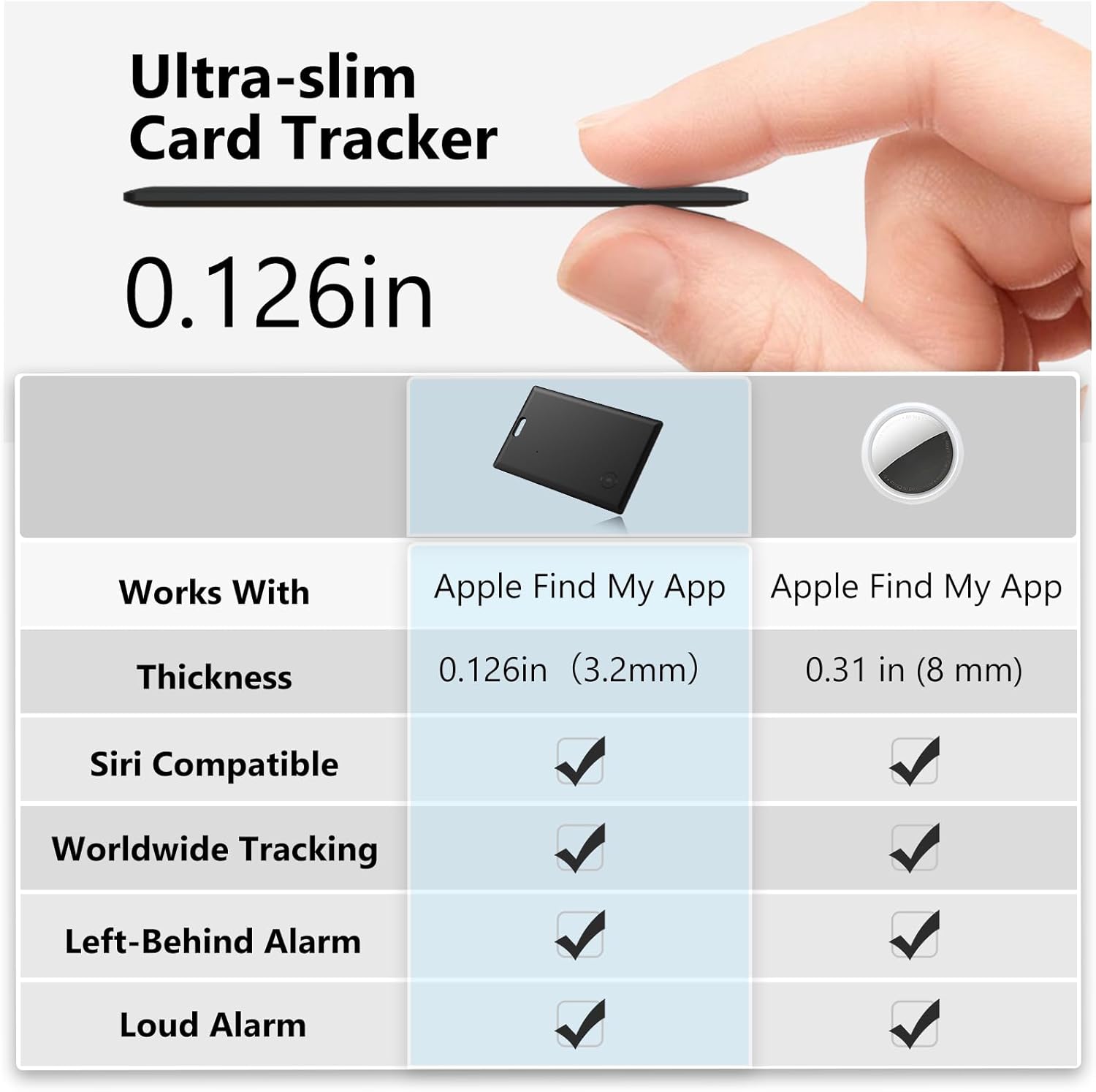
Image 2: A visual comparison highlighting the ultra-slim profile of the Smart Tracker Card (0.126 inches) and its features, including compatibility with Apple Find My, Siri, worldwide tracking, left-behind alarm, and loud alarm.
3. Setup Instructions
To begin using your USRIXITECH Smart Tracker Card, follow these steps to pair it with your Apple Find My app:
- Ensure your iOS device (iPhone, iPad, or iPod touch) is running the latest version of iOS.
- Open the Find My app on your iOS device.
- Navigate to the Items tab.
- Tap the + icon and select Add Other Item.
- Follow the on-screen instructions to connect your Smart Tracker Card. This typically involves pressing and holding the button on the tracker until it is discovered by your device.
- Once connected, you can name your tracker (e.g., "Wallet," "Keys," "Luggage") and assign an emoji.

Image 3: An iPhone displaying the Apple Find My app interface, showing a connected 'Card U1' tracker on a map, with options to 'Play Sound' and view 'Notifications'. A note indicates that Android devices are not supported.
4. Operating Instructions
4.1 Locating Your Item
Once your Smart Tracker Card is paired, you can use the Find My app to locate your items:
- Global Location Tracking: View the last known location of your item on a map within the Find My app. This utilizes the extensive Apple Find My network.
- Find Nearby (Sound Search): If your item is within Bluetooth range (typically up to 50 meters), you can tap the "Play Sound" option in the Find My app. The Smart Tracker Card will emit a loud sound, helping you pinpoint its exact location.
- One-Click Navigation: The Find My app can provide directions to the last known location of your tracker.

Image 4: Three iPhone screens illustrating how to find lost items: one showing item location on a map, another displaying one-click navigation to the item, and a third showing the 'Play sound search' function.

Image 5: An iPhone screen showing the Find My app with the 'Play Sound' option active, accompanied by an illustration of a wallet on a couch emitting 'Beep Beep Beep' sounds, demonstrating how to locate hard-to-find objects at close range.
4.2 Left-Behind Alarms
The Smart Tracker Card can alert you if you accidentally leave your item behind:
- Enable "Notify When Left Behind" in the Find My app settings for your tracker.
- If your tracker separates from your iOS device, you will receive a notification indicating its last detected location.

Image 6: A phone displaying a "Wallet 'left behind'" notification, showing a wallet on the ground in a city street, illustrating the left-behind alarm feature.
5. Important Notes on Location Accuracy
- The tracker card provides location within a horizontal plane and does not provide height position.
- Precise location within 50 meters may not always be available. Within this range, use the "Play Sound" feature in the Find My app to connect and make the tracker card emit a sound for accurate positioning.
6. Maintenance
6.1 Battery Life
The USRIXITECH Smart Tracker Card is equipped with two Lithium Ion batteries, providing over 365 days of operation. The batteries are integrated and not designed to be user-replaceable or rechargeable. This design ensures continuous tracking without the risk of battery removal.
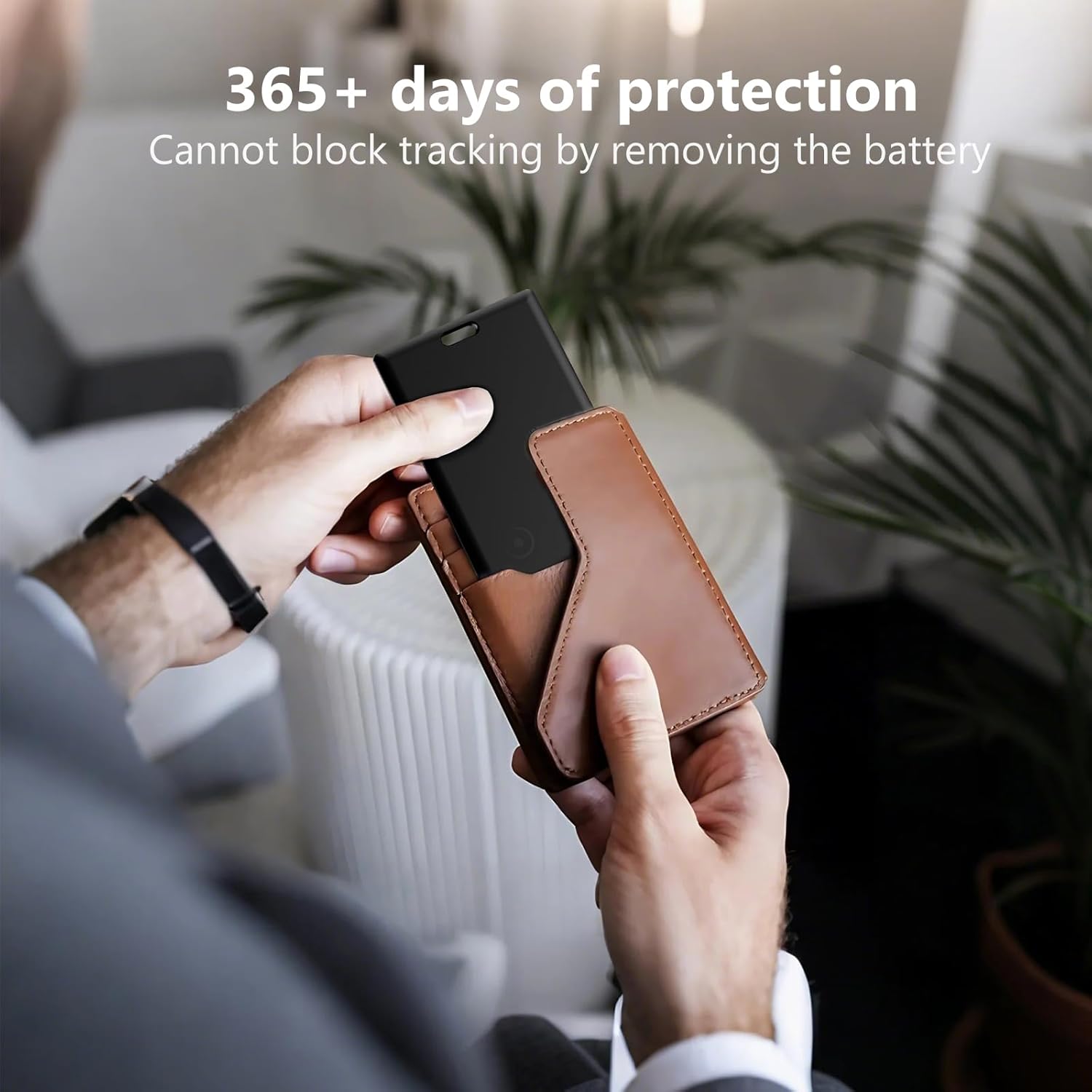
Image 7: Hands inserting the Smart Tracker Card into a brown leather wallet, illustrating its slim design and the claim of '365+ days of protection' with non-removable batteries.
6.2 Cleaning
To clean your Smart Tracker Card, gently wipe it with a soft, dry cloth. Avoid using harsh chemicals or abrasive materials.
7. Troubleshooting
- Tracker Not Connecting: Ensure your iOS device's Bluetooth is enabled and the tracker is within range. Try restarting your iOS device and repeating the setup process.
- No Sound from Tracker: Check if the tracker is within Bluetooth range. Ensure the volume on your iOS device is not muted.
- Inaccurate Location: Remember that the tracker provides location within a plane and does not indicate height. For precise location within 50 meters, use the "Play Sound" feature.
- Battery Life Concerns: The tracker's battery is designed for over 365 days of use. If you experience significantly shorter battery life, contact customer support.
8. Specifications
| Feature | Detail |
|---|---|
| Model | Smart Tracker Card |
| Brand | USRIXITECH |
| Dimensions | 4.61 x 2.8 x 0.51 inches |
| Item Weight | 1.06 ounces |
| Connectivity | Bluetooth |
| Compatible Devices | iOS Devices Only |
| Batteries | 2 Lithium Ion batteries (included, non-replaceable) |
| Material | Plastic |
9. Warranty and Support
For warranty information or technical support, please refer to the product packaging or contact USRIXITECH customer service directly. Contact details are typically available on the manufacturer's official website or through your purchase platform.