
1. Introduction
Thank you for choosing the TREBLEET 13-in-1 Professional Docking Station. This manual provides detailed instructions for setting up, operating, and maintaining your docking station to ensure optimal performance. This versatile docking station is designed to expand the connectivity of your Thunderbolt 3/4 or USB4 enabled Mac or Windows computer, offering a wide array of ports and features for enhanced productivity.
2. Package Contents
Please verify that all items are present in your package:
- 1x TREBLEET 13-in-1 Professional Docking Station
- 1x Thunderbolt 3/USB4 40Gbps Cable
- 1x 120W Power Supply (24V/5A)
- 1x Quick Start Guide
- 1x Cable Holder
3. Product Overview
The TREBLEET 13-in-1 Docking Station features a robust aluminum chassis designed for efficient heat dissipation and durability. It offers a comprehensive set of ports for various peripherals and display configurations.

Figure 1: Front-side view of the TREBLEET 13-in-1 Professional Docking Station, showcasing its sleek design and various ports.
Front Panel Ports:
- 3.5mm Audio Headset/Mic Jack: For connecting headphones or a microphone.
- SD 4.0 Card Slot: Supports UHS-II theoretical bus speed up to 312MB/s, compatible with SDXC, SDHC, and standard SD cards.
- USB 3.1 Gen2 Type-A Port (10Gbps): For high-speed data transfer.
- Thunderbolt 4 Upstream Port (Max 98W PD): Connects to your host laptop and provides up to 98W power delivery.
- Power Button: To power on/off the docking station.
Rear Panel Ports:
- DC IN 20V: Power input for the 120W power adapter.
- 3x Thunderbolt 4 Downstream Ports (15W PD each): For connecting additional Thunderbolt devices or displays.
- 2x USB 2.0 Type-A Ports (5Gbps): For connecting standard USB peripherals.
- 2.5 Gigabit Ethernet Port: Provides high-speed wired network connectivity.
- DisplayPort 1.4: For connecting external displays.
- HDMI: For connecting external displays.
Internal Features:
- 4x Modular Expansion Interface Slots: Allows for customization with various expansion cards (sold separately), such as CFexpress Type-A/B, XQD, CFast2.0, SD&TF card readers.
- M.2 Socket for NVMe SSD (PCIe Gen.3 x2): Supports high-speed storage expansion up to 2800 MB/s.
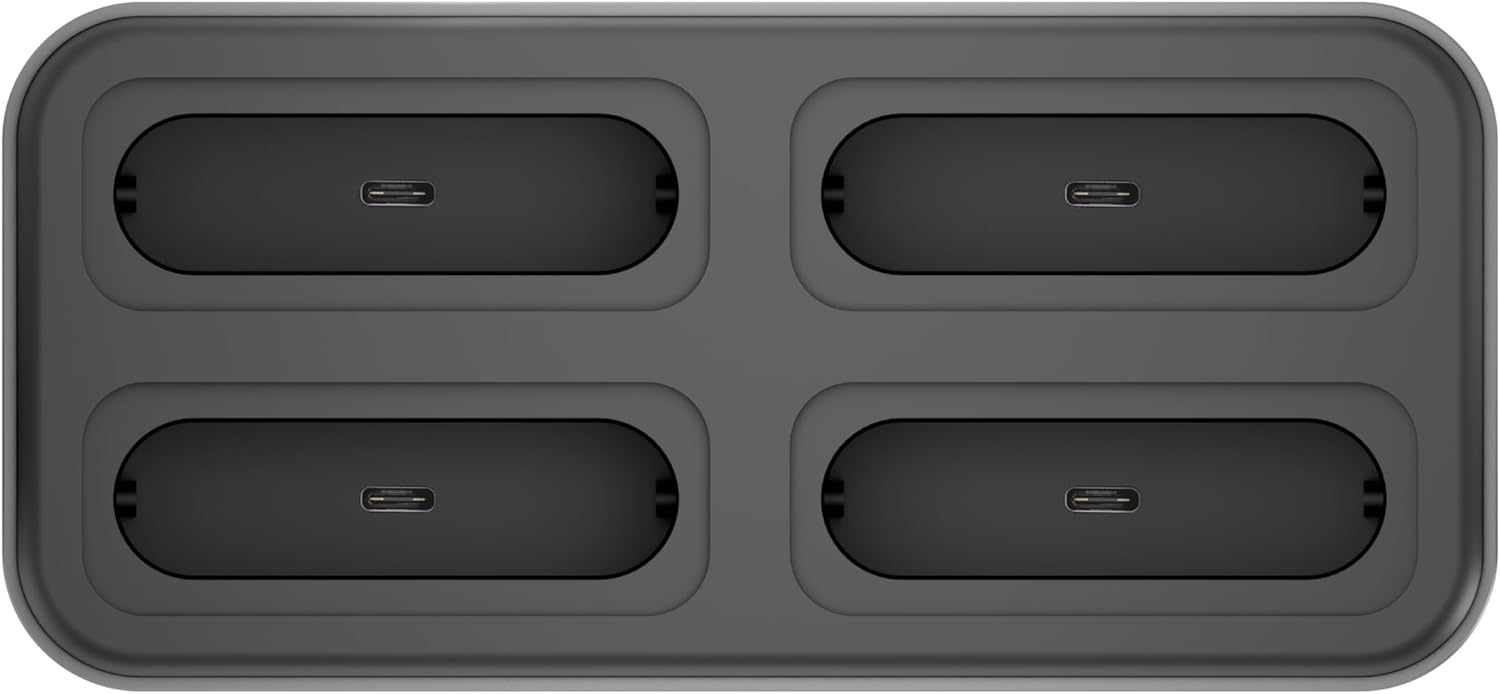
Figure 2: Top view of the docking station, highlighting the four modular expansion slots for customizable connectivity.

Figure 3: The docking station shown with different expansion modules, such as card readers and USB drives, inserted into its modular slots.

Figure 4: Exploded view illustrating the process of installing an NVMe SSD into the dedicated M.2 socket within the docking station.
4. Setup Guide
Follow these steps to set up your TREBLEET Docking Station:
- Connect Power: Plug the included 120W power adapter into the 'DC IN 20V' port on the rear of the docking station, then connect the adapter to a power outlet.
- Connect to Host Computer: Use the provided Thunderbolt 3/USB4 40Gbps cable to connect the docking station's 'Thunderbolt 4 Upstream' port (Max 98W PD) on the front panel to a Thunderbolt 3/4 or USB4 port on your laptop.
- Power On: Press the power button on the front of the docking station.
- Install Drivers (if necessary): For full functionality, especially for DisplayLink features or specific operating systems, you may need to install drivers. Refer to the 'Driver Download Links' pamphlet included in your package or visit the TREBLEET support website.
- Connect Peripherals: Connect your external monitors, USB devices, Ethernet cable, and audio devices to the respective ports on the docking station.

Figure 5: A typical setup showing the docking station connected to a laptop, powering and extending its display to multiple external monitors, and connecting various peripherals.
5. Operating Instructions
Display Configuration:
The docking station supports various display configurations:
- Single Display: Up to 8K @ 60Hz (7680x4320) via DisplayPort 1.4.
- Dual Displays: Up to 4K @ 60Hz for each display.
- Quad Displays: Achievable through a combination of Thunderbolt 4, DisplayPort, and HDMI ports, potentially requiring DisplayLink drivers for certain setups.
Ensure your computer's graphics card and operating system support the desired display configuration.
Power Delivery:
The upstream Thunderbolt 4 port provides up to 98W of power delivery to charge your connected laptop. Downstream Thunderbolt 4 ports provide 15W each for connected devices.
Data Transfer:
Utilize the various USB and Thunderbolt ports for high-speed data transfer:
- Thunderbolt 4 Ports: Up to 40Gbps.
- USB 3.1 Gen2 Type-C Ports: Up to 10Gbps.
- USB 2.0 Type-A Ports: Up to 5Gbps (Note: Due to bandwidth limitations, the 2x USB-A ports only provide the transfer rate of USB 2.0).
- NVMe Slot: Supports PCI-e Gen.3 x2 for speeds up to 2,800 MB/s.
Modular Expansion:
The four modular expansion slots allow you to customize your docking station with specific card readers or other modules (sold separately) to suit your workflow. Simply insert the desired module into an available slot.
Daisy Chain:
The Thunderbolt 4 downstream ports support daisy-chaining, allowing you to connect up to 6 additional Thunderbolt 3 compatible devices, including other Thunderbolt docks and displays.
6. Maintenance
- Cleaning: Use a soft, dry cloth to clean the exterior of the docking station. Avoid liquid cleaners or abrasive materials.
- Ventilation: Ensure the ventilation slots on the sides and bottom of the device are not obstructed to prevent overheating.
- Storage: Store the docking station in a cool, dry place when not in use.
- Cable Management: Use the included cable holder to keep your workspace tidy and prevent cable damage.
7. Troubleshooting
- No Display Output:
- Ensure the docking station is powered on and correctly connected to your laptop's Thunderbolt/USB4 port.
- Verify that your external monitors are powered on and set to the correct input source.
- Check all display cables (DisplayPort, HDMI) for secure connections.
- Install or update the latest DisplayLink drivers from the TREBLEET support website, especially for multi-display setups on certain operating systems.
- Ensure your laptop's Thunderbolt/USB4 port supports video output.
- Laptop Not Charging:
- Confirm the 120W power adapter is securely connected to both the docking station and a working power outlet.
- Ensure your laptop is connected to the 'Thunderbolt 4 Upstream' port on the docking station.
- Verify your laptop supports charging via its Thunderbolt/USB4 port and that the port is functioning correctly.
- USB Devices Not Recognized:
- Try connecting the USB device to a different port on the docking station or directly to your computer to isolate the issue.
- Ensure the docking station has power.
- Update your computer's USB drivers.
- Ethernet Connection Issues:
- Check the Ethernet cable connection between the docking station and your router/modem.
- Verify your network settings on your computer.
- Ensure the Ethernet port on the docking station is active (check indicator lights if present).
- Modular Expansion Slots Not Working:
- Ensure the expansion module is correctly and fully inserted into the slot.
- Verify the expansion module itself is functional.
- Check for any specific drivers required for the expansion module.
8. Specifications
| Feature | Detail |
|---|---|
| Brand | TREBLEET |
| Model | B0DHH41P8L |
| Interface | Thunderbolt 3/USB4 (x2), DisplayPort 1.4 (x1), USB 2.0 USB-A (x2), USB 3.1 Gen2 USB-C (x2), M.2 socket for NVMe SSD (x1), 2.5Gb Ethernet (x1), 3.5mm audio headset/mic jack (x1), Modular expansion interface (x4) |
| Display Output | Single 8K@60Hz (7680x4320), Dual 4K@60Hz |
| Power Delivery (Upstream) | Max 98W to host |
| Power Delivery (Downstream) | 15W per Thunderbolt 4 port |
| USB-A 2.0 Output | 5V@3A |
| USB 3.1 Gen2 USB-C Speed | 10Gbps (5V@3A) |
| M.2 Socket | PCI-e Gen.3 x2 (Up to 2,800 MB/s) |
| Ethernet | 2.5Gbps |
| Compatibility | Mac OS 10.X or above, Windows 10 or later, Computer with Thunderbolt 3/USB4 port |
| Dimensions | 5.67"x3.11"x0.76" (144.2x79.2x19.4mm) |
| Item Weight | 1.5 Pounds |
9. Warranty Information
This TREBLEET product comes with a 1 Year Warranty from the date of purchase. Please retain your proof of purchase for warranty claims. The warranty covers manufacturing defects and malfunctions under normal use. It does not cover damage caused by misuse, accidents, unauthorized modifications, or natural disasters.
10. Customer Support
For technical support, driver downloads, or further assistance, please visit the official TREBLEET support website or contact their customer service team.
- Official News & Press: Wavelink Official
- Technical Support: Wavelink Tech Support