
Introduction
Thank you for choosing the CAMECHO Android 13 Car Stereo. This manual provides detailed instructions for the installation, operation, and maintenance of your new car stereo system. Please read this manual thoroughly before installation and use to ensure proper function and to maximize your user experience. Keep this manual for future reference.
Safety Information
- Always consult a professional for installation if you are unsure about any steps.
- Ensure the vehicle's power is disconnected before starting installation to prevent electrical shock or damage.
- Do not operate the device in a way that distracts you from driving.
- Keep the device away from water and excessive heat.
- Use only specified accessories and parts.
Package Contents
Please verify that all items listed below are included in your package:

Image: The car stereo unit with dimensions (220mm/8.7inch width, 132mm/5.2inch height), and a list of included accessories: Power Cable, RCA Input/Output Cable, Reversing Camera Input Cable, USB Cable, GPS Antenna, Radio Antenna, Microphone, Canbus, User Manual, and Rear Camera.
- Main Head Unit (9-inch HD Touchscreen)
- Power Cable
- RCA Input/Output Cable
- Reversing Camera Input Cable
- USB Cable (x2)
- GPS Antenna
- Radio Antenna
- Microphone
- Canbus Decoder
- User Manual
- Rear Camera (optional, if included in your specific package)
Product Overview
The CAMECHO Android 13 Car Stereo is designed to enhance your driving experience with advanced features and connectivity. Key features include:
- Operating System: Android 13
- Processor: 8-Core CPU
- Memory: 4GB RAM + 64GB ROM
- Display: 9-inch HD Touchscreen (1280*720 resolution)
- Connectivity: Wireless CarPlay, Android Auto (wired/wireless), Bluetooth 5.1, WiFi, USB
- Audio: Built-in DSP, 32-band EQ
- Navigation: Integrated GPS (online/offline maps)
- Radio: FM/RDS Radio
- Additional Features: Mirror Link, Split Screen, Steering Wheel Control, AHD Rear View Camera support.

Image: Illustrates the internal components (8-Core CPU, 4GB RAM, 64GB ROM) and the DSP audio interface with 32-band EQ settings, sound field adjustments, and balance controls.

Image: Displays the user interface for Bluetooth 5.0 connectivity, FM/RDS radio tuning, WiFi internet connection, and GPS navigation with a map view.
Installation Guide
This section provides general installation steps. Specific vehicle models may require additional adapters or wiring harnesses. It is recommended to seek professional installation if you are not familiar with car audio systems.
- Prepare the Vehicle: Disconnect the negative terminal of the car battery. Remove the original car stereo unit and trim panels carefully.
- Connect Power and Speaker Wires: Connect the main power harness from the car stereo to your vehicle's wiring harness. Ensure all connections are secure and correctly matched (e.g., constant power, accessory power, ground, speaker outputs).
- Connect RCA Cables: If using external amplifiers or additional audio/video devices, connect the RCA input/output cables.
- Connect GPS Antenna: Mount the GPS antenna in a location with a clear view of the sky, typically on the dashboard or under the windshield, ensuring it is securely attached.
- Connect Radio Antenna: Connect the vehicle's radio antenna to the car stereo.
- Connect USB Cables: Route the USB extension cables to a convenient location, such as the glove compartment or center console.
- Connect Rear Camera (Optional): If installing a rear camera, connect its video input to the "Reversing Camera Input" on the stereo and its power to the reverse light circuit.
- Install Canbus Decoder: Connect the Canbus decoder if your vehicle requires it for steering wheel controls or other vehicle data integration.
- Test Connections: Before fully reassembling, reconnect the car battery and briefly test the stereo's basic functions (power on/off, radio, sound output).
- Secure the Unit: Mount the new car stereo into the dashboard opening. Reinstall all trim panels and secure them properly.
- Final Check: Reconnect the car battery and perform a comprehensive test of all features.

Image: Rear view of the car stereo showing labeled connection ports: 1. Power Cable, 2. RCA Input/Output, 3. Reversing Camera Input, 4. USB Cable, 5. GPS Antenna, 6. Radio Antenna.
Initial Setup
- Power On: Turn on your vehicle's ignition. The stereo should power on automatically.
- Language Settings: Navigate to Settings > System > Languages & input to select your preferred language.
- Wi-Fi Connection: Go to Settings > Network & internet > Wi-Fi. Select your Wi-Fi network and enter the password to connect. This is essential for online navigation, app downloads, and updates.
- Bluetooth Pairing: Access the Bluetooth application. Enable Bluetooth on your mobile device and search for the car stereo (usually named "CAMECHO" or similar). Pair the devices using the provided PIN (default is usually 0000 or 1234).
- GPS Configuration: Ensure the GPS antenna is properly connected. The system should automatically detect satellites. For offline navigation, download maps using the pre-installed "Here We Go" app or another preferred navigation application.
- Date and Time: Set the correct date and time, either manually or by synchronizing with the network.
Operating Instructions
Basic Functions
- Home Screen: Access various applications and widgets from the main desktop.
- Volume Control: Adjust volume using the physical knobs/buttons or on-screen controls.
- Radio: Open the FM/RDS Radio app to scan for stations, save presets, and view RDS information.
- Media Playback: Use the Music or Video player apps to play media from USB drives or internal storage.
Wireless CarPlay & Android Auto
Connect your iPhone or Android smartphone for seamless integration of navigation, music, calls, and messages.
- For iPhone (CarPlay): Connect your iPhone via Bluetooth. Once paired, open the CarPlay app on the stereo. Follow on-screen prompts to enable wireless CarPlay.
- For Android (Android Auto): Connect your Android phone via Bluetooth. Open the Android Auto app on the stereo. Follow on-screen prompts to enable wireless Android Auto. For wired connection, use a USB cable.

Image: Shows the car stereo screen with Apple CarPlay interface for iPhone on the left and Android Auto interface for Android on the right, demonstrating wireless connectivity.

Image: Illustrates voice control for Apple CarPlay (Siri) and Android Auto (Google Assistant), along with screen mirroring functionality for both iOS (Wi-Fi) and Android (Wi-Fi/USB) devices.
GPS Navigation
Use the pre-installed navigation app (e.g., Here We Go) or download your preferred navigation app from the Google Play Store (requires Wi-Fi connection). The system supports both online and offline maps.
DSP Audio Settings
Access the DSP (Digital Sound Processor) settings to customize your audio experience. Adjust the 32-band equalizer, sound field, balance, and subwoofer settings to match your preferences.
Steering Wheel Control (SWC)
If your vehicle supports it and the Canbus decoder is correctly installed, you can program the steering wheel buttons to control the car stereo functions (e.g., volume, track skip, mode). Refer to the stereo's settings for SWC learning/mapping.

Image: Shows a driver's hand on a steering wheel, with an overlay demonstrating the on-screen interface for mapping steering wheel control buttons to various functions like volume, track, and mode.
AHD Rear View Camera
When the vehicle is shifted into reverse, the stereo automatically displays the feed from the connected AHD rear view camera, providing a clear view for safer parking. The camera features HD image quality, waterproofing, night vision, and a wide-angle lens.

Image: Displays the car stereo screen showing a rear view camera feed with parking guidelines, highlighting features like HD image, waterproof design, night vision, and wide angle.
UI Desktop Themes
Personalize your stereo's interface by choosing from 59 different UI desktop themes. Navigate to the theme settings to browse and apply your preferred visual style.
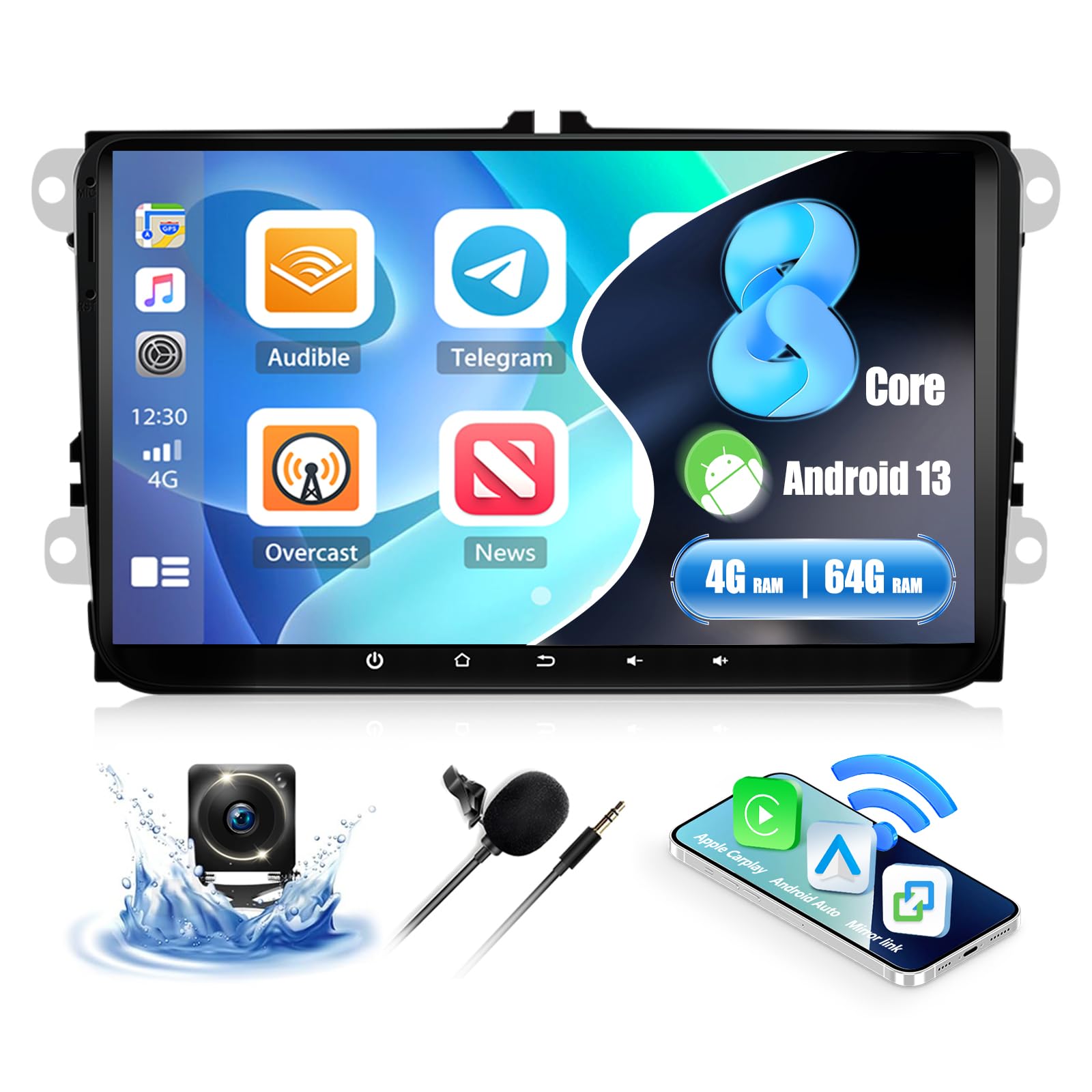
Image: Shows the car stereo screen with multiple desktop themes visible, indicating the option to change the user interface appearance.
Maintenance
- Cleaning: Use a soft, dry cloth to clean the screen and exterior. Avoid abrasive cleaners or solvents.
- Software Updates: Periodically check for system updates via Wi-Fi in the settings menu to ensure optimal performance and access to new features.
- Data Backup: Regularly back up important data if stored on the device.
Troubleshooting
| Problem | Possible Cause | Solution |
|---|---|---|
| No power | Incorrect wiring; Blown fuse; Loose connection. | Check power cable connections. Inspect vehicle fuses. Ensure battery is connected. |
| No sound | Speaker wires disconnected; Volume too low; Mute activated; Incorrect audio output settings. | Verify speaker connections. Increase volume. Check mute status. Adjust audio settings. |
| GPS signal lost or inaccurate | GPS antenna improperly placed or disconnected; Obstruction. | Ensure GPS antenna has a clear view of the sky and is securely connected. |
| Bluetooth not connecting | Bluetooth disabled on phone/stereo; Incorrect pairing process; Interference. | Ensure Bluetooth is enabled on both devices. Re-attempt pairing. Clear previous pairings. |
| Touchscreen unresponsive | System freeze; Software issue. | Perform a soft reset (refer to device settings for reset option or hold power button). If issue persists, contact support. |
| CarPlay/Android Auto not working | Incorrect connection; Phone software issue; App not installed. | Ensure correct connection type (wireless/wired). Update phone OS and apps. Check phone compatibility (Samsung phones not supported for Mirror Link). |
Specifications
| Brand | CAMECHO |
| Model Number | a923f4c1-3650-44dc-a80d-bafc401235b6 (P3=8 Core 4+64G Carplay+32EQ variant) |
| Operating System | Android 13 |
| RAM + ROM | 4GB RAM + 64GB ROM |
| Display Size | 9 inches |
| Resolution | 1280 x 720 HD |
| Connectivity Technology | USB, Bluetooth 5.1, Wi-Fi |
| Special Features | Wireless CarPlay, Android Auto, Mirror Link, Built-in DSP, 32-band EQ, GPS Navigation, FM/RDS Radio, Split Screen, Steering Wheel Control |
| Compatible Devices | Smartphones, Tablets |
| Audio Output Mode | Stereo, Surround (2.0 channels) |
| Max Output Power | 4 x 45W |
| Operating Voltage | DC 12V |
| Product Dimensions | 10P x 10L x 10H mm (Approximate, refer to diagram for exact unit dimensions) |
Warranty Information
This CAMECHO product comes with a 1-year warranty from the date of purchase. This warranty covers manufacturing defects and malfunctions under normal use. Please retain your proof of purchase for warranty claims. The warranty does not cover damage caused by improper installation, misuse, accidents, or unauthorized modifications.
Customer Support
For technical assistance, troubleshooting, or warranty inquiries, please contact CAMECHO customer support. You can reach us via:
- Email: CAMECHOVIP@126.com
- Online: Visit the official CAMECHO store on Amazon for FAQs and additional resources.
Our support team is available to assist you with any questions or concerns regarding your product.

Image: Customer service representatives ready to provide assistance.


