
1. Introduction and Overview
This manual provides detailed instructions for the Onewscan 1D 2D Wireless Barcode Scanner. This device is designed for efficient barcode scanning, data collection, and inventory management, supporting both 1D and 2D barcode types, including QR codes. It features a 2.2-inch HD color screen, a smart charging stand, and offers flexible connectivity options via 2.4G wireless or USB cable.
Key features include:
- Smart Charging Stand: Facilitates wireless transmission, holds the scanner, and charges its built-in Li-Ion battery.
- Versatile Barcode Compatibility: Scans most 1D (Codabar, Code 128, MSI, EAN-128, Code 39, EAN-8, EAN-13, UPC-A, ISBN) and 2D barcodes (QR, DataMatrix, PDF417) from both paper and screens.
- Stylish Design with HD Screen: Equipped with a 2.2" HD color screen to display wireless channel, signal strength, battery power, and real-time barcode content, type, and length.
- Long-lasting Battery: A 2000mAh battery provides up to 20 hours of continuous operation or 100,000 scans.
- Extra Collect Function: Allows users to manage repeated scans, ideal for tracking numbers and serial numbers.
2. Setup
Follow these steps to set up your Onewscan barcode scanner:
- Unpack the Device: Carefully remove the scanner, charging cradle, and USB data cable from the packaging.
- Charge the Scanner: Place the handheld scanner onto the charging cradle. Connect the USB data cable to the charging cradle and then to a power source (e.g., computer USB port or USB wall adapter). The scanner's screen will indicate charging status. Ensure the scanner is fully charged before first use.
- Connect the Charging Cradle: The charging cradle acts as the wireless receiver. Plug the USB data cable from the cradle into an available USB port on your computer or POS system. The device is plug-and-play; no additional drivers are typically required.
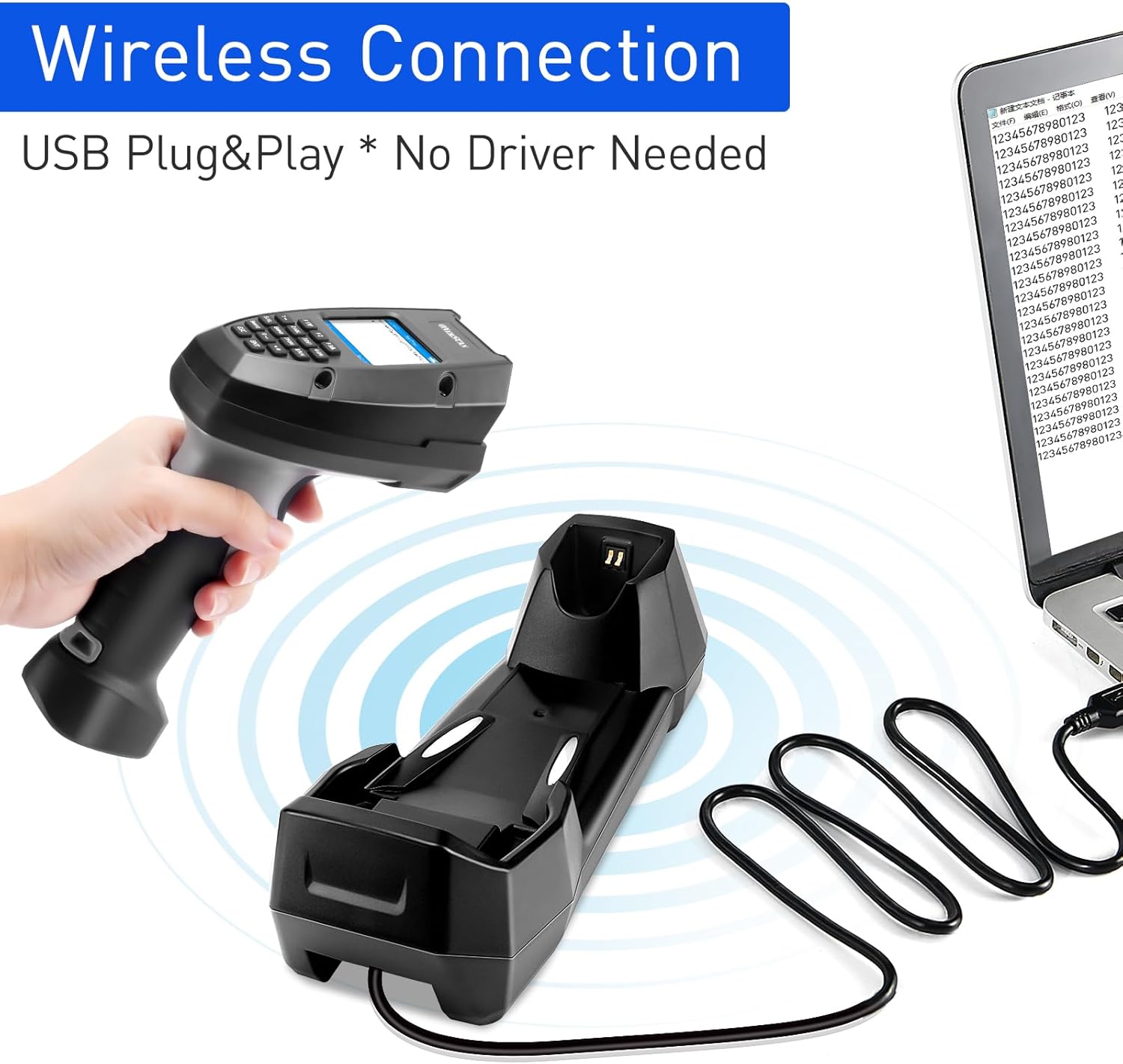
Image: The Onewscan wireless barcode scanner with its charging cradle, ready for connection.
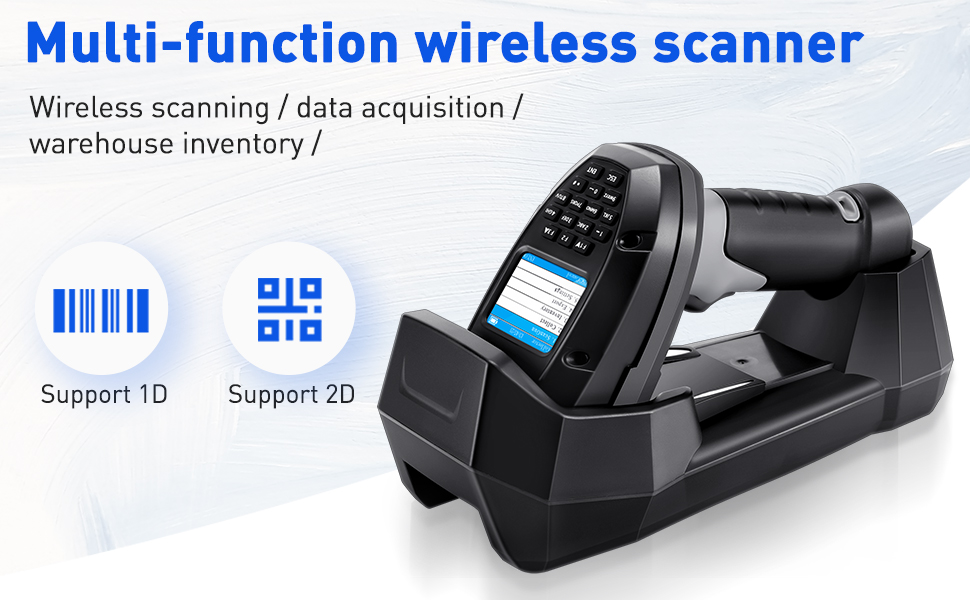
Image: Illustration of the wireless connection setup, showing the scanner, charging base, and a laptop.
3. Operating Instructions
This section details the basic operation of the barcode scanner.
- Power On/Off: Press and hold the power button (usually located on the side or top) to turn the scanner on or off. The HD screen will illuminate upon power-on.
- Basic Scanning: Aim the scan head at the barcode you wish to read and press the 'Scan job key' (trigger button). The scanner will emit a light beam and a beep sound upon successful scan. The scanned data will appear on the 2.2" HD screen.
- Using the HD Screen: The screen displays important information such as battery level, wireless signal strength, current operating mode, and scanned barcode data. Use the navigation keys (if available) and 'OK' or 'Cancel' keys to interact with the menu.
- Key Functions:
- Scan Job Key: Initiates barcode scanning.
- OK Key: Confirms selections or actions on the screen.
- Cancel Key: Cancels current operations or navigates back in menus.

Image: Detailed view of the scanner highlighting the HD screen, Cancel key, OK key, high-performance scan head, Scan job key, and ergonomic handle design.

Image: The scanner demonstrating its ability to read various 1D and 2D QR codes, including those that are damaged, blurred, scratched, colorful, or folded.
4. Scan Modes
The Onewscan barcode scanner supports multiple operating modes to suit different data collection needs:
- Wireless Mode: In this mode, barcode data is instantly uploaded to your connected device (e.g., computer) as soon as it is scanned. This is suitable for real-time data entry.
- Collect Mode: This mode allows you to scan and store barcodes internally. You can check the number, length, and count of scanned items on the screen. Data is then exported to your device in a batch. This mode includes an "Extra Collect Function" where you can press F2 to toggle allowing or disallowing repeated scans of unique barcodes, useful for tracking serial numbers.
- Inventory Mode: Similar to Collect Mode, this mode is designed for inventory management. It allows you to scan barcodes and input quantities for each item. You can then export the collected barcode and quantity data to your device.

Image: Visual representation of the three scan modes: Wireless, Collect, and Inventory, showing how data is handled in each.
5. Connectivity and Transmission Range
The scanner offers robust wireless connectivity through its 2.4G wireless module, utilizing the charging cradle as a receiver. It also supports direct USB connection for wired operation.
- 2.4G Wireless Connection: Provides a stable and reliable connection to your host device.
- USB Connection: Allows for direct wired connection, which can also be used for charging.
- Transmission Range:
- Under obstacles environment: Up to 50 meters (164 feet).
- In barrier-free environment: Up to 200 meters (656 feet).
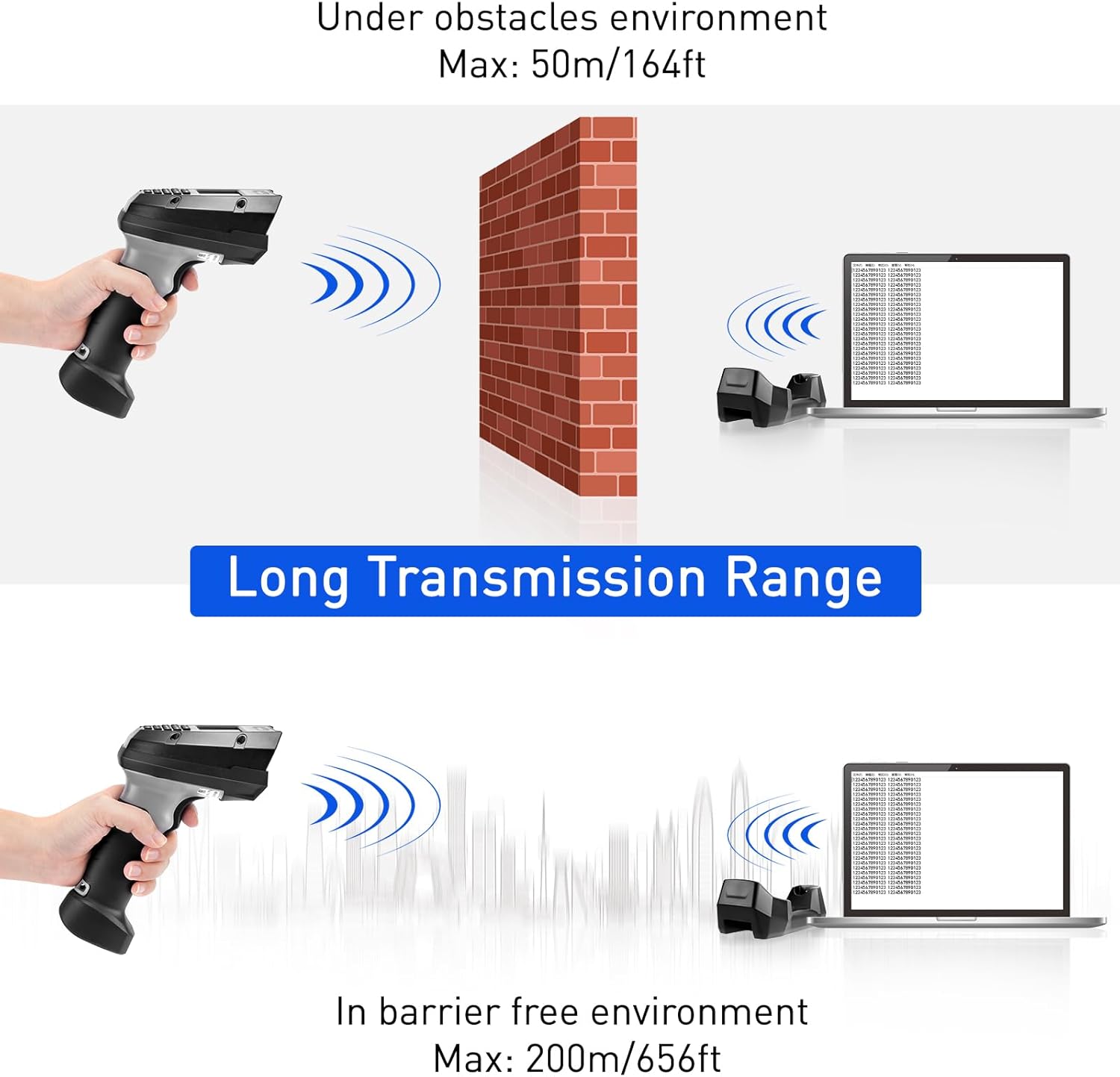
Image: Illustration of the scanner's wireless transmission range, depicting its reach with and without obstacles.
6. Maintenance
Proper maintenance ensures the longevity and optimal performance of your scanner.
- Cleaning: Use a soft, dry cloth to clean the exterior of the scanner and charging cradle. For the scan window, use a lint-free cloth lightly dampened with a mild, non-abrasive cleaner. Avoid harsh chemicals or abrasive materials.
- Battery Care: The scanner is equipped with a 2000mAh Lithium Polymer battery. To maximize battery life, avoid fully discharging the battery frequently. Charge the scanner regularly, especially if it will be stored for an extended period.
- Storage: Store the scanner and cradle in a cool, dry place away from direct sunlight, extreme temperatures, and corrosive materials.
- Drop Protection: The scanner is designed with professional anti-shock protection, capable of withstanding drops up to 5 ft (1.5m). However, avoid unnecessary drops to prevent potential damage.
7. Troubleshooting
If you encounter issues with your Onewscan barcode scanner, refer to the following troubleshooting guide:
| Problem | Possible Cause | Solution |
|---|---|---|
| Scanner does not power on. | Low or depleted battery. | Place the scanner on the charging cradle and ensure it is connected to a power source. Allow sufficient time for charging. |
| Scanner not connecting wirelessly. | Charging cradle not properly connected or out of range. | Ensure the charging cradle's USB cable is securely plugged into your device. Move the scanner closer to the cradle. Try connecting directly via USB cable. |
| Scanner not reading barcodes. | Barcode type not supported, dirty scan window, incorrect scanning distance/angle, or damaged barcode. | Verify the barcode type is supported (1D/2D/QR). Clean the scan window with a soft cloth. Adjust the distance and angle to the barcode. Try scanning a different, known-good barcode. |
| Scanned data not appearing on host device. | Incorrect operating mode (e.g., Collect/Inventory mode instead of Wireless mode) or connection issue. | Ensure the scanner is in Wireless Mode for instant upload. If in Collect or Inventory mode, export the data manually. Check the wireless or USB connection. |
8. Specifications
- Model: B0DHGY45TV
- Compatible Devices: Laptop, Desktop, Tablet, Smartphone, POS systems
- Power Source: Battery Powered (1 Lithium Polymer battery included)
- Connectivity Technology: 2.4G Wireless, USB Cable
- Real Angle of View: 30 Degrees
- Battery Capacity: 2000mAh
- Battery Life: Approximately 20 hours continuous use, 100,000 scans
- Drop Resistance: Up to 5 ft (1.5m)
- Supported Barcodes:
- 1D: Codabar, Code 128, MSI, EAN-128, Code 39, EAN-8, EAN-13, UPC-A, ISBN
- 2D: QR Code, DataMatrix, PDF417
- Screen: 2.2" HD Color LCD Screen
- Decoding Chip: 32-bit high-speed ARM series CPU
9. Package Contents
The product package includes the following items:
- Handheld Barcode Scanner x 1
- Charging Cradle x 1
- USB Data Cable x 1
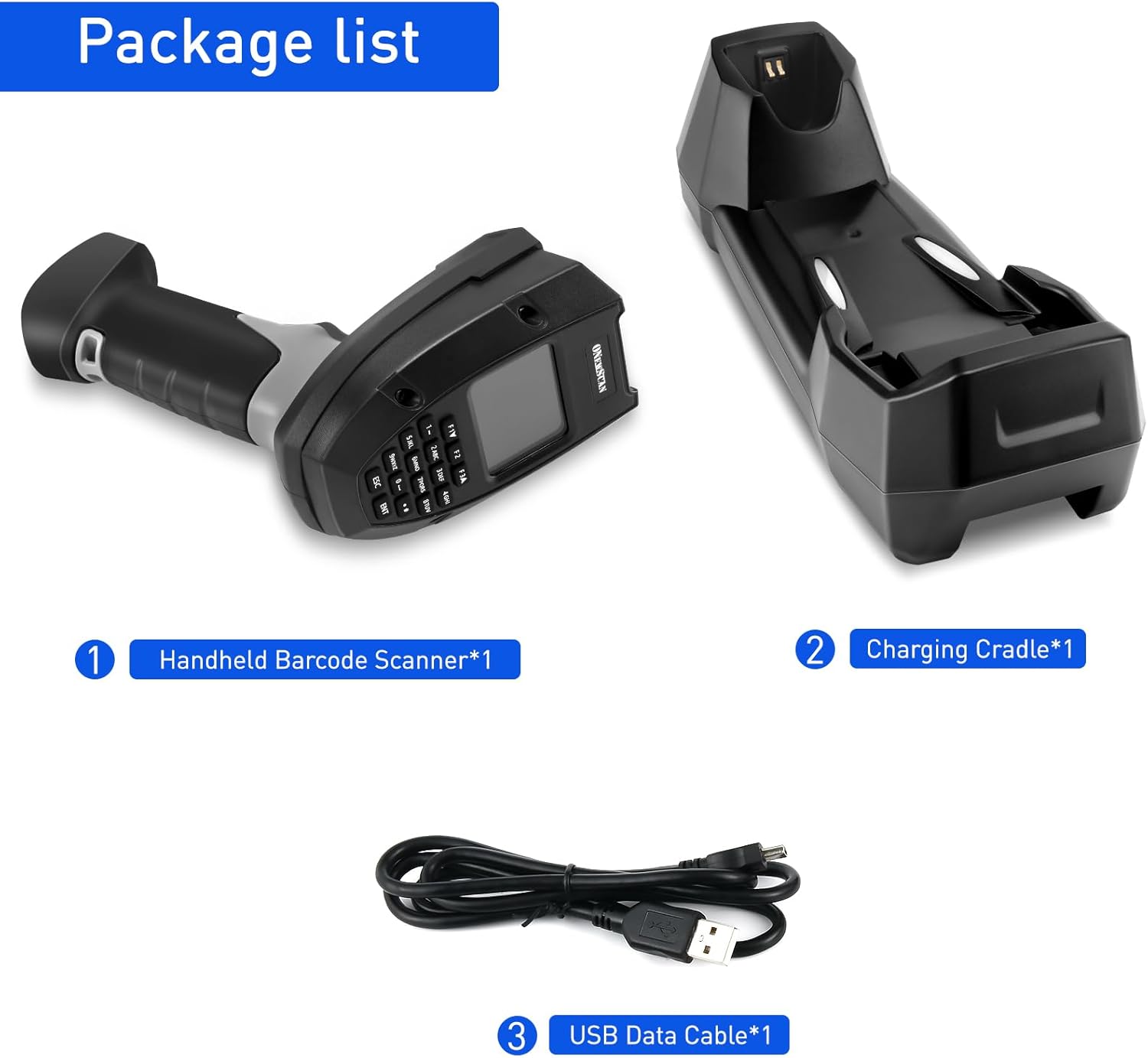
Image: Contents of the package, showing the handheld scanner, charging cradle, and USB data cable.
10. Warranty and Support
Warranty: The Onewscan 1D 2D Wireless Barcode Scanner comes with a 1-year manufacturer's warranty from the date of purchase. This warranty covers defects in materials and workmanship under normal use. It does not cover damage caused by misuse, accidents, unauthorized modifications, or improper installation.
Support: For technical assistance, troubleshooting not covered in this manual, or warranty claims, please contact Onewscan customer service. You can typically find contact information on the official Onewscan website or through the retailer where you purchased the product. Please have your product model number (B0DHGY45TV) and proof of purchase ready when contacting support.