
XP-PEN Artist 13.3 Pro V2
XPPen Artist13.3 Pro V2 Drawing Tablet User Manual
Model: Artist 13.3 Pro V2
Introduction
This manual provides comprehensive instructions for setting up, operating, and maintaining your XPPen Artist13.3 Pro V2 Drawing Tablet. The Artist13.3 Pro V2 is an upgraded pen display featuring 16384 pressure levels, an X3 Pro Stylus, a Red Dial Quick Key, and a 99% sRGB full-laminated AG screen, designed for professional and hobbyist digital artists.

Image: XPPen Artist13.3 Pro V2 Drawing Tablet with its X3 Pro Stylus and pen holder, showcasing its sleek design and vibrant display.
Product Overview Video
Video: An overview of the XPPen Artist13.3 Pro V2 Drawing Tablet, highlighting its key features and what's included in the package.
What's in the Box
Your XPPen Artist13.3 Pro V2 package includes the following items:
- X3 Pro Smart Chip Stylus (1)
- Pen Holder (1)
- Pen Nibs (8)
- USB-C to USB-C Cable (1)
- USB-C to USB-A Cable (1)
- USB-A Extension Cord (1)
- S01 foldable stand (1)
- Glove (1)
- Cleaning Cloth (1)

Image: All components included in the XPPen Artist13.3 Pro V2 package, neatly laid out.
Setup Guide
Connecting the Tablet
Ensure your computer or device is powered off before connecting the tablet. The Artist13.3 Pro V2 offers multiple connection options:
1. USB-C to USB-C Connection (Full-featured USB-C)
For devices with a full-featured USB-C port (supporting DisplayPort Alt Mode), use the provided USB-C to USB-C cable. Connect one end to the full-featured USB-C port on the tablet and the other end to your computer's full-featured USB-C port. If the tablet does not power on, connect the USB-C to USB-A cable to the 3-in-1 USB-C port on the tablet and a USB-A power adapter (not included) for power supply.

Image: Diagram illustrating the direct USB-C to USB-C connection for the drawing display to a computer, with an optional power connection.
2. 3-in-1 Cable Connection (HDMI & USB-A)
For computers without a full-featured USB-C port, use the 3-in-1 cable. Connect the USB-C end of the 3-in-1 cable to the 3-in-1 USB-C port on the tablet. Connect the HDMI and USB-A ends to the corresponding ports on your computer. Ensure all connections are secure.

Image: Diagram illustrating the 3-in-1 cable connection for the drawing display to a computer, including HDMI and USB-A connections.
3. Android Phone/Tablet Connection
For compatible Android devices, connect the tablet directly with the USB-C cable. If additional power is needed, connect the USB-C to USB-A cable to the 3-in-1 USB-C port on the tablet and a USB-A power adapter (not included).

Image: Diagram illustrating the connection of the drawing display to an Android phone or tablet via USB-C, with an optional power connection.
Connection Guide Video
Video: A detailed guide on how to connect the Artist 13.3 Pro V2 Drawing Tablet to various devices, including computers and Android phones.
Driver Installation
For optimal performance, it is crucial to install the latest driver for your Artist13.3 Pro V2. Before installation, ensure all antivirus software and other graphics software are temporarily turned off. Uninstall any existing drivers for other drawing displays to prevent conflicts. Restart your computer after the installation is complete.
Driver Download
Visit the official XPPen website (www.xp-pen.com), navigate to the Support section, and then to Downloads. Select your product model (Artist 13.3 Pro V2) and download the latest driver compatible with your operating system (Windows, macOS, Chrome OS, Android, Linux).
Installation Steps
- Windows: Unzip the downloaded file. Run the ".exe" file as administrator and follow the on-screen prompts to complete the installation.
- macOS: Unzip the downloaded file. Run the ".pkg" file and follow the prompts. Go to System Settings -> Privacy & Security -> Accessibility and ensure the "PenTabletDriver" option is checked. Otherwise, the device and driver may not function properly. If "PenTabletDriver" is not on the list, go to resource Library -> Application Support -> PenDriver to add the driver manually.
- Linux:
- Deb: Enter command "sudo dpkg -i". Drag the installation file to the window and execute the command.
- Rpm: Enter command "sudo rpm -i". Drag the installation file to the window and execute the command.
- Tag.gz: Unzip file. Enter command "sudo". Drag "install.sh" to the window and execute command.
Driver Installation Video
Video: Instructions on how to download and install drivers for the Artist13.3 Pro V2 Drawing Tablet on various operating systems.
Operating Instructions
Key Features
16K Pressure Levels with X3 Pro Stylus
Experience unparalleled precision with the world-first 16384 pressure levels, offering 1.5x faster response and 20% increased accuracy. The X3 Pro Smart Chip Stylus ensures virtually no lag or broken lines, perfect for nuanced artistic creation. It supports 60° tilt for natural shading effects.

Image: Close-up of the X3 Pro Stylus highlighting its 16384 pressure levels, 60° tilt support, and digital eraser function.
Red Dial Quick Key and 8 Shortcut Keys
The intuitive Red Dial simplifies controls for beginners, allowing easy adjustment of brush size, navigation, and zoom. Eight customizable shortcut keys can be assigned to frequently used functions, streamlining your workflow and reducing interruptions.
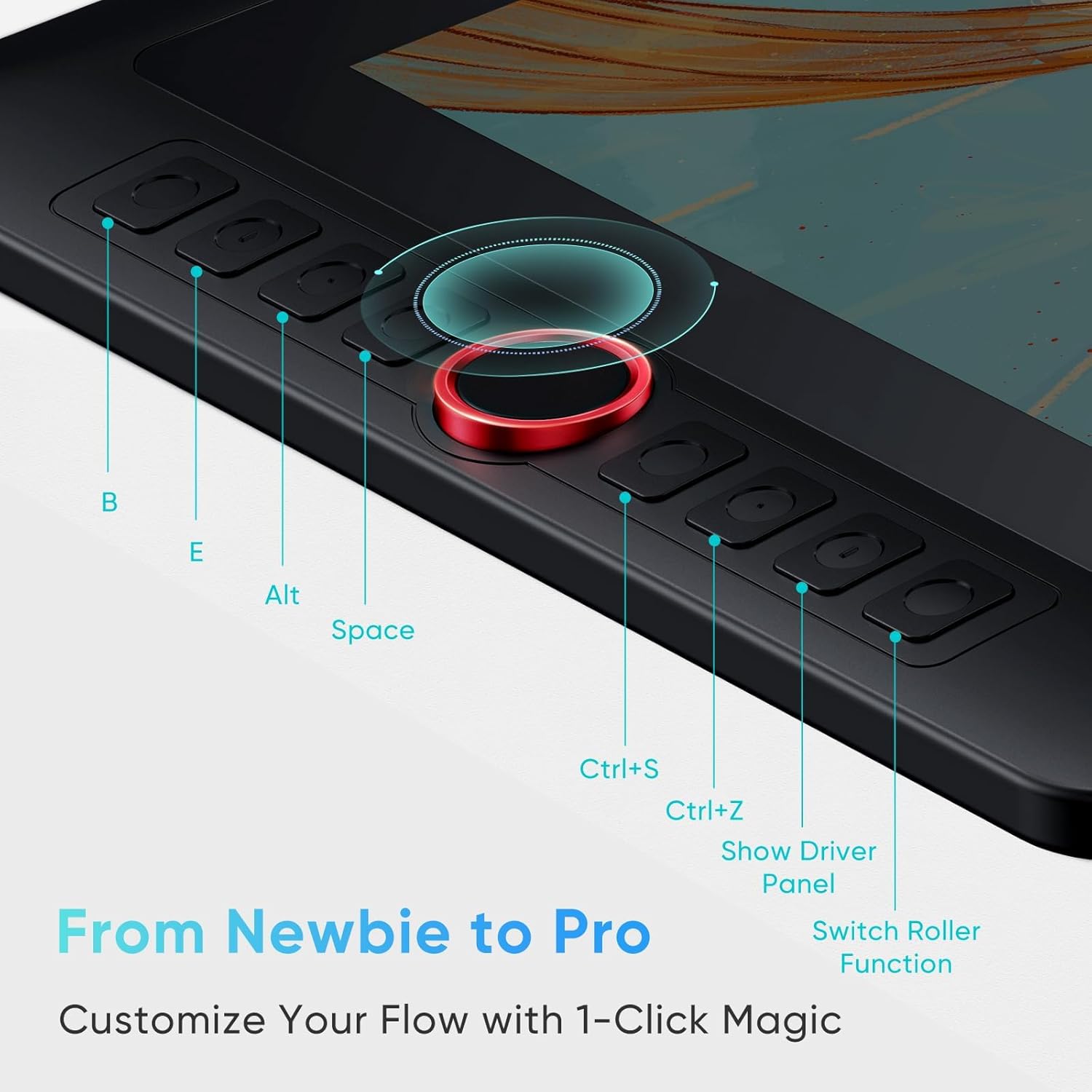
Image: The Red Dial and eight customizable shortcut keys on the side of the tablet, designed for efficient operation.
Stunning Color Accuracy and Visual Experience
The 13.3-inch full-laminated screen with AG Film reduces parallax and glare, providing a paper-like drawing experience. With 125% sRGB, 107% Adobe RGB, and 95% Display P3 color gamut, it delivers 16.7 million colors for vibrant and accurate visuals. The Full HD resolution and IPS panel ensure sharp details and a wide 178° viewing angle.

Image: Visual representation of the tablet's color accuracy, contrast ratio, and brightness, emphasizing its vibrant display.
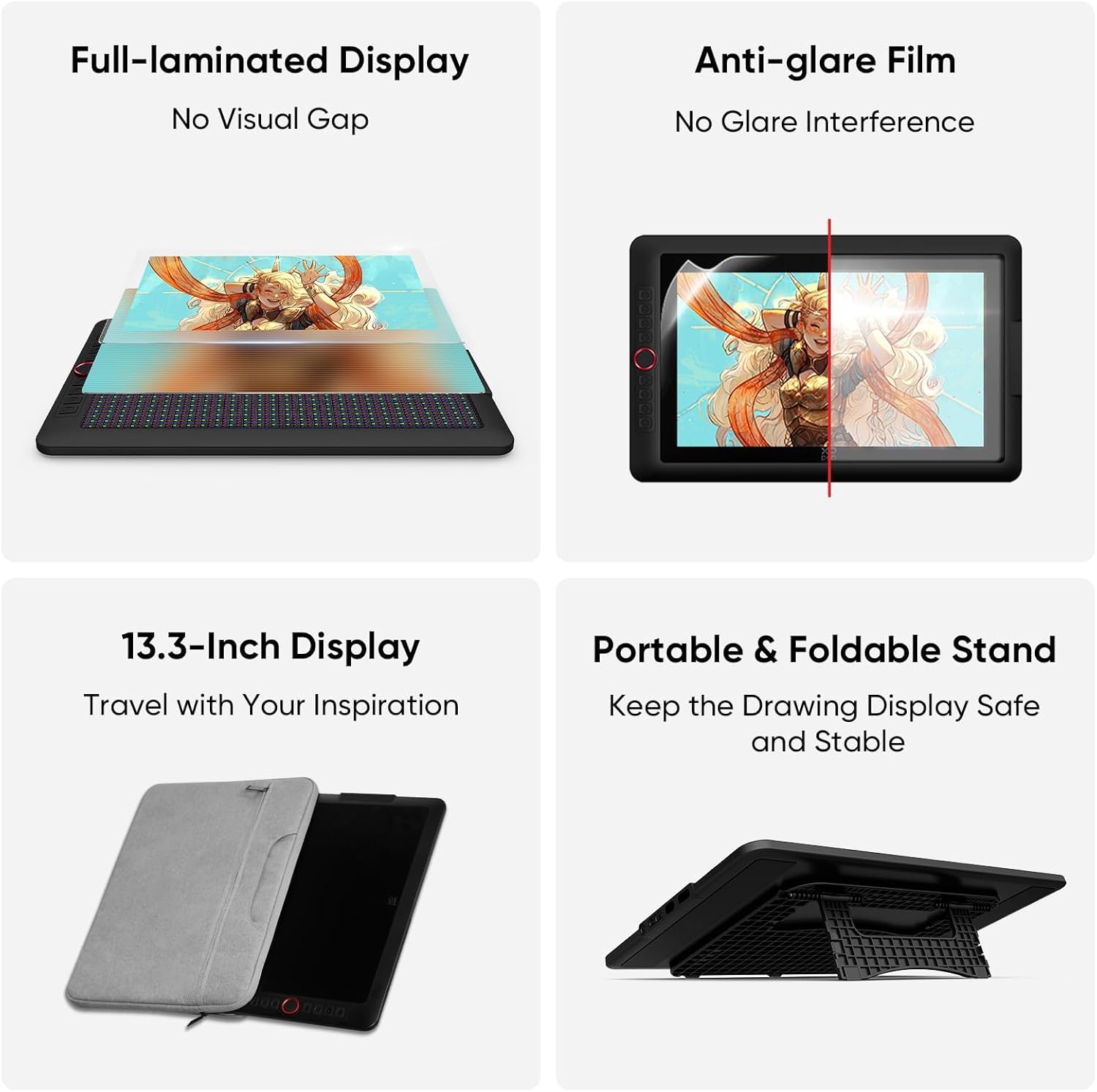
Image: Illustrations demonstrating the full-laminated display with no visual gap and the anti-glare film for reduced interference.
Adjustable Stand AC42
The included adjustable stand provides a stable base and promotes better posture, reducing strain during long creative sessions. It also aids in heat dissipation.
Image: The adjustable stand supporting the drawing tablet, illustrating its stability and ergonomic benefits.
Versatility and Compatibility
The Artist13.3 Pro V2 is compatible with Windows 7 (or later), macOS 10.13 (or later), Chrome OS 88 (or later), Android (with USB-C support, USB3.1 DP1.2), and Linux (driver support required). It works seamlessly with popular digital art software such as Photoshop, Illustrator, SAI, CDR, GIMP, Krita, Medibang, Fire Alpaca, Blender 3D, and more.

Image: Icons representing compatible operating systems (Windows, macOS, Android, ChromeOS, Linux) and popular creative software applications.
Customizing Driver Settings
The XPPen driver allows for extensive customization of your tablet's functions. After installing the driver, open the XPPen application to access these settings.
1. Device Settings
- Calibration: Hold the stylus in your usual way and click the center of the red cross on the monitor to calibrate the offset between the stylus and the cursor.
- Work Area: Define the mapping between the device's work area and the screen display area.
- Set full screen: The whole area of the selected monitor.
- Customize screen area: Drag to select an area or manually enter coordinates.
- Identify: Identify all connected monitors.
- Pen Display Work Area: Set full area, customize active area, or scale proportionally.
- Rotation: Set the device to 0°, 90°, 180°, and 270° clockwise. For left-handed mode, rotate 180°.
- Display Setting: Adjust brightness, contrast, and color temperature (5000K, 6500K default, 7500K, 9300K, or custom USER mode).
- Application: Add up to 7 applications to the application list for specific settings.
- Shortcut Keys Settings: Customize the function of each of the 8 shortcut keys. You can set keyboard shortcuts, mouse controls (e.g., Shift + Left Click), or other functions like showing the driver panel, switching monitors, precision mode, pen/eraser toggle, scrolling, or disabling the key.
- Scroll Wheel: Customize the function of the Red Dial. It supports zoom (default), brush size, scroll, and rotate functions. You can also set custom key combinations for clockwise and anti-clockwise functions.
2. Pen Settings
- Pen Keys: Customize the function of the pen keys.
- Pressure: Adjust the pressure curve or select preset pressure options. Test the current pressure. You can disable pressure sensitivity.
- Tilt: If closed, this will disable the tilt effect of the stylus.
- Windows Ink (for Windows only): Windows supports handwriting function. If you need to use this function in Microsoft Office/Whiteboard or other software, please do not turn it off.
- Mouse mode: When you move your pen out of the work area, the cursor will stay where you leave, which is like operating a mouse. Select the mode and you can adjust the speed of the cursor on your device. If you do not select the mode, the pen mode applies by default.
3. Driver Settings
- Import & Export config: Import/export configurations to read or save settings. This function is available for only the same operating system.
- Diagnostic tool: Use the diagnostic tool in case of any problems while using the driver.
- Feedback: If you have any questions or suggestions during the use of the driver, you can give us feedback through this page.
- Shortcut keys: If closed, disable the functions of all keys of the device.
- Prompt: If closed, when you press a key, no key prompt will be displayed at the bottom.
Maintenance
Proper maintenance ensures the longevity and optimal performance of your XPPen Artist13.3 Pro V2 Drawing Tablet.
- Cleaning: Use the provided cleaning cloth to gently wipe the screen and tablet surface. Avoid using harsh chemicals or abrasive materials that could damage the display or casing.
- Stylus Nibs: The X3 Pro Stylus comes with 8 replacement nibs. If the nib wears down or becomes damaged, use the nib remover tool (often integrated into the pen holder) to carefully pull out the old nib and insert a new one.
- Storage: When not in use, store the tablet in a cool, dry place away from direct sunlight and extreme temperatures. Use the foldable stand for secure placement.
Troubleshooting
If you encounter issues with your XPPen Artist13.3 Pro V2, refer to the following common solutions:
Connection Issues
If your tablet is not connecting or displaying correctly, check the following:
- Cable Check: Ensure all cables (USB-C to USB-C, 3-in-1, or power cables) are securely connected to the correct ports on both the tablet and your computer/device. Refer to the "Connecting the Tablet" section for correct port usage.
- Power Supply: For some connections, especially with Android devices or if the tablet doesn't power on via USB-C, an external power adapter connected to the 3-in-1 USB-C port may be required.
- Port Compatibility: Verify that your computer's USB-C port supports DisplayPort Alt Mode if using a single USB-C cable for video and data.
- Restart Devices: Try restarting both your computer/device and the drawing tablet.
Connection Troubleshooting Video
Video: A guide addressing common reasons why the Artist13.3 Pro V2 drawing tablet might fail to connect and how to resolve them.
Driver and Software Issues
- Flickering Screen: If the screen flickers, ensure the tablet is connected to a stable power source, preferably a wall outlet, rather than relying solely on computer USB power.
- Pen Not Responding/Incorrect Pressure:
- Reinstall the latest driver from the XPPen website.
- Ensure no other tablet drivers are installed on your system.
- Check pen nib for wear and replace if necessary.
- Calibrate the pen and adjust pressure settings in the driver.
- Software Compatibility: Ensure your drawing software is up-to-date and compatible with the tablet.
Technical Specifications
| Feature | Specification |
|---|---|
| Model Name | Artist 13.3 Pro V2 |
| Product Dimensions | 17 x 11 x 0.04 inches |
| Item Weight | 2.5 pounds |
| Display Size | 13.3 inches (Visible screen diagonal: 14" / 34 cm) |
| Pen Pressure Levels | 16384 |
| Stylus | X3 Pro Smart Chip Stylus |
| Color Gamut | 125% sRGB, 107% Adobe RGB, 95% Display P3 |
| Contrast Ratio | 1000:1 |
| Brightness | 250 cd/m² |
| Screen Type | Full-Laminated AG Screen (Anti-Glare) |
| Shortcut Keys | 8 customizable keys + Red Dial Quick Key |
| Connectivity Technology | 3-in-1 HDMI, Full-featured USB-C |
| Operating System Compatibility | Windows 7 (or later), macOS 10.13 (or later), Chrome OS 88 (or later), Android (with USB3.1 DP1.2), Linux |
Warranty and Support
XPPen offers a 1-Year Protection Plan for all its products, including the Artist13.3 Pro V2. This covers terms and conditions for support, returns, and refunds. Additionally, lifetime XPPen service is provided to ensure long-term satisfaction with your product.
For any questions, technical assistance, or to inquire about warranty terms, please contact XPPen customer support via Amazon Message or visit the official XPPen website for detailed support information.

Image: XPPen 1 Year Warranty badge, indicating product coverage.
Related documentsArtist 13.3 Pro V2


Ask a question about this manual
Ask about setup, troubleshooting, compatibility, parts, safety, or missing instructions. Manuals+ will review the question and use this page’s manual context to help answer it.