
1. Introduction
This user manual provides detailed instructions for the installation, operation, and maintenance of your Bagandcute ZSC-HDC 1080P HD WiFi Hidden Camera. Please read this manual thoroughly before using the product to ensure proper functionality and to avoid any potential issues. Keep this manual for future reference.
2. Product Overview
The Bagandcute ZSC-HDC is a compact, wireless security camera designed for discreet surveillance. It features 1080P HD video recording, motion detection, night vision, and remote access via a mobile application.
Key Features:
- 1080P Full HD Video: Captures clear and detailed footage.
- WiFi Connectivity: Enables remote viewing and control via a smartphone application.
- Motion Detection: Automatically records when movement is detected, conserving storage space.
- Night Vision: Provides clear monitoring in low-light or dark conditions.
- Compact Design: Small size allows for versatile placement.
- Magnetic Adsorption: Offers flexible mounting options on metallic surfaces.
- Loop Recording: Overwrites oldest files when the memory card is full.


3. Setup
3.1 Package Contents
Verify that all items are present in the package:
- Bagandcute ZSC-HDC Hidden Camera
- USB Charging Cable
- Mounting Accessories (e.g., magnetic base)
- User Manual
Note: A Micro SD card is not included and must be purchased separately.
3.2 Charging the Camera
- Connect the camera to a power source using the provided USB cable.
- Allow the camera to charge fully before first use. The indicator light will change color or turn off once charging is complete.
3.3 Inserting a Micro SD Card
A Micro SD card (up to 256GB, Class 10 or higher recommended) is required for recording video footage.
- Locate the Micro SD card slot on the camera.
- Gently insert the Micro SD card into the slot with the gold contacts facing down until it clicks into place.
- To remove, gently push the card in again until it springs out.

3.4 App Download and WiFi Connection
To access live viewing and camera settings, download the dedicated mobile application.
- Scan the QR code provided in the packaging or search for the app name (usually indicated in the quick start guide) in your device's app store.
- Install and open the application.
- Follow the in-app instructions to create an account and add your camera. This typically involves powering on the camera, resetting it if necessary, and connecting to its temporary WiFi hotspot before linking it to your home WiFi network.
3.5 Mounting the Camera
The camera's compact size and magnetic base allow for flexible placement.
- Place the camera on a flat surface.
- Utilize the magnetic base to attach the camera to any suitable metallic surface.
- Ensure the camera has a clear line of sight to the area you wish to monitor.
4. Operating Instructions
4.1 Powering On/Off
- To power on, press and hold the power button until the indicator light illuminates.
- To power off, press and hold the power button until the indicator light turns off.
4.2 Live Streaming and Remote Viewing
Once connected to the mobile application, you can view live video footage from your camera.
- Open the mobile application on your smartphone.
- Select your camera from the device list to begin live streaming.
- The app allows you to monitor multiple camera feeds simultaneously if you have more than one device.

4.3 Motion Detection Recording
The camera can be configured to record only when motion is detected, saving battery life and storage space.
- Access the camera settings within the mobile application.
- Enable the motion detection feature.
- Adjust sensitivity levels as needed to minimize false alarms.
- Recorded motion events will be stored on the Micro SD card and can be accessed via the app.
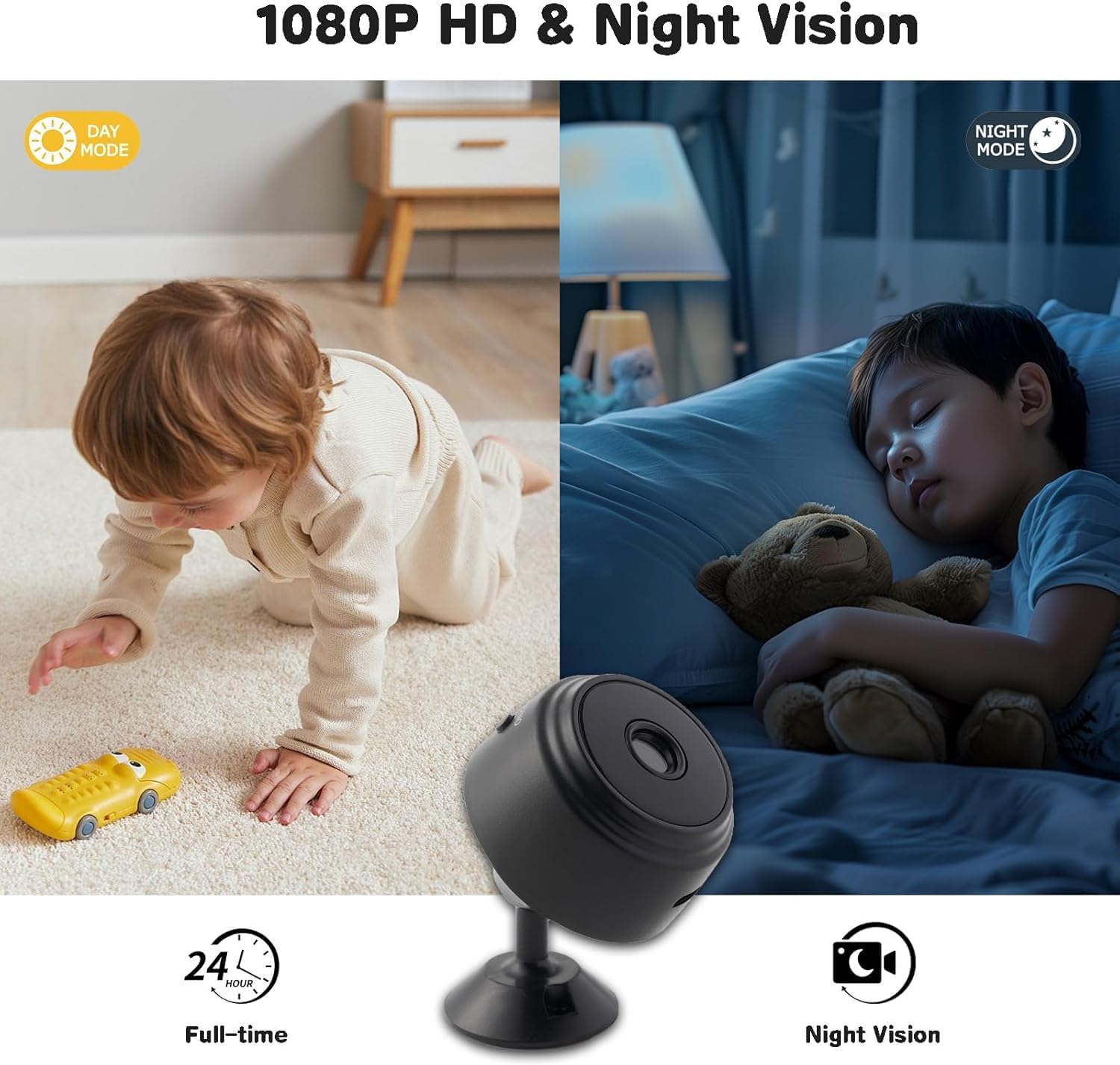
4.4 Night Vision
The camera automatically switches to night vision mode in low-light conditions, providing clear black and white footage.
- Ensure the camera lens is unobstructed for optimal night vision performance.
- The camera's infrared (IR) LEDs illuminate the area for night recording.
4.5 Loop Recording
When the Micro SD card reaches its full capacity, the camera will automatically overwrite the oldest video files to continue recording. This ensures continuous surveillance without manual intervention.
5. Maintenance
5.1 Cleaning the Camera
- Use a soft, dry cloth to clean the camera body.
- For the lens, use a specialized lens cleaning cloth and solution to avoid scratches.
- Do not use harsh chemicals or abrasive materials.
5.2 Battery Care
- Avoid exposing the camera to extreme temperatures, which can degrade battery performance.
- Charge the camera regularly, even if not in constant use, to maintain battery health.
- If storing for extended periods, charge the battery to approximately 50% before storage.
5.3 Micro SD Card Management
- Periodically format the Micro SD card through the camera's app settings to ensure optimal performance and prevent data corruption.
- Back up important footage before formatting.
- Replace the Micro SD card if it shows signs of degradation or error.
6. Troubleshooting
If you encounter issues with your Bagandcute ZSC-HDC camera, refer to the following common problems and solutions:
| Problem | Possible Cause / Solution |
|---|---|
| Camera does not power on. |
|
| Unable to connect to WiFi or app. |
|
| Poor video quality or unclear picture. |
|
| Night vision is not working or is unclear. |
|
| Short battery life. |
|
| Micro SD card not recording. |
|
7. Specifications
The following are the technical specifications for the Bagandcute ZSC-HDC camera:
| Feature | Detail |
|---|---|
| Model Number | ZSC-HDC |
| Video Resolution | 1080P HD |
| Connectivity | WiFi Wireless |
| Storage | Micro SD Card (up to 256GB, not included) |
| Motion Detection | Supported |
| Night Vision | Supported |
| App Control | Supported |
| Product Dimensions | 1 x 1 x 1 inches |
| Item Weight | 1.44 ounces |
| Manufacturer | Bagandcute |

8. Warranty Information
Specific warranty details for the Bagandcute ZSC-HDC camera may vary. Please refer to the product packaging or contact the seller/manufacturer directly for information regarding warranty coverage, terms, and conditions. Typically, products come with a limited warranty covering manufacturing defects for a specified period from the date of purchase.
9. Support
For technical assistance, troubleshooting beyond this manual, or customer service inquiries, please contact Bagandcute customer support through the contact information provided on the product packaging or the official Bagandcute website. When contacting support, please have your product model number (ZSC-HDC) and purchase details ready.