1. Introduction
The Pioneer VREC-H320SC is a high-definition car dash camera designed to enhance driving safety and provide reliable incident recording. Featuring advanced capabilities such as ADAS (Advanced Driver-Assistance Systems) support, built-in GPS for precise location tracking, and Wide Dynamic Range (WDR) for clear imaging in various lighting conditions, this device is an essential tool for any vehicle. Its compact design and user-friendly interface ensure seamless integration into your driving experience.
2. Package Contents
Please verify that all items listed below are included in your package:
- Pioneer VREC-H320SC Dash Camera
- Car Mount
- Car Charger
- Charging Cable
- Warranty Card
3. Product Overview
Familiarize yourself with the components of your Pioneer VREC-H320SC Dash Camera.

Figure 3.1: Front view of the Pioneer VREC-H320SC Dash Camera, showing the main lens and speaker grille.

Figure 3.2: Rear view of the dash camera, displaying the 7.6cm screen and control buttons.

Figure 3.3: Side view of the dash camera, highlighting the compact profile.

Figure 3.4: Back view of the dash camera, showing the DC IN and CH ports for power and optional second camera input.
4. Setup and Installation
- Prepare the MicroSD Card: Insert a compatible microSD card (up to 512GB, Class 10 or higher recommended) into the designated slot on the dash camera. Ensure the card is formatted before first use for optimal performance.
- Mounting the Dash Camera:
- Clean the windshield area where you intend to mount the camera.
- Attach the car mount to the dash camera.
- Securely affix the mount to the windshield, ensuring it does not obstruct your view. Position the camera centrally for the best field of view.
- Power Connection:
- Connect the provided charging cable to the DC IN port on the dash camera.
- Plug the car charger into your vehicle's 12V power outlet (cigarette lighter socket).
- Route the cable neatly to avoid interference with driving controls.
- Initial Power On: Once connected to power, the dash camera will automatically power on and begin recording (if a formatted microSD card is inserted).
- App Connection (Optional but Recommended): Download the "Pioneer ZenVue Dash Camera App" from your smartphone's app store (Google Play or Apple App Store). Follow the in-app instructions to connect your smartphone to the dash camera via Wi-Fi for advanced settings, live view, and video management.
5. Key Features
5.1. ADAS Warnings
The Advanced Driver-Assistance Systems (ADAS) provide alerts to help prevent accidents. This includes Lane Departure Warnings (LDW) and Forward Collision Alerts (FCA), enhancing your safety on the road.

Figure 5.1: Visual representation of ADAS alerts, including Lane Departure and Forward Collision warnings.
5.2. 139° Wide Field of View
Capture a broader perspective of the road with a 139-degree wide-angle lens, ensuring comprehensive coverage and reliable footage in case of incidents.
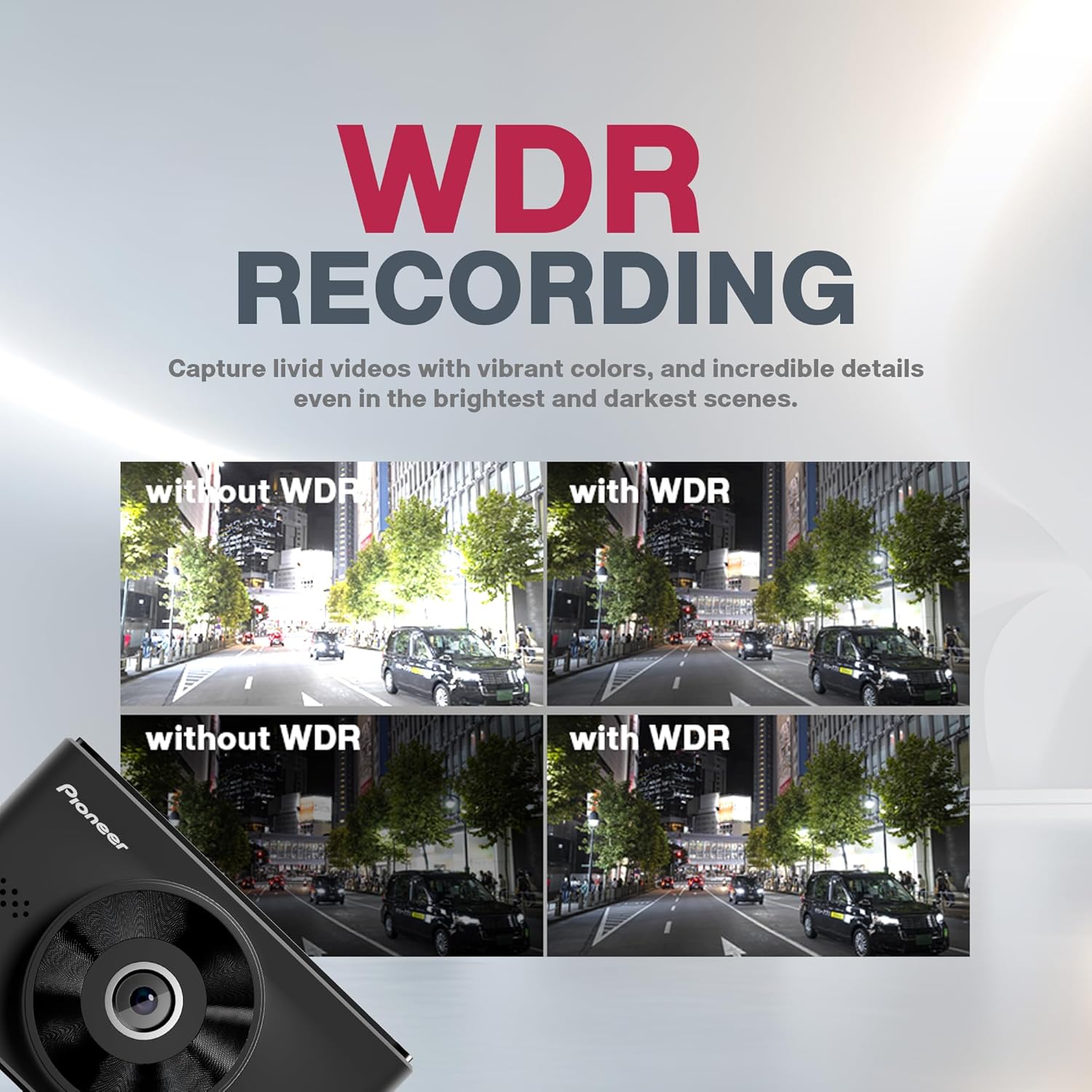
Figure 5.2: Illustration of the 139-degree wide-angle view, capturing a wide expanse of the road.
5.3. GPS Logger
The built-in GPS module records precise location data, speed, and route information, which can be reviewed later via the companion app or dedicated software. This provides crucial context for any recorded events.

Figure 5.3: Depiction of the GPS Logger functionality, showing route tracking and event details on a mobile device.
5.4. WDR Recording
Wide Dynamic Range (WDR) technology ensures clear and balanced video recording even in challenging lighting conditions, such as strong backlight or low-light environments, by optimizing exposure across the entire frame.

Figure 5.4: Comparison images demonstrating the improved clarity and detail with WDR recording in various lighting scenarios.
5.5. G-Sensor & Event Recording
The built-in G-sensor automatically detects sudden impacts or collisions. Upon detection, the dash camera initiates emergency recording, saving the footage to a separate, protected folder to prevent overwriting. This ensures critical evidence is preserved.

Figure 5.5: Flowchart illustrating the G-sensor's event recording process: accident detection, emergency recording, separate folder creation, and collision timestamp.
5.6. 360° Rotation
The dash camera offers 360-degree rotation capability, allowing you to capture footage both outside and inside the vehicle, providing comprehensive coverage for various situations.

Figure 5.6: Demonstration of the 360-degree rotation feature, enabling recording of both the vehicle's interior and exterior.
5.7. Pioneer ZenVue Dash Camera App
Manage your recordings, access live view, adjust settings, and share videos conveniently through the dedicated Pioneer ZenVue Dash Camera App, available for both Android and iOS devices.

Figure 5.7: Icon representing the Pioneer ZenVue Dash Camera App.

Figure 5.8: Overview of key benefits: Safety (live recording), Security (reliable source for incidents), and Simplicity (easy installation and app use).
6. Operation
6.1. Basic Recording
The dash camera automatically starts loop recording when the vehicle's ignition is turned on and power is supplied. Older files will be overwritten by new ones once the microSD card is full, unless they are protected event files.
6.2. Emergency Recording
In the event of a sudden impact or collision, the built-in G-sensor will trigger emergency recording. These files are automatically locked and saved to a separate folder on the microSD card to prevent them from being overwritten during normal loop recording.
6.3. Parking Surveillance (Requires Hardwire Kit)
For 24x7 parking surveillance, a separate hardwire kit is required (not included in the standard package). When properly installed, the dash camera can monitor your vehicle even when parked, recording events like impacts or motion detection.

Figure 6.1: Icon indicating 24x7 Parking Surveillance capability.
6.4. Using the ZenVue App
Connect your smartphone to the dash camera's Wi-Fi network (refer to the app's instructions for initial pairing). The app allows you to:
- View live footage from the camera.
- Access and download recorded videos and photos.
- Adjust camera settings (e.g., resolution, G-sensor sensitivity, time zone).
- Manage microSD card storage.
7. Maintenance
7.1. MicroSD Card Management
Regularly format your microSD card (at least once a month) to ensure optimal performance and prevent data corruption. This can typically be done through the dash camera's settings menu or the ZenVue app. Back up any important footage before formatting.
Figure 7.1: Icon indicating support for microSD cards up to 512GB.
7.2. Cleaning
Wipe the camera lens and screen with a soft, lint-free cloth. Do not use abrasive cleaners or solvents, as they may damage the device. Ensure the camera is powered off before cleaning.
8. Troubleshooting
| Problem | Possible Cause | Solution |
|---|---|---|
| Camera does not power on. | No power supply; faulty cable/charger; vehicle's 12V outlet issue. | Check car charger connection; test 12V outlet with another device; try a different charging cable. |
| Recording stops or freezes. | MicroSD card full or corrupted; incompatible/slow microSD card. | Format the microSD card; replace with a high-speed (Class 10 or U3) microSD card. |
| Poor video quality / blurry images. | Protective film on lens; dirty lens; incorrect resolution settings; extreme lighting. | Remove any protective film; clean the lens; ensure 1080p or 1944p resolution is selected; WDR helps in extreme lighting. |
| ADAS warnings not functioning. | Feature disabled; improper camera alignment; poor road markings. | Enable ADAS in settings; ensure camera is properly aligned with the road; ADAS performance depends on clear road markings. |
| GPS not logging data. | Poor GPS signal; GPS module error. | Ensure camera has clear view of sky; move camera away from metallic obstructions; restart device. |
9. Specifications
| Feature | Detail |
|---|---|
| Model Name | VREC-H320SC |
| Product Dimensions | 3.5 x 8.9 x 5.4 cm |
| Item Weight | 107 g |
| Video Capture Resolution | 1944p |
| Field of View | 139 degrees |
| Screen Size | 7.6cm |
| Connectivity Technology | Wi-Fi |
| Special Features | Built-In WiFi, G-Sensor, 360 Degree Rotation, App Control, Voice Alert, ADAS, GPS Logger, WDR |
| Mounting Type | Windshield Mount |
| Max. MicroSD Card Support | Up to 512GB |
| Power Source | Super Capacitor (for emergency power off) |
| Color | Black |
| Manufacturer | PIONEER (HK) LIMITED |
| Country of Origin | Vietnam |
10. Warranty and Support
Your Pioneer VREC-H320SC Dash Camera comes with a warranty. Please refer to the included Warranty Card for detailed terms and conditions, including the warranty period and coverage. For technical support, service, or inquiries, please contact Pioneer customer service or visit the official Pioneer website for your region. Keep your purchase receipt as proof of purchase for warranty claims.
Importer: PIONEER INDIA ELECTRONICS PVT LTD


