1. Introduction
This manual provides instructions for the installation, operation, and maintenance of your TOPBULL 60A MPPT Solar Charge Controller. This intelligent regulator is designed to efficiently manage power flow from solar panels to various battery types, ensuring optimal charging and system protection. Please read this manual thoroughly before installation and use.
2. Key Features
- Advanced MPPT Technology: Achieves up to 99% tracking efficiency and 98% peak conversion efficiency for maximum power harvest from solar panels.
- Automatic Voltage Recognition: Automatically detects 12V or 24V DC system voltage.
- Wide Battery Compatibility: Supports various deep cycle battery types including Sealed, Gel, Flooded (FLD), Lithium Iron Phosphate (LiFePO4), and AGM batteries. Includes 0V Li-ion battery charging (activation) support.
- Comprehensive Electronic Protections: Built-in safeguards against reverse polarity, battery overcharge, battery overdischarge, overload, short-circuit, TVS lightning, overpower, over-temperature, and reverse current.
- Intuitive LCD Display: Provides real-time solar charging and battery operation information, customizable parameters, and error codes.
- Dual USB Ports: Conveniently charge electronic devices (5V, 2.4A total).
- Efficient Heat Dissipation: Features a durable metal casing and dual high-speed intelligent fans for optimal thermal management, enhancing longevity and performance.
- Temperature Compensation: Automatically adjusts charging and discharging parameters based on ambient temperature to prolong battery life.
3. Product Overview
Familiarize yourself with the components and display of the solar charge controller.

Figure 3.1: Front view of the TOPBULL 60A MPPT Solar Charge Controller, showing the LCD display and control buttons.
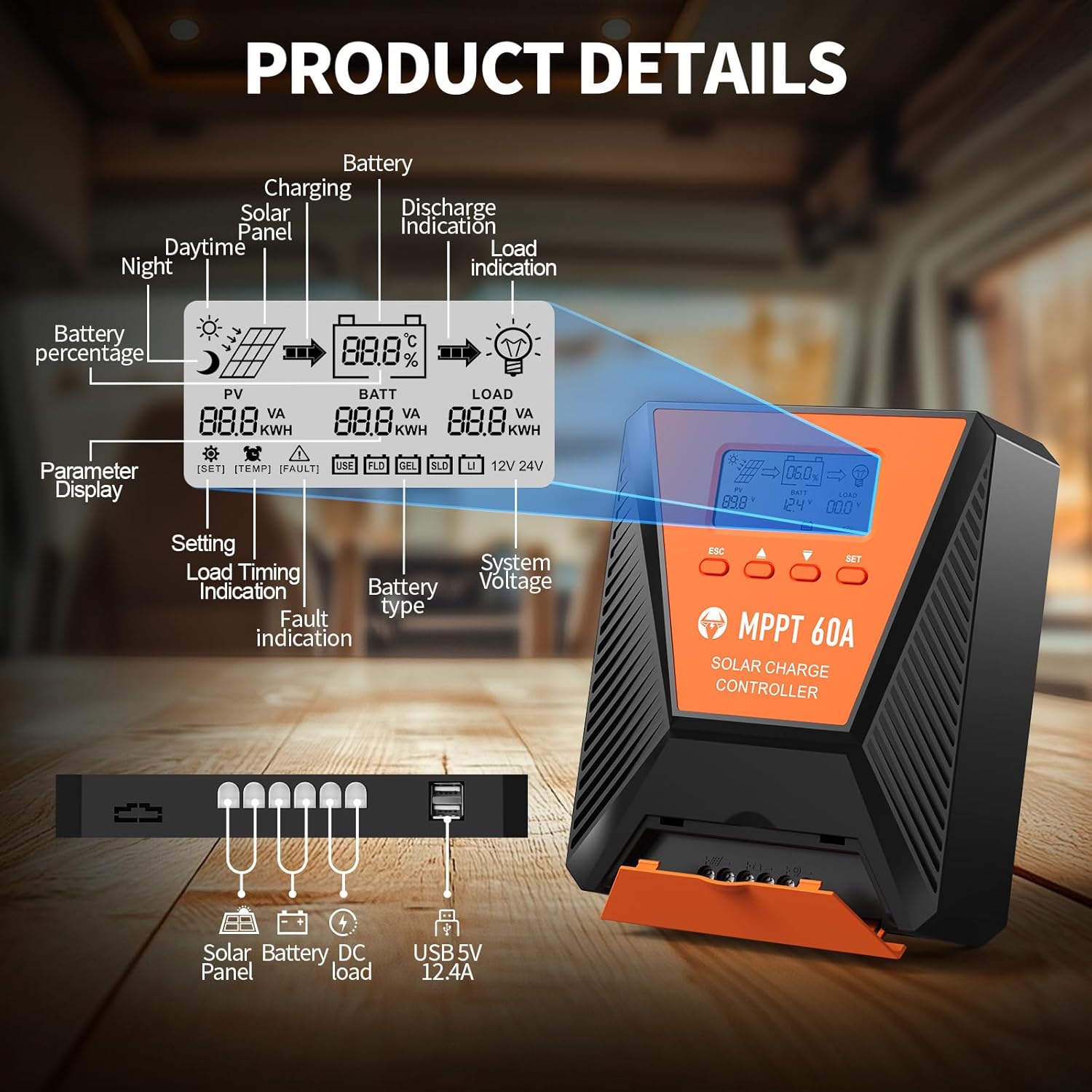
Figure 3.2: Detailed diagram illustrating the LCD display elements and the connection ports at the bottom of the controller. The display shows PV voltage, battery voltage, load status, battery percentage, and various indicators. The ports include connections for solar panel, battery, DC load, and dual USB 5V 2.4A outputs.
3.1. LCD Display Indicators
- PV (Photovoltaic): Displays solar panel voltage and power.
- BATT (Battery): Shows battery voltage, charge status, and type.
- LOAD: Indicates load status and power consumption.
- Battery Percentage: Visual representation of battery charge level.
- System Voltage: Displays 12V or 24V system recognition.
- Parameter Display: Shows current settings and values.
- Fault Indication: Alerts for system errors.
3.2. Control Buttons
- ESC: Used to switch load (manual switch) and exit setup menus.
- Up Arrow (▲): Navigates up through main interface pages to view parameters; increases values in setup mode.
- Down Arrow (▼): Navigates down through main interface pages to view parameters; decreases values in setup mode.
- SET: Enters setting mode, confirms selections, and saves changes. If no key operation for 10 seconds, it exits setting mode automatically.
4. Installation and Setup
4.1. Safety Precautions
- Ensure all connections are correct and secure before applying power.
- Always connect the battery first, then the solar panel, and finally the load. Disconnect in reverse order.
- Install the controller in a well-ventilated area, away from flammable materials and direct sunlight.
- Use appropriate wire gauges for all connections to prevent overheating.
4.2. Mounting the Controller
Mount the controller vertically on a flat, non-flammable surface using the provided mounting screws. Ensure adequate clearance around the unit for proper airflow and heat dissipation, especially for the cooling fans located on the top.

Figure 4.1: Image showing the dimensions of the controller (approximately 9.0 inches long, 7.3 inches wide, 2.8 inches high) and the included mounting screws and user manual.
4.3. Wiring Connections
Follow the connection order carefully to avoid damage to the controller or other components.
- Connect the Battery: Connect the positive and negative terminals of your battery bank to the corresponding battery terminals on the controller. The controller will automatically detect the system voltage (12V or 24V).
- Connect the Solar Panel: Connect the positive and negative leads from your solar panel array to the solar panel terminals on the controller. Ensure the maximum PV input voltage does not exceed 100VDC. For a 12V system, maximum solar input power is 720W; for a 24V system, it is 1440W.
- Connect the DC Load (Optional): Connect your DC loads to the load terminals on the controller. This allows the controller to manage load discharge and provide protection.

Figure 4.2: Wiring diagram illustrating the correct connection sequence: Battery first, then Solar Panel, then DC Load. An optional inverter for AC loads is also shown connected to the battery bank.
4.4. Battery Type Selection
The controller is compatible with various battery types. It is crucial to select the correct battery type for optimal charging and battery longevity. Refer to the display and settings section to adjust this parameter if needed. The controller supports FLD (Flooded), LiFePO4 (Lithium Iron Phosphate), SLD (Sealed Lead-Acid), GEL, and AGM batteries.

Figure 4.3: Illustration showing the controller connected to a battery, with icons representing compatible battery types: LI (Lithium), FLD (Flooded), GEL, SLD (Sealed), and AGM. The controller automatically identifies battery voltage and supports custom parameters, including lithium battery 0V charging.
5. Operation
5.1. Monitoring the Display
The LCD display provides real-time information about your solar system. Use the Up (▲) and Down (▼) buttons to cycle through different display screens, showing parameters such as PV voltage, battery voltage, charging current, load current, and battery state of charge.
5.2. Parameter Settings
To enter the parameter setting stage:
- Press the "SET" button to enter the setting mode. The value to be adjusted will flash.
- Use the Up (▲) or Down (▼) buttons to adjust the value.
- Press the "SET" button again to confirm and save the new value.
If no button is pressed for 10 seconds in setting mode, the controller will automatically exit without saving changes.
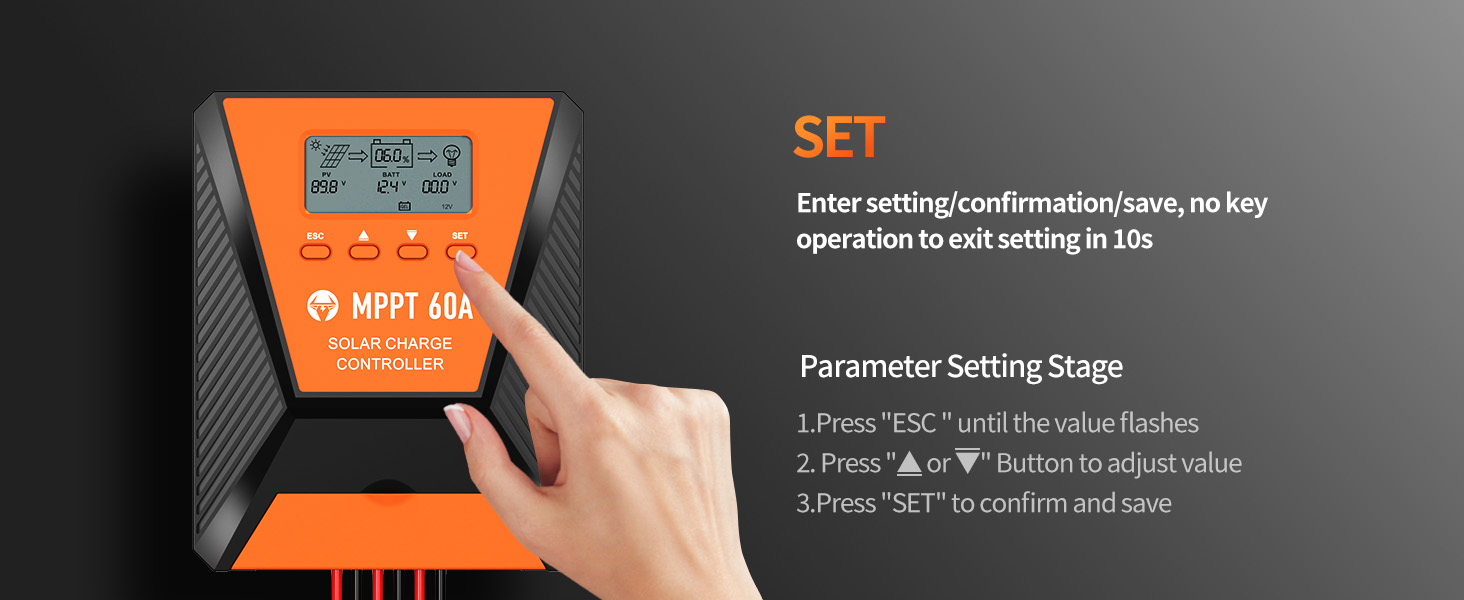
Figure 5.1: Visual guide for using the SET button to enter, adjust, and confirm parameter settings on the controller's LCD display.
5.3. Load Working Modes
The controller supports three distinct load working modes:
- Lighting Time Control Mode (1H-23H): The load automatically turns on or off based on the intensity of sunlight and a set timer.
- Normal OFF Mode (0H): The load remains off. This mode is useful for specific loads or during debugging.
- Normal ON Mode (24H): The load remains continuously on. This mode is suitable for loads requiring a 24-hour power supply.

Figure 5.2: Diagram explaining the three load working modes: Lighting time control (1H-23H), Normal OFF (0H), and Normal ON (24H).
6. Maintenance
Regular maintenance ensures the longevity and optimal performance of your solar charge controller.
- Inspect Connections: Periodically check all wiring connections for tightness and corrosion. Loose connections can cause resistance and heat buildup.
- Clean the Controller: Keep the controller clean and free from dust and debris. Ensure the cooling fan vents are unobstructed. Use a dry cloth for cleaning.
- Monitor Performance: Regularly check the LCD display for normal operation and any error codes. Compare actual performance with expected values.
- Battery Inspection: Inspect battery terminals for corrosion and ensure proper ventilation around the batteries.
7. Troubleshooting
This section addresses common issues you might encounter with your solar charge controller.
| Problem | Possible Cause | Solution |
|---|---|---|
| No display/Controller not powering on | Battery not connected or low voltage; reverse polarity; loose wiring. | Check battery connections and voltage. Ensure correct polarity. Tighten all wiring. |
| Battery not charging | Solar panel not connected; insufficient sunlight; solar panel fault; incorrect battery type setting. | Verify solar panel connections. Ensure adequate sunlight. Check solar panel output. Confirm correct battery type setting. |
| Load not working | Load disconnected; overload protection activated; incorrect load working mode. | Check load connections. Reduce load to within controller limits. Adjust load working mode settings. |
| Error code displayed | Specific system fault (e.g., over-temperature, short-circuit). | Refer to the controller's display for the specific error code and consult the full user manual for detailed explanations and solutions. Address the underlying issue (e.g., reduce temperature, clear short-circuit). |
8. Specifications
| Parameter | Value |
|---|---|
| Model | 60A |
| System Voltage | 12V/24V Auto Recognition |
| Max. PV Input Voltage | 100VDC |
| Max. Solar Input Power (12V System) | 720W |
| Max. Solar Input Power (24V System) | 1440W |
| Tracking Efficiency | ≥99% |
| Peak Conversion Efficiency | Up to 98% |
| Battery Types Supported | FLD, LiFePO4, SLD, GEL, AGM |
| USB Output | Dual 5V, 2.4A (Total) |
| Dimensions (Approx.) | 10.71 x 8.62 x 4.33 inches (Package) |
| Item Weight | 3.36 pounds |
| Material | Metal |
| Display Type | LCD |
9. Warranty and Support
TOPBULL products are designed for reliability and performance. For warranty information or technical assistance, please contact TOPBULL customer support through the retailer where the product was purchased or visit the official TOPBULL website. Please have your product model number and purchase date available when contacting support.
For further information, you may visit the TOPBULL Store on Amazon.


