
1. Introduction
This manual provides detailed instructions for the installation, operation, and maintenance of your Fuluku Android Car Stereo, specifically designed for Fiat 500X models manufactured between 2014 and 2020. This system integrates advanced features such as a 9-inch touch screen, Wireless CarPlay, Android Auto, GPS navigation, WiFi, Bluetooth, and support for a backup camera, enhancing your driving experience with modern connectivity and entertainment options.
2. Package Contents
Please verify that all items listed below are included in your package:
- 1 x Android Car Stereo
- 1 x Power Cable
- 1 x GPS Antenna
- 1 x Rear Camera Input Cable
- 1 x RCA Cable
- 2 x USB Cable
- 2 x Mounting Bracket
- 4 x Screw
- 1 x Instruction Manual
- 1 x AHD Backup Camera
- 1 x Microphone

Figure 2.1: Included Components
3. Setup and Installation
This section guides you through the installation process of the Fuluku Android Car Stereo in your Fiat 500X. Professional installation is recommended.
3.1 Pre-Installation Checks
- Ensure the vehicle's ignition is off and the battery is disconnected before starting installation.
- Verify the power cable port on the provided harness matches your original car's wiring.
- If your vehicle has an OEM car amplifier system, locate the original car power amplifier cable and connect it to the red ACC wire of the provided power cord.
3.2 Installation Steps
- Carefully remove the original car stereo and dash panel.
- Connect the provided power cable harness to the car's wiring. Ensure all connections are secure.
- Connect the GPS antenna, rear camera input cable, RCA cables, and USB cables to their respective ports on the Android Car Stereo. Refer to the "Port Details" diagram for correct connections.
- Mount the Android Car Stereo into the dash using the provided mounting brackets and screws.
- Install the AHD Backup Camera at the rear of your vehicle. Connect its video output to the "Rear Camera Input" on the stereo and its power to the reversing lamp circuit.
- Reconnect the vehicle's battery and test the system before fully reassembling the dash.

Figure 3.1: Installation Effect (Before and After)

Figure 3.2: Stereo Port Details

Figure 3.3: AHD Reversing Camera Wiring
4. Operating Instructions
This section details the various functions and features of your Android Car Stereo.
4.1 System Overview
The stereo operates on Android 13 with 2GB RAM and 32GB ROM, providing a responsive and stable user experience. The 9-inch IPS touch screen offers a clear display with 720x1280 resolution.

Figure 4.1: Android Car Stereo Interface

Figure 4.2: Customizable UI Desktop Themes
4.2 Wireless CarPlay & Android Auto & Mirror Link
Connect your smartphone wirelessly or via USB to access Apple CarPlay or Android Auto. This allows for voice control (Siri/Google Assistant), phone calls, messages, navigation, and music playback directly from the stereo screen. Mirror Link functionality also enables screen mirroring from your phone.

Figure 4.3: Wireless CarPlay and Android Auto

Figure 4.4: Mirror Link Feature
4.3 GPS Navigation
The system supports both offline and online GPS navigation. The included GPS antenna ensures accurate positioning. You can use pre-loaded offline maps or connect to WiFi for online navigation services like Google Maps.

Figure 4.5: GPS Navigation (Online & Offline)
4.4 WiFi Connection
Connect the stereo to a WiFi network or your phone's hotspot to access online features, download apps, and browse the internet.

Figure 4.6: WiFi Connectivity for Online Services
4.5 Bluetooth Functionality
Pair your phone via Bluetooth for hands-free calling and audio streaming. The system supports automatic phone book loading.

Figure 4.7: Voice Control and Bluetooth
4.6 Split-Screen Mode
Utilize the split-screen feature to run two applications simultaneously, such as navigation and music playback, or a phone call and a browser.

Figure 4.8: Split-Screen Functionality
4.7 Audio Equalizer (EQ) Settings
Customize your audio experience with multiple preset EQ settings. You can also manually adjust frequency bands to create your preferred sound profile.

Figure 4.9: Audio Equalizer Settings
4.8 FM/RDS Radio
The built-in FM/RDS radio allows you to listen to local broadcasts. It supports automatic memory store and preset scanning for over 30 stations, providing access to channel broadcasting, weather forecasts, and real-time road conditions.

Figure 4.10: FM/RDS Radio Interface
4.9 Steering Wheel Control (SWC)
After completing the steering wheel button learning process, you can control various functions of the car stereo directly from your vehicle's steering wheel buttons, enhancing convenience and driving safety.

Figure 4.11: Steering Wheel Control Setup
4.10 AHD Backup Camera
The included AHD backup camera provides a 170-degree ultra-wide-angle, waterproof, night vision view. When reversing, the stereo automatically switches to the camera feed, offering clear images and parking assistance.
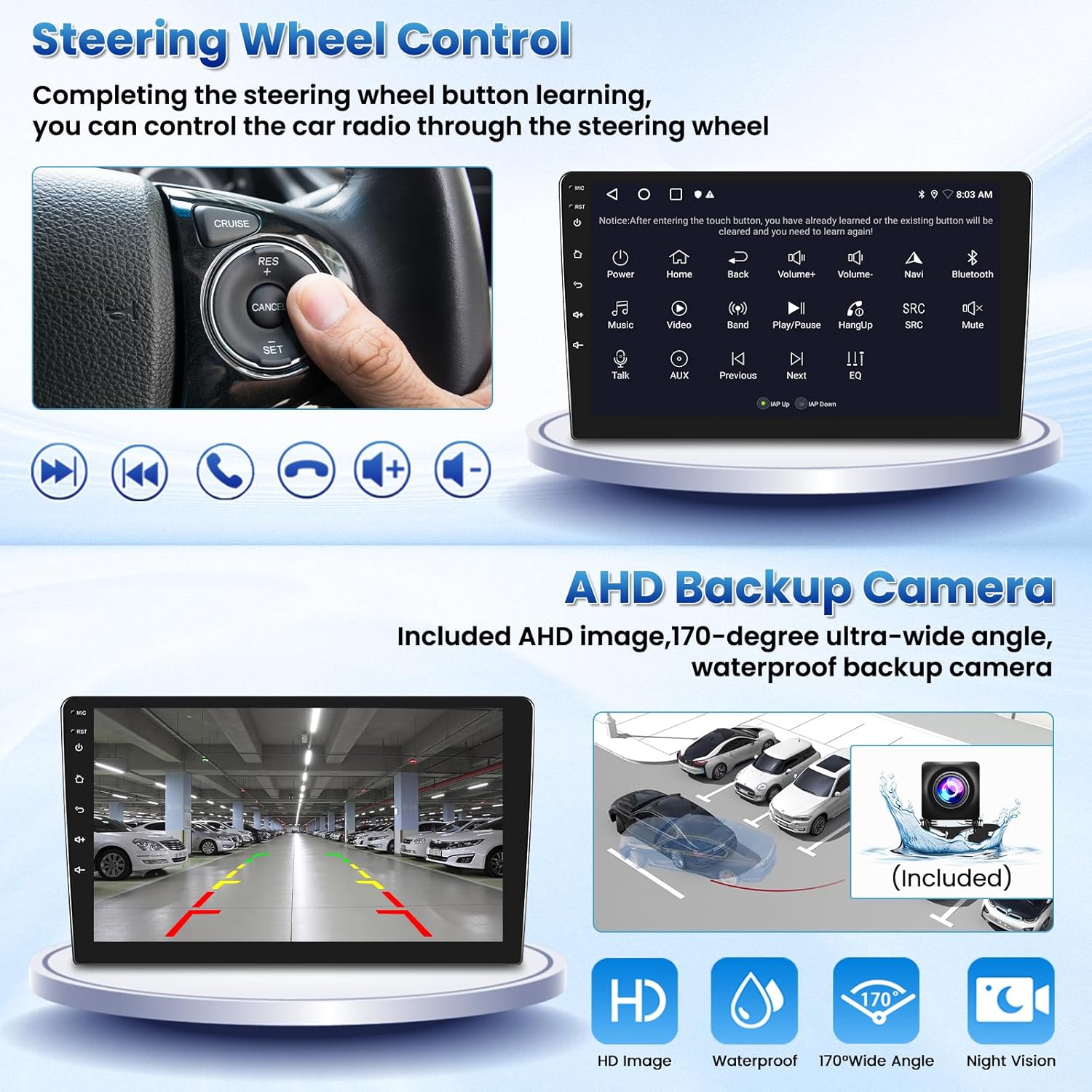
Figure 4.12: AHD Backup Camera View
5. Maintenance
To ensure the longevity and optimal performance of your Fuluku Android Car Stereo, follow these maintenance guidelines:
- Cleaning the Screen: Use a soft, lint-free cloth to gently wipe the touch screen. For stubborn smudges, slightly dampen the cloth with water or a screen-safe cleaner. Avoid harsh chemicals or abrasive materials.
- Software Updates: Periodically check for system software updates via the stereo's settings menu when connected to Wi-Fi. Keeping the software updated can improve performance and add new features.
- Avoid Extreme Temperatures: Do not expose the unit to extreme heat or cold for extended periods, as this can affect electronic components and screen functionality.
- Cable Connections: Ensure all cables remain securely connected. Loose connections can lead to intermittent functionality.
6. Troubleshooting
If you encounter issues with your car stereo, refer to the following common troubleshooting steps:
- No Power:
- Check all power cable connections.
- Ensure the vehicle's fuse for the stereo is not blown.
- Verify the car battery is properly connected and charged.
- No Sound:
- Check volume levels on the stereo and any connected devices.
- Ensure speaker wires are correctly connected.
- Verify the amplifier (if present) is receiving power and functioning.
- GPS Not Working/Inaccurate:
- Ensure the GPS antenna is properly connected and has a clear view of the sky.
- Check GPS settings in the system to ensure it's enabled.
- If using online maps, verify WiFi connection is active.
- Bluetooth Connectivity Issues:
- Ensure Bluetooth is enabled on both the stereo and your mobile device.
- Delete previous pairings and attempt to re-pair the devices.
- Move your mobile device closer to the stereo.
- Backup Camera Not Displaying:
- Check the camera's video input cable connection to the stereo.
- Verify the camera's power connection to the reversing lamp.
- Ensure the vehicle is in reverse gear.
- Touch Screen Unresponsive:
- Perform a system reset (refer to the device's physical reset button, usually a small pinhole).
- Ensure the screen is clean and free of debris.
If these steps do not resolve the issue, please contact Fuluku customer support for further assistance.
7. Specifications
| Feature | Detail |
|---|---|
| Model | 2+32GB |
| Operating System | Android 13 |
| RAM | 2GB |
| ROM | 32GB |
| Display Size | 9 Inches |
| Resolution | 720 x 1280 |
| Connectivity | Bluetooth, USB, Wi-Fi |
| Special Features | Wireless CarPlay/Android Auto, Mirror Link, SWC, Split Screen, Voice Control, GPS Navigation |
| Audio Output Mode | APE/FLAC/WAV/MP3/WMA |
| Included Components | Android Car Stereo, Power Cable, GPS Antenna, Rear Camera Input Cable, RCA Cable, USB Cables, Mounting Brackets, Screws, Instruction Manual, AHD Backup Camera, Microphone |
| Item Weight | 3.45 pounds |
| Package Dimensions | 12.99 x 8.27 x 3.15 inches |
8. Warranty and Support
Fuluku offers the following support for your product:
- 30-day Money-Back Guarantee: For returns or refunds within 30 days of purchase.
- 12-month Replacement Warranty: For product defects or malfunctions within 12 months of purchase.
- Lifetime Technical Support: Ongoing technical assistance for the lifespan of the product.
For warranty claims or technical support, please contact Fuluku customer service through the retailer where the product was purchased or visit the official Fuluku website.


