

1. Introduction
The ASUS VY249HGR Eye Care Gaming monitor is engineered for optimal visual comfort and performance. Featuring an IPS Full HD panel, it delivers exceptional visuals with wide viewing angles. This monitor is suitable for various applications including e-learning, professional work, and entertainment. Its combination of a 120 Hz (OC) refresh rate and Adaptive Sync support ensures consistently smooth visuals, free from tearing and stuttering. Integrated ASUS Eye Care Plus technology prioritizes user well-being, providing comfortable viewing experiences during extended use.

The IPS panel offers ultra-wide 178-degree viewing angles, ensuring consistent color and brightness from any perspective.
2. What's in the Box
Upon unboxing your ASUS VY249HGR monitor, please verify that all the following components are included:
- VY249HGR Monitor
- Quick Start Guide
- Warranty Card
- Power Cord
- L-shaped Screwdriver
- HDMI Cable
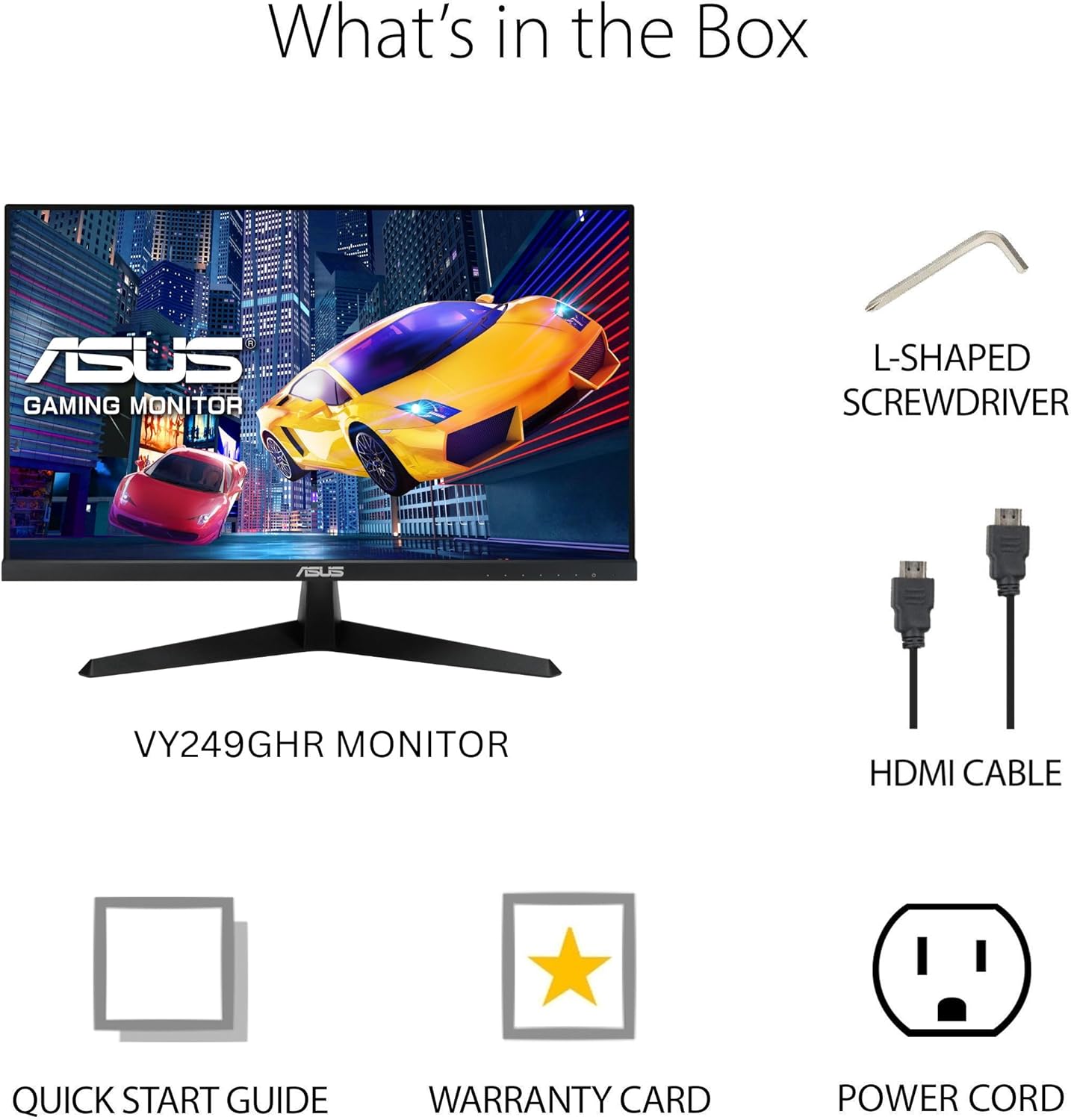
Visual representation of the items included in the monitor packaging.
3. Setup
3.1 Assembling the Monitor Stand
- Carefully remove the monitor from its packaging, keeping it protected.
- Attach the base to the monitor stand. The base is designed for easy, tool-free attachment. Align the stand with the slot on the back of the monitor and push until it clicks into place.
- Secure the base to the stand using the integrated screw at the bottom of the base. This screw often has a foldable handle for hand-tightening.
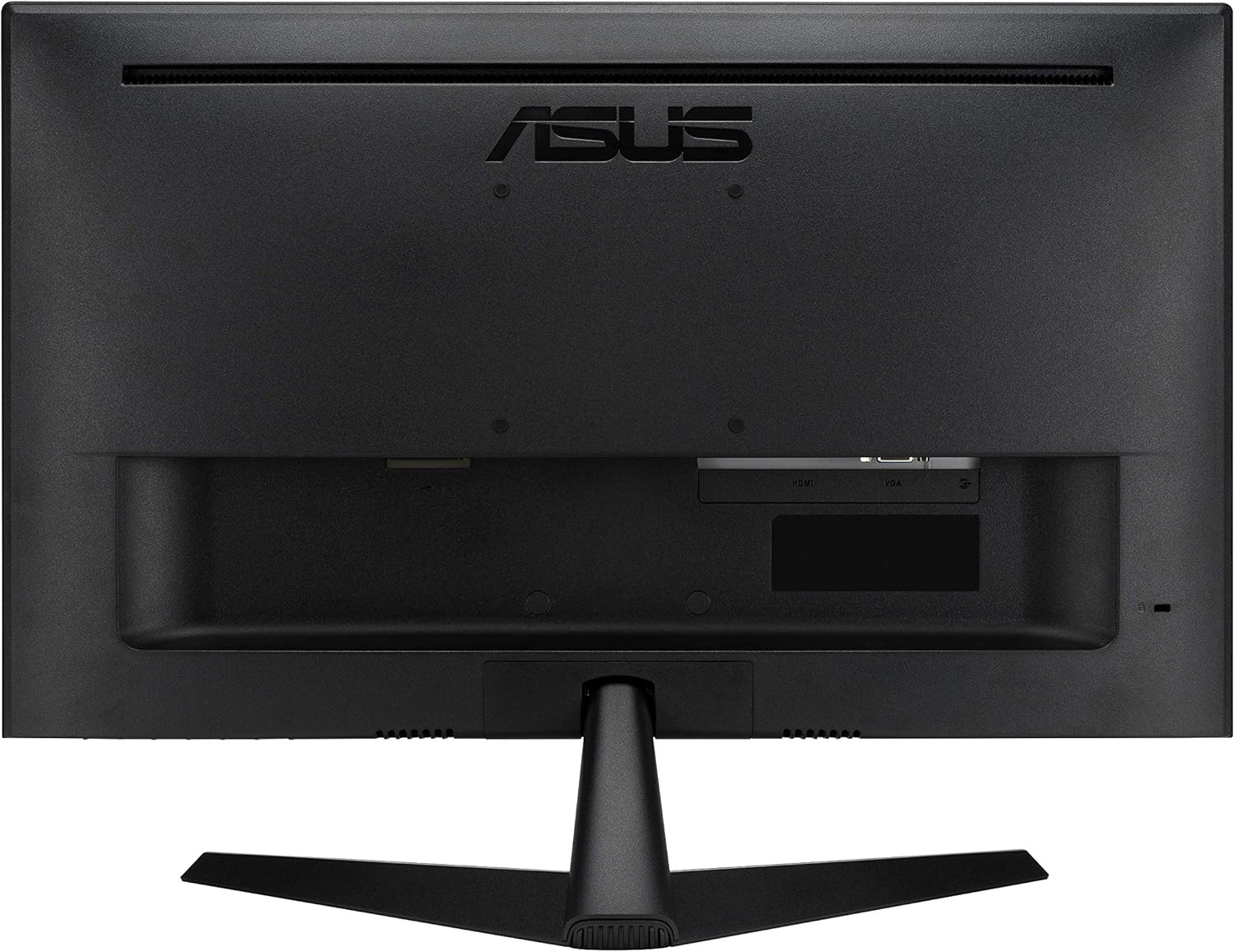
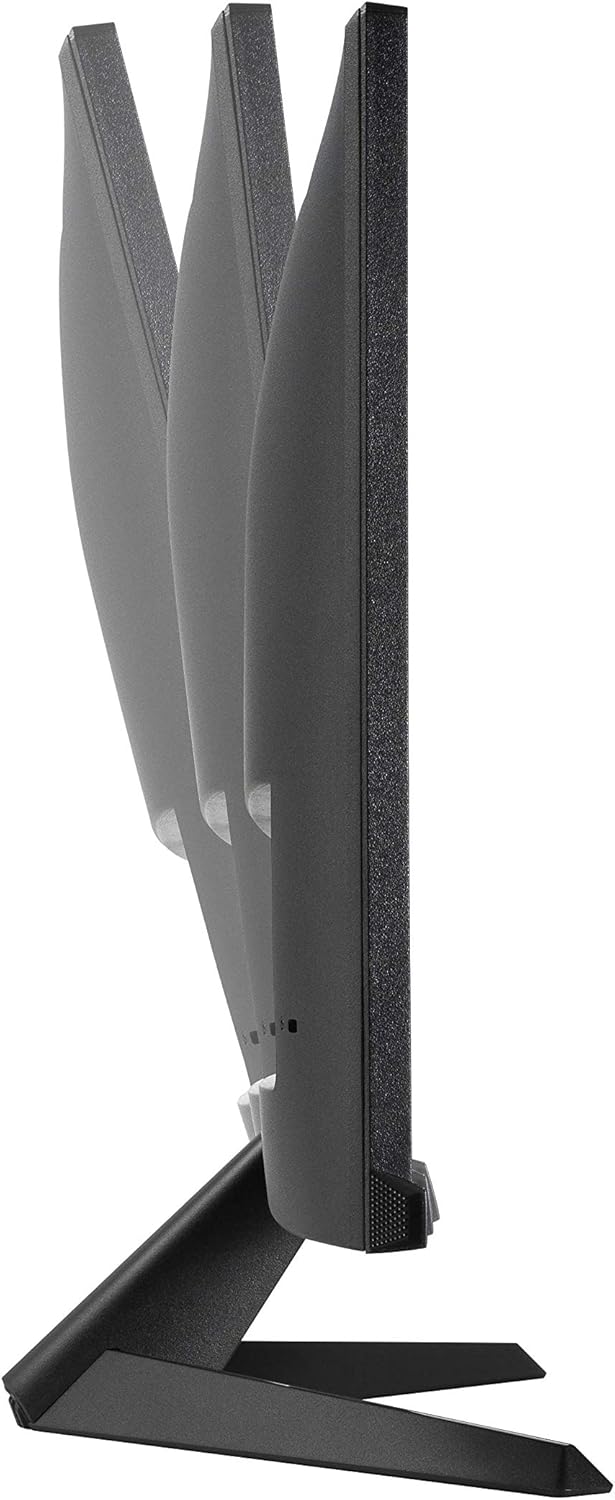
The monitor stand allows for tilt adjustment to optimize your viewing angle.
3.2 Connecting Cables
The ASUS VY249HGR monitor offers multiple connectivity options. Identify the appropriate ports on the back of your monitor:
- HDMI Port: For digital video and audio input. Use the included HDMI cable to connect to your computer or other HDMI-enabled devices.
- VGA Port: For analog video input. A VGA cable may be included for compatibility with older systems.
- Audio Jack (3.5mm): For audio input from your device if not using HDMI audio, or for connecting external speakers/headphones.
- Power Input: Connect the power cord to this port and then to a power outlet.
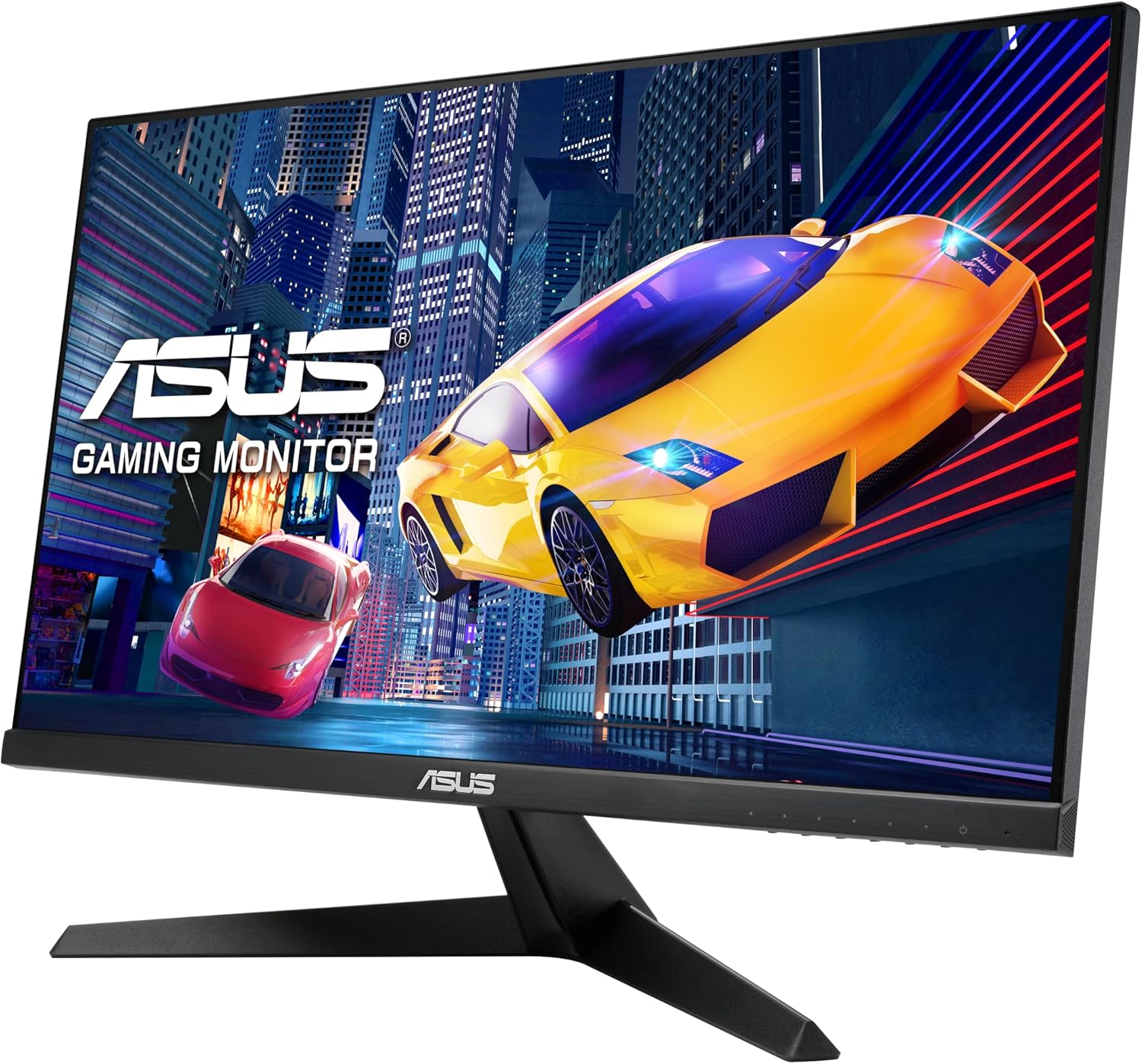
Rear view of the monitor, highlighting the various input ports for connectivity.
A detailed view of the HDMI, VGA, and audio input ports, along with the power input.
4. Operating Instructions
The monitor's On-Screen Display (OSD) menu allows you to adjust various settings for optimal performance and viewing comfort. The control buttons are located on the bottom right side of the monitor.
4.1 Navigating the OSD Menu
- Press any OSD button to activate the menu.
- Use the navigation buttons (usually arrows) to move through the menu options.
- Press the 'OK' or 'Enter' button to select an option or confirm a setting.
- Use the 'Exit' or 'Back' button to return to the previous menu or exit the OSD.
4.2 Key OSD Settings
- Splendid Modes: Access various preset display modes optimized for different content types (e.g., Scenery, Standard, Theater, Game, Night View, sRGB, Reading, Darkroom). Select the mode that best suits your current activity.
- Blue Light Filter: Reduce harmful blue light emissions to prevent eye strain. Multiple levels are available. It is recommended to adjust this setting based on ambient light and personal comfort.

Illustration of the Blue Light Filter feature, showing its effect on screen color temperature.
For more information on TÜV Rheinland certification, visit certipedia.com.
- Color Settings: Adjust Brightness, Contrast, Saturation, Color Temperature, and Skin Tone. Experiment with these settings to achieve your preferred visual output.

Demonstration of the Color Augmentation mode, which assists users with color-vision deficiency.
- Trace Free: This setting helps eliminate ghosting in fast-moving images. It is generally recommended to keep it at a level of 60 for optimal performance.
- Adaptive-Sync / FreeSync: This technology synchronizes the monitor's refresh rate with the GPU's frame rate, eliminating screen tearing and stuttering for a smoother gaming experience. Ensure this is enabled for compatible graphics cards.
- GamePlus: Access gaming-specific enhancements such as Crosshair overlays, Timers, FPS Counters, and Display Alignment tools.

Overview of GamePlus features including Crosshair, Timer, FPS Counter, and Display Alignment.
5. Features
The ASUS VY249HGR monitor is equipped with several advanced features to enhance your visual experience:
- 23.8" Full HD IPS Panel with 120Hz (OC) Refresh Rate: Experience vibrant colors and wide viewing angles with the IPS panel, combined with a high refresh rate for fluid motion and responsive gameplay.

Visual comparison demonstrating the smoothness of 120Hz refresh rate versus 60Hz.
- SmoothMotion Technology and 1ms MPRT: These technologies work together to eliminate motion blur and ghosting, ensuring crisp and clear video playback and a responsive experience for daily usage and gaming.
- Adaptive Sync Support: Provides a tear-free and stutter-free visual experience by synchronizing the monitor's refresh rate with your graphics card's frame rate.
- Eye Care Plus Technology: Includes features like a TÜV Rheinland-certified Adjustable Blue Light Filter and Flicker-Free technology to minimize eye strain during prolonged viewing. It also offers a Color Augmentation mode for users with color-vision deficiency and a Rest Reminder to manage screen time.
- ASUS DisplayWidget Center: An intuitive software interface that allows users to easily change monitor settings directly from their desktop.
6. Maintenance
Proper maintenance ensures the longevity and optimal performance of your ASUS VY249HGR monitor:
- Cleaning the Screen: Gently wipe the screen with a soft, lint-free cloth. For stubborn smudges, use a monitor-specific cleaning solution applied to the cloth, not directly to the screen.
- Cleaning the Casing: Use a soft, dry cloth to clean the monitor's casing. Avoid using abrasive cleaners or solvents.
- Ventilation: Ensure the ventilation openings on the monitor are not blocked to prevent overheating.
- Handling: Always handle the monitor by its edges or stand. Avoid pressing on the screen.
- Power Off: When not in use for extended periods, power off the monitor and unplug it from the power outlet.
7. Troubleshooting
If you encounter issues with your ASUS VY249HGR monitor, refer to the following common troubleshooting steps:
| Problem | Possible Cause | Solution |
|---|---|---|
| No image on screen | Power cable disconnected; Video cable disconnected; Incorrect input source selected. | Ensure power cable is securely connected. Check video cable (HDMI/VGA) connections. Select the correct input source via the OSD menu. |
| Image is blurry or distorted | Incorrect resolution; Loose video cable; Monitor settings (e.g., Trace Free). | Set display resolution to 1920x1080. Reconnect video cable. Adjust "Trace Free" setting in OSD (recommended 60). |
| Screen tearing or stuttering | Adaptive Sync/FreeSync not enabled or incompatible GPU. | Ensure Adaptive Sync/FreeSync is enabled in the OSD menu and your graphics card settings. Verify GPU compatibility. |
| Eye discomfort | Blue light exposure; Flicker. | Adjust Blue Light Filter level in OSD. Ensure Flicker-Free technology is active (it is by default). Take regular breaks. |
If the issue persists after trying these steps, please contact ASUS customer support for further assistance.
8. Specifications
Detailed technical specifications for the ASUS VY249HGR monitor:
- Screen Size: 23.8 Inches
- Panel Type: IPS
- Resolution: 1920x1080 (Full HD)
- Max Screen Resolution: 1920 x 1080 Pixels
- Refresh Rate: 120Hz (Overclockable)
- Response Time: 1ms MPRT
- Aspect Ratio: 16:9
- Screen Surface Description: Matte
- Color: BLACK
- Item Weight: 7.5 pounds
- Product Dimensions (LxWxH): 7.3 x 21.3 x 15.6 inches
- Manufacturer: ASUS
- Series: VY249HGR
- Model Number: VY249HGR

Diagram illustrating the physical dimensions of the ASUS VY249HGR monitor.
9. Warranty & Support
Your ASUS VY249HGR monitor comes with a Warranty Card included in the box. Please refer to this card for detailed information regarding your product's warranty coverage and terms.
For technical support, service, or additional product information, please visit the official ASUS support website or contact their customer service. Keep your purchase receipt and serial number handy for faster service.


