1. Introduction
The Avolusion PRO-T2 28TB (14TB x 2) USB 3.0 2-Bay External Storage System is designed to provide a high-capacity external hard drive solution. It features a USB 3.0 interface, offering data transfer rates up to 5.0 Gbit/s. This system is ideal for expanding storage capacity for desktop PCs, laptops, and gaming consoles, allowing you to store and back up data, music, pictures, and videos. The PRO-T2-BK is engineered for quiet operation with a fan-less design.
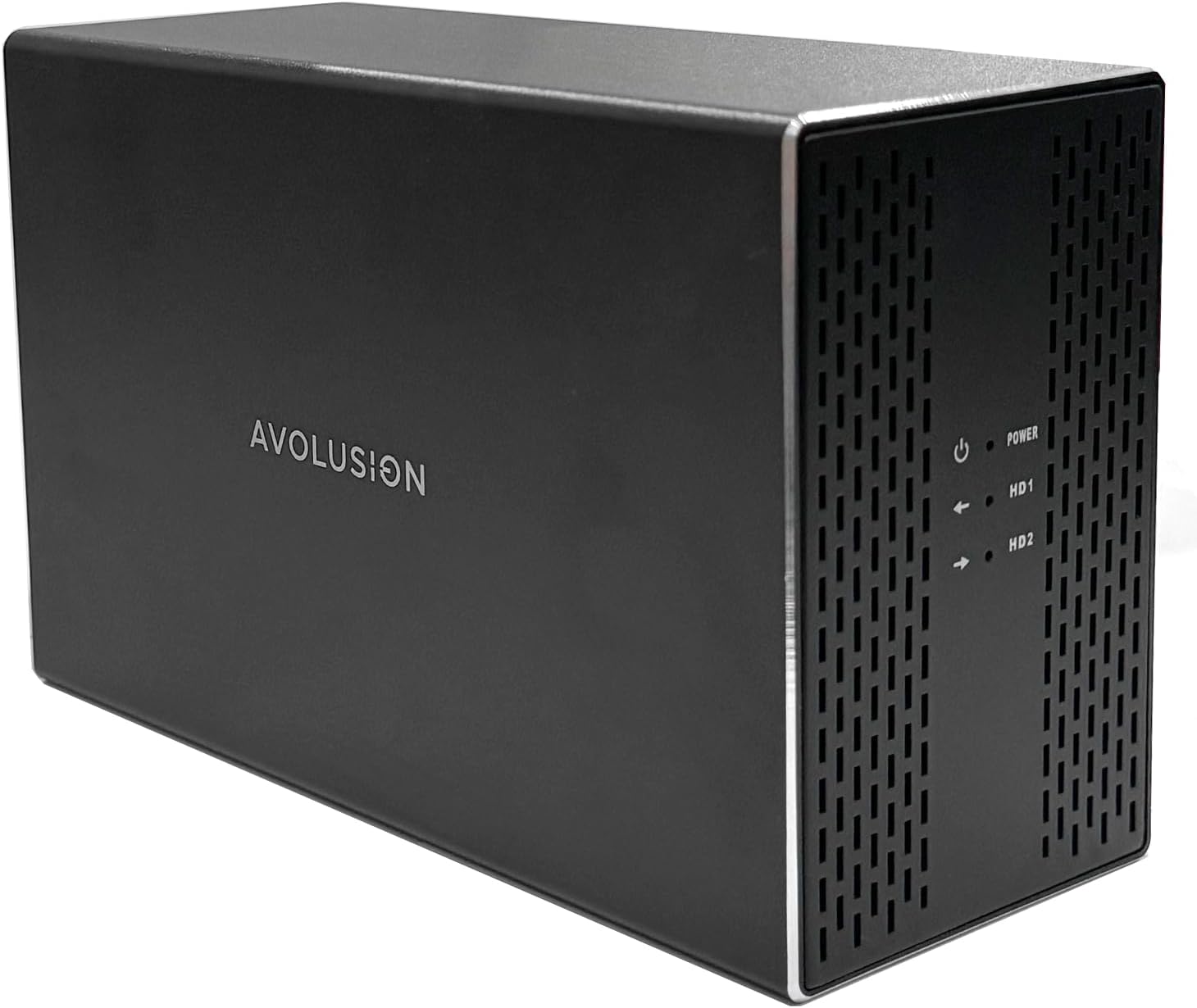
Image 1.1: Front view of the Avolusion PRO-T2 External Hard Drive.
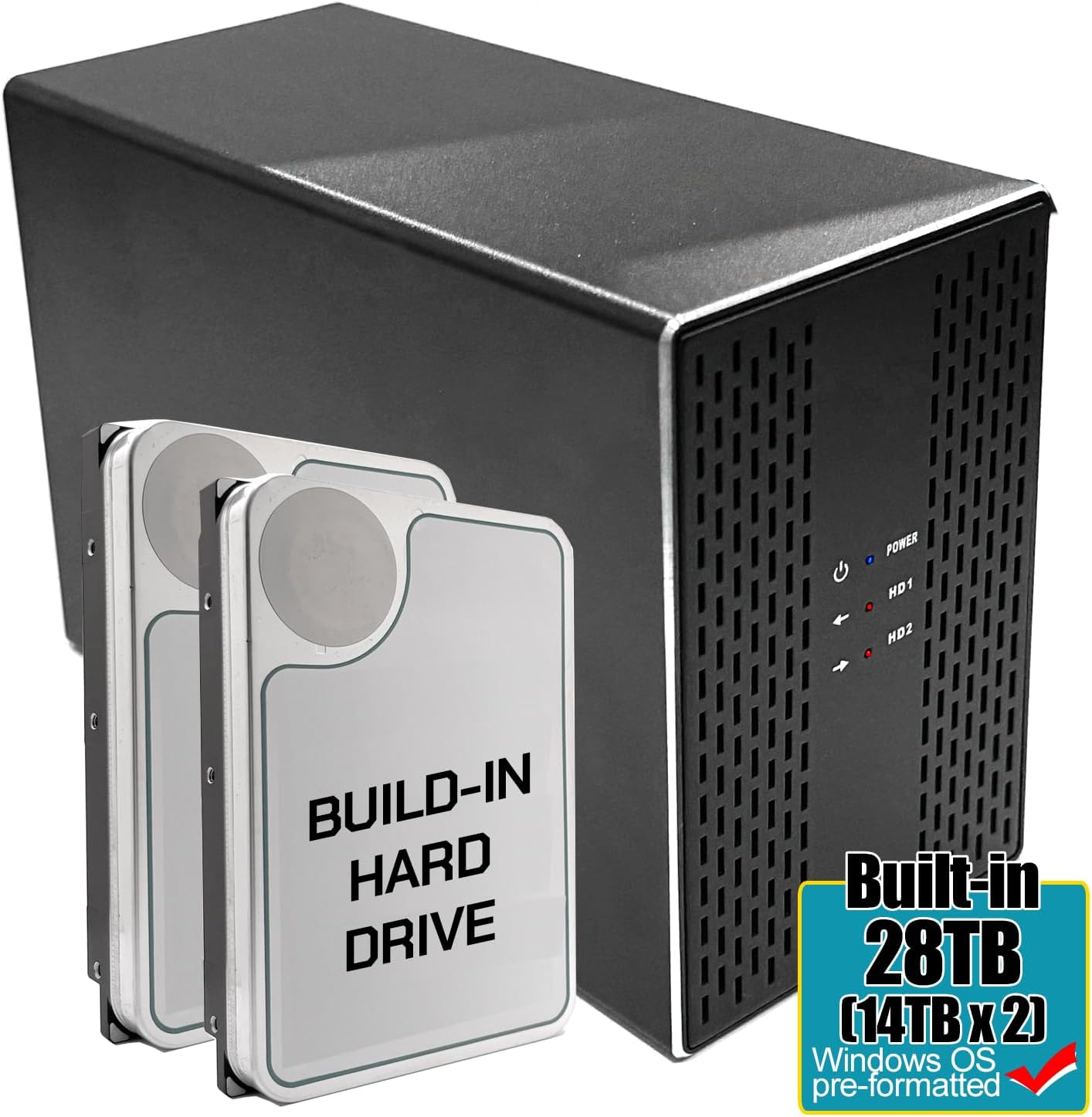
Image 1.2: Avolusion PRO-T2 External Hard Drive with a visual representation of its two internal hard drives.
Video 1.1: An overview of the Avolusion PRO-T2 External Hard Drive's features and design.
2. Package Contents
Please verify that all items listed below are included in your package:
- Avolusion USB 3.0 28TB External Hard Drive (2x 14TB)
- USB 3.0 Cable (Type C)
- USB 3.0 Adapter (Type C to Type A)
- Power Adapter
- User Manual (This document)
- Warranty Card (2 Year)
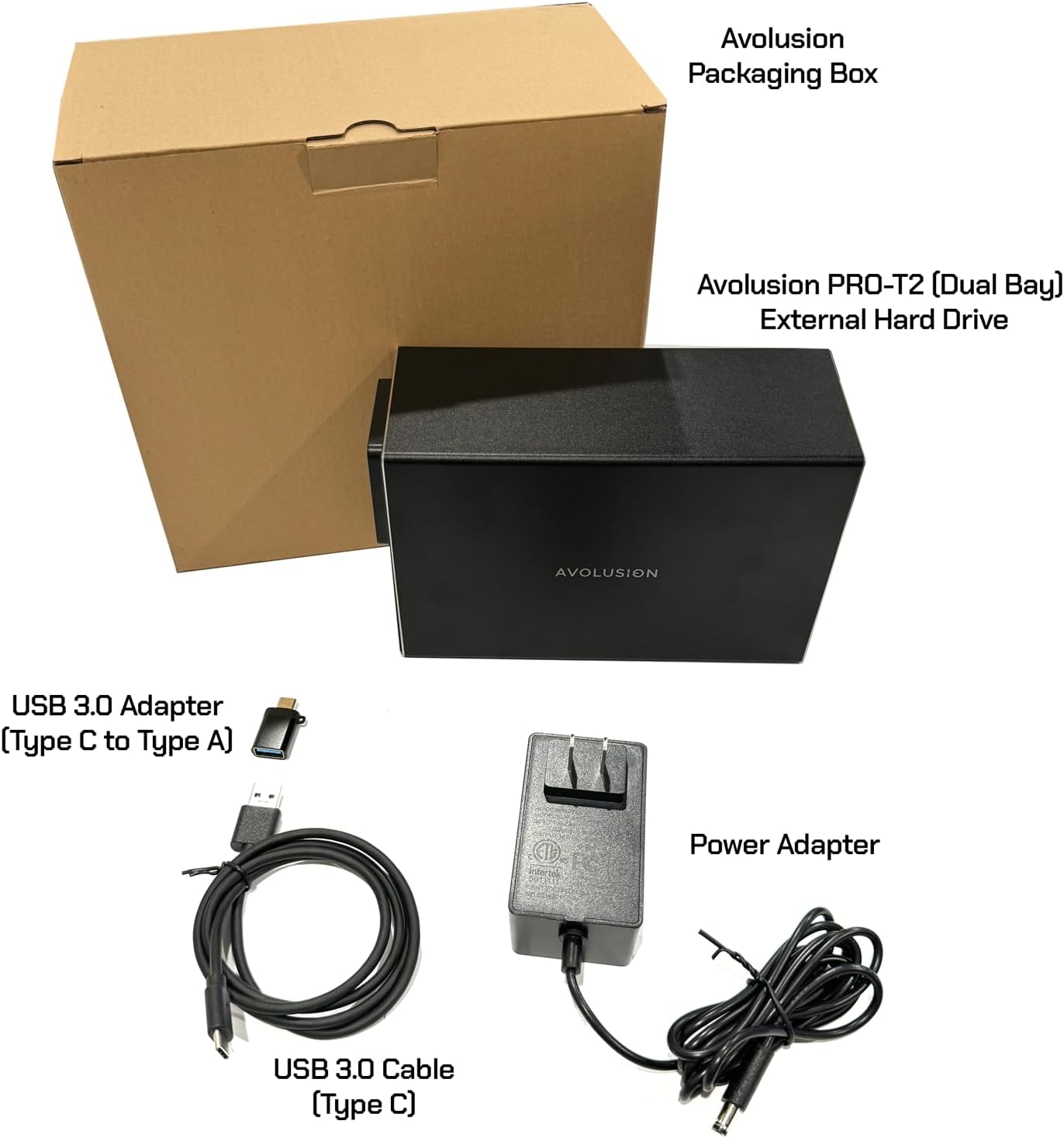
Image 2.1: Contents included in the Avolusion PRO-T2 product package.
3. Setup
3.1 Physical Connection
- Connect the power adapter to the Avolusion PRO-T2 external hard drive and then plug it into a power outlet.
- Connect one end of the provided USB 3.0 cable (Type C) to the USB port on the Avolusion PRO-T2.
- Connect the other end of the USB 3.0 cable to an available USB 3.0 port on your desktop PC or laptop. If your computer only has USB Type-A ports, use the included USB 3.0 Adapter (Type C to Type A).
- Turn on the power switch located on the back of the Avolusion PRO-T2. The power indicator light should illuminate.
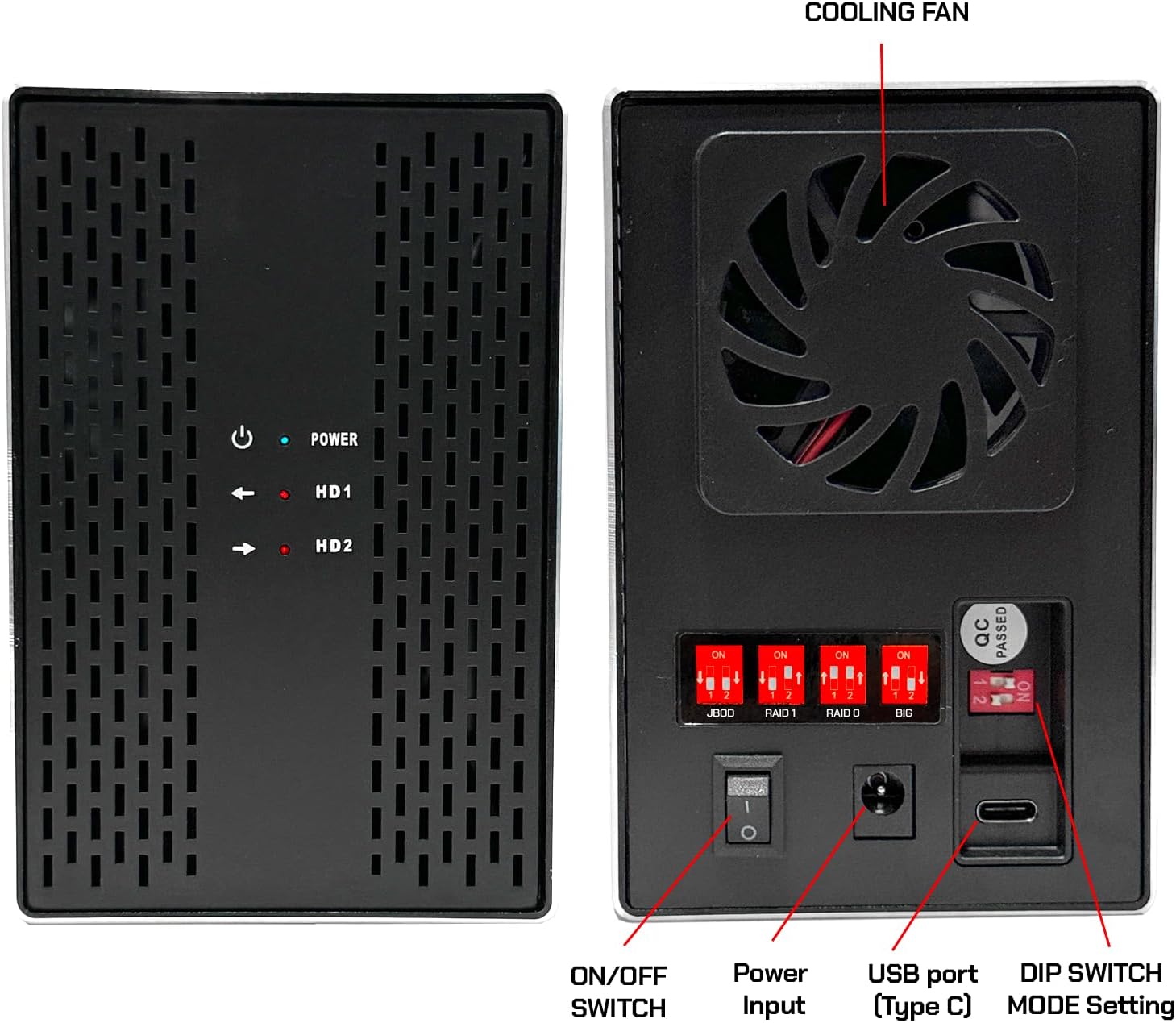
Image 3.1: Rear panel of the Avolusion PRO-T2, showing the power input, USB port, ON/OFF switch, and DIP switches for mode setting.
3.2 Mode Setting (RAID Configuration)
The Avolusion PRO-T2 supports multiple RAID modes, JBOD, and BIG mode. These modes determine how the two internal hard drives function together. The mode is set using DIP switches on the back of the unit. It is critical to back up all data before changing the mode setting, as changing the mode will reset the hard drives and erase all data.
- JBOD (Just A Bunch Of Disks): In this mode, the two drives are accessed independently by the operating system. They will appear as two separate drives.
- RAID 1 (Mirrored Disks): Data is written identically to both drives. This provides data redundancy; if one drive fails, your data is still safe on the other. The total usable capacity will be that of a single drive (e.g., 14TB).
- RAID 0 (Striped Disks): Data is split evenly and written across both drives. This mode offers the largest combined capacity (e.g., 28TB) and the fastest read/write speeds, but it provides no data redundancy. If one drive fails, all data is lost.
- BIG (Spanning or Concatenation): Data is written to the first drive until it is full, then continues onto the second drive. This creates a single, large volume (e.g., 28TB) but does not improve speed or provide redundancy.
To change the mode:
- Ensure the device is powered off and disconnected from your computer.
- Locate the DIP switches on the back panel.
- Carefully adjust the switches according to the desired mode as indicated on the device.
- Power on the device and connect it to your computer.
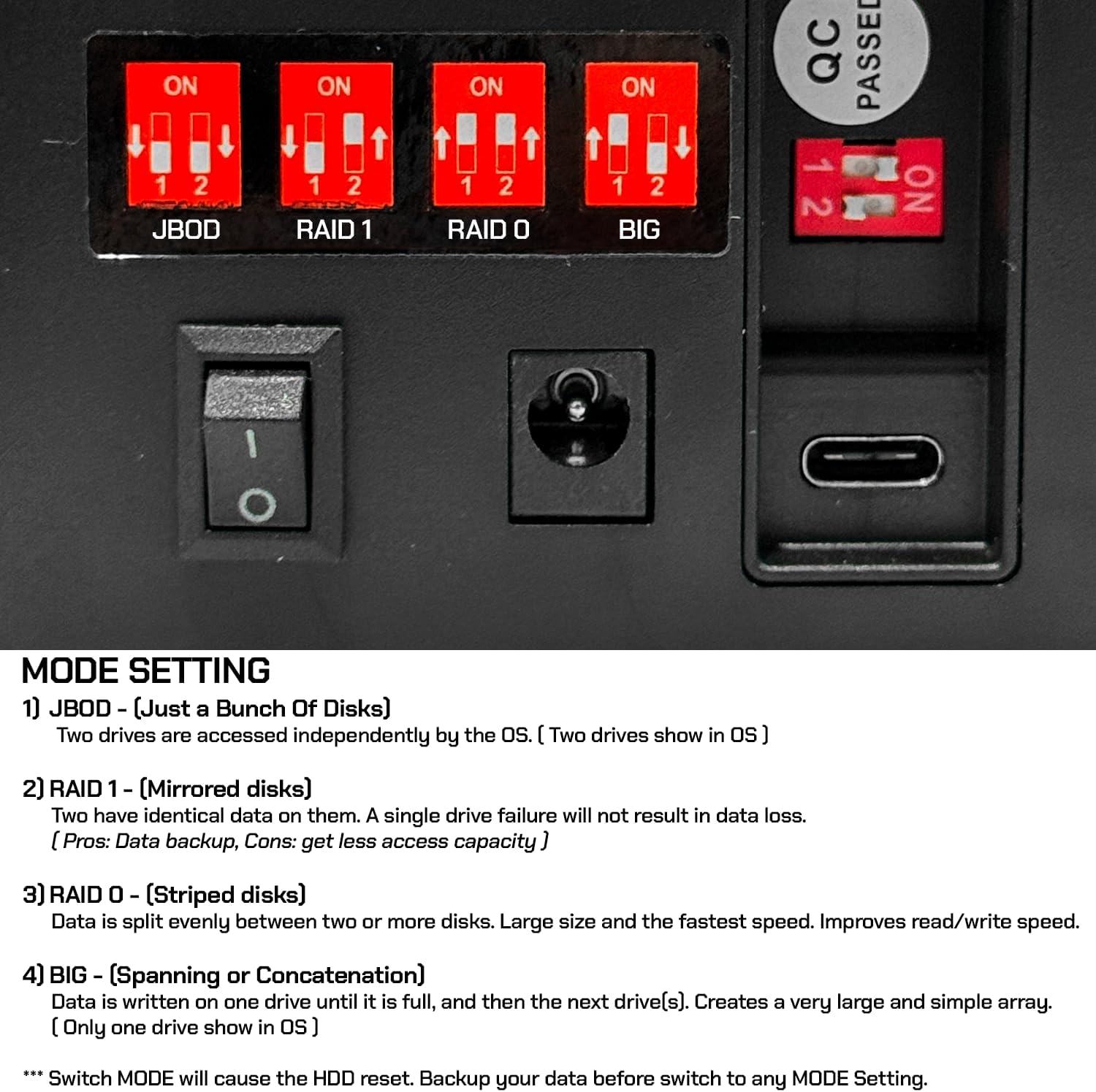
Image 3.2: Close-up of the DIP switches on the Avolusion PRO-T2, illustrating the settings for JBOD, RAID 1, RAID 0, and BIG modes.
3.3 Initial Drive Formatting
After setting the desired mode, the drive may need to be initialized and formatted for use with your operating system. The device is compatible with Windows 11, Windows 10, and macOS. For macOS, reformatting to Apple File System (APFS) is typically required.
For Windows:
- Right-click on the Start button and select 'Disk Management'.
- Locate the Avolusion PRO-T2 drive (it may appear as 'Unallocated' or 'Not Initialized').
- Right-click on the disk and select 'Initialize Disk'. Choose MBR or GPT partition style (GPT is recommended for drives larger than 2TB).
- Right-click on the unallocated space and select 'New Simple Volume'. Follow the wizard to create and format the partition (NTFS is recommended).
For macOS:
- Open 'Disk Utility' (Applications > Utilities > Disk Utility).
- Select the Avolusion PRO-T2 drive from the sidebar.
- Click 'Erase'.
- Choose a name for the drive, select 'APFS' as the format, and 'GUID Partition Map' as the scheme.
- Click 'Erase' to confirm.
4. Operating Instructions
4.1 Connecting to Your Computer
Once the drive is physically connected and formatted, power on the Avolusion PRO-T2. Your operating system should detect the drive automatically. On Windows, it will appear in 'This PC' or 'My Computer'. On macOS, it will appear on the desktop or in Finder under 'Locations'.
4.2 Data Transfer
You can transfer files to and from the Avolusion PRO-T2 just like any other external storage device. Drag and drop files, or use copy and paste functions. The USB 3.0 interface ensures fast data transfer speeds.
4.3 Safe Removal
To prevent data corruption, always safely eject or unmount the drive before disconnecting it from your computer or powering it off.
- Windows: Click the 'Safely Remove Hardware and Eject Media' icon in the system tray, then select the Avolusion PRO-T2.
- macOS: Drag the drive icon from the desktop to the Trash, or click the Eject button next to the drive in Finder.
5. Maintenance
The Avolusion PRO-T2 features a built-in cooling fan to maintain optimal operating temperatures and ensure quiet performance. To ensure the longevity and reliable operation of your external hard drive, follow these maintenance guidelines:
- Keep Clean: Regularly wipe the exterior of the unit with a soft, dry cloth. Avoid using liquid cleaners or solvents.
- Ventilation: Ensure the cooling fan and ventilation slots are not obstructed to allow for proper airflow.
- Environment: Operate the device in a well-ventilated area, away from direct sunlight, excessive heat, humidity, and dust.
- Handle with Care: Avoid dropping or subjecting the unit to physical shocks, as this can damage the internal hard drives.
6. Troubleshooting
If you encounter issues with your Avolusion PRO-T2, refer to the following common troubleshooting steps:
- Drive Not Detected:
- Ensure the power adapter is securely connected and the unit is powered on.
- Verify the USB cable is firmly connected to both the drive and your computer.
- Try connecting to a different USB port on your computer.
- Test with a different USB cable if available.
- Check Disk Management (Windows) or Disk Utility (macOS) to see if the drive is recognized but uninitialized or unformatted.
- Slow Performance:
- Ensure you are connected to a USB 3.0 port on your computer for optimal speeds.
- Verify that the USB 3.0 cable is being used.
- Close any unnecessary applications running in the background that might be consuming system resources.
- Data Loss Prevention:
- Always perform regular backups of critical data to another storage device or cloud service. No storage device is immune to failure.
- Ensure safe ejection of the drive before disconnecting to prevent data corruption.
7. Specifications
| Model | PROT2BK-28TB |
| Interface | USB 3.0 |
| Drive Type | 2x 3.5" 14TB SATA Hard Drives (Total 28TB, estimated formatted capacity: 26TB) |
| Material | Aluminum |
| USB Data Speed | Up to 5.0 Gbit/s |
| Supported Platforms | Windows 11, Windows 10, macOS |
| Color | Black |
| Dimensions (L x W x H) | 7.5" x 3" x 5" (19.05 cm x 7.62 cm x 12.7 cm) |
| Power Input | 100V ~ 240V (50-60Hz 0.6A) |
| Power Output | 12V 2.0A |
| Hard Drive Rotational Speed | 7200 RPM |
8. Warranty Information
The Avolusion PRO-T2 External Hard Drive comes with a 2-year warranty. Please refer to the included Warranty Card in your package for detailed terms and conditions regarding warranty coverage and claims.
9. Customer Support
For technical assistance, troubleshooting beyond this manual, or warranty inquiries, please visit the official Avolusion website or contact their customer support directly. Contact information can typically be found on the manufacturer's website or on the warranty card.