
HP AZ5P1UT#ABA
HP Elite 805 G9 Desktop Computer User Manual
Model: AZ5P1UT#ABA
Introduction
This manual provides essential information for the setup, operation, maintenance, and troubleshooting of your HP Elite 805 G9 Desktop Computer. Please read this manual thoroughly before using your new computer to ensure optimal performance and longevity.
The HP Elite 805 G9 is a small form factor desktop computer designed for demanding applications, featuring an AMD Ryzen™ 8000 series processor with AMD RDNA™ 3 onboard graphics and an NPU for enhanced AI capabilities. It comes pre-installed with Windows 11 Pro and is equipped with HP Wolf Security for robust protection.
Package Contents
Before proceeding with setup, please verify that all components are present in the package:
- HP Elite 805 G9 Desktop PC
- Keyboard
- Mouse
- Power Adapter
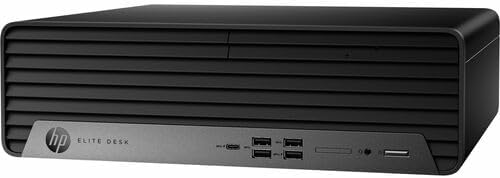
Image: Front view of the HP Elite 805 G9 Desktop Computer, showcasing its compact design and front ports.
Setup Guide
1. Unpacking and Placement
- Carefully remove the computer and all accessories from the packaging.
- Place the desktop computer on a stable, flat surface with adequate ventilation. Ensure there is sufficient space around the unit for airflow. Avoid placing it near heat sources or in direct sunlight.
2. Connecting Peripherals
Connect your keyboard, mouse, monitor, and other peripheral devices to the appropriate ports on the computer. The HP Elite 805 G9 features 11 native USB ports for extensive connectivity.

Image: Angled front view of the HP Elite 805 G9 Desktop Computer, highlighting the front USB-C, USB-A, and audio ports.
- Keyboard and Mouse: Connect to any available USB-A ports.
- Monitor: Connect your monitor using the appropriate video output port (e.g., DisplayPort, HDMI) on the rear of the computer.
- Network: For wired internet access, connect an Ethernet cable to the RJ-45 port on the rear.
3. Power Connection
- Connect the power adapter cable to the power input port on the rear of the computer.
- Plug the other end of the power adapter into a grounded electrical outlet.
Operating Instructions
1. Initial Power On
- Press the power button located on the front of the computer.
- The computer will boot up and guide you through the initial Windows 11 Pro setup process. Follow the on-screen prompts to configure your operating system, network settings, and user accounts.
2. Using Windows 11 Pro
Your HP Elite 805 G9 comes with Windows 11 Pro, offering a secure and efficient computing experience. Familiarize yourself with the Windows interface, Start Menu, and taskbar for easy navigation.
3. Security Features
The HP Elite 805 G9 is equipped with advanced security features:
- HP Wolf Security for Business: Provides hardware-enforced, always-on protection.
- HP Sure Click: Helps protect against malware from websites and attachments.
- HP Sure Sense: Uses AI to protect against never-before-seen attacks.
- HP Sure Recover: Enables fast and secure OS recovery.
Ensure these features are active and updated for continuous protection.
Maintenance
1. Software Updates
Regularly update your Windows operating system, drivers, and HP software to ensure optimal performance, security, and compatibility. You can check for updates via Windows Update and HP Support Assistant.
2. Cleaning
- Exterior: Use a soft, lint-free cloth slightly dampened with water or a mild cleaning solution. Avoid abrasive cleaners.
- Ventilation: Periodically check and clean the ventilation grilles to prevent dust buildup, which can impede airflow and cause overheating. Use compressed air to gently clear dust.
3. Data Backup
Regularly back up your important data to an external drive or cloud storage to prevent data loss in case of system failure.
Troubleshooting
This section provides solutions to common issues you might encounter.
| Problem | Possible Cause | Solution |
|---|---|---|
| Computer does not power on. | Power cable loose, power outlet issue, power supply failure. | Check power cable connections. Try a different power outlet. Ensure power adapter is functioning. |
| No display on monitor. | Monitor cable loose, monitor off, incorrect input source, graphics driver issue. | Check monitor cable connections. Ensure monitor is powered on and set to correct input. Restart computer. Update graphics drivers if possible. |
| System is slow or unresponsive. | Too many applications open, low disk space, malware, outdated drivers. | Close unnecessary applications. Free up disk space. Run a malware scan. Update drivers. |
For more complex issues, refer to the HP support website or contact HP customer service.
Specifications
Key technical specifications for the HP Elite 805 G9 Desktop Computer:
- Model Name: AZ5P1UT#ABA
- Processor: AMD Ryzen™ 5 8600G (Hexa-core, 4.35 GHz)
- Graphics: AMD Radeon™ 760M Graphics
- RAM: 16 GB DDR5 SDRAM
- Storage: 512 GB SSD
- Operating System: Windows 11 Pro
- Connectivity: USB Type-A, USB Type-C, Ethernet
- Power Supply: 260 W
- Dimensions: Approximately 19 x 16 x 9 inches (Package Dimensions)
- Weight: Approximately 15 pounds

Image: Front view of the HP Elite 805 G9 Desktop Computer, showing the power button and various front ports.
Warranty and Support
Your HP Elite 805 G9 Desktop Computer is covered by a limited warranty. Please refer to the warranty card included with your product or visit the official HP support website for detailed warranty terms and conditions.
For technical assistance, driver downloads, or further support, please visit the HP Support Website or contact HP customer service.
Online Resources:
- HP Official Website: www.hp.com
- HP Support: support.hp.com
Ask a question about this manual
Ask about setup, troubleshooting, compatibility, parts, safety, or missing instructions. Manuals+ will review the question and use this page’s manual context to help answer it.