
Introduction
This manual provides detailed instructions for the installation, operation, and maintenance of your EWLSAC Android 13.0 Double Din Car Stereo. This multimedia receiver is specifically designed for Hyundai Genesis Sedan models from 2009 to 2014, offering advanced features such as a 9-inch HD touch screen, wireless CarPlay, Android Auto, GPS navigation, Wi-Fi, Bluetooth, and a backup camera. Please read this manual thoroughly before installation and use to ensure proper functionality and safety.
1. Setup and Installation
1.1 Package Contents
Before beginning installation, verify that all components are present:
- 1x Car radio user manual
- 1x Radio unit
- 1x Specialized frame
- 1x Plug and play power cord
- 1x Radio signal booster
- 2x USB cable
- 1x GPS antenna
- 1x RCA cable
- 1x Cooling Fan
- 1x Rear camera

Figure 1: Included components for the EWLSAC car stereo.
1.2 Vehicle Compatibility Check
This unit is designed for Hyundai Genesis Sedan models from 2009 to 2014. It is crucial to confirm compatibility with your specific vehicle's dashboard and existing wiring harness before installation. If you are unsure about fitment or require additional wiring harnesses or adapters, please contact customer support with a complete picture of the plugs on the back of your vehicle's center console and the on-board main unit.

Figure 2: Visual guide for checking vehicle compatibility and connectors.
1.3 Wiring Connections
Refer to the wiring diagram provided in the separate car radio user manual for detailed connection instructions. Ensure all cables are securely connected to their corresponding ports. The main unit and its various input/output cables are shown below.

Figure 3: Overview of the car stereo unit and its wiring connections.
2. Operating Instructions
2.1 Power On/Off
To power on the device, turn your vehicle's ignition to the ACC or ON position. The unit will automatically power on. To power off, turn the ignition to the OFF position. A long press on the power button (if available) may also manually power off the unit.
2.2 Touch Screen Operation
The unit features a 9-inch HD capacitive touch screen with a resolution of 1024x600. Navigate through menus and control functions by tapping, swiping, and pinching on the screen, similar to a smartphone or tablet.
2.3 GPS Navigation
The car stereo includes built-in Wi-Fi and GPS capabilities. It supports popular online navigation applications such as Google Maps, Waze, and Here Maps. You can use your phone's hotspot to access online navigation or download offline maps directly from the app store for use without an internet connection.

Figure 4: GPS Navigation and Wi-Fi connectivity interface.
2.4 Wireless CarPlay & Android Auto
Enjoy seamless smartphone integration with built-in wireless and wired CarPlay and Android Auto. Connect your compatible iPhone or Android device to access phone calls, music, GPS navigation, and voice control directly from the car stereo's display, ensuring a hands-free and safer driving experience.

Figure 5: Wireless CarPlay and Android Auto functionality.
2.5 Bluetooth Connectivity
The integrated Bluetooth module allows for hands-free calling and wireless music playback. Pair your smartphone with the car stereo to make and receive calls safely and stream audio content directly to your vehicle's speakers.

Figure 6: Bluetooth hands-free calling and FM radio interface.
2.6 FM/RDS Radio
Tune into your favorite radio stations with the built-in FM/RDS radio. The Radio Data System (RDS) provides additional information such as station name, program type, and traffic announcements where available.
2.7 Steering Wheel Control
The unit supports steering wheel controls, allowing you to manage audio playback, volume, and other functions without taking your hands off the wheel. This feature enhances driving safety and convenience. Refer to the system settings for learning and configuring your vehicle's steering wheel buttons.
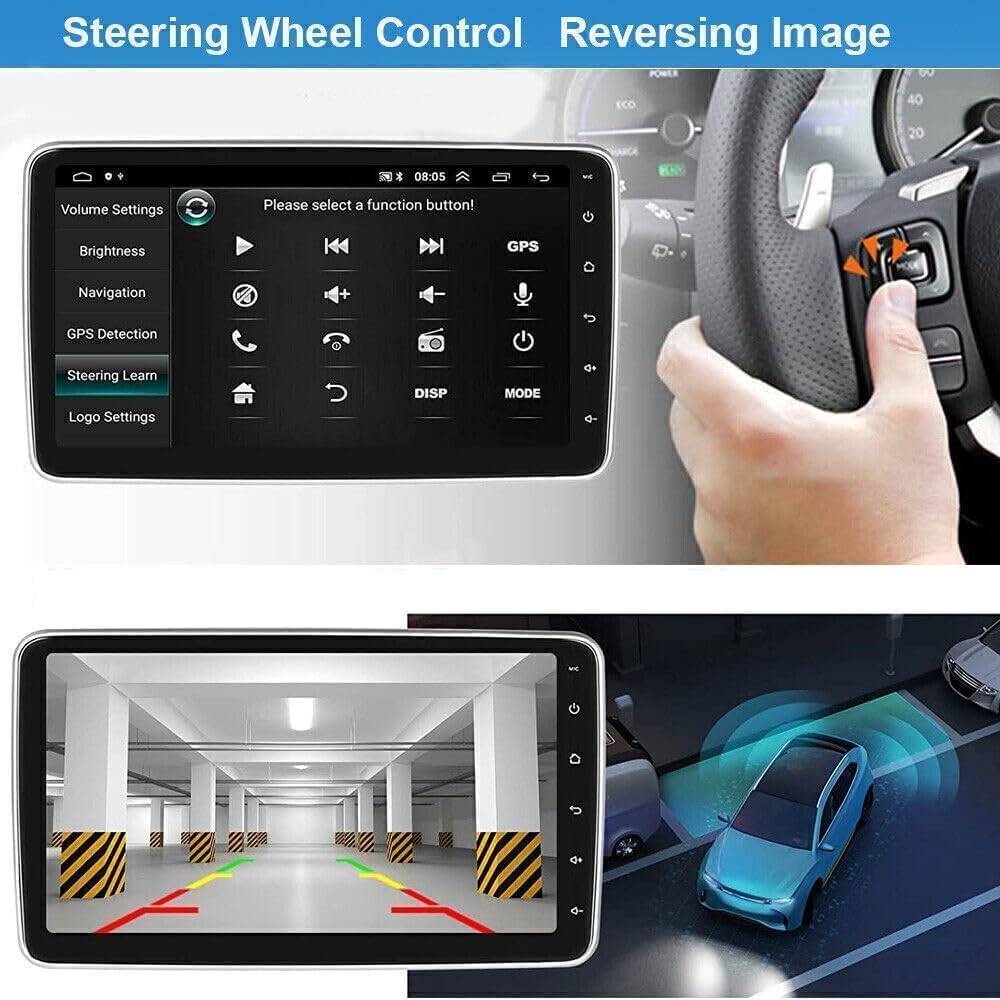
Figure 7: Steering wheel control settings and reversing image display.
2.8 Rear View Camera
The included rear-view backup camera automatically activates when the vehicle is shifted into reverse gear, providing a clear view of the area behind your car on the stereo display. This assists in safe parking and maneuvering.
2.9 Split Screen Functionality
The split-screen feature allows you to run two applications simultaneously on the 9-inch display. For example, you can follow GPS navigation on one side while controlling music playback on the other.
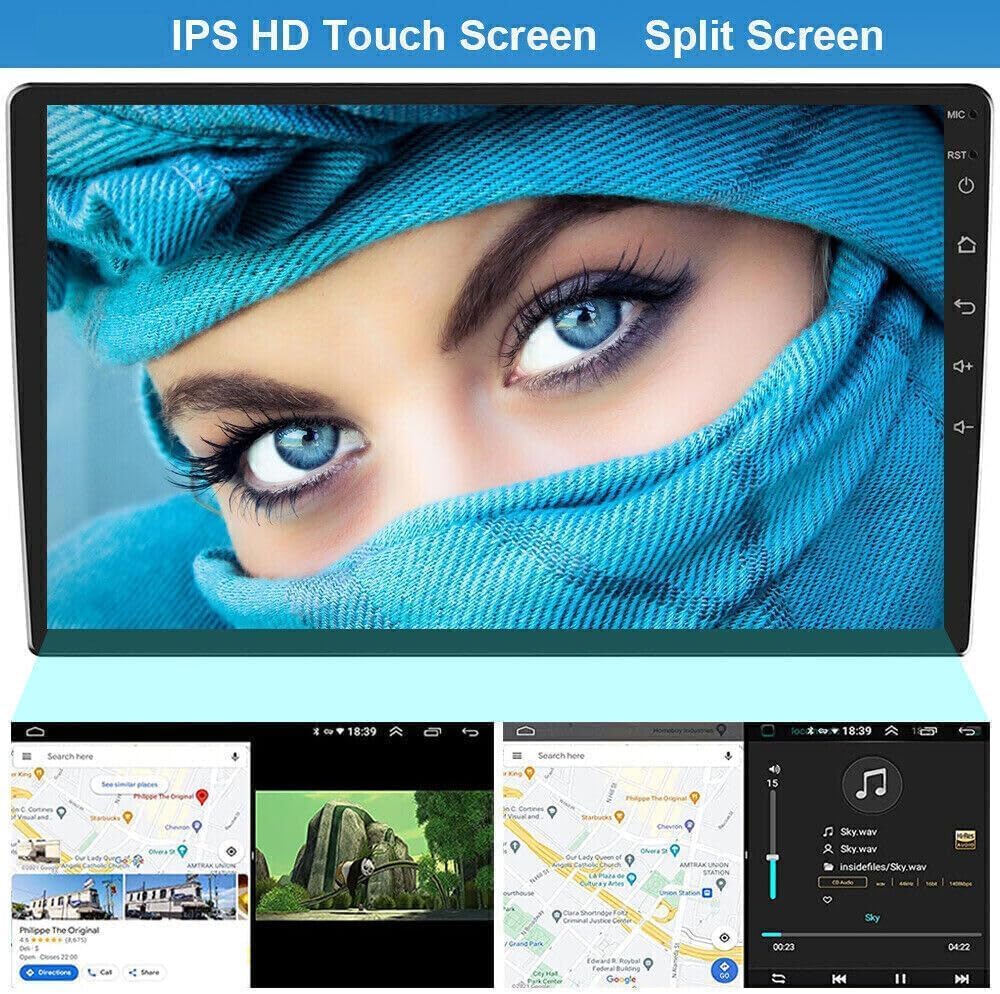
Figure 8: Split screen mode displaying navigation and media playback.
2.10 Mirror Link
Utilize the Mirror Link function to project your smartphone's screen directly onto the car stereo display. This allows you to view and interact with your phone's content, such as navigation maps or videos, on the larger screen.
2.11 Audio Equalizer (EQ)
The system features Hi-Fi audio technology and a 16-band equalizer, allowing you to customize the sound output to your preferences. Adjust various frequency bands to achieve your desired audio profile for an immersive listening experience.
3. Maintenance
3.1 Screen Cleaning
To clean the touch screen, gently wipe it with a soft, lint-free cloth. For stubborn smudges, slightly dampen the cloth with water or a screen-safe cleaning solution. Avoid using harsh chemicals or abrasive materials that could damage the screen.
3.2 General Care
- Avoid exposing the unit to extreme temperatures, direct sunlight for prolonged periods, or excessive moisture.
- Ensure proper ventilation around the unit to prevent overheating.
- Periodically check all cable connections to ensure they are secure.
3.3 Software Updates
As an Android-based system, software updates may be released periodically to improve performance, add features, or fix bugs. Check the system settings for available updates or visit the manufacturer's website for more information.
4. Troubleshooting
If you encounter issues with your car stereo, refer to the following common problems and solutions:
| Problem | Possible Cause | Solution |
|---|---|---|
| No power | Loose power connection, blown fuse, vehicle ignition off | Check power cable connections. Inspect vehicle fuses. Ensure ignition is in ACC or ON position. |
| No sound | Volume too low, mute activated, loose speaker wires, incorrect audio source | Increase volume. Check if mute is active. Verify speaker wire connections. Select correct audio source. |
| GPS not working / inaccurate | GPS antenna not connected, poor satellite signal, outdated maps | Ensure GPS antenna is properly connected and has a clear view of the sky. Update maps if necessary. |
| Bluetooth connectivity issues | Device not paired, Bluetooth off, interference | Ensure Bluetooth is enabled on both devices. Re-pair the device. Move away from sources of interference. |
| Touch screen unresponsive | System freeze, dirty screen | Restart the unit (turn vehicle ignition off and on). Clean the screen. |
If the problem persists after attempting these solutions, please contact customer support for further assistance.
5. Specifications
| Feature | Detail |
|---|---|
| Model | Android 13.0 Double Din Car Stereo (B0DHCLGGHJ) |
| Operating System | Android 13.0 |
| RAM | 4GB |
| ROM | 64GB |
| Processor | 4-core |
| Display Size | 9 Inches |
| Screen Resolution | 1024x600 |
| Special Feature | Touchscreen |
| Connectivity Technology | Bluetooth, Wi-Fi |
| CarPlay / Android Auto | Wireless & Wired Support |
| GPS | Built-in, supports online/offline maps |
| Vehicle Service Type | Car (Hyundai Genesis Sedan 2009-2014) |
| Mounting Type | Dashboard Mount |
| Audio Output Mode | Stereo |
| Map Type | Worldwide |
| Item Weight | 4 pounds |
| Package Dimensions | 20 x 10 x 4.7 inches |
6. Warranty Information
This EWLSAC car stereo comes with a one-year manufacturer's warranty from the date of purchase. This warranty covers defects in materials and workmanship under normal use. It does not cover damage caused by improper installation, accident, misuse, abuse, neglect, unauthorized modification, or normal wear and tear.
Please retain your proof of purchase for warranty claims. For any warranty-related inquiries, contact customer support.
7. Customer Support
For any questions, concerns, or technical assistance regarding your EWLSAC Android 13.0 Double Din Car Stereo, please do not hesitate to reach out to our dedicated customer service team. We are committed to providing quick and helpful support.
Contact Information:
- Please contact us through the Amazon messaging system for the fastest response.