1. Introduction
Thank you for choosing the PeriphX Switch Pro Controller. This manual provides detailed instructions for setting up, operating, and maintaining your controller. Please read this manual thoroughly before use to ensure optimal performance and a satisfying gaming experience.
2. Product Overview
2.1 Package Contents
- PeriphX Switch Pro Controller x 1
- Type-C Charging Cable x 1
- User Manual x 1
2.2 Key Features
- Multi-Platform Compatibility: Supports Nintendo Switch (including Switch, Switch Lite, Switch OLED), Android, PC (wired connection for Windows 7/8/10/11), and iOS devices.
- Wireless Connectivity: Utilizes stable, low-latency Bluetooth for quick and responsive control within a 10-meter range.
- One-Key Wake-Up: Conveniently wake up your console with a single button press.
- Macro Programming: Two programmable back buttons (M1, M2) allow for custom button assignments (A/B/X/Y/L1/L2/R1/R2/ZL/ZR/L3/R3/Up/Down/Left/Right).
- TURBO Function: Adjustable rapid-fire settings (5, 12, 20 shots/second) for enhanced gameplay.
- 6-Axis Gyro Sensor: High-precision motion sensing for immersive gameplay (not supported on PC).
- HD Vibration: Four-level adjustable vibration intensity (0%/30%/70%/100%) for realistic feedback.
- 7-Color RGB Lighting: Customizable RGB lights around the joysticks with rainbow, single-color, and breathing modes.
- Long Battery Life: Built-in 1000mAh battery with Type-C fast charging.

Image: Front view of the PeriphX Switch Pro Controller in white, showcasing its ergonomic design and illuminated joysticks.

Image: The controller with text indicating multi-platform compatibility (Switch, PC, iOS, Android) and icons for RGB Lighting, Macro Buttons, TURBO Function, and Wake-up Function.
3. Setup
3.1 Initial Charging
Before first use, fully charge the controller using the provided Type-C cable. Connect the cable to the controller's Type-C port and a compatible USB power source. Charging typically takes 3-4 hours.
3.2 Pairing Instructions
3.2.1 Nintendo Switch
- From the Switch HOME Menu, select "Controllers" > "Change Grip/Order."
- On the PeriphX controller, press and hold the HOME button for 3-5 seconds until the LED indicators start flashing rapidly.
- Once paired, the corresponding player LED(s) on the controller will light up solid.
- To wake up the Switch from sleep mode, press the HOME button on the controller.
3.2.2 Android / iOS Devices
- Enable Bluetooth on your Android or iOS device.
- On the PeriphX controller, press and hold the HOME button for 3-5 seconds until the LED indicators start flashing rapidly.
- Search for "PeriphX Controller" (or similar name) in your device's Bluetooth settings and select it to pair.
3.2.3 PC (Wired Connection)
- Connect the controller to your PC using the provided Type-C USB cable.
- The controller will be automatically recognized by Windows (7/8/10/11).
- Note: The 6-axis gyro sensor function is not supported when connected to PC.
4. Operating Instructions
4.1 Basic Controls
The controller features standard button layouts including A, B, X, Y buttons, directional pad, left and right joysticks, L/R shoulder buttons, ZL/ZR trigger buttons, and +/- buttons. Refer to your game's specific control scheme for detailed button assignments.
4.2 Wake-Up Function
When the Nintendo Switch console is in sleep mode, press the HOME button on the PeriphX controller to wake it up and automatically reconnect.
5. Advanced Features
5.1 Macro Programming (M1/M2 Buttons)
The M1 and M2 back buttons can be programmed to execute a sequence of button presses, simplifying complex actions.
- To enter programming mode: Press and hold the M1 (or M2) button and the SET button simultaneously until the controller vibrates.
- To record macro: Press the desired sequence of buttons (e.g., A, B, X, Y).
- To save macro: Press the M1 (or M2) button again. The controller will vibrate to confirm the macro is saved.
Programmable buttons include: A, B, X, Y, L1, L2, R1, R2, ZL, ZR, L3, R3, Up, Down, Left, Right.

Image: Rear view of the controller highlighting the M1 and M2 programmable back buttons and the range of buttons that can be assigned.
5.2 TURBO (Rapid Fire) Function
Activate the TURBO function for continuous rapid input of a button press.
- To activate TURBO: Press and hold the button you wish to set for TURBO, then press the TURBO button. The button will now rapid-fire when held down.
- To adjust TURBO speed: While holding the TURBO button, move the Right Analog Stick Up or Down to cycle through 3 speeds: 5 shots/sec, 12 shots/sec, 20 shots/sec.
- To deactivate TURBO: Repeat step 1 (press the TURBO button while holding the rapid-fire button) or press the TURBO button and the HOME button simultaneously.

Image: The controller's rear view, demonstrating the TURBO function and its adjustable rapid-fire rates (8, 12, 15 shots/second, note: actual speeds are 5, 12, 20 as per feature bullets).
5.3 6-Axis Gyro Sensor
The integrated 6-axis gyro sensor detects tilt and motion, providing precise control for games that utilize motion sensing. This feature is available on Nintendo Switch, Android, and iOS, but not on PC.

Image: The controller in use with a game on screen, illustrating the 6-axis gyro sensor's ability to detect tilt and motion for a more realistic gaming experience.
5.4 HD Vibration Adjustment
Customize the intensity of the controller's vibration feedback to suit your preference.
- To adjust vibration: Press and hold the TURBO button, then move the Left Analog Stick Up or Down to cycle through 4 levels of vibration intensity: 0% (off), 30% (light), 70% (medium), 100% (strong).
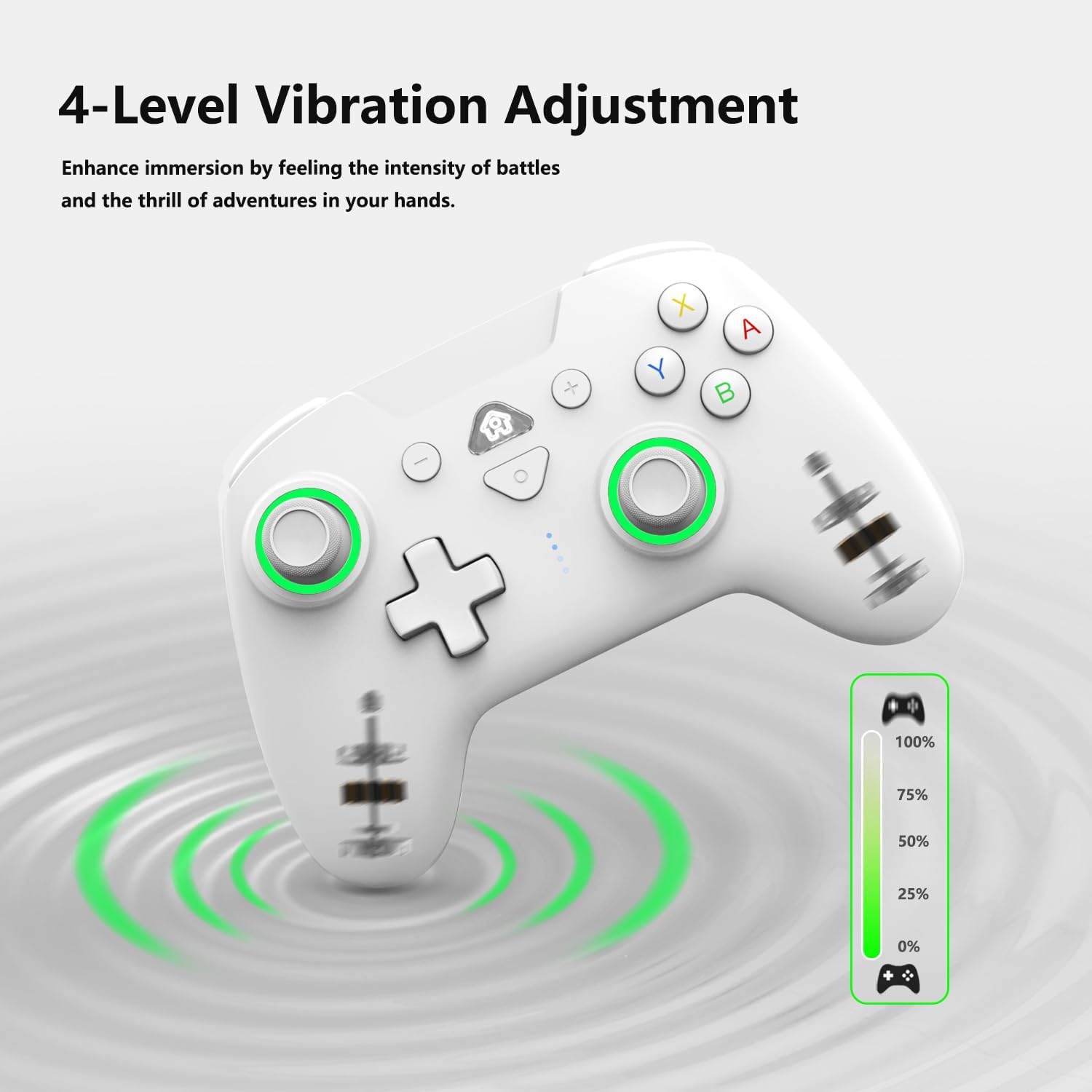
Image: The controller with visual representation of four vibration levels, from 0% to 100%, indicating adjustable intensity.
5.5 RGB Lighting Modes
The joysticks feature customizable 7-color RGB lighting with various modes.
- To change lighting mode: Press the RGB button (usually located near the HOME button) to cycle through modes: Rainbow (multi-color gradient), Fixed Single-Color, Breathing Mode.
- To adjust brightness: While in a lighting mode, press and hold the RGB button and move the Right Analog Stick Up or Down to adjust brightness (4 levels).

Image: The controller showcasing its 7-color LED lights around the joysticks, illustrating single-color loop, fixed single-color, and multi-color gradient modes, along with adjustable brightness levels.
6. Maintenance
- Cleaning: Use a soft, dry cloth to clean the controller. Avoid using harsh chemicals or abrasive materials.
- Storage: Store the controller in a cool, dry place away from direct sunlight and extreme temperatures.
- Battery Care: To prolong battery life, avoid fully discharging the controller frequently. Charge it regularly, even if not in use for extended periods.
- Avoid Drops: Protect the controller from drops and impacts, which can damage internal components.
7. Troubleshooting
- Controller not connecting: Ensure the controller is charged. Re-attempt the pairing process as described in Section 3.2. If using a wired connection, ensure the cable is securely connected.
- Buttons not responding: Check if the controller is properly paired. If a macro was recently programmed, try resetting the controller by pressing the small reset button (if available) or disconnecting and reconnecting.
- Input lag: Ensure you are within the 10-meter operating range for Bluetooth. Minimize interference from other wireless devices.
- Vibration not working: Check the vibration intensity settings (Section 5.4) to ensure it's not set to 0%.
- RGB lights not working: Check the RGB lighting modes (Section 5.5) and brightness settings.
If you encounter persistent issues, please refer to the Warranty and Support section for assistance.
8. Specifications

Image: A visual summary of the controller's key specifications.
| Feature | Detail |
|---|---|
| Model | Switch Pro Controller (B0DHCK32C1) |
| Brand | PeriphX |
| Color | White |
| Connectivity | Bluetooth (Wireless), Type-C (Wired) |
| Battery Capacity | 1000mAh |
| Charging Time | 3-4 hours |
| Operating Range | Up to 10 meters |
| Dimensions | 16.3 x 10.8 x 7.6 cm |
| Weight | Approx. 281g |
| Special Features | Macro Buttons, TURBO Function, 6-Axis Gyro, HD Vibration, RGB Lighting, Wake-up Function |
| Compatible Platforms | Nintendo Switch, Android, PC (Wired), iOS |
9. Warranty and Support
9.1 Quality Guarantee
The PeriphX Switch Pro Controller undergoes strict quality inspection before shipment. It comes with a 1-year quality guarantee from the date of purchase.
9.2 Customer Support
For any questions regarding the product, initial defects, or natural failures during use, please contact the seller's customer service. We aim to respond promptly within 24 hours and provide a resolution.