
Introduction
The Cozyla Mate Digital Calendar+ 2 is an advanced 32-inch wall-mounted touch screen electronic calendar designed to streamline family organization. It integrates various functionalities such as shared calendars, chore management with reward systems, meal planning, and access to Google Play applications, serving as a central hub for household activities.
This manual provides detailed instructions for the setup, operation, maintenance, and troubleshooting of your Digital Calendar+ 2, ensuring optimal performance and user experience.
Key Features
- Family Shared Calendar: Seamlessly syncs with popular calendar applications including Google Calendar, Apple Calendar, and Outlook, allowing all family members to view and manage schedules in one place.
- Chore Chart with Reward System: Assign chores with customizable times and reminders. Features a built-in reward system to motivate participation and foster responsibility.
- Customizable Dashboard: Personalize your home screen with various widgets such as calendar, chore chart, meal planner, media, and weather. Supports both portrait and landscape display modes.
- Family Meal Planner: Plan daily or weekly meals with ease. Generate recipes and grocery lists automatically, simplifying meal preparation.
- Seamless Mobile App Integration: Works in conjunction with the Cozyla+ mobile application, enabling remote management of schedules and events.
- Google Play Apps Support: Install a wide range of applications from the Google Play Store for enhanced functionality and entertainment.

Figure 1: Feature comparison highlighting the comprehensive capabilities of the Cozyla Calendar+ 2.
Setup Guide
1. Unboxing and Inspection
Carefully remove the Digital Calendar+ 2 from its packaging. Inspect all components for any signs of damage. The package should include the calendar unit, mounting bracket, power adapter, screwdriver, and a mini leveler.
2. Wall Mounting
The Digital Calendar+ 2 is designed for wall mounting. Choose a suitable location with a stable wall surface and access to a power outlet. The device supports both portrait and landscape orientations.
- Using the included mini leveler, mark the desired position for the mounting bracket on the wall.
- Securely attach the mounting bracket to the wall using appropriate screws and anchors (not included, depending on wall type). Ensure the bracket is firmly fixed before proceeding.
- Carefully align the Digital Calendar+ 2 with the mounted bracket and slide it into place until it locks securely.

Figure 2: Back of the Digital Calendar+ 2, illustrating the mounting mechanism.
3. Initial Power On and Configuration
- Connect the power adapter to the device and plug it into a wall outlet. The device will automatically power on.
- Follow the on-screen prompts to complete the initial setup, similar to setting up a new Android smartphone. This includes selecting your language, connecting to a Wi-Fi network, and logging into your Google account.
- Once setup is complete, the main dashboard will appear.
Operating Instructions
1. Navigating the Interface
The Digital Calendar+ 2 features a responsive touch screen. Swipe left or right to access different screens or the app drawer. Tap on icons to open applications or widgets.

Figure 3: Overview of the main dashboard interface.
2. Calendar Synchronization
The built-in Cozyla Calendar App allows for seamless synchronization with external calendar services.
- Navigate to the Calendar settings within the Cozyla Calendar App.
- Select 'Add Account' and choose your preferred calendar service (Google Calendar, Apple Calendar, Outlook, etc.).
- Follow the on-screen instructions to grant necessary permissions for synchronization.
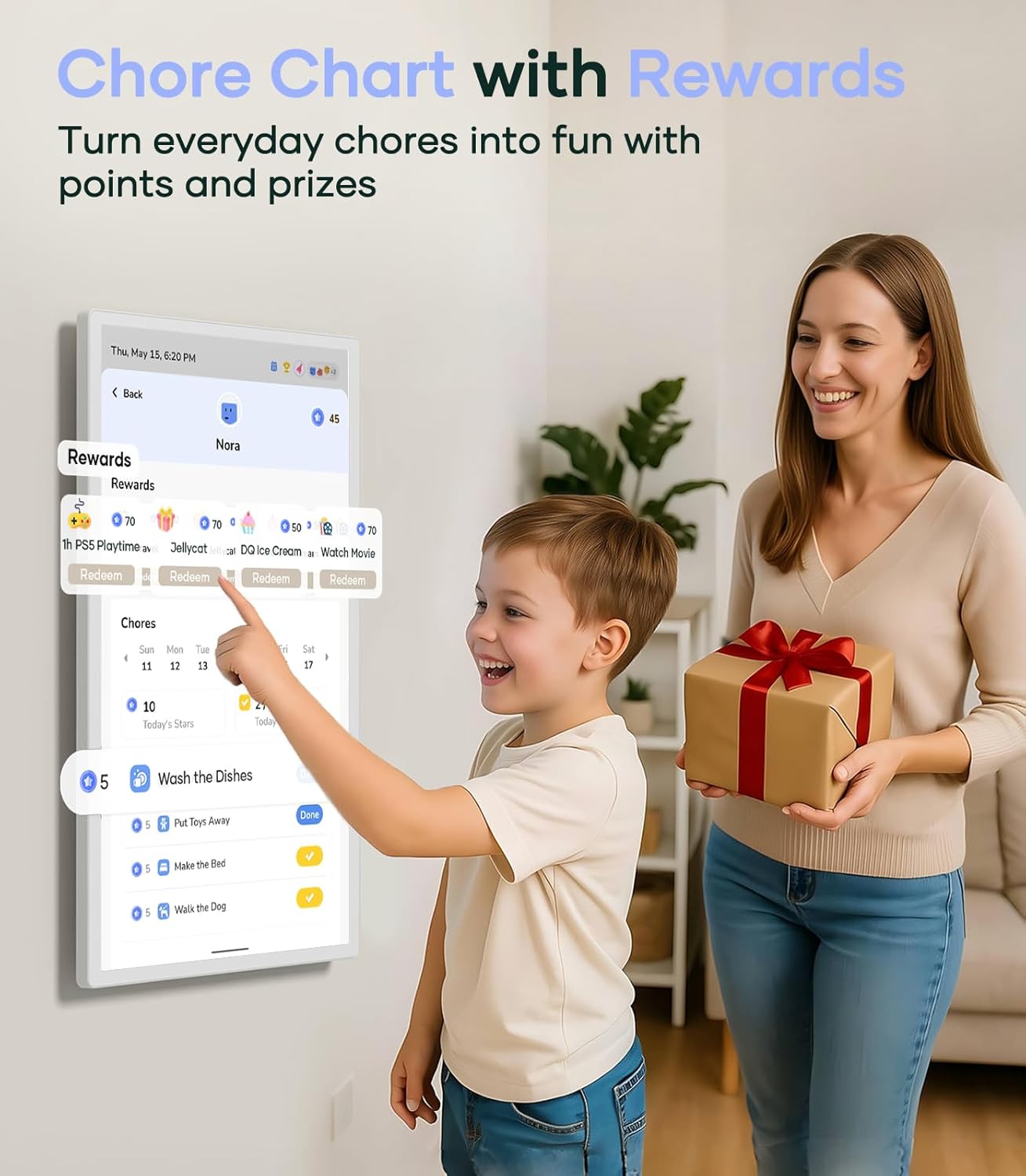
Figure 4: Shared Family Calendar interface with supported external calendar services.
3. Managing Chores and Rewards
The chore chart feature helps organize household tasks and motivate family members.
- Access the Chore Chart widget or app from the dashboard.
- Tap 'Add Chore' to create new tasks. Assign tasks to specific family members, set due times, and add reminders.
- Utilize the built-in reward system by assigning points to completed chores. Points can be redeemed for customizable rewards.

Figure 5: Chore Chart with Rewards system in action.
4. Using the Meal Planner
Plan your family's meals and generate grocery lists efficiently.
- Open the Meal Planner widget or app.
- Select 'Daily' or 'Weekly Plan' to add meals. You can search for recipes or input your own.
- Once meals are planned, tap 'Generate Grocery List' to automatically compile a shopping list based on the ingredients.

Figure 6: Easy Meal Planner interface.
5. Customizing the Dashboard
Personalize your home screen with various widgets to suit your family's needs.
- Press and hold on an empty area of the dashboard to enter customization mode.
- Drag and drop available widgets (e.g., calendar, chore chart, meal planner, weather, notes, media) onto your screen.
- Resize widgets by dragging their edges.

Figure 7: Customizing the dashboard with drag-and-drop widgets.
6. Google Play Apps
The Digital Calendar+ 2 runs on an Android system, allowing you to download and install applications from the Google Play Store.
- Access the Google Play Store from the app drawer.
- Search for and install desired applications.
- Note: While most apps can be installed, not all may have dedicated widgets for direct display on the main dashboard. They can still be accessed via the app drawer.

Figure 8: Accessing various applications from the Google Play Store.
7. Smart Auto-Rotation
The device automatically detects its orientation and switches between portrait and landscape modes, optimizing the display for your content and preference.
Maintenance
1. Cleaning the Screen
To clean the touch screen, use a soft, lint-free cloth. For stubborn smudges, slightly dampen the cloth with water or a screen-safe cleaning solution. Avoid abrasive materials or harsh chemicals.
2. Software Updates
Ensure your device is connected to Wi-Fi to receive automatic software updates. These updates provide new features, performance improvements, and security enhancements. You can manually check for updates in the device settings.
Troubleshooting
| Problem | Possible Cause | Solution |
|---|---|---|
| Device does not power on. | Power cable not connected or power outlet issue. | Ensure power cable is securely connected to the device and a working power outlet. Try a different outlet. |
| Touch screen is unresponsive. | Temporary software glitch or screen obstruction. | Restart the device. Ensure the screen is clean and free of debris. |
| Cannot connect to Wi-Fi. | Incorrect password, out of range, or router issue. | Verify Wi-Fi password. Move device closer to router. Restart router. |
| Calendar not syncing. | Incorrect account settings or network issue. | Check account login details and synchronization settings in the Cozyla Calendar App. Ensure stable internet connection. |
If you encounter issues not listed here or require further assistance, please contact Cozyla Mate customer service.
Specifications
| Attribute | Detail |
|---|---|
| Brand | Cozyla Mate |
| Model Number | CD-7V541F |
| Screen Size | 32 inch |
| Color | White |
| Item Weight | 34.6 pounds |
| Product Dimensions | 28.87 x 28.87 x 17 inches (or 28.87"W x 17"H for display area) |
| Operating System | Android |
| Connectivity | Wi-Fi |
| UPC | 792105798042 |
Warranty and Support
Cozyla Mate is committed to customer satisfaction and provides comprehensive support for your Digital Calendar+ 2.
- 180-Day Quality Guarantee: Ensures the product meets quality standards for 180 days from purchase.
- Lifetime Warranty: Provides long-term coverage for manufacturing defects.
- 30-Day Free Trial: Allows you to experience the product with a satisfaction guarantee.
- 24/7 Fast Support: Dedicated customer service is available 24 hours a day, 7 days a week, to assist with any issues or inquiries.
For support, please refer to the contact information provided with your product or visit the official Cozyla Mate website.