
1. Introduction
This manual provides comprehensive instructions for the setup, operation, maintenance, and troubleshooting of your ACEMAGICIAN Mini Gaming PC. Designed for high performance in a compact form factor, this mini PC is equipped with an AMD Ryzen 7 6800H processor and Radeon 680M Graphics, offering powerful computing for gaming, multimedia, and professional applications.

Figure 1: ACEMAGICIAN Mini Gaming PC (Model M1)
2. What's in the Box
Upon opening your ACEMAGICIAN Mini Gaming PC package, you should find the following components:
- 1 x M1 Mini PC
- 1 x HDMI Cable
- 1 x User Manual
- 1 x Power Adapter
- 1 x VESA Mount with Screws

Figure 2: Included accessories and main unit.
3. Setup Guide
Follow these steps to set up your ACEMAGICIAN Mini Gaming PC:
- Connect to Power: Plug the power adapter into the DC IN port on the back of the mini PC and then into a power outlet.
- Connect to Display: Use the provided HDMI cable to connect the mini PC to your monitor or TV. The device supports triple display output via HDMI, DisplayPort, and Type-C ports.
- Connect Peripherals: Plug in your keyboard and mouse into the available USB ports. The mini PC features multiple USB 3.0 ports and a full-featured USB 3.2 Gen 2 Type-C port.
- Network Connection: For internet access, connect an Ethernet cable to the 2.5Gbps LAN port or connect wirelessly via Wi-Fi 6.
- Power On: Press the power button located on the front of the mini PC to turn it on.

Figure 3: Front and rear interface ports for connectivity.
For a visual guide on unpacking and initial setup, please refer to the official video below:
Video 1: ACEMAGICIAN AMD Ryzen 7 6800H Unpacking Details. This video demonstrates the unboxing process and highlights the various ports and accessories included with the mini PC.
4. Operating Instructions
Your ACEMAGICIAN Mini Gaming PC comes pre-installed with Windows 11 Pro, providing a familiar and user-friendly operating environment.
- First Boot: Upon the first power-on, you will be guided through the Windows 11 setup process, including language selection, network configuration, and user account creation.
- Connectivity: Utilize the Wi-Fi 6 and Bluetooth 5.2 for seamless wireless connections to networks and peripherals. The 2.5Gbps LAN port ensures high-speed wired internet.
- Multi-Display Setup: Connect up to three 4K displays simultaneously using the HDMI, DisplayPort, and Type-C outputs for enhanced productivity or immersive gaming.
- Storage Expansion: The mini PC supports storage expansion by adding a 2.5" SSD (not included) or upgrading the M.2 2280 SSDs up to 4TB.
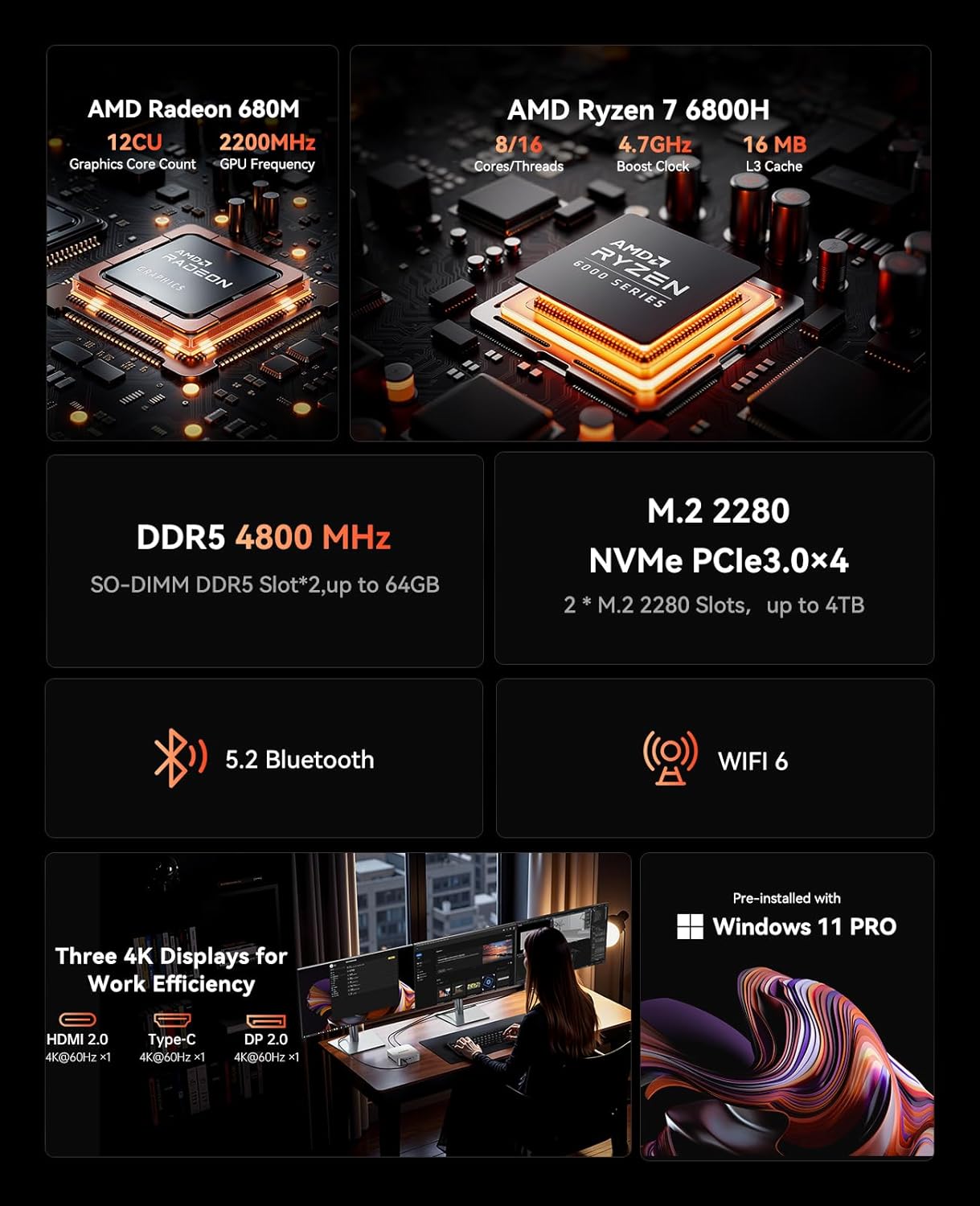
Figure 4: Overview of key components including CPU, GPU, RAM, and storage options.
The powerful AMD Ryzen 7 6800H processor and Radeon 680M Graphics ensure smooth performance for demanding applications and games. The high-speed dual-channel 16GB DDR5 RAM (expandable up to 64GB) allows for efficient multitasking.
5. Maintenance
To ensure the longevity and optimal performance of your ACEMAGICIAN Mini Gaming PC, regular maintenance is recommended:
- Dust Removal: Periodically clean the ventilation grilles and internal components (if comfortable opening the case) to prevent dust buildup, which can hinder cooling and performance. Use compressed air for best results.
- Software Updates: Keep your Windows operating system and drivers updated to the latest versions. This ensures security, stability, and optimal hardware performance.
- Temperature Monitoring: Ensure the mini PC is placed in a well-ventilated area to allow for proper airflow. Avoid blocking the air vents.
- Cable Management: Keep cables organized and untangled to prevent damage and ensure proper airflow around the device.

Figure 5: Internal cooling design for efficient heat dissipation.
6. Troubleshooting
If you encounter issues with your mini PC, refer to the following common troubleshooting steps:
| Problem | Possible Cause | Solution |
|---|---|---|
| No Power | Power cable not connected; Power outlet issue. | Ensure power adapter is securely connected. Try a different power outlet. |
| No Display | HDMI/DP cable loose; Incorrect input source on monitor. | Check display cable connections. Select correct input source on your monitor. |
| Slow Performance | Too many background applications; Overheating; Outdated drivers. | Close unnecessary programs. Ensure proper ventilation. Update drivers. |
| No Wi-Fi/Bluetooth | Drivers not installed; Wireless adapter disabled. | Check Device Manager for driver status. Enable Wi-Fi/Bluetooth in Windows settings. |
If the issue persists after trying these steps, please contact ACEMAGICIAN customer support.
7. Specifications
| Feature | Detail |
|---|---|
| Processor | AMD Ryzen 7 6800H (8C/16T, up to 4.7GHz) |
| Graphics | AMD Radeon 680M Graphics (12 core, 2200 MHz) |
| RAM | 16GB DDR5 (Dual Channel, expandable up to 64GB) |
| Storage | 512GB SSD (M.2 2280, expandable up to 4TB) |
| Operating System | Windows 11 Pro |
| Video Output | HDMI 2.0, DisplayPort 2.0, USB3.2 Gen2 Type-C (Supports 4K Triple Display) |
| USB Ports | 2 x USB 2.0, 6 x USB 3.0, 1 x USB 3.2 Gen 2 Type-C |
| Network | 2.5Gbps LAN, Wi-Fi 6, Bluetooth 5.2 |
| Dimensions | 5.19 x 5.19 x 1.96 inches |
| Weight | 2.2 pounds |
8. Warranty and Support
Your ACEMAGICIAN Mini Gaming PC is covered by a complete 12-month assurance from the date of purchase. For any questions or assistance, please contact ACEMAGICIAN customer service.
ACEMAGICIAN is committed to providing high-quality products and excellent after-sales service. For technical support or inquiries, you may:
- Log in to your Amazon buyer account, find your order, and click "Get Help".
- Contact support via email: service@acemagicians.com
- Call customer service: +1 800 908 1980 (US)
All ACEMAGICIAN mini PC computers have FCC, ROHS, and CE certifications, ensuring product quality and safety standards.