
1. Introduction
This manual provides instructions for the proper use and maintenance of your Maya Movil MIFI ZLT-M30 4G Portable Wi-Fi Router. The ZLT-M30 is designed to provide high-speed portable internet connectivity, allowing you to connect up to 10 devices simultaneously. It includes a Maya Movil SIM card with 10GB of data valid for 30 days. Please read this manual thoroughly before operating the device.
2. Package Contents
Verify that all items are present in the package:
- Maya Movil MIFI ZLT-M30 4G Router
- Maya Movil SIM Card (with 10GB data, 30-day validity)
- Micro-USB Cable
- Rechargeable Battery
3. Device Overview
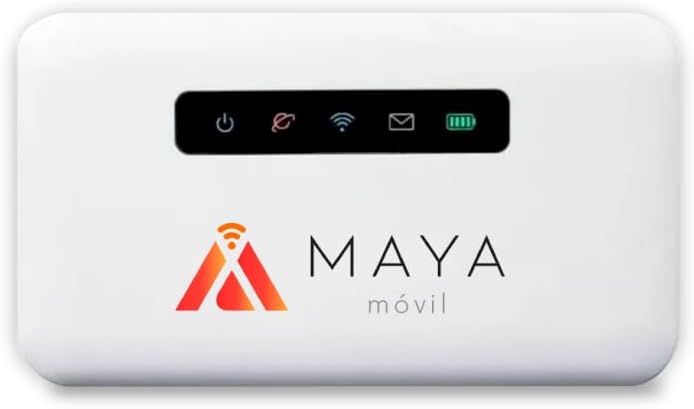
Image 3.1: Front view of the Maya Movil MIFI ZLT-M30. The device is white with a black indicator panel at the top. The panel displays icons for power, network status, Wi-Fi, messages, and battery level. Below the panel is the "MAYA móvil" logo with an orange and red stylized 'A' icon representing a Wi-Fi signal.
Indicator Lights:
- Power Indicator: Shows device power status.
- Network Status Indicator: Displays cellular network connection status (e.g., 4G, 3G, no signal).
- Wi-Fi Indicator: Indicates Wi-Fi functionality status.
- Message Indicator: Alerts for new messages (e.g., SMS from network provider).
- Battery Indicator: Shows current battery level.
4. Setup
4.1. SIM Card and Battery Installation
- Open the Back Cover: Gently remove the back cover of the MIFI device.
- Insert SIM Card: Locate the SIM card slot. Insert the Maya Movil SIM card into the slot with the gold contacts facing down and the notched corner aligned correctly. Ensure it clicks into place.
- Insert Battery: Place the rechargeable battery into its compartment, ensuring the contacts align with those on the device.
- Close Back Cover: Replace the back cover until it securely snaps into place.
4.2. Charging the Device
Before first use, fully charge the MIFI device.
- Connect the Micro-USB cable to the charging port on the MIFI device.
- Connect the other end of the USB cable to a compatible USB power adapter (not included) or a computer's USB port.
- The battery indicator light will show charging status. Once fully charged, the indicator will change (refer to device specific behavior, usually solid green or off).
4.3. Powering On/Off
- To Power On: Press and hold the Power button (usually located on the side or top) for a few seconds until the indicator lights illuminate.
- To Power Off: Press and hold the Power button again for a few seconds until the indicator lights turn off.
5. Operating Instructions
5.1. Connecting Devices via Wi-Fi
Once the MIFI device is powered on and has established a cellular network connection (indicated by the network status light), you can connect your Wi-Fi enabled devices.
- Find Network Name (SSID): On your device (smartphone, tablet, laptop), go to the Wi-Fi settings. Look for the Wi-Fi network name (SSID) of your Maya Movil MIFI. This is typically printed on a sticker inside the battery compartment or on the device itself.
- Enter Password: Select the MIFI's SSID from the list of available networks. When prompted, enter the Wi-Fi password (also known as the Wi-Fi Key or WPA/WPA2 key), which is usually found next to the SSID.
- Connect: Confirm the connection. Your device should now be connected to the internet via the MIFI.
The Maya Movil MIFI ZLT-M30 supports up to 10 simultaneous connections.
5.2. Accessing the Web Management Interface
For advanced settings, such as changing the Wi-Fi name or password, viewing data usage, or managing connected devices, you can access the MIFI's web management interface.
- Ensure your device is connected to the MIFI's Wi-Fi network.
- Open a web browser (e.g., Chrome, Firefox, Safari) on your connected device.
- In the address bar, type the default IP address for the MIFI (e.g., 192.168.0.1 or 192.168.1.1). Refer to the device's sticker or packaging for the exact IP address.
- Enter the default username and password when prompted (commonly "admin" for both, but check your device's documentation).
- You can now configure various settings.
It is recommended to change the default administrator password for security reasons.
6. Maintenance
- Cleaning: Use a soft, dry cloth to clean the device. Do not use liquid cleaners or aerosols.
- Storage: Store the device in a cool, dry place away from direct sunlight and extreme temperatures.
- Battery Care: Avoid fully discharging the battery frequently. If storing for a long period, charge the battery to about 50% and recharge every few months.
- Software Updates: Periodically check the web management interface for available firmware updates to ensure optimal performance and security.
7. Troubleshooting
| Problem | Possible Cause | Solution |
|---|---|---|
| No power | Battery discharged or not properly inserted. | Charge the device. Ensure the battery is correctly installed. |
| No internet connection | No cellular signal, SIM card issue, data plan expired. | Check network status indicator. Move to an area with better signal. Reinsert SIM card. Verify data plan validity with Maya Movil. |
| Cannot connect to Wi-Fi | Incorrect Wi-Fi password, MIFI Wi-Fi off, too many connected devices. | Verify Wi-Fi password. Check Wi-Fi indicator on MIFI. Disconnect some devices if 10 are already connected. |
| Slow internet speed | Weak signal, network congestion, data throttling. | Move to an area with stronger signal. Reduce number of connected devices. Contact Maya Movil if issue persists. |
8. Specifications
| Model Name | ZLT M30 |
| Brand | Maya Movil |
| Connectivity Technology | LTE, USB, Wi-Fi |
| Maximum Uplink Data Transfer Speed | 50 Megabits Per Second |
| Compatible Devices | Security Camera, Personal Computer, Smart TV, Smartphone, Tablet, Smart Thermostat, Video Game Console |
| Battery Type | Lithium Polymer |
| Rechargeable Battery Included | Yes |
| Dimensions (Package) | 10.5 x 6 x 1.8 cm |
| Weight (Package) | 75 g |
9. Warranty and Support
For warranty information and technical support, please refer to the documentation provided with your purchase or contact Maya Movil customer service directly.
Maya Movil offers a 30-day free return policy for this product. Extended warranty options may be available through third-party providers.


